> ## Documentation Index
> Fetch the complete documentation index at: https://docs.abbyy.com/llms.txt
> Use this file to discover all available pages before exploring further.
# Manually reviewing documents
> Review extracted data against the document image in the ABBYY Vantage Manual Review Client, customize table columns, and escalate tasks to other operators.
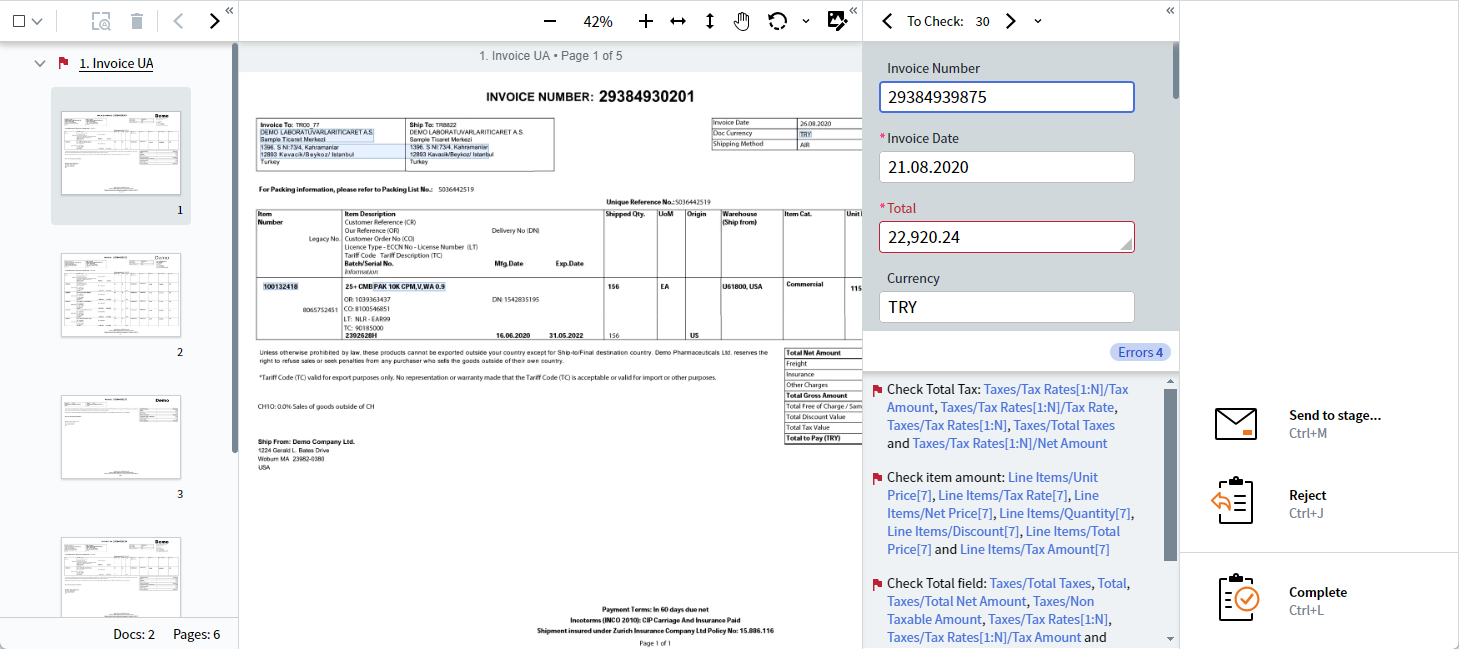
The **data form** displays the extracted data in the corresponding fields. To review the data, check for errors and low-confidence characters by comparing every field in the data form to the values on the **document image**, and fix any errors if necessary. After you have reviewed the document, navigate to the next document in the **list of documents**.
 ## Working with the document list
You can use the document list to switch between all documents pertaining to a specific task, as well as change the document type for one, several, or all documents. To make navigating between your documents more convenient, we recommend that you use the toolbar located above the list.
If needed, you can change the orientation of one or all pages in a document or revert all pages in a document back to their original images. For more information, see [Working with document images](/vantage/documentation/runtime/manual-review/document-image).
## Hiding table columns
By default, tables on the data form display columns according to these rules:
* If all columns have values, all columns are shown.
* If all columns are empty, all columns are shown.
* If at least one column has a value or contains an error, empty columns are hidden (except the column with a value or error).
Sometimes, displaying many columns makes table verification difficult. You can customize which columns appear in each table.
Click the table menu icon in the upper left corner of the table. The column display menu opens.
## Working with the document list
You can use the document list to switch between all documents pertaining to a specific task, as well as change the document type for one, several, or all documents. To make navigating between your documents more convenient, we recommend that you use the toolbar located above the list.
If needed, you can change the orientation of one or all pages in a document or revert all pages in a document back to their original images. For more information, see [Working with document images](/vantage/documentation/runtime/manual-review/document-image).
## Hiding table columns
By default, tables on the data form display columns according to these rules:
* If all columns have values, all columns are shown.
* If all columns are empty, all columns are shown.
* If at least one column has a value or contains an error, empty columns are hidden (except the column with a value or error).
Sometimes, displaying many columns makes table verification difficult. You can customize which columns appear in each table.
Click the table menu icon in the upper left corner of the table. The column display menu opens.
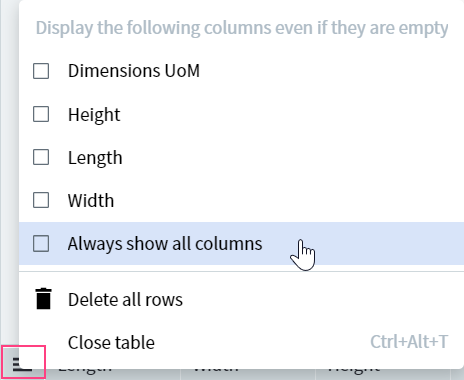 Select the columns to display in the table. If you enable **Always show all columns**, all columns appear, including empty ones.
If you disable **Always show all columns**, empty columns are not hidden immediately. Refresh the page for the change to take effect.
To delete all rows in the table, choose **Delete all rows**. All rows except the last are deleted; the last row is cleared.
To change the default width of a column, drag the separator between the column headings.
## Starting a new extraction
The program prompts you to start a new extraction every time you perform any of these actions:
* Changing a document type
* Rotating a document image
* Rotating a document list
* Manually cropping a document
If you choose **Extract Data** in the dialog that pops up, the program starts the extraction again.
If you do not choose **Extract Data**, you must manually fill in any empty fields that appear on the data form after you modify the document.
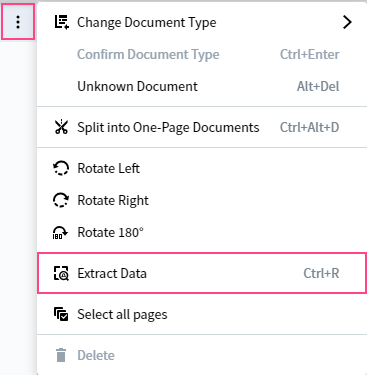
You can also start the extraction manually. To do so, click the extraction icon on the toolbar. Alternatively, click the more options icon either in the toolbar or next to the document and select **Extract Data**.
Select the columns to display in the table. If you enable **Always show all columns**, all columns appear, including empty ones.
If you disable **Always show all columns**, empty columns are not hidden immediately. Refresh the page for the change to take effect.
To delete all rows in the table, choose **Delete all rows**. All rows except the last are deleted; the last row is cleared.
To change the default width of a column, drag the separator between the column headings.
## Starting a new extraction
The program prompts you to start a new extraction every time you perform any of these actions:
* Changing a document type
* Rotating a document image
* Rotating a document list
* Manually cropping a document
If you choose **Extract Data** in the dialog that pops up, the program starts the extraction again.
If you do not choose **Extract Data**, you must manually fill in any empty fields that appear on the data form after you modify the document.
You can also start the extraction manually. To do so, click the extraction icon on the toolbar. Alternatively, click the more options icon either in the toolbar or next to the document and select **Extract Data**.
 This button is available in the toolbar only if one or several documents are selected in the batch editor.
## Sending tasks to a specific stage or operator
Document verification may include several manual review stages, with a different operator responsible for each. For example, a more experienced operator may need to review tasks that were earlier reviewed by a junior operator. An operator can also forward a specific document to another operator who is an expert in that particular type of document.
You can send a task to:
* **Any** — any available operator.
* **The reviewer of these documents** — the operator who reviewed the task earlier.
* **Specific user** — a specific operator, who automatically receives this task ahead of all other available tasks.
To send a task to another stage and operator:
In the **Actions** pane, click **Send to stage...**.
In the **Stage** drop-down list, select the necessary stage. By default, the first stage in the list is selected.
In the **Assigned Operator** drop-down list, select the next operator. By default, **Any** is selected.
If needed, leave a comment for the next operator.
Click **Send**.
After you click **Send**, you receive the next task from the queue. If there is no available task in the queue, the [standby screen](/vantage/documentation/runtime/manual-review/standby-screen) appears.
## Changing the UI language
ABBYY Vantage supports changing the UI language in the Manual Review Client using a URL in the address bar. For example, this might be necessary when the Manual Review Operator uses a language different to that of the Skill Designer.
To change a language directly from the Manual Review Client, specify the necessary language in the `lang=` parameter of the URL.
If the specified language is not in the list of available languages, the page loads in English.
## Related topics
Overview of how Manual Review works in Vantage
Receive, resume, and withdraw tasks in the Manual Review Client
Crop, rotate, and restore document images during review
Update a document's assigned type when it's incorrect or low-confidence
Fix format and rule errors on the data form using hotkeys
Complete or reject a task and return it to the queue
What happens when no tasks are available in the queue
This button is available in the toolbar only if one or several documents are selected in the batch editor.
## Sending tasks to a specific stage or operator
Document verification may include several manual review stages, with a different operator responsible for each. For example, a more experienced operator may need to review tasks that were earlier reviewed by a junior operator. An operator can also forward a specific document to another operator who is an expert in that particular type of document.
You can send a task to:
* **Any** — any available operator.
* **The reviewer of these documents** — the operator who reviewed the task earlier.
* **Specific user** — a specific operator, who automatically receives this task ahead of all other available tasks.
To send a task to another stage and operator:
In the **Actions** pane, click **Send to stage...**.
In the **Stage** drop-down list, select the necessary stage. By default, the first stage in the list is selected.
In the **Assigned Operator** drop-down list, select the next operator. By default, **Any** is selected.
If needed, leave a comment for the next operator.
Click **Send**.
After you click **Send**, you receive the next task from the queue. If there is no available task in the queue, the [standby screen](/vantage/documentation/runtime/manual-review/standby-screen) appears.
## Changing the UI language
ABBYY Vantage supports changing the UI language in the Manual Review Client using a URL in the address bar. For example, this might be necessary when the Manual Review Operator uses a language different to that of the Skill Designer.
To change a language directly from the Manual Review Client, specify the necessary language in the `lang=` parameter of the URL.
If the specified language is not in the list of available languages, the page loads in English.
## Related topics
Overview of how Manual Review works in Vantage
Receive, resume, and withdraw tasks in the Manual Review Client
Crop, rotate, and restore document images during review
Update a document's assigned type when it's incorrect or low-confidence
Fix format and rule errors on the data form using hotkeys
Complete or reject a task and return it to the queue
What happens when no tasks are available in the queue