> ## Documentation Index
> Fetch the complete documentation index at: https://docs.abbyy.com/llms.txt
> Use this file to discover all available pages before exploring further.
# Train a classifier
> Create a training set, assign documents to classes, and train a Classification skill in the Skill Designer.
To train a classifier, you will need a training set that contains documents that have already been assigned a reference class (the class you've assigned as ground truth for training).
## Prerequisites
* A Classification skill [created](/vantage/documentation/skill-catalog/create-skill) and opened in the Skill Designer.
* Documents to use as training samples, in a [supported file format](/vantage/documentation/tenant-admin/technical-specs/formats).
## Create a training set
In the Classification Skill Designer, open the **Documents** tab.
Use the **Create Class** command in the **Actions** pane, or click **Create class** above the class list on the left side of the screen.
To rename an existing class, click the icon next to the class name and select **Rename class**.
Select a class from the class list, then upload documents using one of the following:
* **Upload documents** in the center of the Classification Skill screen
* The **Upload** button in the toolbar
* **Upload Documents** in the **Actions** pane
When documents are being uploaded, a progress indicator is displayed at the top of the Skill Designer, to the right of the bookmarks. The indicator tooltip contains information about the number of documents that still need to be uploaded and processed.
Documents uploaded to the **No class** group are not used for classifier training and testing. If a file fails to upload — for example, because it's in an unsupported format — its name is displayed in red.
### Training set size
For each class, the number of documents in that class is displayed. Aim for the following:
* If your document set contains very few classes, or the classes differ significantly from each other, you can have a small number of documents per class.
* If you have many classes, or the differences between classes are subtle, upload between 10 and 100 documents for each class. Fewer documents in this case may result in classification errors.
* Do not upload more than 1,000 documents for a single class.
* To maximize accuracy, include one sample document per common variant of each class.
### View and preview documents
By default, uploaded documents are displayed as a list, which is easy to navigate if files have informative names. You can also switch to thumbnail view, which may be preferable for visually distinct documents. Use the toolbar buttons to switch between **List view** and **Thumbnail view**. If more than 50 documents are uploaded, they are displayed across multiple pages.
To preview a document, click the button to the left of its name. Drag the left border of the preview window to resize it.
### Rotate document pages
To rotate document pages:
* Click **Rotate** in the toolbar to rotate 90° counter-clockwise.
* Or pick **Rotate Left**, **Rotate Right**, or **Rotate 180°** from the drop-down list.
* You can also rotate a single document from its preview window.
### Change a document's assigned class
1. Mark one or several documents by selecting the checkbox to the left of their names.
2. In the **Actions** pane, select the appropriate class and click **Assign**. If the correct class does not appear in the list, enter a new name in the **Search for class** field and click **Create**.
### Remove documents from the set
You can remove documents in one of the following ways:
* Mark one or several documents by selecting the checkbox to the left of their names. You can mark all documents of a specific class by selecting the checkbox next to the class name above the document list (if the class spans several pages, only documents on the current page are marked). Click the icon next to one of the marked documents and then click **Delete**. Confirm your choice in the dialog box.
* Click the icon next to a class name in the class list and then click **Delete All Documents**. Confirm your choice. This deletes all documents in the selected class. Alternatively, click **Delete Class with All Documents** to delete the class itself along with its documents.
You can delete a single document without marking it first — click the icon next to its name.
## Train the classifier
The training set must contain at least two different non-empty classes. Until that's true, the **Train** button stays disabled.
To train a classifier using a prepared training set, click the **Train** button in the **Actions** pane.
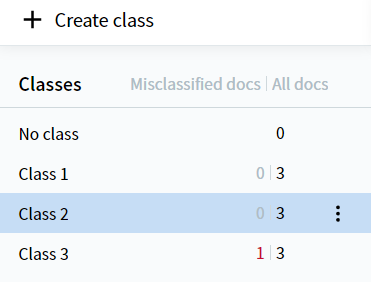
Once training is complete, the **Completed** icon is displayed next to the **Train** button. The class list in the **Documents** tab also updates: in addition to the number of uploaded documents per class, it shows the number of documents whose predicted class differs from the reference class.
 To stop training, click **Cancel** under the **Train** button in the **Actions** pane.
## Troubleshooting
If the trained classifier produces poor results, open the **Result** tab and review the per-class accuracy. Common causes and how to fix them:
* **Incorrectly assigned reference classes.** Reassign the affected documents to the correct class and retrain.
* **Not enough training documents, or an uneven distribution across classes.** Add more samples — aim for 100–1,000 per class, with roughly one document per common variant.
* **Confused classes** that don't differ enough in their parameters. Merge them into a single class and, if needed, separate the documents later in the pipeline based on extracted data.
For the full walkthrough, see [Analyze the classification results](/vantage/documentation/skill-designer/classification/analyze-classifier-result).
## Related topics
Review per-class accuracy in the Result tab and fix common training-set errors.
Step-by-step ABBYY Support article on creating and training a Classification skill in Vantage.
To stop training, click **Cancel** under the **Train** button in the **Actions** pane.
## Troubleshooting
If the trained classifier produces poor results, open the **Result** tab and review the per-class accuracy. Common causes and how to fix them:
* **Incorrectly assigned reference classes.** Reassign the affected documents to the correct class and retrain.
* **Not enough training documents, or an uneven distribution across classes.** Add more samples — aim for 100–1,000 per class, with roughly one document per common variant.
* **Confused classes** that don't differ enough in their parameters. Merge them into a single class and, if needed, separate the documents later in the pipeline based on extracted data.
For the full walkthrough, see [Analyze the classification results](/vantage/documentation/skill-designer/classification/analyze-classifier-result).
## Related topics
Review per-class accuracy in the Result tab and fix common training-set errors.
Step-by-step ABBYY Support article on creating and training a Classification skill in Vantage.