> ## Documentation Index
> Fetch the complete documentation index at: https://docs.abbyy.com/llms.txt
> Use this file to discover all available pages before exploring further.
# Group field
> Add a Group field to a Document skill to bundle related fields (like an address or contact block), and configure repeating groups.
A Group field bundles data related to a single entity — for example, a person or a company. It can contain fields of any type.
## Add a Group
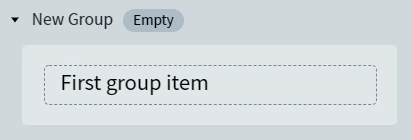
To add a group, click **Add Group** in the toolbar, or press **Ctrl + G**. An empty group appears in the data form. Click the **First group item** placeholder to add the first field to the group.
 ## Add fields to a Group
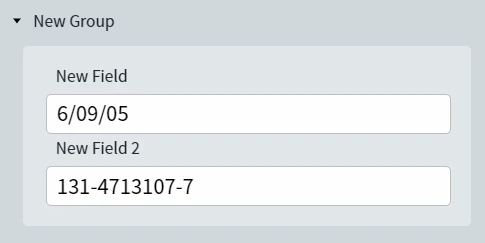
When a group is in focus, any new field you add (via the toolbar or by drawing a region on the document) is placed inside the group. Select a field inside a group to switch focus to it.
Fields inside a group use the same properties as standalone fields. See [Text field](/vantage/documentation/skill-designer/document/adding-fields/text) and the other field-type topics.
## Rename a Group
Double-click the group name in the data form and type the new name.
## Expand and collapse a Group
Click a group name to expand or collapse it. When a group is collapsed, the value of its first field appears beneath the group name.
A group auto-expands when its fields contain low-confidence characters or rule errors, and auto-collapses otherwise.
## Add fields to a Group
When a group is in focus, any new field you add (via the toolbar or by drawing a region on the document) is placed inside the group. Select a field inside a group to switch focus to it.
Fields inside a group use the same properties as standalone fields. See [Text field](/vantage/documentation/skill-designer/document/adding-fields/text) and the other field-type topics.
## Rename a Group
Double-click the group name in the data form and type the new name.
## Expand and collapse a Group
Click a group name to expand or collapse it. When a group is collapsed, the value of its first field appears beneath the group name.
A group auto-expands when its fields contain low-confidence characters or rule errors, and auto-collapses otherwise.
 ## General properties
| Property | Description |
| :----------------------- | :------------------------------------------------------------------------------------------------------------------------------------------ |
| **Field name** | Unique within the skill. Cannot contain: `. , / : * ? " < > \|`. Maximum length: 90 characters. |
| **Allow multiple items** | Whether the group can repeat (for example, multiple children or accounts). A repeating group can contain nested groups, tables, and fields. |
The maximum nesting depth is 3. A level-1 repeating group can contain nested repeating or non-repeating elements. A level-2 repeating group cannot contain child repeating groups, repeating fields, or tables.
## Enable repeating Groups
Click the settings button near the group.
Click **Advanced**.
Select **Allow multiple items**.
## General properties
| Property | Description |
| :----------------------- | :------------------------------------------------------------------------------------------------------------------------------------------ |
| **Field name** | Unique within the skill. Cannot contain: `. , / : * ? " < > \|`. Maximum length: 90 characters. |
| **Allow multiple items** | Whether the group can repeat (for example, multiple children or accounts). A repeating group can contain nested groups, tables, and fields. |
The maximum nesting depth is 3. A level-1 repeating group can contain nested repeating or non-repeating elements. A level-2 repeating group cannot contain child repeating groups, repeating fields, or tables.
## Enable repeating Groups
Click the settings button near the group.
Click **Advanced**.
Select **Allow multiple items**.
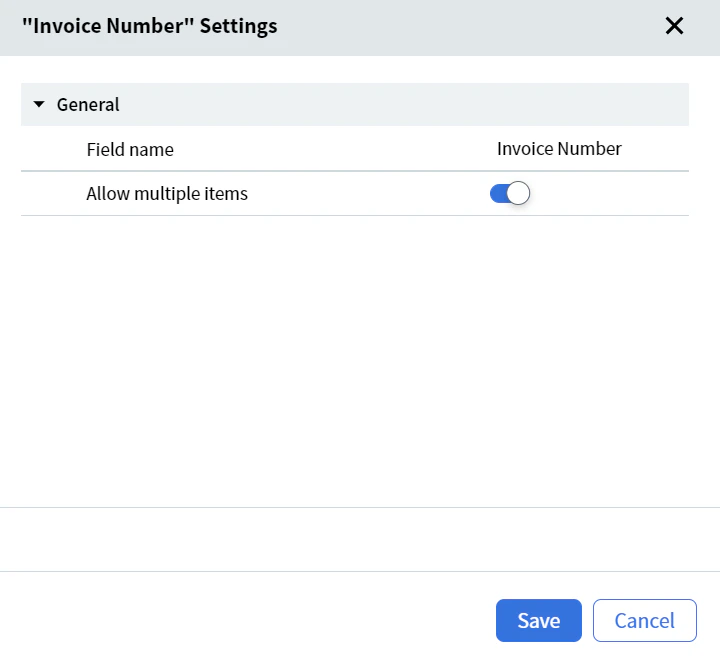 If you turn off **Allow multiple items**, all instances except the first are deleted.
### Add a new item
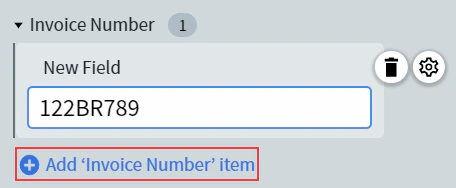
Click **Add *\[group-name]* item**, where *\[group-name]* is the name of your group.
If you turn off **Allow multiple items**, all instances except the first are deleted.
### Add a new item
Click **Add *\[group-name]* item**, where *\[group-name]* is the name of your group.
 ## Related topics
* [Text field](/vantage/documentation/skill-designer/document/adding-fields/text)
* [Table field](/vantage/documentation/skill-designer/document/adding-fields/table)
* [Label documents in Skill Designer](/vantage/documentation/skill-designer/document/labeling-documents)
* [Add fields](/vantage/documentation/skill-designer/document/adding-fields/adding-fields)
## Related topics
* [Text field](/vantage/documentation/skill-designer/document/adding-fields/text)
* [Table field](/vantage/documentation/skill-designer/document/adding-fields/table)
* [Label documents in Skill Designer](/vantage/documentation/skill-designer/document/labeling-documents)
* [Add fields](/vantage/documentation/skill-designer/document/adding-fields/adding-fields)