> ## Documentation Index
> Fetch the complete documentation index at: https://docs.abbyy.com/llms.txt
> Use this file to discover all available pages before exploring further.
# Table field
> Add a Table field to a Document skill, map cells to document regions, and configure column properties.
A Table field extracts tabular data — rows of repeating values like line items, invoice charges, or address blocks. Each column is a single repeating field, so all cells in a column share the same data type and properties.
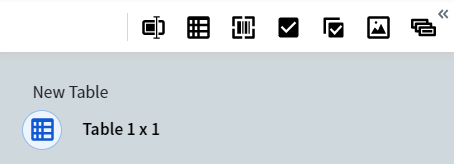
To add a table to your document, click **Add Table** in the toolbar. A 1×1 table appears in the data form.
 ## Open and close a table
To **open** a table, click the icon under its name in the data form, or click the table's region on the document image. The icon of the open table is highlighted in blue inside a cyan circle.
To **close** a table, do any of the following:
* Click the icon under the table name.
* Click a different field in the data form.
* From a row or column dropdown menu, select **Close table**.
* From the table menu (icon in the upper-left corner of the table), select **Close table**.
## Populate a table
### Add a value to a cell
1. Select the cell with the cursor.
2. Mark a region on the document image. Vantage extracts the data from the region into the selected cell.
If you mark a second region immediately after, Vantage adds a new column at the end of the table and places the extracted data in the first cell of that column.
### Auto-fill the rest of the table
You can auto-fill table rows after you've marked the first one (or several topmost rows):
1. Mark the top row, or several topmost rows, in the table.
2. Click the icon next to the last cell, or select **Continue table from this row** from the dropdown menu.
Vantage fills the remaining rows automatically.
Auto-fill processes up to 10 pages of table data at a time. For longer tables, repeat the command on the remaining rows.
### Add rows or columns manually
Use the **Create column** and **Create row** buttons to add rows or columns. From a row or column dropdown menu, you can also insert a new row or column at a specific location, or delete one or more rows or columns.
Adding a row or column manually does not move the cursor. Select the new cell to start entering data.
### Navigate between cells
| Action | Key |
| :-------------------- | :-------------- |
| Move to next cell | **Tab** |
| Move to previous cell | **Shift + Tab** |
| Move in any direction | Arrow keys |
## Set table properties
Table cells have the same [general properties](/vantage/documentation/skill-designer/document/adding-fields/text#general-properties) and [data-type-specific properties](/vantage/documentation/skill-designer/document/adding-fields/text#properties-by-data-type) as regular text fields. All cells in a column share the same properties — the column is a single repeating field.
To set column properties, select **Column settings** from the column dropdown, or select a cell in the column and press **Alt + Enter**.
### Column width
The default column width is 2 characters. To resize a column, drag the separator between column headings. Column widths you set are preserved in manual review.
### Rename a column or table
* **Column** — Double-click the column name, or select **Rename column** from the column dropdown.
* **Table** — Triple-click the table name.
## Related topics
* [Text field](/vantage/documentation/skill-designer/document/adding-fields/text)
* [Label documents in Skill Designer](/vantage/documentation/skill-designer/document/labeling-documents)
* [Add fields](/vantage/documentation/skill-designer/document/adding-fields/adding-fields)
## Open and close a table
To **open** a table, click the icon under its name in the data form, or click the table's region on the document image. The icon of the open table is highlighted in blue inside a cyan circle.
To **close** a table, do any of the following:
* Click the icon under the table name.
* Click a different field in the data form.
* From a row or column dropdown menu, select **Close table**.
* From the table menu (icon in the upper-left corner of the table), select **Close table**.
## Populate a table
### Add a value to a cell
1. Select the cell with the cursor.
2. Mark a region on the document image. Vantage extracts the data from the region into the selected cell.
If you mark a second region immediately after, Vantage adds a new column at the end of the table and places the extracted data in the first cell of that column.
### Auto-fill the rest of the table
You can auto-fill table rows after you've marked the first one (or several topmost rows):
1. Mark the top row, or several topmost rows, in the table.
2. Click the icon next to the last cell, or select **Continue table from this row** from the dropdown menu.
Vantage fills the remaining rows automatically.
Auto-fill processes up to 10 pages of table data at a time. For longer tables, repeat the command on the remaining rows.
### Add rows or columns manually
Use the **Create column** and **Create row** buttons to add rows or columns. From a row or column dropdown menu, you can also insert a new row or column at a specific location, or delete one or more rows or columns.
Adding a row or column manually does not move the cursor. Select the new cell to start entering data.
### Navigate between cells
| Action | Key |
| :-------------------- | :-------------- |
| Move to next cell | **Tab** |
| Move to previous cell | **Shift + Tab** |
| Move in any direction | Arrow keys |
## Set table properties
Table cells have the same [general properties](/vantage/documentation/skill-designer/document/adding-fields/text#general-properties) and [data-type-specific properties](/vantage/documentation/skill-designer/document/adding-fields/text#properties-by-data-type) as regular text fields. All cells in a column share the same properties — the column is a single repeating field.
To set column properties, select **Column settings** from the column dropdown, or select a cell in the column and press **Alt + Enter**.
### Column width
The default column width is 2 characters. To resize a column, drag the separator between column headings. Column widths you set are preserved in manual review.
### Rename a column or table
* **Column** — Double-click the column name, or select **Rename column** from the column dropdown.
* **Table** — Triple-click the table name.
## Related topics
* [Text field](/vantage/documentation/skill-designer/document/adding-fields/text)
* [Label documents in Skill Designer](/vantage/documentation/skill-designer/document/labeling-documents)
* [Add fields](/vantage/documentation/skill-designer/document/adding-fields/adding-fields)