> ## Documentation Index
> Fetch the complete documentation index at: https://docs.abbyy.com/llms.txt
> Use this file to discover all available pages before exploring further.
# Analyze extracted data
> Review field extraction statistics on the Results tab of a Document skill, investigate errors on the Result Review tab, and correct reference labeling.
The **Results** tab in the Document Skill Designer contains field extraction statistics for Document skills. Use these statistics to understand how to improve extraction quality.
All fields extracted by the skill appear in the **Fields** column. Fields that belong to a group are collected into a collapsed dropdown named after the group.
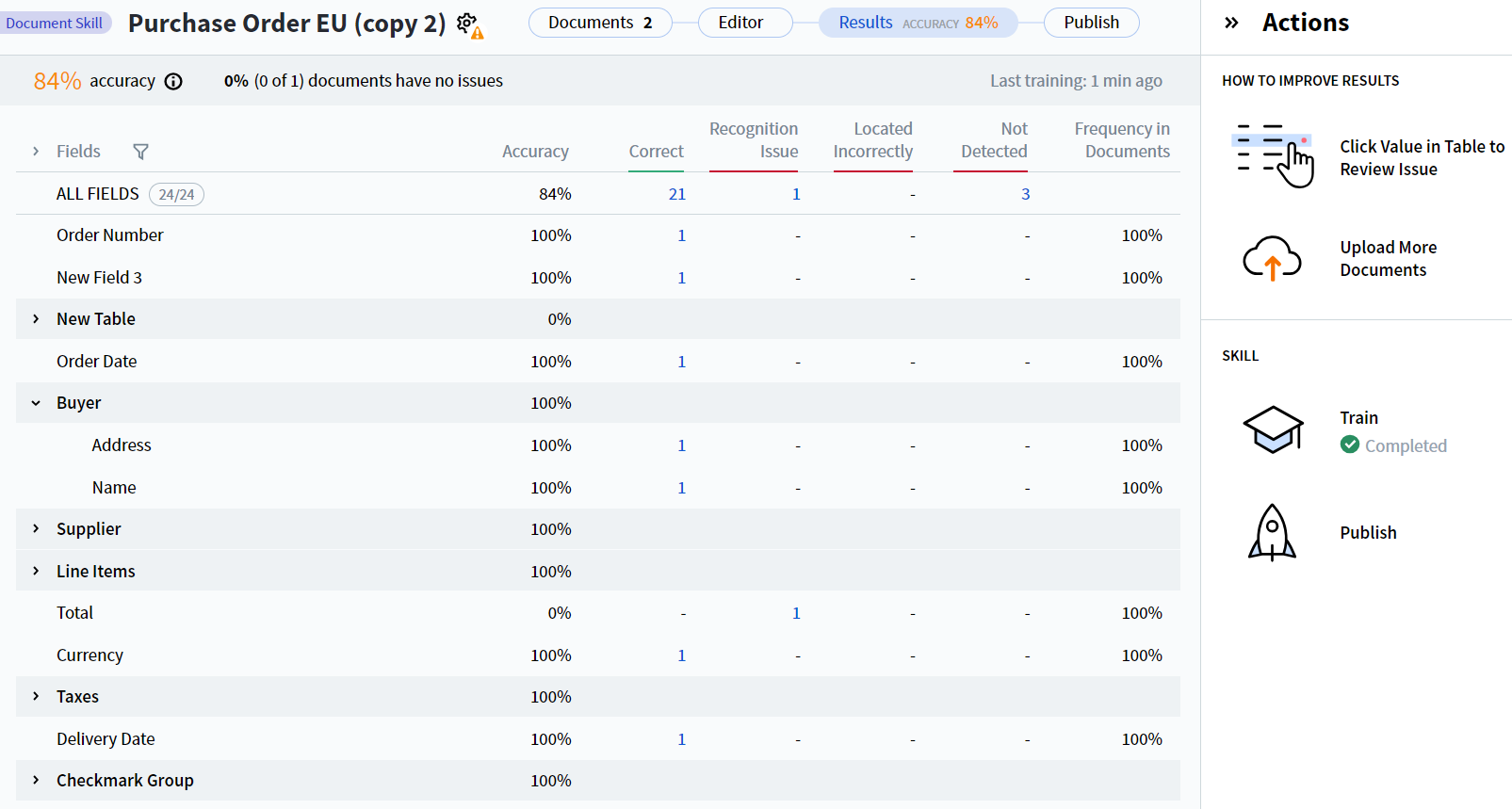 The following field extraction statistics are available:
* **Accuracy** — Percentage of fields with correctly extracted values, both per-field and across all fields (the **ALL FIELDS** row).
Per-field accuracy is calculated as:
```
Accuracy = Correct / (Correct + Recognition Issue + Located Incorrectly + Not Detected)
```
The **ALL FIELDS** row uses the same formula, with each term aggregated across all fields.
* **Correct** — Number of field instances whose extracted value matched the reference value.
* **Recognition Issue** — Number of field instances detected in the document but not recognized correctly.
* **Located Incorrectly** — Number of field instances whose values differ from the predicted values because their regions were detected in locations different from those in the labeling.
* **Not Detected** — Number of undetected field instances.
* **Frequency in Documents** — Percentage of documents containing the given field.
By default, statistics are shown for all fields. To filter, click the filter icon at the top of the **Fields** column and select the fields you want to see.
For deeper quality analysis — **Precision**, **Recall**, and **F-measure** for both field values and region detection — edit your skill in **Advanced Designer**. See [Advanced Accuracy Reports](/vantage/release-notes/3-0#advanced-accuracy-reports-in-advanced-designer) for details.
For these statistics to reflect production quality, your test set's document distribution should match what you see in production — for example, if 30% of your production invoices come from a particular vendor, about 30% of the test set should too. Using a **blind set** (documents not used for training or prior testing) further validates the results.
## Review fields extracted with errors
To view documents that contain fields extracted with errors, click the value in the **Recognition Issue**, **Located Incorrectly**, or **Not Detected** column for the field you're investigating.
Clicking the value in the **Recognition Issue** column for the **Order Date** field opens a tab showing only documents where **Order Date** had a recognition issue.
### View extraction modes
The Result Review tab lets you review the extraction results, labeling errors, and recognition issues — and compare the setup-time labeling with what training produced. Documents can be viewed in three modes:
* **Reference** — Shows the reference labeling created when setting up the skill (before training) and the field values extracted using it. Field values and regions can be edited in this mode.
* **Predicted** — Shows the field values and regions obtained when processing documents. Not editable.
* **Difference** — Shows the differences between reference and predicted labeling. Identical values and regions appear in green; differing ones appear in red. Not editable.
The following field extraction statistics are available:
* **Accuracy** — Percentage of fields with correctly extracted values, both per-field and across all fields (the **ALL FIELDS** row).
Per-field accuracy is calculated as:
```
Accuracy = Correct / (Correct + Recognition Issue + Located Incorrectly + Not Detected)
```
The **ALL FIELDS** row uses the same formula, with each term aggregated across all fields.
* **Correct** — Number of field instances whose extracted value matched the reference value.
* **Recognition Issue** — Number of field instances detected in the document but not recognized correctly.
* **Located Incorrectly** — Number of field instances whose values differ from the predicted values because their regions were detected in locations different from those in the labeling.
* **Not Detected** — Number of undetected field instances.
* **Frequency in Documents** — Percentage of documents containing the given field.
By default, statistics are shown for all fields. To filter, click the filter icon at the top of the **Fields** column and select the fields you want to see.
For deeper quality analysis — **Precision**, **Recall**, and **F-measure** for both field values and region detection — edit your skill in **Advanced Designer**. See [Advanced Accuracy Reports](/vantage/release-notes/3-0#advanced-accuracy-reports-in-advanced-designer) for details.
For these statistics to reflect production quality, your test set's document distribution should match what you see in production — for example, if 30% of your production invoices come from a particular vendor, about 30% of the test set should too. Using a **blind set** (documents not used for training or prior testing) further validates the results.
## Review fields extracted with errors
To view documents that contain fields extracted with errors, click the value in the **Recognition Issue**, **Located Incorrectly**, or **Not Detected** column for the field you're investigating.
Clicking the value in the **Recognition Issue** column for the **Order Date** field opens a tab showing only documents where **Order Date** had a recognition issue.
### View extraction modes
The Result Review tab lets you review the extraction results, labeling errors, and recognition issues — and compare the setup-time labeling with what training produced. Documents can be viewed in three modes:
* **Reference** — Shows the reference labeling created when setting up the skill (before training) and the field values extracted using it. Field values and regions can be edited in this mode.
* **Predicted** — Shows the field values and regions obtained when processing documents. Not editable.
* **Difference** — Shows the differences between reference and predicted labeling. Identical values and regions appear in green; differing ones appear in red. Not editable.
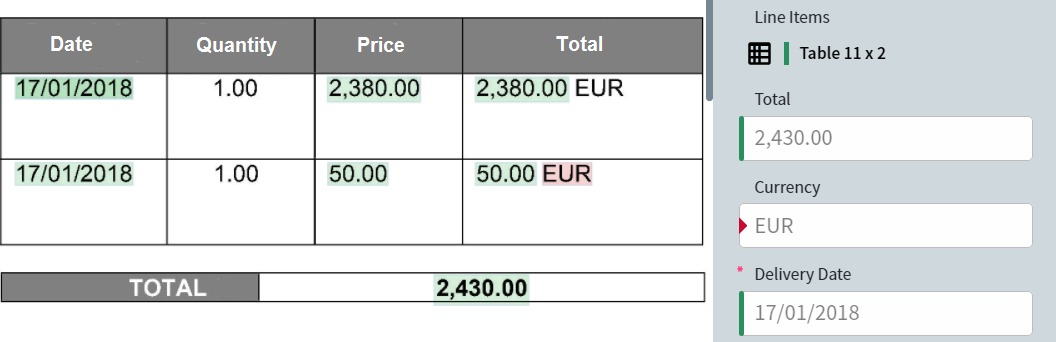 Switch between modes by clicking the corresponding tab on the toolbar.
### Correct reference labeling
If a field was labeled incorrectly during setup but processed correctly during training, you can update the reference labeling. Switch to **Difference** mode and click the icon above the value of the mislabeled field:
Switch between modes by clicking the corresponding tab on the toolbar.
### Correct reference labeling
If a field was labeled incorrectly during setup but processed correctly during training, you can update the reference labeling. Switch to **Difference** mode and click the icon above the value of the mislabeled field:
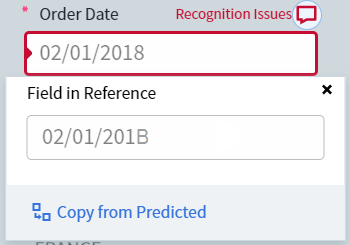 The **Field in Reference** box shows the value extracted using the reference labeling. Click **Copy from Predicted** to replace the incorrect value with the value extracted during processing.
A recognition issue means one or more characters weren't recognized correctly. To fix it, adjust the field's properties so such characters are interpreted correctly — for example, if a field contains only numbers, set its data type to **Number**. This will prevent, for example, the number "1" from being recognized as "l" (lowercase L) or "I" (uppercase i).
If the **Field in Reference** box contains the correct value but the processing result is wrong, increase the number of documents in the set and retrain the skill.
To go to the next document with the same error in the same field, click **Go to Next Document** in the **Actions** pane.
## Related topics
Mark fields in the Editor tab and configure field properties by type.
Use rules to validate, modify, or compute extracted field values in a Document skill.
Guidelines for labeling structured and semi-structured documents during training.
Advanced Designer guide for training, testing, and measuring Document skill quality.
The **Field in Reference** box shows the value extracted using the reference labeling. Click **Copy from Predicted** to replace the incorrect value with the value extracted during processing.
A recognition issue means one or more characters weren't recognized correctly. To fix it, adjust the field's properties so such characters are interpreted correctly — for example, if a field contains only numbers, set its data type to **Number**. This will prevent, for example, the number "1" from being recognized as "l" (lowercase L) or "I" (uppercase i).
If the **Field in Reference** box contains the correct value but the processing result is wrong, increase the number of documents in the set and retrain the skill.
To go to the next document with the same error in the same field, click **Go to Next Document** in the **Actions** pane.
## Related topics
Mark fields in the Editor tab and configure field properties by type.
Use rules to validate, modify, or compute extracted field values in a Document skill.
Guidelines for labeling structured and semi-structured documents during training.
Advanced Designer guide for training, testing, and measuring Document skill quality.