> ## Documentation Index
> Fetch the complete documentation index at: https://docs.abbyy.com/llms.txt
> Use this file to discover all available pages before exploring further.
# Business rules automation
> Add scripted rules to a Document skill using JavaScript — configure readable and writable fields, reference table columns, and return validation results.
Add scripted rules to a Document skill to compare field values, validate conditions, or change field values programmatically.
To add an Advanced Script Rule, click **New rule** in the field properties and choose the script rule type. This page describes how to configure the rule and write its JavaScript.
## Set up an Advanced Script Rule
When setting up an **Advanced Script Rule**, specify which fields the script will reference.
### Configure fields
* In the **Fields** column, specify every field the script needs to read.
* In the **Changed by the rule** column, specify every field the script will edit.
If your script references a field that wasn't listed for reading, or writes to a field that wasn't listed for editing, the rule returns an access error:
* `Attempt to read data from inaccessible field`
* `Attempt to write data to read-only field`
### Configure table columns
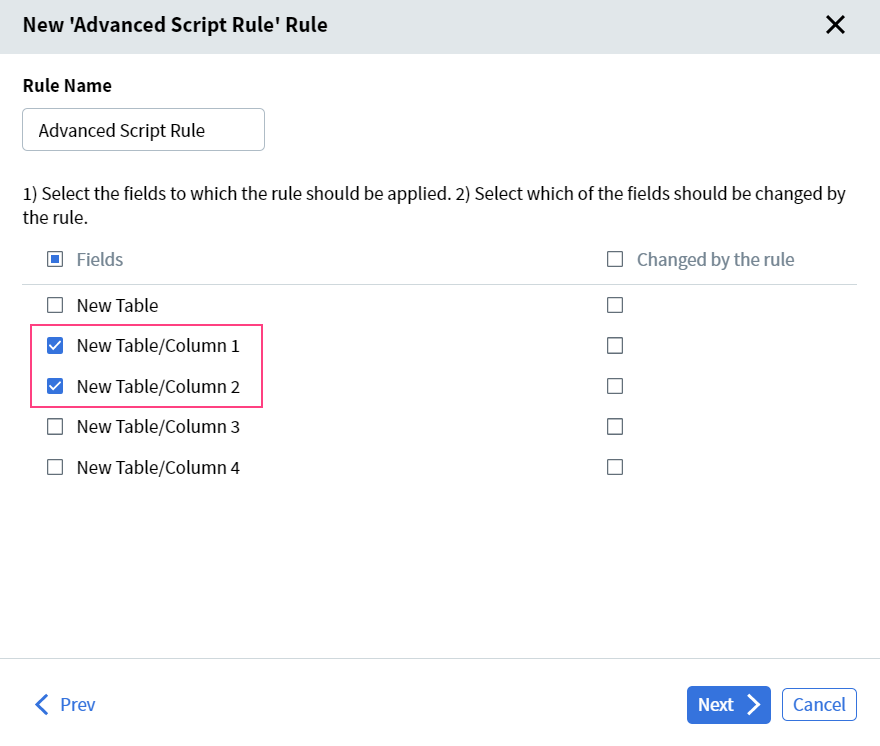
If your script references specific table columns, select those columns individually — not the entire table — when setting up the rule. All selected columns must belong to the same table.
For example, if the rule is applied to **Column 1** and **Column 2** of **New table**, select the following fields:
 ## Write the script
Switch to the script editor and write JavaScript that implements your rule.
Your script can read document fields, compute values, compare values, and update fields that were marked as writable during setup. Use the quick-edit buttons at the top of the script editor to insert common code snippets.
If the rule conditions aren't met, set [`Context.CheckSucceeded`](/vantage/documentation/skill-designer/document/rule-verification/context#checksucceeded) to `false`. This sends the document to manual review.
## Related topics
Use rules to validate, modify, or compute extracted field values in a Document skill.
JavaScript object reference for use in Advanced Script Rules.
Working script examples for common validation scenarios.
## Write the script
Switch to the script editor and write JavaScript that implements your rule.
Your script can read document fields, compute values, compare values, and update fields that were marked as writable during setup. Use the quick-edit buttons at the top of the script editor to insert common code snippets.
If the rule conditions aren't met, set [`Context.CheckSucceeded`](/vantage/documentation/skill-designer/document/rule-verification/context#checksucceeded) to `false`. This sends the document to manual review.
## Related topics
Use rules to validate, modify, or compute extracted field values in a Document skill.
JavaScript object reference for use in Advanced Script Rules.
Working script examples for common validation scenarios.