> ## Documentation Index
> Fetch the complete documentation index at: https://docs.abbyy.com/llms.txt
> Use this file to discover all available pages before exploring further.
# Create data catalog lookup rules
> Verify extracted document fields against data catalog records — configure exact and fuzzy comparisons, auto-populate fields, and handle lookup errors.
When processing documents, you may need to verify the data extracted from them against records stored in data catalogs. **Data Catalog Lookup rules** automate this. With these rules, you can:
* Compare invoices and orders against vendor and consignee databases.
* Automatically fill in missing document fields using matching catalog records, such as:
* Order numbers and amounts
* Company details
* Names and descriptions of goods and services
For more information on data catalogs for Document skills, see [Using data catalogs](/vantage/documentation/skill-designer/document/using-data-catalogs/use).
## Create a rule
Click **New rule** in the field properties.
Choose **Data Catalog Lookup** as the rule type, then click **Next**.
From the **Data Catalog for Lookup** dropdown, select the catalog to validate against.
To compare values against multiple data catalogs, create a separate rule for each.
A table appears listing the columns from the selected catalog in the **Catalog Column** column.
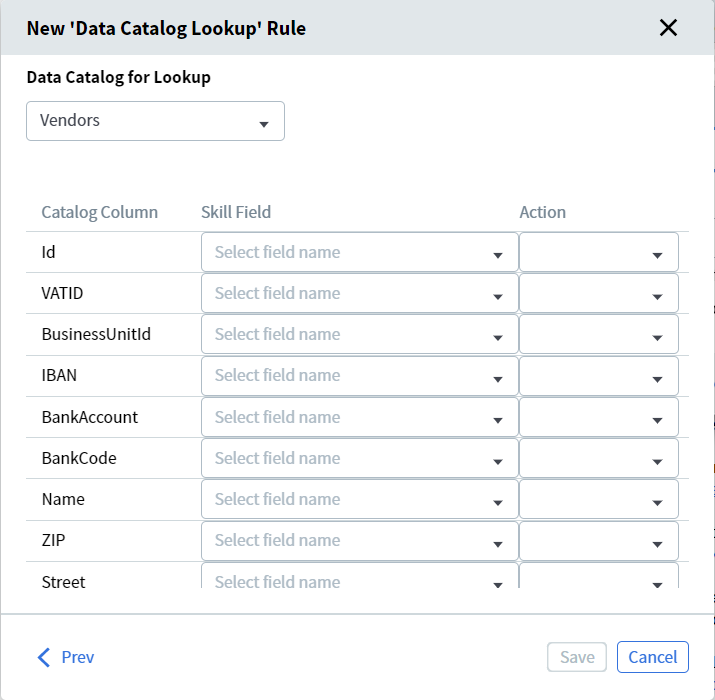 In the **Skill Field** column, map each catalog column to the corresponding extracted document field using the dropdowns. Leave a cell blank if you don't need to search that column or if it isn't present in your documents.
A single rule can reference fields from only one repeating group. To search values across multiple repeating groups, create a separate rule for each group.
In the **Action** column, set how each field pair is processed:
* **Exact Comparison** — For unique values such as tax IDs or product identifiers.
* **Fuzzy Comparison** — For values that may differ slightly, such as street names or organization addresses. The threshold is 30% — at least 70% of the value must match. Fuzzy Comparison is not case sensitive.
* **Get Value from Data Catalog** — Copies the catalog value into the corresponding document field. Available only if at least one field pair in the rule uses Exact or Fuzzy Comparison.
Edit the **Rule Name**, then click **Save**.
## After you create a rule
* A link to the skill appears under the catalog in the **Data Catalogs** section.
* The rule runs automatically for all document fields mapped during setup.
* Lookup rules run during field extraction. If a user edits a field value manually, the rule does not re-run automatically.
* Fields that feed a lookup rule can be populated by extraction, scripts, activities (such as Script or NLP), business rules, or manual entry.
To trigger the rules again, upload a new file to the skill's document set, or send the document to manual review.
If a field value changes during manual review, the data catalog lookup rule re-runs. If a matching record is found, Vantage copies the catalog values into the mapped fields and those fields become read-only.
## Matching behavior and errors
Data catalog lookup rules work reliably only if the comparison (exact or fuzzy) returns **no more than one matching record**. Otherwise, one of these errors occurs:
* **No records found** — No catalog records matched.
* **Too many records found** — More than one catalog record matched.
To avoid these errors, make sure at least one mapped field uses a value that's either unique or can't match multiple catalog records.
## Manually search a data catalog
You can search for a data catalog record that matches the prefix of any word in the field value, not just the first word.
Click the **Search** button to the right of the field value box for which a rule is configured.
In the search bar, enter the value you want to find — full or partial, at least 3 characters. The system searches across all fields in the selected data catalog.
Click a result to select it. The selected catalog value is copied into all document fields linked to that catalog column during rule setup.
After a document field is filled from a catalog record, manual editing is disabled. If the value is incorrect, repeat the lookup and select a different record — the document fields update to match the new catalog values, and the rule runs again.
If the required value isn't in the data catalog, click **Clear Document Fields** or press **Ctrl + Del** to restore the field values extracted from the document, without applying any catalog values.
## Related topics
Use rules to validate, modify, or compute extracted field values in a Document skill.
Use data catalogs to validate and auto-populate extracted data from a Document skill.
How operators verify and correct extracted data, including post-extraction lookup re-runs.
In the **Skill Field** column, map each catalog column to the corresponding extracted document field using the dropdowns. Leave a cell blank if you don't need to search that column or if it isn't present in your documents.
A single rule can reference fields from only one repeating group. To search values across multiple repeating groups, create a separate rule for each group.
In the **Action** column, set how each field pair is processed:
* **Exact Comparison** — For unique values such as tax IDs or product identifiers.
* **Fuzzy Comparison** — For values that may differ slightly, such as street names or organization addresses. The threshold is 30% — at least 70% of the value must match. Fuzzy Comparison is not case sensitive.
* **Get Value from Data Catalog** — Copies the catalog value into the corresponding document field. Available only if at least one field pair in the rule uses Exact or Fuzzy Comparison.
Edit the **Rule Name**, then click **Save**.
## After you create a rule
* A link to the skill appears under the catalog in the **Data Catalogs** section.
* The rule runs automatically for all document fields mapped during setup.
* Lookup rules run during field extraction. If a user edits a field value manually, the rule does not re-run automatically.
* Fields that feed a lookup rule can be populated by extraction, scripts, activities (such as Script or NLP), business rules, or manual entry.
To trigger the rules again, upload a new file to the skill's document set, or send the document to manual review.
If a field value changes during manual review, the data catalog lookup rule re-runs. If a matching record is found, Vantage copies the catalog values into the mapped fields and those fields become read-only.
## Matching behavior and errors
Data catalog lookup rules work reliably only if the comparison (exact or fuzzy) returns **no more than one matching record**. Otherwise, one of these errors occurs:
* **No records found** — No catalog records matched.
* **Too many records found** — More than one catalog record matched.
To avoid these errors, make sure at least one mapped field uses a value that's either unique or can't match multiple catalog records.
## Manually search a data catalog
You can search for a data catalog record that matches the prefix of any word in the field value, not just the first word.
Click the **Search** button to the right of the field value box for which a rule is configured.
In the search bar, enter the value you want to find — full or partial, at least 3 characters. The system searches across all fields in the selected data catalog.
Click a result to select it. The selected catalog value is copied into all document fields linked to that catalog column during rule setup.
After a document field is filled from a catalog record, manual editing is disabled. If the value is incorrect, repeat the lookup and select a different record — the document fields update to match the new catalog values, and the rule runs again.
If the required value isn't in the data catalog, click **Clear Document Fields** or press **Ctrl + Del** to restore the field values extracted from the document, without applying any catalog values.
## Related topics
Use rules to validate, modify, or compute extracted field values in a Document skill.
Use data catalogs to validate and auto-populate extracted data from a Document skill.
How operators verify and correct extracted data, including post-extraction lookup re-runs.