> ## Documentation Index
> Fetch the complete documentation index at: https://docs.abbyy.com/llms.txt
> Use this file to discover all available pages before exploring further.
# Set up a Document skill
> Create, train, and publish a Document skill — including structured (fixed-form) skills, recognition languages, and Online learning.
After you create a Document skill, follow these steps to train and publish it.
To open Document skill settings, click the settings icon to the right of the skill name in the Skill Designer.
Navigate to the **Documents** tab in the Skill Designer and click **Upload documents** — in the center of the designer, on the toolbar, or in the **Actions** pane. Each file must contain a single document image.
While documents are uploading, a progress indicator appears at the top of the Skill Designer (to the right of the bookmarks). To preview a document, click the icon to the left of its name; drag the preview window's left border to resize it up to 80% of the browser width.
Navigate to the **Editor** tab — either by clicking the tab name, or by selecting one or more documents from the list and clicking **Label Fields and Create Business Rules** in the **Actions** pane. Label every field you want to extract. You can also add validation rules and skill parameters here.
Click **Train** in the **Actions** pane. When training finishes, the **Train** button shows **Completed**. To stop training, click **Cancel** under the **Train** button. Review extraction accuracy and correct any errors.
Repeat the previous steps until you are satisfied with the results.
Publish your skill to the Skill Catalog to make it available for use.
You can derive new skills from your published skill. Derived skills inherit all rules and fields from their base skill and can be seamlessly updated to the latest base version while preserving your changes.
## Process structured documents
ABBYY Vantage offers a machine learning mode for processing structured documents — documents where field locations are the same on every instance. Examples include questionnaires, application forms, and tax return forms. This mode handles forms that have multiple variants, such as IRS Form 1040 for different years, where the set and location of fields differ slightly between variants. Each variant is a separate structured document, and you must upload a blank form for each.
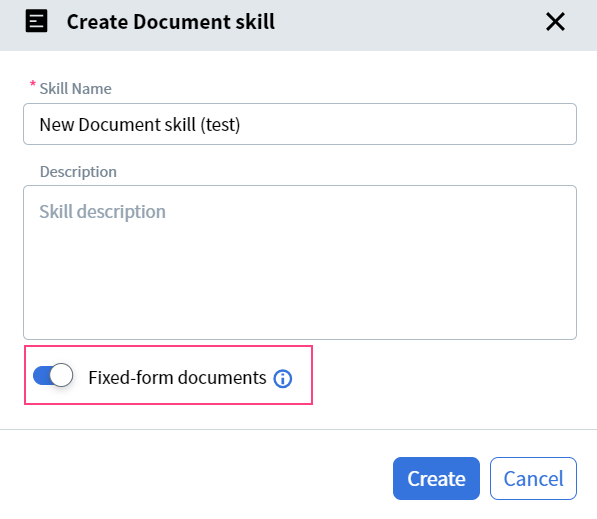
Create a new Document skill and turn on the **Fixed-form documents** toggle.
 Navigate to the **Blank Form** tab and click **Upload Blank Form** — in the center of the designer, on the toolbar, or in the **Actions** pane. If you don't have a blank form, upload a completed form and mark it as a blank form.
One skill can handle up to 10 variants of one form (for example, IRS Form 1040 for different years).
Label the fields you want to extract.
In the field settings, enable **Eliminate field background** for fields whose background may affect recognition.
In the **Actions** pane, click **Train**.
Click the **Test Set** tab and upload completed test documents. Confirm that all fields are labeled correctly on each document. If any field locations don't match an uploaded blank form, add a blank form for that variant.
In the **Actions** pane, test your skill. When the operation completes, review the results. If you are not satisfied, adjust the labeling and train again.
Publish your skill to the Skill Catalog to make it available for use.
Navigate to the **Blank Form** tab and click **Upload Blank Form** — in the center of the designer, on the toolbar, or in the **Actions** pane. If you don't have a blank form, upload a completed form and mark it as a blank form.
One skill can handle up to 10 variants of one form (for example, IRS Form 1040 for different years).
Label the fields you want to extract.
In the field settings, enable **Eliminate field background** for fields whose background may affect recognition.
In the **Actions** pane, click **Train**.
Click the **Test Set** tab and upload completed test documents. Confirm that all fields are labeled correctly on each document. If any field locations don't match an uploaded blank form, add a blank form for that variant.
In the **Actions** pane, test your skill. When the operation completes, review the results. If you are not satisfied, adjust the labeling and train again.
Publish your skill to the Skill Catalog to make it available for use.
 If you edit your skill in Advanced Designer and combine the Forms activity with other activities, the **Fixed-form documents** toggle is disabled in Vantage and the skill can no longer be edited outside of Advanced Designer.
### Switch between structured and semi-structured
If you later decide your documents are better treated as semi-structured:
1. Open Document skill settings.
2. Turn off the **Fixed-form documents** toggle. All labeled fields are preserved.
3. Retrain the skill.
### Work with tables and repeating groups
When processing structured documents, Vantage can handle tables and repeating groups if:
* The maximum number of table rows or group instances is known in advance.
* The boundaries of the table or group are fixed.
Label every row that may appear across all variants of the form. Only rows with data appear in processing results; empty rows are ignored.
Only tables with text values are supported. If your table has columns with checkboxes or barcodes, use a repeating group instead.
If the number of rows or instances in a group is not known in advance, use another Vantage technology — see [Process structured documents in Advanced Designer](/vantage/documentation/advanced-designer/use-cases/process-structured).
## Configure recognition languages
When processing a document, Vantage selects a processing language from the list of languages enabled on the skill. By default, new skills have English, French, German, and Spanish enabled.
To modify the list:
1. Open Document skill settings.
2. Select the languages you need. The list is sorted alphabetically, with the currently selected languages pinned to the top. At least one language must be selected.
3. Click **Save** to keep your changes, or **Cancel** to discard them.
The number of selected languages may affect document processing speed. Restrict the list to the languages you actually expect in your documents.
You can change the recognition languages after a skill has been trained. To apply the change, upload the documents again and retrain the skill.
## Configure Online learning
Online learning collects processed documents into a training set and continues training the skill using those documents. It is available for Document skills and Classification skills.
Document skills support two Online learning modes:
| Mode | Behavior |
| :-------------------- | :---------------------------------------------------------------------------------------------------------------------------------------------- |
| **Collect and learn** | Default. Documents are collected and the skill is retrained automatically. |
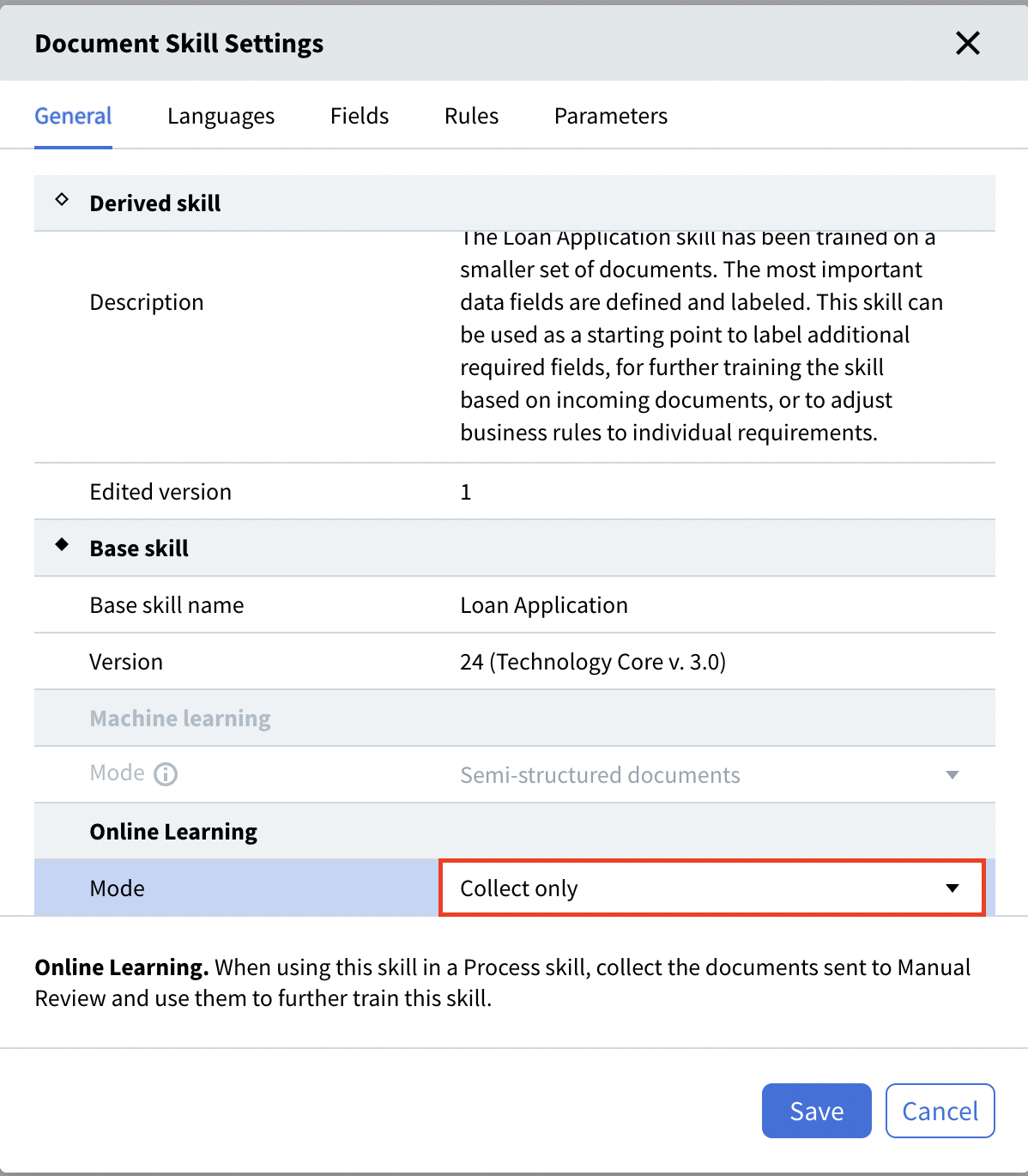
| **Collect only** | Documents are collected but the skill is not retrained. Use this mode to review documents added to the training set before retraining manually. |
To use **Collect only**, open Document skill settings and select the mode.
If you edit your skill in Advanced Designer and combine the Forms activity with other activities, the **Fixed-form documents** toggle is disabled in Vantage and the skill can no longer be edited outside of Advanced Designer.
### Switch between structured and semi-structured
If you later decide your documents are better treated as semi-structured:
1. Open Document skill settings.
2. Turn off the **Fixed-form documents** toggle. All labeled fields are preserved.
3. Retrain the skill.
### Work with tables and repeating groups
When processing structured documents, Vantage can handle tables and repeating groups if:
* The maximum number of table rows or group instances is known in advance.
* The boundaries of the table or group are fixed.
Label every row that may appear across all variants of the form. Only rows with data appear in processing results; empty rows are ignored.
Only tables with text values are supported. If your table has columns with checkboxes or barcodes, use a repeating group instead.
If the number of rows or instances in a group is not known in advance, use another Vantage technology — see [Process structured documents in Advanced Designer](/vantage/documentation/advanced-designer/use-cases/process-structured).
## Configure recognition languages
When processing a document, Vantage selects a processing language from the list of languages enabled on the skill. By default, new skills have English, French, German, and Spanish enabled.
To modify the list:
1. Open Document skill settings.
2. Select the languages you need. The list is sorted alphabetically, with the currently selected languages pinned to the top. At least one language must be selected.
3. Click **Save** to keep your changes, or **Cancel** to discard them.
The number of selected languages may affect document processing speed. Restrict the list to the languages you actually expect in your documents.
You can change the recognition languages after a skill has been trained. To apply the change, upload the documents again and retrain the skill.
## Configure Online learning
Online learning collects processed documents into a training set and continues training the skill using those documents. It is available for Document skills and Classification skills.
Document skills support two Online learning modes:
| Mode | Behavior |
| :-------------------- | :---------------------------------------------------------------------------------------------------------------------------------------------- |
| **Collect and learn** | Default. Documents are collected and the skill is retrained automatically. |
| **Collect only** | Documents are collected but the skill is not retrained. Use this mode to review documents added to the training set before retraining manually. |
To use **Collect only**, open Document skill settings and select the mode.
 To turn Online learning on or off for a skill, see [Enable Online learning](/vantage/documentation/runtime/online-learning/enable-online-learning).
## Related topics
Continue improving a Document skill on production documents after publishing.
Guidelines for labeling structured and semi-structured documents during training.
Prerequisite — create a new skill in the Skill Catalog before opening it in the Skill Designer.
Use Advanced Designer when structured-document processing needs to combine with other Vantage technologies.
Full list of OCR languages supported across Vantage skills.
To turn Online learning on or off for a skill, see [Enable Online learning](/vantage/documentation/runtime/online-learning/enable-online-learning).
## Related topics
Continue improving a Document skill on production documents after publishing.
Guidelines for labeling structured and semi-structured documents during training.
Prerequisite — create a new skill in the Skill Catalog before opening it in the Skill Designer.
Use Advanced Designer when structured-document processing needs to combine with other Vantage technologies.
Full list of OCR languages supported across Vantage skills.