> ## Documentation Index
> Fetch the complete documentation index at: https://docs.abbyy.com/llms.txt
> Use this file to discover all available pages before exploring further.
# Update data catalogs
> Update a data catalog by uploading a CSV file through the UI or via an SFTP shared folder.
Update an existing data catalog by uploading a new CSV file — either through the Vantage UI or by placing the file in a shared folder connected via SFTP.
## CSV format
Follow these rules when preparing a CSV for upload:
* Columns must be separated by commas.
* No spaces are allowed between a column name and its comma separator.
* Values containing commas that should be treated as literals must be enclosed in double quotation marks.
* Quotation marks inside string values must be duplicated, and the entire string value must also be wrapped in double quotation marks.
You can use Microsoft Excel to edit the CSV file.
The CSV file must not be larger than 100 MB.
When updating a **Document Issuer Companies** or **Document Receiver Companies** data catalog, the **Company ID** and **Country** columns must be filled in. Empty values in these columns cause the update to fail.
### Sample: value with a comma
```csv theme={null}
Id,VATID,BusinessUnitId,IBAN,BankAccount,BankCode,Name,ZIP,Street,City,State,CountryCode
"999,9",GB_fake01,01,123456678,PPPCCC,CB3 AAA,CAMBRIDGESHIRE COUNTY COUNCIL,PO Box 123456,str1,Cambridge,East,GB
"0,1",GB_fake02,01,123487654,CCCPPP,AAA BB3,Random Company Inc.,PO Box 45678,str2,Oxford,South East England,GB
```
### Sample: value with quotation marks
```csv theme={null}
Id,VATID,Name,ZIP,Street,City,State,CountryCode
1,GB_fake01,"CAMBRIDGESHIRE ""COUNTY COUNCIL""",22313,str1,Cambridge,East,GB
2,GB_fake02,Random Company Inc.,22314,str2,Oxford,South East England,GB
```
## Update via the UI
On the **Data Catalogs** tab, select the catalog from the list and click **Update** in the pane above the list. Drag the CSV file onto the page, or click **Browse** at the top of the screen.
The CSV file name must match the data catalog name. Otherwise, Vantage creates a new catalog instead.
If Vantage detects new columns in the CSV, choose:
* **Add** — adds the new columns and updates the data catalog.
* **Skip** — ignores the new columns but updates the data catalog.
You can only edit column properties for new columns.
Once the update succeeds, a dialog shows the number of updated records and any added or removed columns.
## Update via a shared folder
First, connect to the shared folder using SFTP.
Install and launch any SFTP client (such as FileZilla or WinSCP).
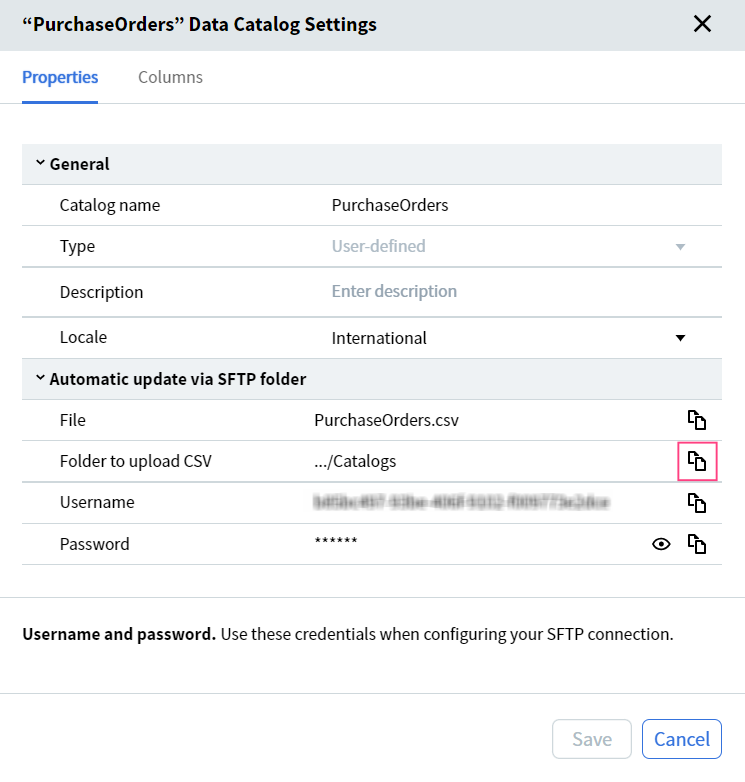
On the **Data Catalogs** tab, select the catalog and open its **Settings** dialog. Copy the path from the **Folder to upload CSV** field.
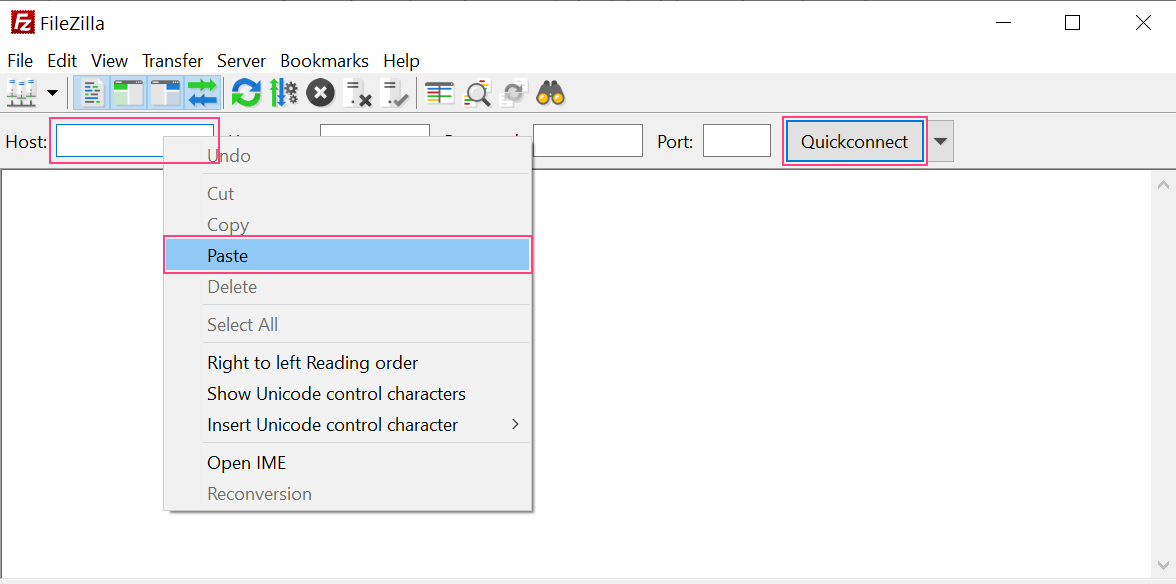
 Paste the path into the **Host** field in your SFTP client and click **Connect**.
 In the confirmation dialog, click **OK** to trust the host. The **Catalogs** folder appears in the SFTP client's remote folder pane.
To update a data catalog, give the CSV file the same name as the data catalog and place it in the **Catalogs** folder.
Vantage checks the **Catalogs** folder every 20 seconds and updates any data catalog whose name matches a CSV file in the folder.
When a data catalog is updated via the shared folder, existing records are replaced with the new ones.
### Update outcomes
| File state | Result |
| :-------------------------------------------------------- | :--------------------------------------------------------------------------------------------- |
| All records valid | Catalog is updated; file is deleted from **Catalogs**. |
| Some records are empty | Empty records are ignored; valid records are imported; file is deleted from **Catalogs**. |
| Some columns are missing | Missing columns are ignored; existing columns are imported; file is deleted from **Catalogs**. |
| File contains new columns | New columns are added to the catalog; file is deleted from **Catalogs**. |
| Records are in the wrong format | Catalog is not updated; file is moved to **Catalogs-exception**. |
| File can't be opened, or the name doesn't match a catalog | Catalog is not updated; file is moved to **Catalogs-exception**. |
## Related topics
Use data catalogs to validate and auto-populate extracted data from a Document skill.
Create a data catalog from a CSV file or by entering columns manually.
List, inspect, update, reindex, and delete data catalog records via the Vantage API.
Verify extracted document fields against data catalog records using exact or fuzzy matching.
In the confirmation dialog, click **OK** to trust the host. The **Catalogs** folder appears in the SFTP client's remote folder pane.
To update a data catalog, give the CSV file the same name as the data catalog and place it in the **Catalogs** folder.
Vantage checks the **Catalogs** folder every 20 seconds and updates any data catalog whose name matches a CSV file in the folder.
When a data catalog is updated via the shared folder, existing records are replaced with the new ones.
### Update outcomes
| File state | Result |
| :-------------------------------------------------------- | :--------------------------------------------------------------------------------------------- |
| All records valid | Catalog is updated; file is deleted from **Catalogs**. |
| Some records are empty | Empty records are ignored; valid records are imported; file is deleted from **Catalogs**. |
| Some columns are missing | Missing columns are ignored; existing columns are imported; file is deleted from **Catalogs**. |
| File contains new columns | New columns are added to the catalog; file is deleted from **Catalogs**. |
| Records are in the wrong format | Catalog is not updated; file is moved to **Catalogs-exception**. |
| File can't be opened, or the name doesn't match a catalog | Catalog is not updated; file is moved to **Catalogs-exception**. |
## Related topics
Use data catalogs to validate and auto-populate extracted data from a Document skill.
Create a data catalog from a CSV file or by entering columns manually.
List, inspect, update, reindex, and delete data catalog records via the Vantage API.
Verify extracted document fields against data catalog records using exact or fuzzy matching.