> ## Documentation Index
> Fetch the complete documentation index at: https://docs.abbyy.com/llms.txt
> Use this file to discover all available pages before exploring further.
# Assemble activity
> Detect pages in multipage files and assemble them into documents.
The **Assemble** activity detects pages in multipage files and groups them into documents. Vantage supports three input patterns:
* One file per document — no assembly needed.
* A single multipage file containing one or more documents — assembly needed.
* Multiple single-page files — assembly needed.
## Assembly types
Select the assembly type in the **Actions** pane after adding the activity:
| Assembly type | Behavior |
| :----------------------------- | :-------------------------------------------------------------------------------------------------------------------------------------------------- |
| **By files** (default) | Each source file becomes a single document. |
| **One document** | All files are assembled into a single document. |
| **By classification** | Pages are grouped into documents based on class assignments from a Classification skill. |
| **By Document Splitter Skill** | Documents are split according to rules defined in a [Document Splitter skill](/vantage/documentation/advanced-designer/document-splitter/splitter). |
## Assemble by classification
The **By classification** assembly type uses classes assigned to pages by a Classification skill. Vantage assigns each page a class and merges consecutive pages of the same class into a single document.
After selecting the assembly type, click **Settings** under the assembly type name to configure it:
Pick an appropriate Classification skill.
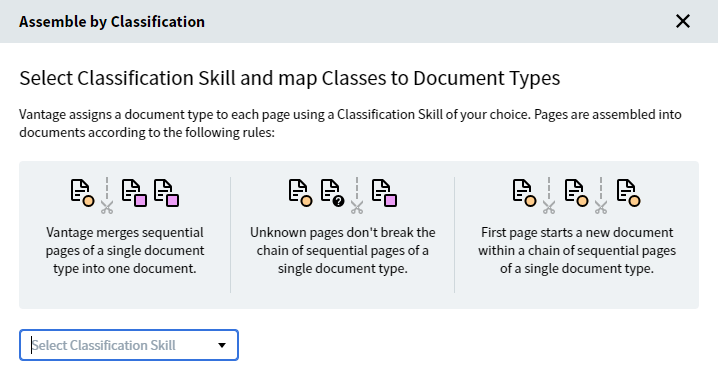 Map classes to document types, and mark any classes that should be treated as first pages.
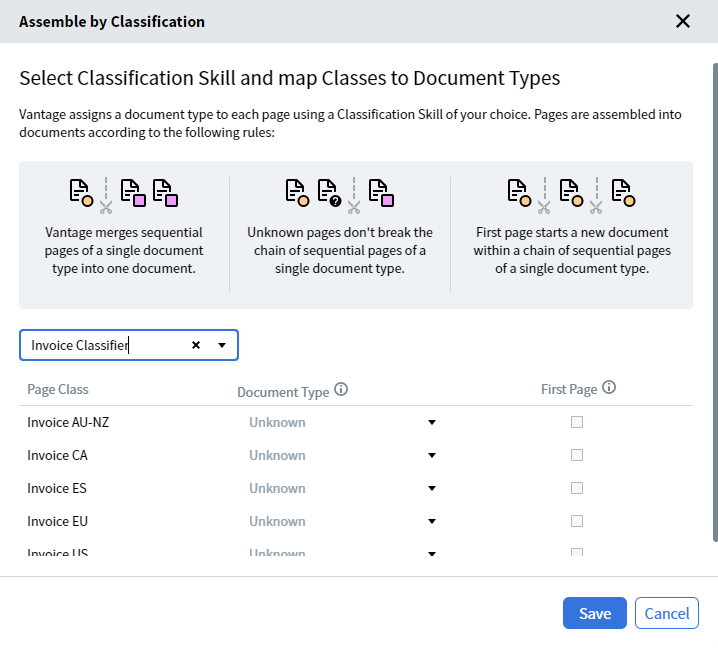 If some classes aren't mapped to document types, the Assemble activity groups pages of those classes into a separate document per class.
Click **Save** to apply the settings.
### Assembly rules
* Consecutive pages of the same class are grouped into one document.
* A page of a different class than the previous one starts a new document.
* Unclassified pages are added to the document currently being assembled — they don't break a chain of same-class pages.
* Pages classified as **first pages** always start a new document, even when the new and previous documents are the same class.
## Assemble by Document Splitter skill
[Document Splitter skills](/vantage/documentation/advanced-designer/document-splitter/splitter) split files containing multiple documents into separate documents, and can assign a type to each one to determine how it's processed.
Document Splitter skills are created and edited only in Advanced Designer — the skill type isn't supported in Skill Designer. Once published, you can reference the skill from the Assemble activity's **By Document Splitter Skill** option, but authoring happens in Advanced Designer.
After selecting **By Document Splitter Skill**:
Click **Select Skill** under the assembly type name and pick the Document Splitter skill you need. Click a skill to preview it — the preview window shows the skill's classes.
If no Document Splitter skill is configured, you're prompted to select one from the Skill Catalog. After you select a skill, the Assemble activity is configured and the selected skill appears in the **Actions** pane.
Configure data extraction in the [Extract activity](/vantage/documentation/skill-designer/process/extract-activity). This lets the skill extract documents of several types in one pass, based on the class assigned to each document.
If your workflow includes a [Manual Review](/vantage/documentation/skill-designer/process/manual-review) activity, verify the assembled workflow in the Manual Review client.
## Related topics
Build a Process skill from a preset workflow or from scratch and configure each activity.
Identify document types and route each document to the correct downstream process.
Extract field values from documents using a Document skill.
Send documents for operator verification in your processing workflow.
Authored in Advanced Designer — split files into documents and assign types per document.
If some classes aren't mapped to document types, the Assemble activity groups pages of those classes into a separate document per class.
Click **Save** to apply the settings.
### Assembly rules
* Consecutive pages of the same class are grouped into one document.
* A page of a different class than the previous one starts a new document.
* Unclassified pages are added to the document currently being assembled — they don't break a chain of same-class pages.
* Pages classified as **first pages** always start a new document, even when the new and previous documents are the same class.
## Assemble by Document Splitter skill
[Document Splitter skills](/vantage/documentation/advanced-designer/document-splitter/splitter) split files containing multiple documents into separate documents, and can assign a type to each one to determine how it's processed.
Document Splitter skills are created and edited only in Advanced Designer — the skill type isn't supported in Skill Designer. Once published, you can reference the skill from the Assemble activity's **By Document Splitter Skill** option, but authoring happens in Advanced Designer.
After selecting **By Document Splitter Skill**:
Click **Select Skill** under the assembly type name and pick the Document Splitter skill you need. Click a skill to preview it — the preview window shows the skill's classes.
If no Document Splitter skill is configured, you're prompted to select one from the Skill Catalog. After you select a skill, the Assemble activity is configured and the selected skill appears in the **Actions** pane.
Configure data extraction in the [Extract activity](/vantage/documentation/skill-designer/process/extract-activity). This lets the skill extract documents of several types in one pass, based on the class assigned to each document.
If your workflow includes a [Manual Review](/vantage/documentation/skill-designer/process/manual-review) activity, verify the assembled workflow in the Manual Review client.
## Related topics
Build a Process skill from a preset workflow or from scratch and configure each activity.
Identify document types and route each document to the correct downstream process.
Extract field values from documents using a Document skill.
Send documents for operator verification in your processing workflow.
Authored in Advanced Designer — split files into documents and assign types per document.