> ## Documentation Index
> Fetch the complete documentation index at: https://docs.abbyy.com/llms.txt
> Use this file to discover all available pages before exploring further.
# Condition activity
> Use the Condition activity to split document processing workflow based on custom conditions.
The Condition activity lets you use a single skill to split a document processing workflow. The Condition block contains a check for one or more conditions. Depending on whether a condition has been satisfied, the transaction documents will be sent along the appropriate workflow branch for further processing.
For example, the Condition activity can be used to separately process documents containing recognition or validation rule errors.
## Adding switches
To set up checks for a Condition activity, start by using the directional arrows to connect it to all other activities that the flow may be switched to.
The conditions will be checked in the order in which the workflow branches are connected to the condition block. To change their order, you will have to remove all connections and then reconnect them.
A list of **Case conditions** and **ELSE condition** will appear in the **Actions** pane. In the drop-down list under **ELSE condition**, select the block that will be used for cases when all other conditions are not satisfied.
## Adding switch rules
Click the **Set up** hyperlink for each condition in the **Case conditions** list.
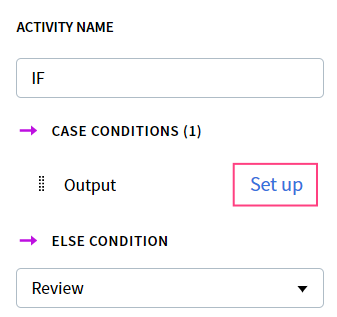 The editor window opens where you can input the JavaScript code that will be used to check that specific condition.
Your code can reference all Condition activity input data, and should return a boolean value representing the check results. Your script returns the most recently calculated value. If you need to set up more complex checks, create a custom check function and call it in the last line of your script.
For a detailed description of objects that can be used in your script, see [Object Model](/vantage/documentation/skill-designer/process/condition-activity/object-model). For sample scripts that can be used in Vantage, see [Sample scripts](/vantage/documentation/skill-designer/process/condition-activity/sample-scripts).
When a transaction reaches a Condition activity, the conditions are checked sequentially. As soon as a condition is satisfied, the transaction is sent down the matching branch and the remaining conditions aren't evaluated.
If no conditions are set up in the **Case conditions** list, all transactions are sent down the **Else** branch.
## Related topics
Script restrictions and the full object model for Condition activity scripting.
Common patterns for checking rule errors and routing to manual review.
Build a Process skill from a preset or custom workflow of activities.
Extend skills with scripted logic and third-party integrations.
The editor window opens where you can input the JavaScript code that will be used to check that specific condition.
Your code can reference all Condition activity input data, and should return a boolean value representing the check results. Your script returns the most recently calculated value. If you need to set up more complex checks, create a custom check function and call it in the last line of your script.
For a detailed description of objects that can be used in your script, see [Object Model](/vantage/documentation/skill-designer/process/condition-activity/object-model). For sample scripts that can be used in Vantage, see [Sample scripts](/vantage/documentation/skill-designer/process/condition-activity/sample-scripts).
When a transaction reaches a Condition activity, the conditions are checked sequentially. As soon as a condition is satisfied, the transaction is sent down the matching branch and the remaining conditions aren't evaluated.
If no conditions are set up in the **Case conditions** list, all transactions are sent down the **Else** branch.
## Related topics
Script restrictions and the full object model for Condition activity scripting.
Common patterns for checking rule errors and routing to manual review.
Build a Process skill from a preset or custom workflow of activities.
Extend skills with scripted logic and third-party integrations.