> ## Documentation Index
> Fetch the complete documentation index at: https://docs.abbyy.com/llms.txt
> Use this file to discover all available pages before exploring further.
# Import documents from a shared folder
> Upload documents from an SFTP-accessible shared folder on the Vantage server, optionally grouping them into a transaction or importing ZIP/TAR.GZ archives.
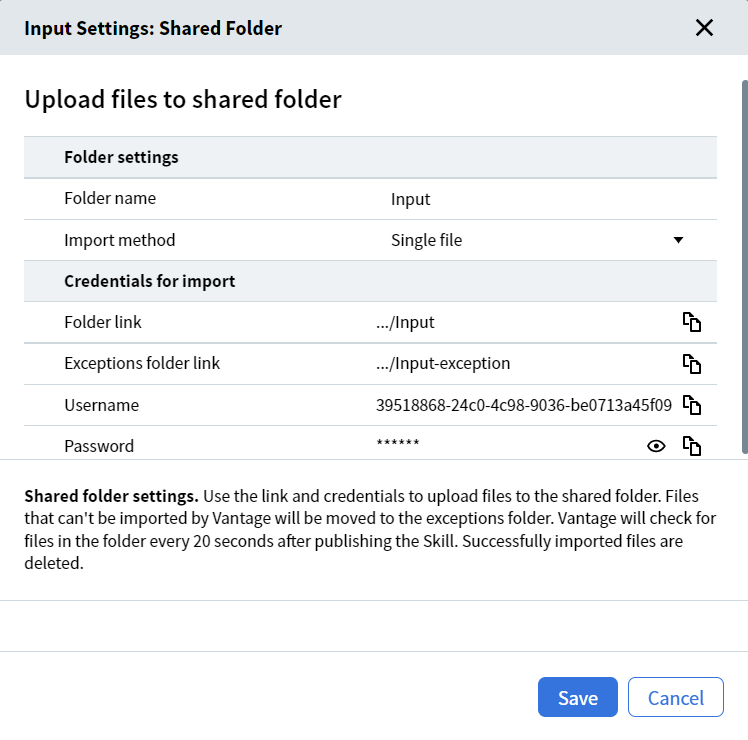
ABBYY Vantage lets you upload documents from shared folders hosted on the Vantage server. Access is provided via SFTP. The access details for the folder (links to the import and exceptions folders, plus login and password) are shown in the **Input Settings: Shared Folder** dialog.
To upload files into the input shared folder, use **binary transfer mode** in the SFTP client.
## User access permissions
| Folder | Available user actions |
| :---------------- | :------------------------------------------------------------------------------------------------------------------------------------------------------------------------------------ |
| Import folder | - View the list of files and directories - Upload files to the folder - Rename files and directories - Overwrite existing files when uploading - Delete files |
| Exceptions folder | - View a list of files and directories - Download files from the folder - Rename files and directories - Delete files |
## Document processing
Once the skill is published, Vantage checks the shared folder for new files every 20 seconds.
The import agent picks up at most 30 files at a time. If SFTP upload becomes a bottleneck, split the work across two skills — each with its own SFTP folder — so two agents pick up files in parallel.
### Document registration parameters
The source type (`FolderImport`) and source file name are saved to the **SourceType** and **SourceFileName** document registration parameters. You can access these values by adding the corresponding columns in the **Transactions** section of **Skill Monitor**. They are also exported to the output JSON file (configured in the **Exported Data** section of the Output activity).
The following characters are not allowed in file names and are replaced with underscores upon upload: `/ : ? # [ ] @ ! $ & ' ( ) * + , ; = \`. The original file names are saved to the document registration parameters — retrieve them using a [Custom activity sample script](/vantage/documentation/skill-designer/process/custom-activity/sample-scripts).
### Import results
If a file is imported successfully, a transaction is created for it and the file is deleted from the import folder. If a file fails to import, it is moved to the exceptions folder named `-exception`. The exceptions folder path is shown in the **Input Settings: Shared Folder** dialog.
Files in the exceptions folder are retained for 2 weeks by default (controlled by the retention policy).
If a file is no longer in the import folder but no processing results exist, the transaction may have completed with an error. See details in [Skill Monitor → Transactions](/vantage/documentation/runtime/skill-monitor/transactions).
## Import archives
Vantage can import archives from the top-level directory of the shared folder. Supported types:
* ZIP files created in Windows
* TAR GZ files created with `tar czvf` in Linux
Archives can only be imported when the **Single file** import method is selected.
Archive size is limited to 3 GB, and each file inside an archive to 100 MB.
A new transaction is created for each archive. All files in the archive become documents in that transaction. The archive name is saved to the **SourceArchiveName** document registration parameter.
If the archive type is not supported, or if it contains unsupported file types or nested archives, the transaction fails.
If file size limits are exceeded, or if the archive contains subfolders, the archive is moved to the exceptions folder and no transaction is created. The corresponding error appears in the Error log.
## Import several files into a single transaction
By default, Vantage creates a separate transaction per file. To group files, set the **Import method** to **From subfolder**. In this mode, Vantage scans the shared folder for subfolders whose names match the configured naming scheme. When a matching subfolder is found, all its files — including files in nested folders — are imported as documents of a single transaction. The subfolder name is saved to each document's **SourceFolderName** registration parameter.
If a file is imported from a nested folder, **SourceFolderName** contains the name of the root subfolder.
If a subfolder can't be imported, it is moved to the exceptions folder. Vantage won't create a transaction for it and logs an error in the **Error Log** of Skill Monitor.
If a subfolder contains files in an unsupported format, the transaction for that subfolder fails.
Importing archives from subfolders is not supported.
An empty subfolder whose name matches the scheme is deleted from the shared folder. No transaction is created, and Vantage logs a warning in the Error Log.
### Subfolder naming scheme
A subfolder is imported only if its name matches the **Subfolder naming scheme**. The default value `*` matches any string. Configure the mask using `*` as a placeholder for any number of characters.
The `?` character is **not** supported as a placeholder for a single character. The mask is case-insensitive (for example, `subfolder` and `SUBFOLDER` both match `subfolder`). Maximum mask length is 64 characters.
To avoid file access conflicts, first copy files into the subfolder and then rename the subfolder to match the scheme.
## Set up shared-folder import
Click the **Input** activity block in your document processing flow. If one isn't in the Skill Designer yet, add it from the **Activities** pane.
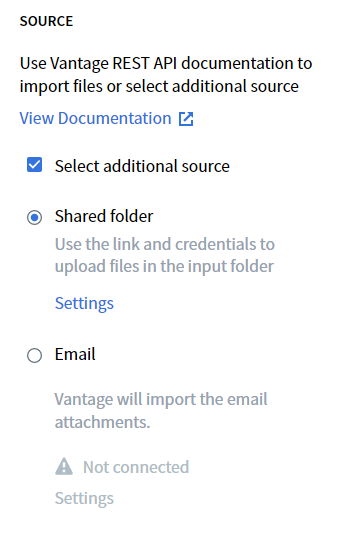
In the **Actions** pane, check **Select additional source** and choose **Shared folder**.
Click **Settings** to open a dialog with access details for the shared folder. The suggested import folder name can be modified here.
To group files into transactions, set the **Import method** to **From subfolder** and adjust the **Subfolder naming scheme** as needed.
Set up file upload via an SFTP client using the login details in the **Input Settings: Shared Folder** dialog. Click the copy icon in each field to copy values to the clipboard. The folder link contains all connection data — pasting it into the SFTP client auto-fills the other parameters.
Click **Save** to keep your changes, or **Cancel** to discard them.
Changes to these settings take effect only after the skill is published.
### Folder naming requirements
A folder name must:
* Be unique across the skill (can't match the name of a shared folder in the Output activity).
* Begin with a number or a letter.
* Not contain special characters `: * ? " < > / | \` or control characters (for example, newline, tab).
* Not end with a dot.
* Not be empty.
* Not exceed 64 characters.
## Disable imports
Administrators can disable document import from [Skill Monitor](/vantage/documentation/runtime/skill-monitor/skill-monitor). Disabling shared-folder import does not affect document import via the API.
## Cleanup on skill deletion
When a skill is deleted, the shared import folder is deleted from the server.
## Related topics
* [Input activity](/vantage/documentation/skill-designer/process/input-activity/input-activity)
* [Import documents from an email service](/vantage/documentation/skill-designer/process/input-activity/import-email-service)
* [Skill Monitor](/vantage/documentation/runtime/skill-monitor/skill-monitor)
* [Skill Monitor transactions](/vantage/documentation/runtime/skill-monitor/transactions)
* [Supported File Formats](/vantage/documentation/tenant-admin/technical-specs/formats)