> ## Documentation Index
> Fetch the complete documentation index at: https://docs.abbyy.com/llms.txt
> Use this file to discover all available pages before exploring further.
# Set up a Process skill
> Build a Process skill by selecting a preset workflow or creating a custom workflow from activities, then configure each activity.
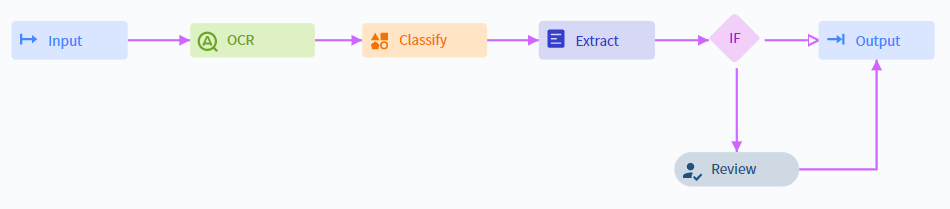
A Process skill is a directed flow of document and classification activities, along with any additional activities that import and export documents, check rules, and send documents to manual review.
All Document skills used in a Process skill **must** use the same Technology Core version.
In the following diagram, activities are connected using directional arrows:
 ## Setup
Either set up a custom workflow manually, or select one of the preset workflows.
Set the required parameters for each activity in the workflow.
Publish the skill to make it usable.
The **Try** option for launching a transaction is not available for Process skills.
## Preset workflows
Preset workflows are available in the **Actions** pane of the Skill Designer. Vantage offers the following presets.
### Simple Document skill workflow
For processing documents of a single type. Imports documents, extracts fields, and uploads results.
### Multiple Document skills after Classification
For processing various document types in one workflow. Imports documents, classifies them, routes each type to the right Document skill, and uploads results.
### Multiple Document skills after Classification with manual review
Same as above, plus a **Manual Review** step that verifies only documents that fail specific business rules defined by the workflow designer.
## Modify a workflow
### Add an activity
Click the block after which you want to add the activity.
In the menu that appears to the right, select an activity.
Connect the new activity to the existing blocks using directional arrows.
## Setup
Either set up a custom workflow manually, or select one of the preset workflows.
Set the required parameters for each activity in the workflow.
Publish the skill to make it usable.
The **Try** option for launching a transaction is not available for Process skills.
## Preset workflows
Preset workflows are available in the **Actions** pane of the Skill Designer. Vantage offers the following presets.
### Simple Document skill workflow
For processing documents of a single type. Imports documents, extracts fields, and uploads results.
### Multiple Document skills after Classification
For processing various document types in one workflow. Imports documents, classifies them, routes each type to the right Document skill, and uploads results.
### Multiple Document skills after Classification with manual review
Same as above, plus a **Manual Review** step that verifies only documents that fail specific business rules defined by the workflow designer.
## Modify a workflow
### Add an activity
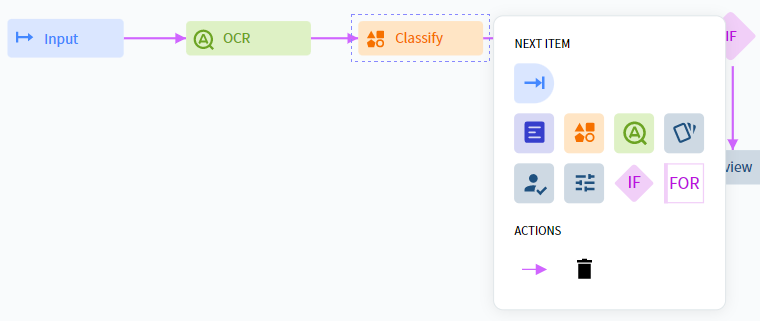
Click the block after which you want to add the activity.
In the menu that appears to the right, select an activity.
Connect the new activity to the existing blocks using directional arrows.
 ### Remove an activity
Click the block to select it.
In the menu that appears, click **Delete**.
Connect the remaining blocks using directional arrows as needed.
## Create a custom workflow
Select an activity in the **Activities** pane and drag it into the Skill Designer window.
Click the block and select the required activity from the menu that appears. Click the block again to close the menu.
After adding all processing steps, click each activity and configure it in the **Actions** pane on the right.
## Available activities
You can use the following activities in a custom Process skill workflow:
* [Input](/vantage/documentation/skill-designer/process/input-activity/input-activity)
* [Output](/vantage/documentation/skill-designer/process/output-activity/output-activity)
* [Classify](/vantage/documentation/skill-designer/process/classify-activity)
* [Extract](/vantage/documentation/skill-designer/process/extract-activity)
* [OCR](/vantage/documentation/skill-designer/process/ocr-activity)
* [Assemble](/vantage/documentation/skill-designer/process/assemble-activity)
* [Review](/vantage/documentation/skill-designer/process/manual-review)
* [Custom](/vantage/documentation/skill-designer/process/custom-activity/custom-activity)
* [Condition](/vantage/documentation/skill-designer/process/condition-activity/condition-activity)
* [For Each Document](/vantage/documentation/skill-designer/process/for-each)
Most activities can access all documents in a transaction at once. Skill-based activities (**Classify**, **Extract**, **OCR**) process each document separately. You can branch the workflow implicitly by mapping Document skills in an **Extract** activity to classes assigned by a **Classify** activity. Use **For Each Document** to apply **Custom** or **Condition** activities to one document at a time.
## Related topics
Orchestrate document processing workflows by chaining activities and skills.
Bring documents into a Process skill from email, shared folders, or other sources.
Export processed documents to external systems or shared folders.
Identify document types and route each document to the correct downstream process.
Extract field values from documents using a Document skill.
Discover, publish, and reuse skills across your tenant.
### Remove an activity
Click the block to select it.
In the menu that appears, click **Delete**.
Connect the remaining blocks using directional arrows as needed.
## Create a custom workflow
Select an activity in the **Activities** pane and drag it into the Skill Designer window.
Click the block and select the required activity from the menu that appears. Click the block again to close the menu.
After adding all processing steps, click each activity and configure it in the **Actions** pane on the right.
## Available activities
You can use the following activities in a custom Process skill workflow:
* [Input](/vantage/documentation/skill-designer/process/input-activity/input-activity)
* [Output](/vantage/documentation/skill-designer/process/output-activity/output-activity)
* [Classify](/vantage/documentation/skill-designer/process/classify-activity)
* [Extract](/vantage/documentation/skill-designer/process/extract-activity)
* [OCR](/vantage/documentation/skill-designer/process/ocr-activity)
* [Assemble](/vantage/documentation/skill-designer/process/assemble-activity)
* [Review](/vantage/documentation/skill-designer/process/manual-review)
* [Custom](/vantage/documentation/skill-designer/process/custom-activity/custom-activity)
* [Condition](/vantage/documentation/skill-designer/process/condition-activity/condition-activity)
* [For Each Document](/vantage/documentation/skill-designer/process/for-each)
Most activities can access all documents in a transaction at once. Skill-based activities (**Classify**, **Extract**, **OCR**) process each document separately. You can branch the workflow implicitly by mapping Document skills in an **Extract** activity to classes assigned by a **Classify** activity. Use **For Each Document** to apply **Custom** or **Condition** activities to one document at a time.
## Related topics
Orchestrate document processing workflows by chaining activities and skills.
Bring documents into a Process skill from email, shared folders, or other sources.
Export processed documents to external systems or shared folders.
Identify document types and route each document to the correct downstream process.
Extract field values from documents using a Document skill.
Discover, publish, and reuse skills across your tenant.