> ## Documentation Index
> Fetch the complete documentation index at: https://docs.abbyy.com/llms.txt
> Use this file to discover all available pages before exploring further.
# Configure LLM connections
> Set up LLM connections in ABBYY Vantage to integrate OpenAI ChatGPT, Microsoft Foundry, and Google AI Studio (Gemini) models for AI-powered document extraction and classification.
## Overview
LLM Connections in ABBYY Vantage allow you to integrate powerful language models from providers like OpenAI, Microsoft Foundry, and Google AI Studio directly into your document processing workflows. These connections enable your Document Skills to leverage cutting-edge AI for more accurate extraction, classification, and understanding of complex documents.
**What you'll accomplish:**
* Access the Connections configuration
* Add a new LLM connection
* Configure connection credentials and settings
* Test your connection
**Time to complete:** 10-15 minutes
LLM connections can currently be used in Document Skills through ABBYY Advanced Designer only.
For a conceptual overview and the full list of supported providers and models, see [LLMs in ABBYY Vantage](/vantage/documentation/llms/llms) and [Supported LLM providers and models](/vantage/documentation/llms/supported-providers-models).
***
## Prerequisites
Before you begin, ensure you have:
1. **Administrator access** to ABBYY Vantage Configuration.
2. **API credentials** from your chosen LLM provider:
* **OpenAI:** API key from your OpenAI account
* **Microsoft Foundry:** API key, complete endpoint URL (including `/chat/completions` path and API version), and model name from Microsoft Foundry in Azure.
* **Google AI Studio:** API key from your Google AI Studio account
3. **Active subscription** with your LLM provider.
LLM connections are managed at the tenant level and can be used by all skill designers in your organization. Currently, LLM connections can only be integrated into Document Skills through ABBYY Advanced Designer.
***
## Step 1: Access Configuration Settings
Navigate to the Configuration area where you'll manage LLM connections.
1. In the ABBYY Vantage interface, locate the **ADMIN** section in the left sidebar.
2. Click on **Configuration** (gear icon).
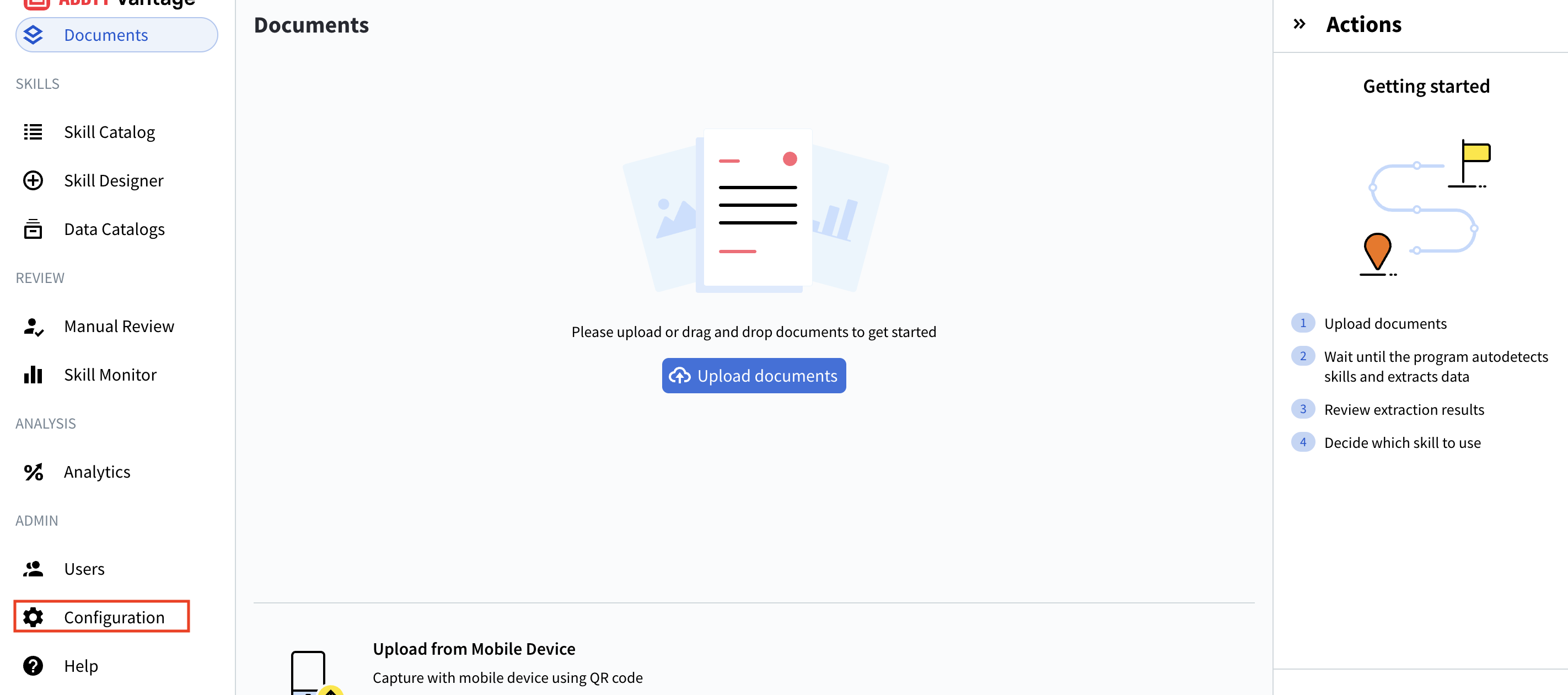 You'll see the Configuration page with several options in the left menu:
* General
* **Connections** (this is where we'll work)
* Identity Provider
* Public API Client
* Security Log
* Environment Variables
* IP Restrictions
***
## Step 2: Navigate to Connections
Access the Connections management interface.
1. In the Configuration left menu, clic **Connections**.
You'll see the Configuration page with several options in the left menu:
* General
* **Connections** (this is where we'll work)
* Identity Provider
* Public API Client
* Security Log
* Environment Variables
* IP Restrictions
***
## Step 2: Navigate to Connections
Access the Connections management interface.
1. In the Configuration left menu, clic **Connections**.
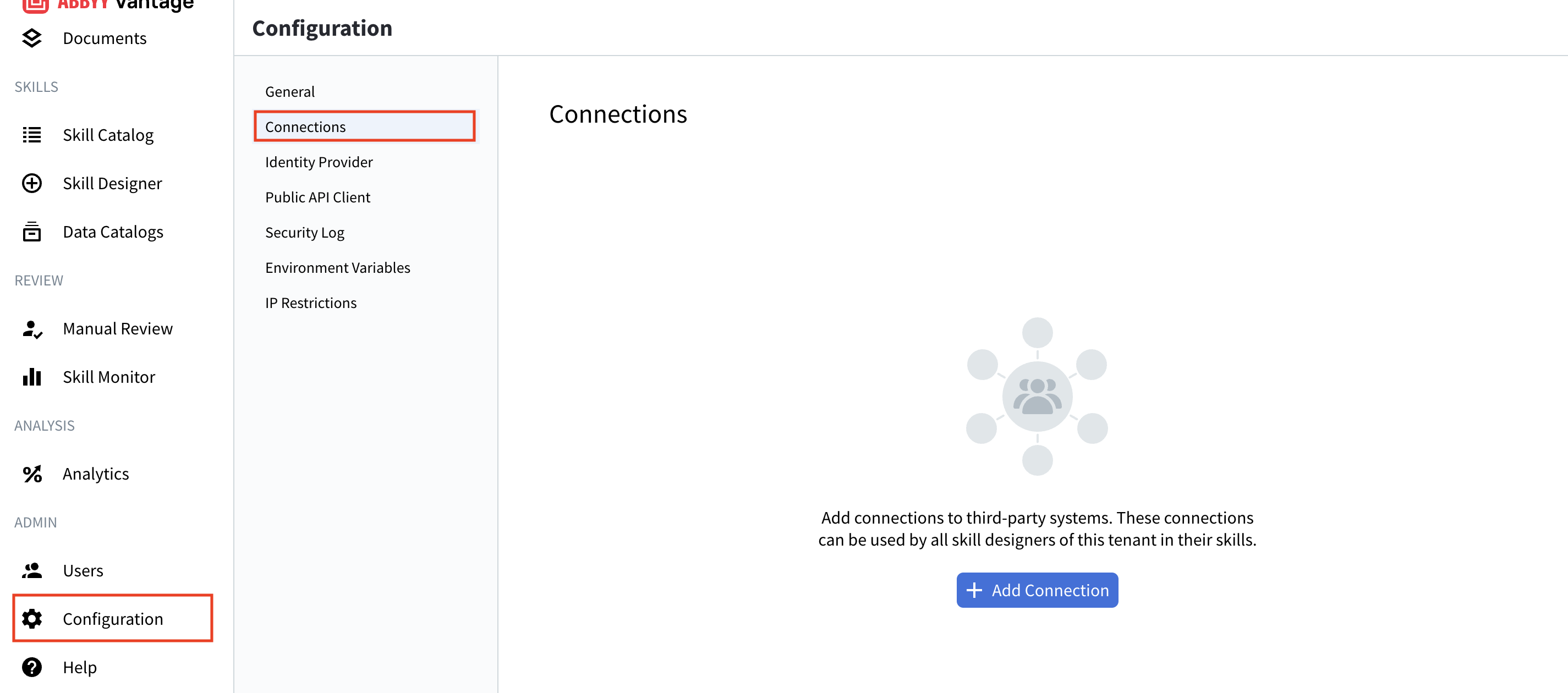 The Connections page displays:
* List of existing connections (if any)
* Connection details: Name, Description, Used in Skills, Last Updated
* Management buttons: Add Connection, Test, Edit, Delete
* Search functionality to find specific connections
Connections are shared resources. All skill designers in your tenant can use these connections in their skills.
***
## Step 3: Add a New LLM Connection
Begin the process of creating a new connection to your LLM provider.
1. Click the **+ Add Connection** button at the top of the Connections page.
2. The **Add Connection** dialog appears, showing available LLM providers:
* **OpenAI ChatGPT** - Direct connection to OpenAI's API
* **Microsoft Foundry** - OpenAI and other AI models hosted on Microsoft's Azure infrastructure
* **Google AI Studio (Gemini)** - Google's Gemini models via AI Studio
3. Select a provider (for this example, we'll use **Microsoft Foundry**).
4. Click **Next.**
Each provider has different configuration requirements. Choose the provider that matches your organization's LLM subscription.
***
## Step 4: Configure Connection Details
Fill in the required information for your LLM connection.
The Connections page displays:
* List of existing connections (if any)
* Connection details: Name, Description, Used in Skills, Last Updated
* Management buttons: Add Connection, Test, Edit, Delete
* Search functionality to find specific connections
Connections are shared resources. All skill designers in your tenant can use these connections in their skills.
***
## Step 3: Add a New LLM Connection
Begin the process of creating a new connection to your LLM provider.
1. Click the **+ Add Connection** button at the top of the Connections page.
2. The **Add Connection** dialog appears, showing available LLM providers:
* **OpenAI ChatGPT** - Direct connection to OpenAI's API
* **Microsoft Foundry** - OpenAI and other AI models hosted on Microsoft's Azure infrastructure
* **Google AI Studio (Gemini)** - Google's Gemini models via AI Studio
3. Select a provider (for this example, we'll use **Microsoft Foundry**).
4. Click **Next.**
Each provider has different configuration requirements. Choose the provider that matches your organization's LLM subscription.
***
## Step 4: Configure Connection Details
Fill in the required information for your LLM connection.
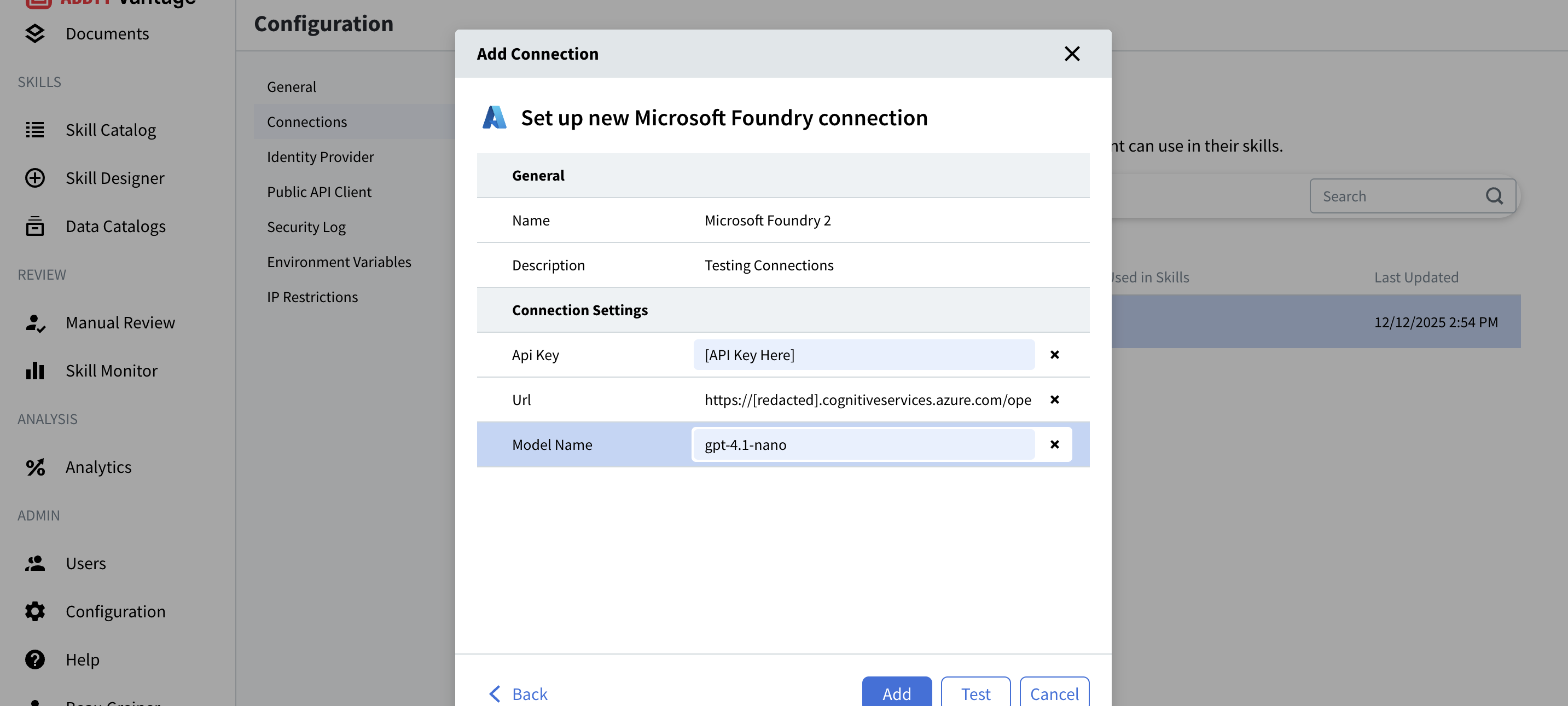 ### General Settings
**Name**
* A unique identifier for this connection
* Example: `Microsoft Foundry` or `Production GPT-4`
* This name will appear when selecting connections in Document Skills.
**Description**
* Optional but recommended.
* Provide useful context about the connection.
* Example: "Microsoft Foundry Connection 1" or "GPT-4 Production API".
* **Important:** Don't include sensitive credentials in the description.
Choose descriptive names that help skill designers understand which connection to use for different purposes.
### Connection Settings
The required fields depend on your LLM provider:
#### For Microsoft Foundry:
**Api Key**
* Your Microsoft Foundry API key from the Azure portal.
* Find this in: Azure Portal → Your Microsoft Foundry Resource → Keys and Endpoint.
* Format: A long alphanumeric string.
* Example placeholder: `[API Key Here]`
**Url**
* Your Microsoft Foundry endpoint URL.
* Find this in: Azure Portal → Your Microsoft Foundry Resource → Keys and Endpoint.
* Format: `https://[resource].cognitiveservices.azure.com/openai/deployments/[model-name]/chat/completions?api-version=2025-01-01-preview`
* Example: `https://[redacted]resource.cognitiveservices.azure.com/openai/deployments/gpt-4.1-nano/chat/completions?api-version=2025-01-01-preview`
**Model Name**
* The name of your deployed model in Microsoft Foundry.
* Find this in: Azure Portal → Your Microsoft Foundry Resource → Deployments.
* Example: `gpt-4.1-nano`, `gpt-35-turbo`, `gpt-4`
* This must match exactly with your deployment.
#### For OpenAI ChatGPT:
**Api Key**
* Your OpenAI API key from platform.openai.com.
* Find this in: OpenAI Platform → API Keys.
* Format: Starts with `sk-`
**Model**
* The specific model to use (e.g., `gpt-4`, `gpt-3.5-turbo`)
#### For Google AI Studio (Gemini):
**Api Key**
* Your Google AI Studio API key from aistudio.google.com.
* Find this in: Google AI Studio → Get API key.
* Format: A long alphanumeric string.
**Model**
* The specific Gemini model to use (e.g., `gemini-2.0-flash`, `gemini-2.5-pro`)
Never share API keys or include them in descriptions. These credentials grant access to your LLM services and associated costs.
***
## Step 5: Test Your Connection
Verify that your connection is configured correctly before saving.
1. After entering all required information, click the **Test** button.
### General Settings
**Name**
* A unique identifier for this connection
* Example: `Microsoft Foundry` or `Production GPT-4`
* This name will appear when selecting connections in Document Skills.
**Description**
* Optional but recommended.
* Provide useful context about the connection.
* Example: "Microsoft Foundry Connection 1" or "GPT-4 Production API".
* **Important:** Don't include sensitive credentials in the description.
Choose descriptive names that help skill designers understand which connection to use for different purposes.
### Connection Settings
The required fields depend on your LLM provider:
#### For Microsoft Foundry:
**Api Key**
* Your Microsoft Foundry API key from the Azure portal.
* Find this in: Azure Portal → Your Microsoft Foundry Resource → Keys and Endpoint.
* Format: A long alphanumeric string.
* Example placeholder: `[API Key Here]`
**Url**
* Your Microsoft Foundry endpoint URL.
* Find this in: Azure Portal → Your Microsoft Foundry Resource → Keys and Endpoint.
* Format: `https://[resource].cognitiveservices.azure.com/openai/deployments/[model-name]/chat/completions?api-version=2025-01-01-preview`
* Example: `https://[redacted]resource.cognitiveservices.azure.com/openai/deployments/gpt-4.1-nano/chat/completions?api-version=2025-01-01-preview`
**Model Name**
* The name of your deployed model in Microsoft Foundry.
* Find this in: Azure Portal → Your Microsoft Foundry Resource → Deployments.
* Example: `gpt-4.1-nano`, `gpt-35-turbo`, `gpt-4`
* This must match exactly with your deployment.
#### For OpenAI ChatGPT:
**Api Key**
* Your OpenAI API key from platform.openai.com.
* Find this in: OpenAI Platform → API Keys.
* Format: Starts with `sk-`
**Model**
* The specific model to use (e.g., `gpt-4`, `gpt-3.5-turbo`)
#### For Google AI Studio (Gemini):
**Api Key**
* Your Google AI Studio API key from aistudio.google.com.
* Find this in: Google AI Studio → Get API key.
* Format: A long alphanumeric string.
**Model**
* The specific Gemini model to use (e.g., `gemini-2.0-flash`, `gemini-2.5-pro`)
Never share API keys or include them in descriptions. These credentials grant access to your LLM services and associated costs.
***
## Step 5: Test Your Connection
Verify that your connection is configured correctly before saving.
1. After entering all required information, click the **Test** button.
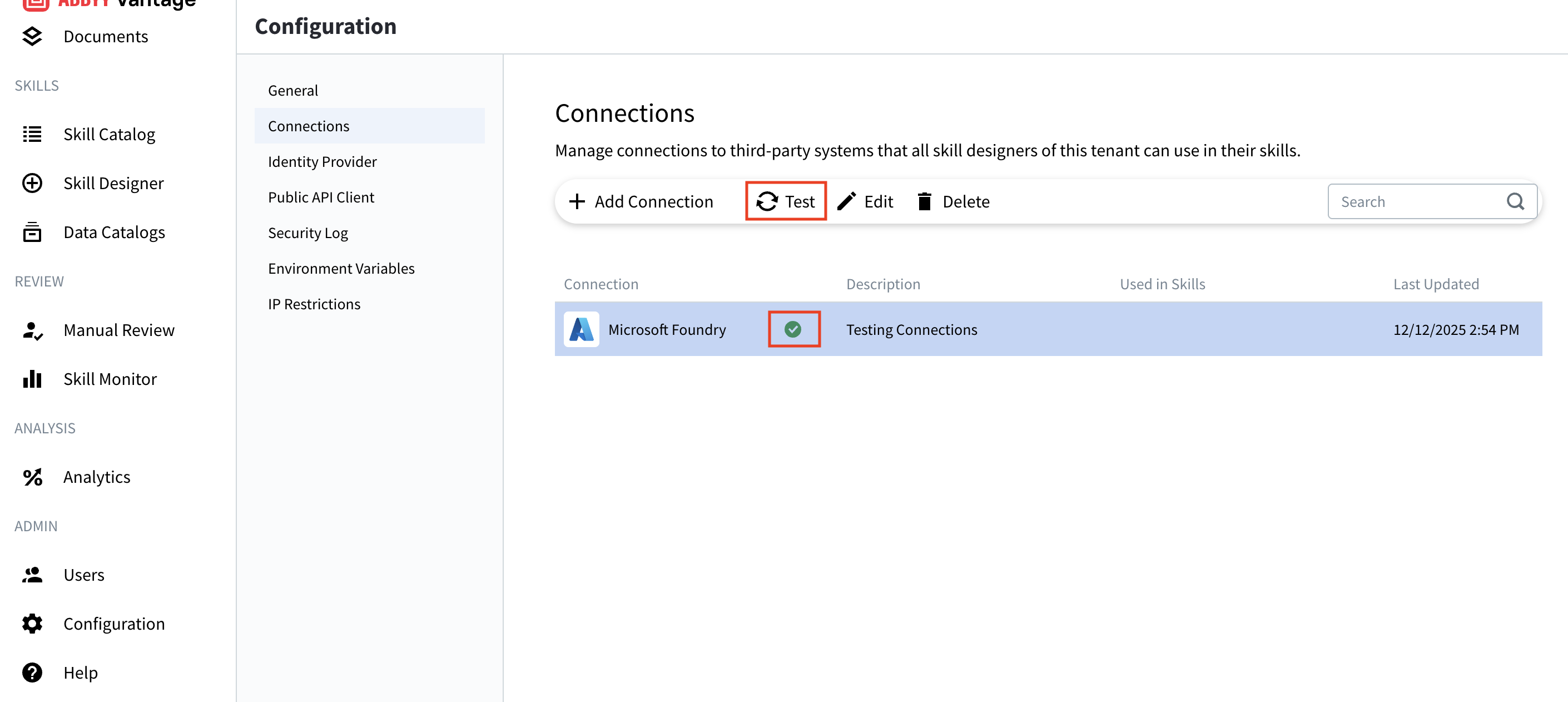 2. Vantage will attempt to connect to your LLM provider using the credentials you provided.
3. Watch for the test result:
* **Success (green checkmark):** Connection is working correctly.
* **Failure (red X or error message):** Check your credentials and try again.
### Test Results
**Successful Test:**
* A green checkmark appears next to your connection.
* You can now save the connection.
* The connection is ready to use in Document Skills.
**Failed Test:**
* Review the error message for specific issues.
* Common problems:
* Incorrect API key
* Invalid endpoint URL
* Wrong model name
* Network connectivity issues
* Insufficient permissions or quota
Always test your connection before saving. This ensures that your Document Skills will be able to use the LLM provider successfully.
***
## Step 6: Save Your Connection
Finalize the connection setup.
1. Once the test succeeds, click the **Add** button.
2. Your connection now appears in the Connections list.
3. The connection is immediately available to all skill designers in your tenant.
The Connections page now shows:
* **Connection name:** As you specified
* **Description:** Your helpful description
* **Used in Skills:** Will show which skills are using this connection
* **Last Updated:** Current timestamp
Once a skill that references this connection is published, the connection is set as the **default** in the Vantage Web Portal under **Skill Catalog → \[skill] → Parameters**. Tenant administrators can override the default with a different connection per environment without republishing the skill — see [Document skill parameters](/vantage/documentation/skill-designer/skill-parameters/document-skill-params).
***
## Managing Existing Connections
You can manage your connections after they're created.
### Edit a Connection
1. Select the connection from the list.
2. Click the **Edit** button (pencil icon).
3. Update the necessary fields.
4. Test the connection again.
5. Click **Save.**
Editing a connection affects all skills using it. Test thoroughly after making changes.
### Test a Connection
1. Select the connection from the list.
2. Click the **Test** button (refresh icon).
3. Verify the connection is still working.
4. This is useful for troubleshooting or verifying credentials.
### Delete a Connection
1. Select the connection from the list.
2. Click the **Delete** button (trash icon).
3. Confirm the deletion.
You cannot delete a connection that is currently used in active skills. Remove the connection from all skills first.
***
## Troubleshooting
### Connection Test Fails
**Problem:** Connection test returns an error.
**Solutions:**
* **Invalid API Key:**
* Verify you copied the entire key correctly.
* Check for extra spaces or characters.
* Regenerate the key in your provider's portal if needed.
* **Invalid Endpoint URL:**
* Ensure the URL is complete and properly formatted.
* Verify the URL matches your Azure resource.
* Check for typos in the deployment path.
* **Wrong Model Name:**
* Confirm the deployment exists in your Azure portal.
* Check spelling and capitalization (case-sensitive).
* Verify the deployment is active and available.
* **Network Issues:**
* Check your internet connectivity.
* Verify firewall settings allow outbound HTTPS connections.
* Confirm your Vantage instance can reach the LLM provider.
* **Quota or Permissions:**
* Verify your subscription is active.
* Check that you haven't exceeded rate limits.
* Ensure your API key has necessary permissions.
### Connection Works in Test but Fails in Skills
**Problem:** Test succeeds but skills can't use the connection.
**Solutions:**
* Refresh the Skill Designer page.
* Re-select the connection in the skill configuration.
* Check the skill's error logs for specific messages.
* Verify the skill is published and not in draft mode.
### API Costs Higher Than Expected
**Problem:** Unexpected charges from your LLM provider.
**Solutions:**
* Review which skills are using the connection.
* Check processing volume and frequency.
* Consider implementing rate limiting.
* Monitor usage through your provider's dashboard.
* Use more cost-effective models for testing.
***
## Best Practices
### Security
* **Never share API keys** in plain text emails or chat.
* **Rotate credentials regularly** (every 90 days recommended).
* **Use separate connections** for development and production.
* **Monitor access logs** in your LLM provider's dashboard.
* **Implement least-privilege access** - only grant necessary permissions.
* **Store backup credentials** securely in case of emergency.
### Connection Management
* **Use descriptive names** that indicate purpose or environment.
* Good: "Production GPT-4", "Development Microsoft Foundry"
* Avoid: "Connection 1", "Test"
* **Document in descriptions** what each connection is for
* Include: Environment, use case, owner contact
* Exclude: Credentials, sensitive information
* **Test connections regularly** to catch issues early
* Set up a monthly review schedule.
* Test after any credential changes.
* **Track usage** to understand which connections are active
* Review the "Used in Skills" column.
* Archive or delete unused connections.
### Cost Management
* **Choose appropriate models** for each use case.
* Use smaller, faster models for simple tasks.
* Reserve advanced models for complex extraction.
* **Implement rate limiting** if your provider supports it.
* Prevents unexpected cost spikes.
* Protects against runaway processing.
* **Monitor usage patterns**
* Set up billing alerts in your provider's dashboard.
* Review monthly costs and usage.
* **Optimize prompts** in your Document Skills.
* Efficient prompts reduce token usage.
* Test and refine for best results with lowest cost.
### Workflow Optimization
* **Group similar document types together**
* **Configure appropriate document skills** for your use case
* **Test with sample documents** before production use
* **Document your workflow** for team reference
***
## Additional Resources
* **OpenAI API Documentation:** [https://platform.openai.com/docs](https://platform.openai.com/docs)
* **Microsoft Foundry:** [https://azure.microsoft.com/products/ai-foundry](https://azure.microsoft.com/products/ai-foundry)
* **Azure AI Services Documentation:** [https://learn.microsoft.com/azure/ai-services/](https://learn.microsoft.com/azure/ai-services/)
* **Google AI Studio:** [https://aistudio.google.com](https://aistudio.google.com)
* **Support:** Contact ABBYY support for technical assistance
***
## Summary
You've successfully:
* ✅ Accessed the Configuration settings
* ✅ Navigated to Connections management
* ✅ Added a new LLM connection
* ✅ Configured connection credentials and settings
* ✅ Tested your connection
* ✅ Learned how to manage connections
Your LLM connection is now ready to power advanced AI capabilities in your ABBYY Vantage Document Skills!
2. Vantage will attempt to connect to your LLM provider using the credentials you provided.
3. Watch for the test result:
* **Success (green checkmark):** Connection is working correctly.
* **Failure (red X or error message):** Check your credentials and try again.
### Test Results
**Successful Test:**
* A green checkmark appears next to your connection.
* You can now save the connection.
* The connection is ready to use in Document Skills.
**Failed Test:**
* Review the error message for specific issues.
* Common problems:
* Incorrect API key
* Invalid endpoint URL
* Wrong model name
* Network connectivity issues
* Insufficient permissions or quota
Always test your connection before saving. This ensures that your Document Skills will be able to use the LLM provider successfully.
***
## Step 6: Save Your Connection
Finalize the connection setup.
1. Once the test succeeds, click the **Add** button.
2. Your connection now appears in the Connections list.
3. The connection is immediately available to all skill designers in your tenant.
The Connections page now shows:
* **Connection name:** As you specified
* **Description:** Your helpful description
* **Used in Skills:** Will show which skills are using this connection
* **Last Updated:** Current timestamp
Once a skill that references this connection is published, the connection is set as the **default** in the Vantage Web Portal under **Skill Catalog → \[skill] → Parameters**. Tenant administrators can override the default with a different connection per environment without republishing the skill — see [Document skill parameters](/vantage/documentation/skill-designer/skill-parameters/document-skill-params).
***
## Managing Existing Connections
You can manage your connections after they're created.
### Edit a Connection
1. Select the connection from the list.
2. Click the **Edit** button (pencil icon).
3. Update the necessary fields.
4. Test the connection again.
5. Click **Save.**
Editing a connection affects all skills using it. Test thoroughly after making changes.
### Test a Connection
1. Select the connection from the list.
2. Click the **Test** button (refresh icon).
3. Verify the connection is still working.
4. This is useful for troubleshooting or verifying credentials.
### Delete a Connection
1. Select the connection from the list.
2. Click the **Delete** button (trash icon).
3. Confirm the deletion.
You cannot delete a connection that is currently used in active skills. Remove the connection from all skills first.
***
## Troubleshooting
### Connection Test Fails
**Problem:** Connection test returns an error.
**Solutions:**
* **Invalid API Key:**
* Verify you copied the entire key correctly.
* Check for extra spaces or characters.
* Regenerate the key in your provider's portal if needed.
* **Invalid Endpoint URL:**
* Ensure the URL is complete and properly formatted.
* Verify the URL matches your Azure resource.
* Check for typos in the deployment path.
* **Wrong Model Name:**
* Confirm the deployment exists in your Azure portal.
* Check spelling and capitalization (case-sensitive).
* Verify the deployment is active and available.
* **Network Issues:**
* Check your internet connectivity.
* Verify firewall settings allow outbound HTTPS connections.
* Confirm your Vantage instance can reach the LLM provider.
* **Quota or Permissions:**
* Verify your subscription is active.
* Check that you haven't exceeded rate limits.
* Ensure your API key has necessary permissions.
### Connection Works in Test but Fails in Skills
**Problem:** Test succeeds but skills can't use the connection.
**Solutions:**
* Refresh the Skill Designer page.
* Re-select the connection in the skill configuration.
* Check the skill's error logs for specific messages.
* Verify the skill is published and not in draft mode.
### API Costs Higher Than Expected
**Problem:** Unexpected charges from your LLM provider.
**Solutions:**
* Review which skills are using the connection.
* Check processing volume and frequency.
* Consider implementing rate limiting.
* Monitor usage through your provider's dashboard.
* Use more cost-effective models for testing.
***
## Best Practices
### Security
* **Never share API keys** in plain text emails or chat.
* **Rotate credentials regularly** (every 90 days recommended).
* **Use separate connections** for development and production.
* **Monitor access logs** in your LLM provider's dashboard.
* **Implement least-privilege access** - only grant necessary permissions.
* **Store backup credentials** securely in case of emergency.
### Connection Management
* **Use descriptive names** that indicate purpose or environment.
* Good: "Production GPT-4", "Development Microsoft Foundry"
* Avoid: "Connection 1", "Test"
* **Document in descriptions** what each connection is for
* Include: Environment, use case, owner contact
* Exclude: Credentials, sensitive information
* **Test connections regularly** to catch issues early
* Set up a monthly review schedule.
* Test after any credential changes.
* **Track usage** to understand which connections are active
* Review the "Used in Skills" column.
* Archive or delete unused connections.
### Cost Management
* **Choose appropriate models** for each use case.
* Use smaller, faster models for simple tasks.
* Reserve advanced models for complex extraction.
* **Implement rate limiting** if your provider supports it.
* Prevents unexpected cost spikes.
* Protects against runaway processing.
* **Monitor usage patterns**
* Set up billing alerts in your provider's dashboard.
* Review monthly costs and usage.
* **Optimize prompts** in your Document Skills.
* Efficient prompts reduce token usage.
* Test and refine for best results with lowest cost.
### Workflow Optimization
* **Group similar document types together**
* **Configure appropriate document skills** for your use case
* **Test with sample documents** before production use
* **Document your workflow** for team reference
***
## Additional Resources
* **OpenAI API Documentation:** [https://platform.openai.com/docs](https://platform.openai.com/docs)
* **Microsoft Foundry:** [https://azure.microsoft.com/products/ai-foundry](https://azure.microsoft.com/products/ai-foundry)
* **Azure AI Services Documentation:** [https://learn.microsoft.com/azure/ai-services/](https://learn.microsoft.com/azure/ai-services/)
* **Google AI Studio:** [https://aistudio.google.com](https://aistudio.google.com)
* **Support:** Contact ABBYY support for technical assistance
***
## Summary
You've successfully:
* ✅ Accessed the Configuration settings
* ✅ Navigated to Connections management
* ✅ Added a new LLM connection
* ✅ Configured connection credentials and settings
* ✅ Tested your connection
* ✅ Learned how to manage connections
Your LLM connection is now ready to power advanced AI capabilities in your ABBYY Vantage Document Skills!