
Compare base, derived, and new skills
Decide which skill type to use
Check the Skill Catalog first. Starting from a pre-trained skill is faster than training a model from scratch, so derive or build new only when no base skill fits.Base skills
Base skills are pre-trained, read-only skills provided by ABBYY. They handle common document types such as invoices, purchase orders, and identity documents out of the box. You cannot rename, retrain, or change the internal configuration of a base skill. Instead, use one of the following approaches:- Use the skill directly in a Process skill workflow. No configuration is needed.
- Create a derived skill from it when you need to customize fields, validation, or recognition settings.
Identify a base skill in the Skill Catalog
Base skills are listed in the Skill Catalog alongside your own skills.1
Open the Skill Catalog
Sign in to your ABBYY Vantage tenant and, in the left sidebar, click Skill Catalog.
2
Find a skill for your document type
Browse the list or search by document type. A lock icon marks the skills that are read-only.
3
Confirm that the skill is read-only
Click the name of the skill. In the details that open, base skills show Read only set to 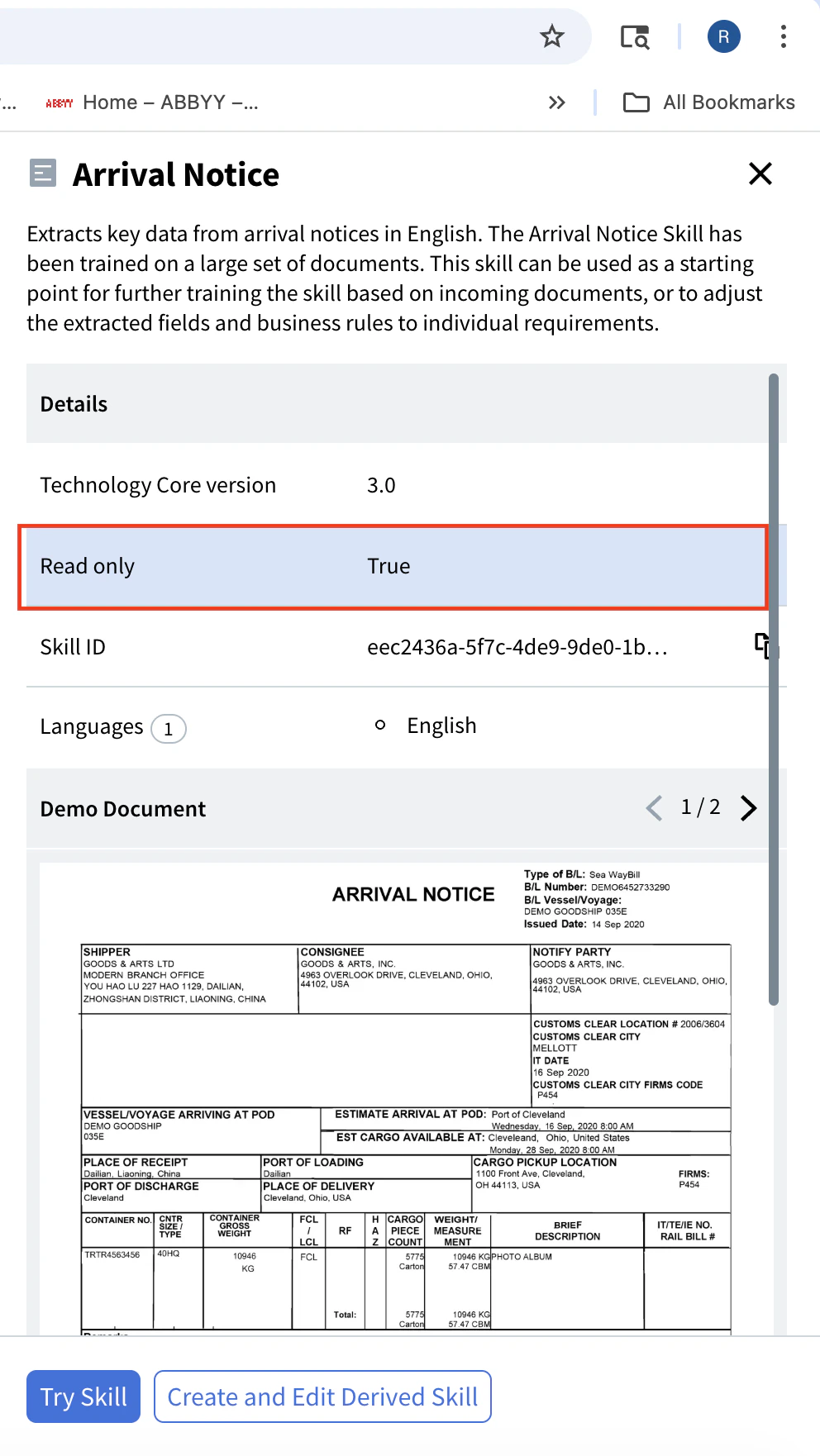
True.Derived skills
A derived skill is a full, editable copy of a base skill. It inherits all of the pre-trained extraction logic, field definitions, and recognition settings of the base skill, and you can then customize any of them. For more information, see Derived skills.When to use a derived skill
Use a derived skill in any of the following cases:- A base skill exists for your document type, but it does not quite match your needs.
- You need to add, remove, or rename fields.
- You want to adjust validation rules or confidence thresholds.
- You want ABBYY’s pre-training with your own configuration on top.
Create a derived skill
1
Open the Skill Catalog
In the left sidebar, click Skill Catalog.
2
Select a base skill
Find the skill you want to derive from and click its name to open the skill details.
3
Start the derived skill
Click Create and Edit Derived Skill.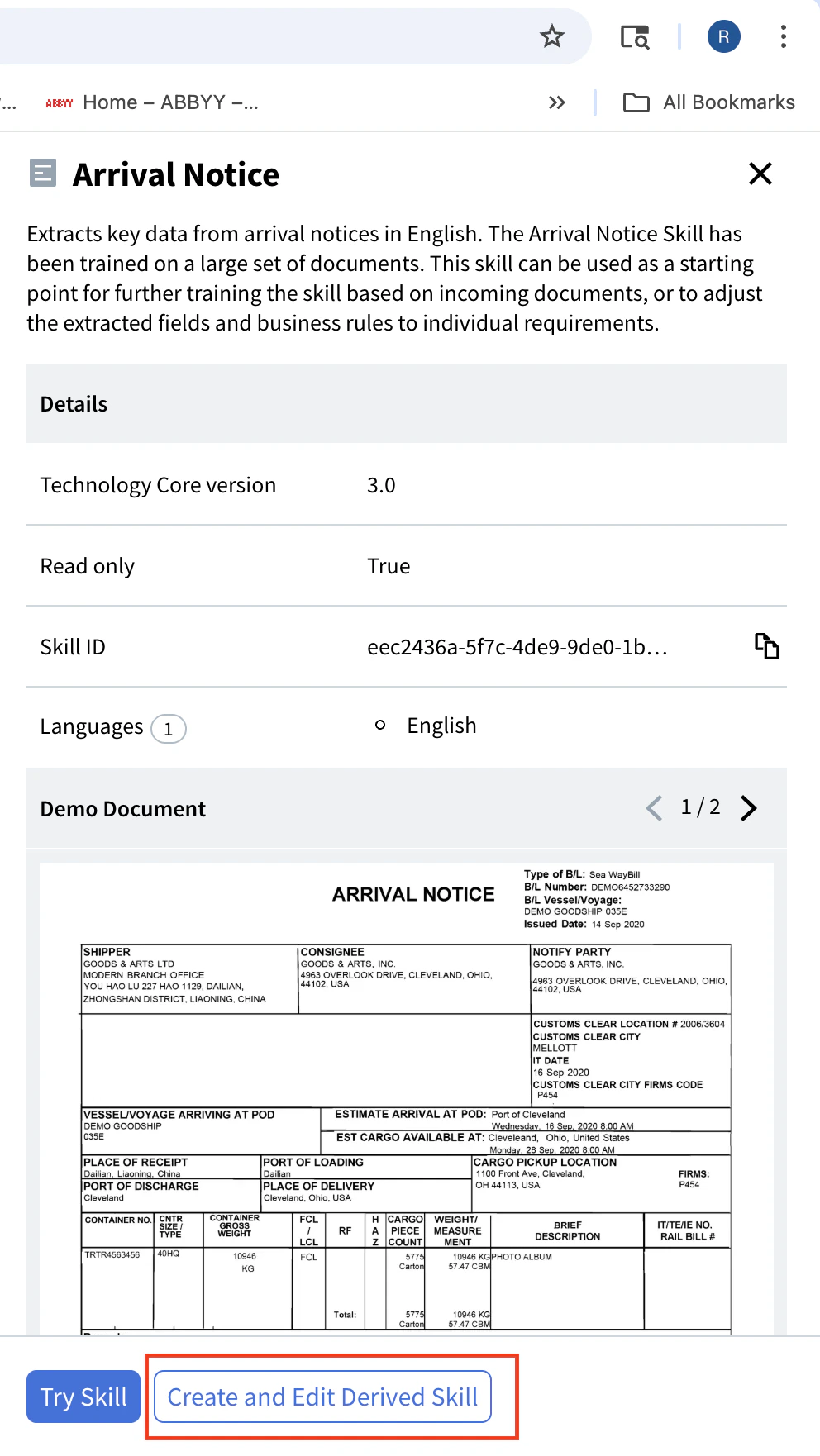
4
Confirm the new skill
In the Create Derived Skill dialog box, click Create and Edit Derived Skill. The new skill opens in the Skill Designer.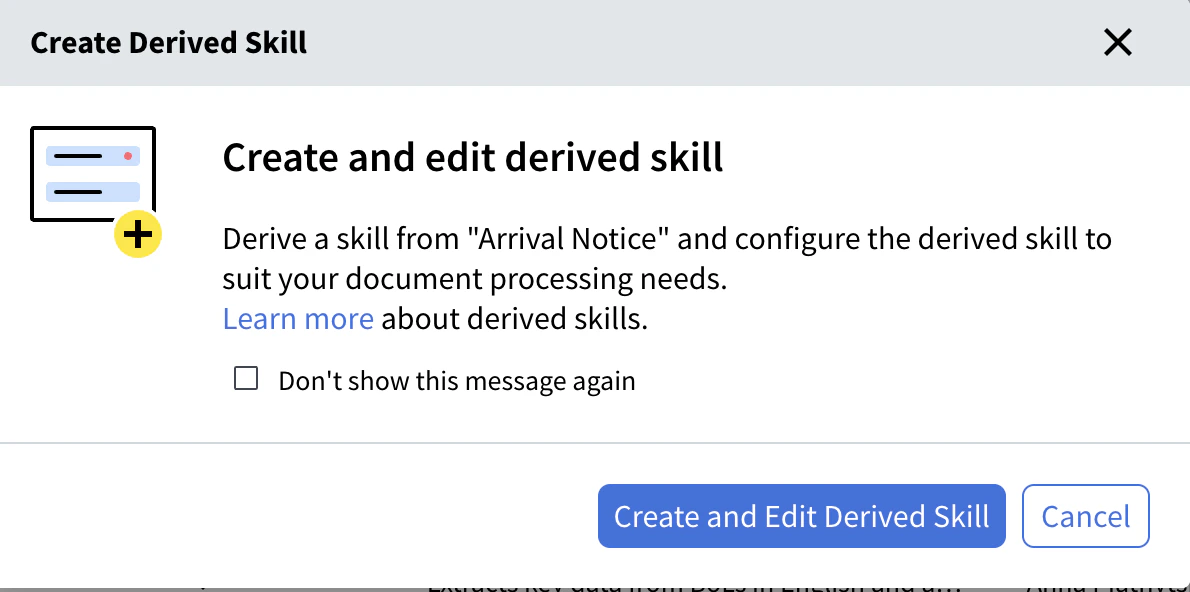
5
Upload documents
Upload or drag and drop documents into the skill.
6
Customize the skill
Change any of the following:
- Add or remove extraction fields.
- Modify field labels and validation rules.
- Adjust recognition settings.
- Upload more training documents.
7
Train the skill
When you finish editing, click Train in the Actions pane.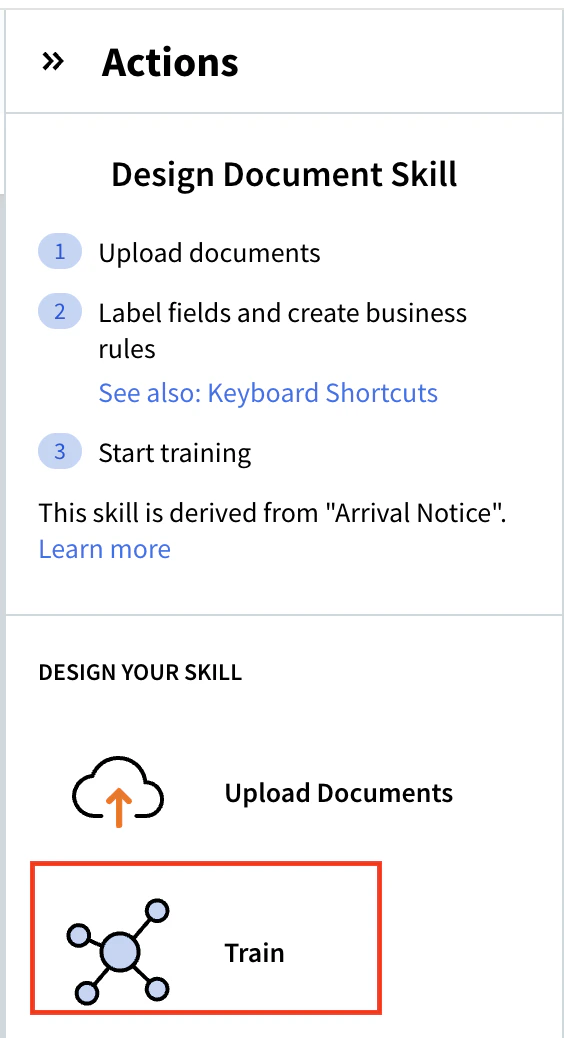
8
Publish the skill
When training finishes, click Publish. The skill becomes available for use in Process skills.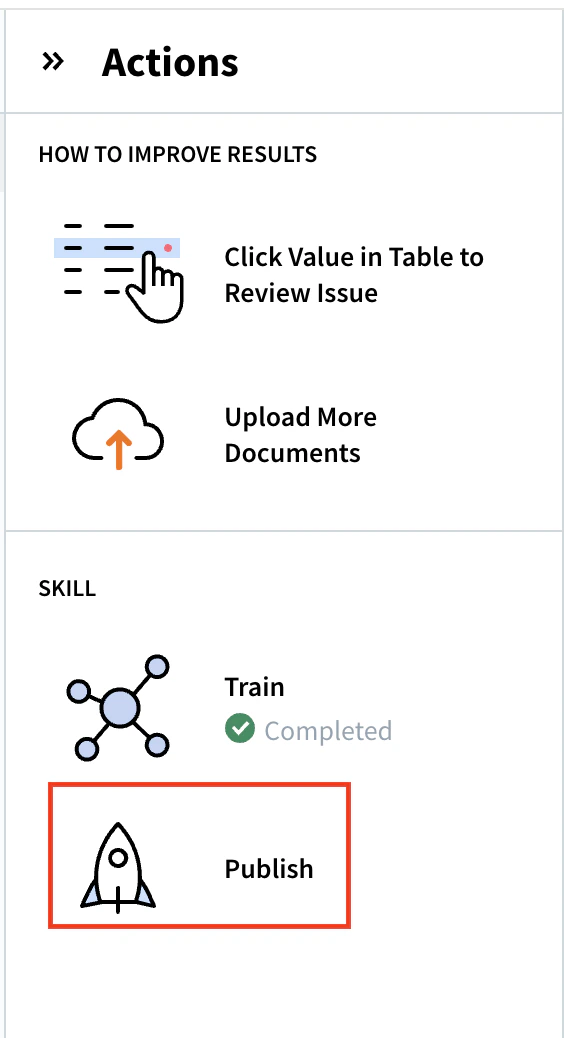
Update a derived skill when its base skill changes
A derived skill does not inherit changes automatically when ABBYY releases a new version of its base skill. Apply the update yourself. An update icon appears next to the version number of the derived skill in the Skill Catalog. Click that icon and select Update to apply the new version, or follow these steps for more control over the result.1
Open the derived skill
In the Skill Catalog, open the derived skill you want to update.
2
Open the skill settings
Click the settings icon.
3
Select the latest base-skill version
Select the latest version of the base skill and click Save. The derived skill is retrained automatically.
4
Test the updated skill
Run documents through the skill and make any needed adjustments.
5
Publish the updated skill
Click Publish to make the updated version available.
If you are not satisfied with the extraction results after an update, do not publish the skill. To keep using the previous version, select the skill in the Skill Catalog and click Discard changes.
New skills
A new skill is built entirely from scratch in the Skill Designer. There is no pre-trained base, so you define the fields, upload training documents, label your data, and train the model yourself.When to use a new skill
Use a new skill in any of the following cases:- No base skill exists for your document type.
- Your document has a highly custom or proprietary layout.
- You need complete control over the extraction model.
Skill types you can create
The Create menu in the Skill Catalog offers the first four types. Document Splitter skills are built in Advanced Designer.
Create a new Document skill
1
Open the Create menu
In the Skill Catalog, click Create on the toolbar.
2
Select Document Skill
In the menu that appears, select Document Skill.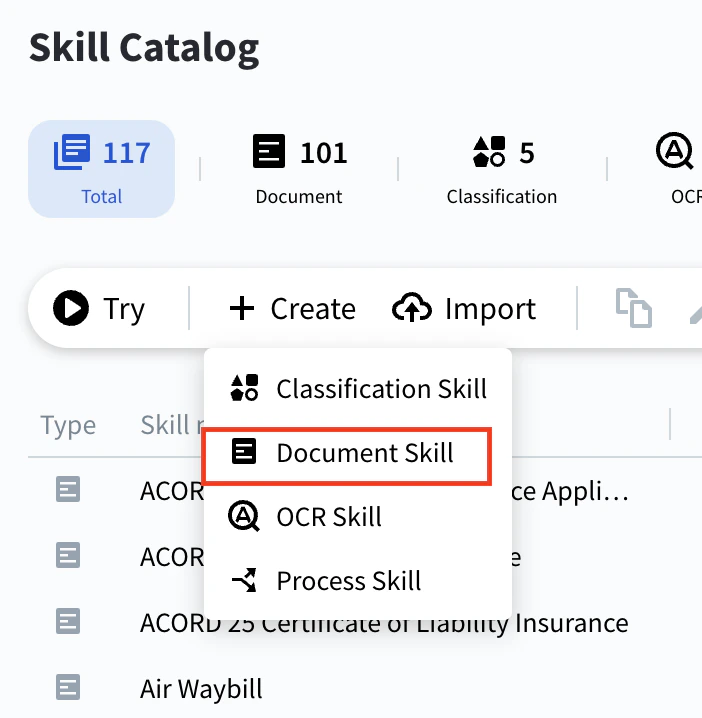
3
Name the skill
Enter a Name and, optionally, a Description. Select a Technology Core Version, and then click Create. The Skill Designer opens.For the full set of options in this dialog box, see Create a skill.
4
Upload sample documents
On the Documents tab, upload sample documents for training. Start by labeling fields on one document. Accuracy improves as you add more varied examples.
5
Label the fields
On the Editor tab, use the labeling tool to mark and tag the fields you want to extract from each document.
6
Train the skill
In the Actions pane, click Train to build the extraction model from your labeled data.
7
Review the results
Check extraction accuracy and correct any errors. Repeat the upload, labeling, and training steps until the results are good enough.
8
Publish the skill
Click Publish when the results meet your requirements.
Next steps
- Skill Catalog – Browse the available base skills.
- Skill Designer overview – Build and manage skills.
- Create a skill – See every option in the skill creation dialog box.
- Process documents with SFTP – Set up a Process skill workflow using your chosen skill.