> ## Documentation Index
> Fetch the complete documentation index at: https://docs.abbyy.com/llms.txt
> Use this file to discover all available pages before exploring further.
# Azure AD as an OAuth 2.0 External Identity Provider
> Configure Azure Active Directory (Azure AD) as an OAuth 2.0 External Identity Provider for ABBYY Vantage: register the app, set claims, and link the tenant.
## Prerequisites
Before configuring Azure Active Directory to be used as an External Identity Provider, create an application registration. Registering your application establishes a trust relationship between your application and the External Identity Provider.
To create the application, follow these steps:
Go to [Azure Portal](https://portal.azure.com/) and sign in. In the pane on the left, select **Azure Active Directory**.
In the pane on the right, select **App registrations** and click **New registration**.
 Specify the following:
* **Name** — a name for the application.
* **Supported account types** — select **Accounts in this organizational directory only (ABBYY only - Single tenant)**.
* **Redirect URI** — for each Vantage URL that should authenticate using this account, enter `https:///auth2/signin-oidc`.
Specify the following:
* **Name** — a name for the application.
* **Supported account types** — select **Accounts in this organizational directory only (ABBYY only - Single tenant)**.
* **Redirect URI** — for each Vantage URL that should authenticate using this account, enter `https:///auth2/signin-oidc`.
 Click **Register**.
This completes the registration of your application in Azure Active Directory. After you have completed the steps above, you will need to set up Azure Active Directory to be used as an External Identity Provider.
## Set up Azure Active Directory
To set up Azure Active Directory, follow these steps:
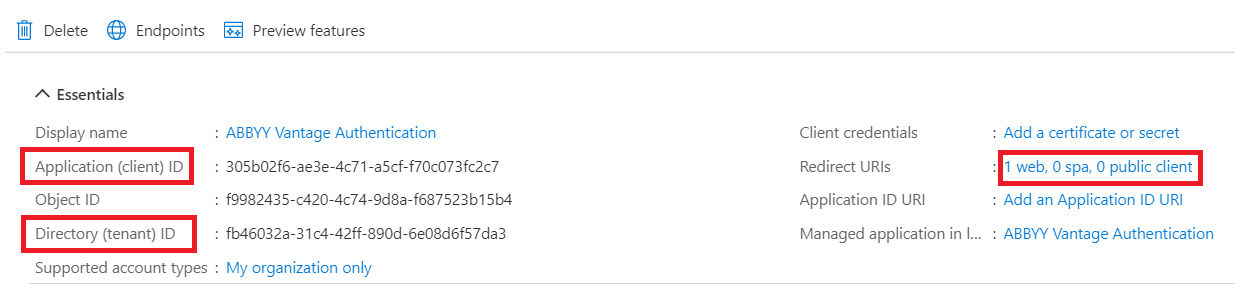
On the **Overview** page of your application, save the values of **Application ID URI** and **Directory (tenant) ID**, then click the value of **Redirect URIs**.
Click **Register**.
This completes the registration of your application in Azure Active Directory. After you have completed the steps above, you will need to set up Azure Active Directory to be used as an External Identity Provider.
## Set up Azure Active Directory
To set up Azure Active Directory, follow these steps:
On the **Overview** page of your application, save the values of **Application ID URI** and **Directory (tenant) ID**, then click the value of **Redirect URIs**.
 Select **Access tokens** and **ID tokens**, then click **Save**.
 ## Next steps
Once Azure AD is configured, connect it to your Vantage tenant. You'll need:
* The **Application (Client) ID** (from step 1 above).
* The Azure AD URL in the format `https://login.microsoftonline.com/`.
For the Vantage-side setup, see [Setting up an External Identity Provider for a tenant](/vantage/documentation/tenant-admin/tenant-management/configuring-tenant).
## Related topics
Overview of OAuth 2.0 setup for AD FS or Azure AD
Configure on-premises AD FS instead of Azure AD
Connect Azure AD to your Vantage tenant
Verify the External Identity Provider before users sign in
## Next steps
Once Azure AD is configured, connect it to your Vantage tenant. You'll need:
* The **Application (Client) ID** (from step 1 above).
* The Azure AD URL in the format `https://login.microsoftonline.com/`.
For the Vantage-side setup, see [Setting up an External Identity Provider for a tenant](/vantage/documentation/tenant-admin/tenant-management/configuring-tenant).
## Related topics
Overview of OAuth 2.0 setup for AD FS or Azure AD
Configure on-premises AD FS instead of Azure AD
Connect Azure AD to your Vantage tenant
Verify the External Identity Provider before users sign in