> ## Documentation Index
> Fetch the complete documentation index at: https://docs.abbyy.com/llms.txt
> Use this file to discover all available pages before exploring further.
# Process via UI
> Quickstart for processing a document in the ABBYY Vantage web UI: upload a file, let Vantage detect the right skill, review extracted data, and export results.
This guide walks you through processing your first document in the Vantage web interface: upload a document, let Vantage detect the right skill, review the extracted data, and export results.
**What you'll accomplish:** Upload a document in the Vantage web UI, review extracted fields, and export results.
**Time to complete:** \~10 minutes
## Prerequisites
* A Vantage account with access to the web interface
* A sample document to process (invoice, receipt, purchase order, or any supported type)
Don't have access yet? [Contact ABBYY](https://www.abbyy.com/vantage-contact-us/) to request a tenant, or ask your admin to create a user account.
## Step 1: Open the Documents page
Sign in to Vantage and navigate to the **Documents** page. This is your main workspace for uploading and processing documents.
## Step 2: Upload a document
Upload your document using either method:
* Click **Upload documents** and select a file
* Drag and drop a file onto the browser window
Each file should contain only one document. If you have a multi-page document, combine all pages into a single file (e.g., a multi-page PDF). Password-protected PDFs are not supported.
## Step 3: Automatic skill detection
Once uploaded, Vantage automatically:
1. Detects the document type (invoice, receipt, purchase order, etc.)
2. Selects the most suitable skill from the Skill Catalog
3. Applies the skill and begins extraction
You'll see the applied skill name appear next to your document in the list, along with the number of fields detected.
If Vantage doesn't recognize your document type or selects the wrong skill, you can manually select a different skill. Click the button to the right of the document, select **Select Skill**, browse the skill list, and click **Select**.
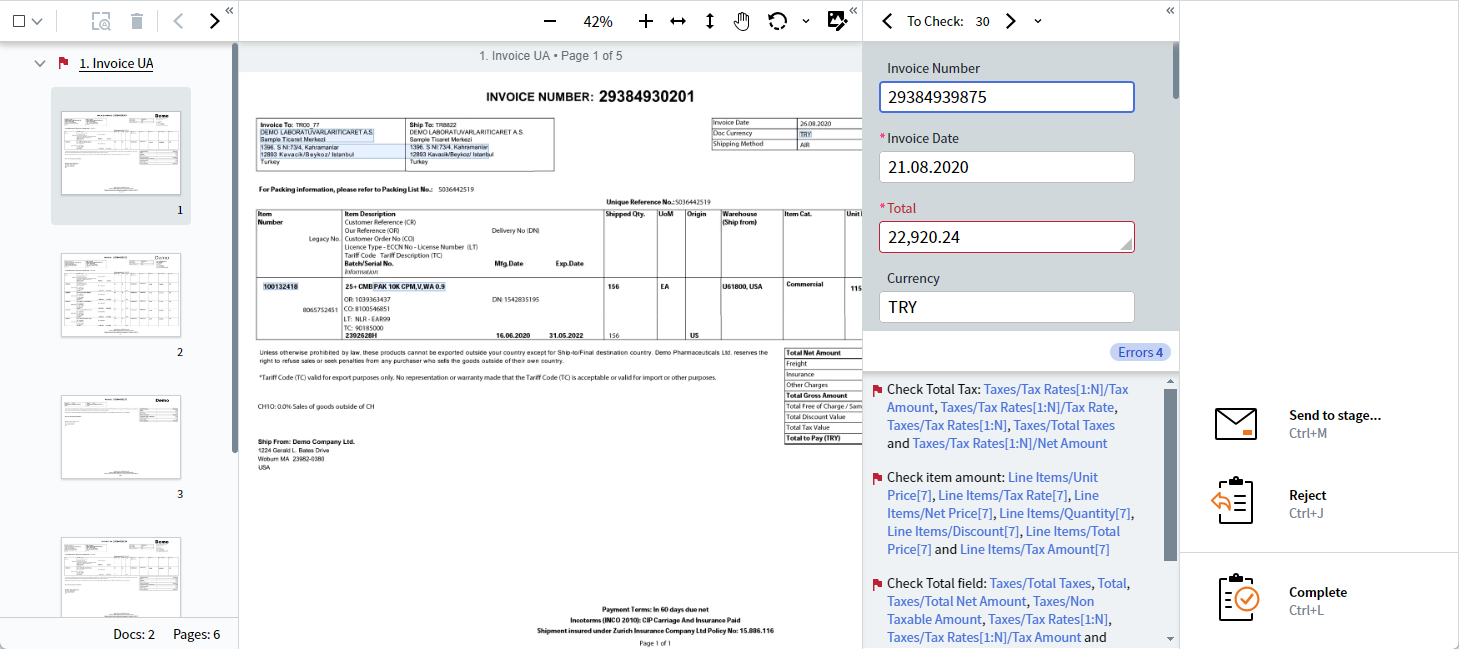
## Step 4: Review extracted data
Once processing is complete, open the results:
1. Click the link next to your document to open the **Manual Review** window
2. Review the extracted fields — each field shows the value Vantage found in the document
3. Verify the data and correct any fields if needed
The Manual Review window shows the document image alongside extracted fields, so you can cross-reference values against the original.
 ## Step 5: Export results
After reviewing, your extracted data is ready for export. Depending on your workflow configuration, results can be:
* Downloaded as JSON or XML
* Sent to a connected system via a process skill
* Accessed via the API for integration with your applications
The exported JSON contains the same structure as the API output — each field with a `Value`, `Confidence` score, and verification flags. See [Understanding your results](/vantage/getting-started/results) for a full walkthrough of what each property means.
## Explore the Skill Catalog
Before processing documents at scale, browse the **Skill Catalog** to see all available pre-trained skills:
1. Navigate to **Skill Catalog** in the sidebar
2. Use the search bar to find skills by name
3. Click the **preview icon** next to a skill to see its description and sample documents
4. Click **Try Skill** to test a skill with your own documents in a new tab
## Step 5: Export results
After reviewing, your extracted data is ready for export. Depending on your workflow configuration, results can be:
* Downloaded as JSON or XML
* Sent to a connected system via a process skill
* Accessed via the API for integration with your applications
The exported JSON contains the same structure as the API output — each field with a `Value`, `Confidence` score, and verification flags. See [Understanding your results](/vantage/getting-started/results) for a full walkthrough of what each property means.
## Explore the Skill Catalog
Before processing documents at scale, browse the **Skill Catalog** to see all available pre-trained skills:
1. Navigate to **Skill Catalog** in the sidebar
2. Use the search bar to find skills by name
3. Click the **preview icon** next to a skill to see its description and sample documents
4. Click **Try Skill** to test a skill with your own documents in a new tab
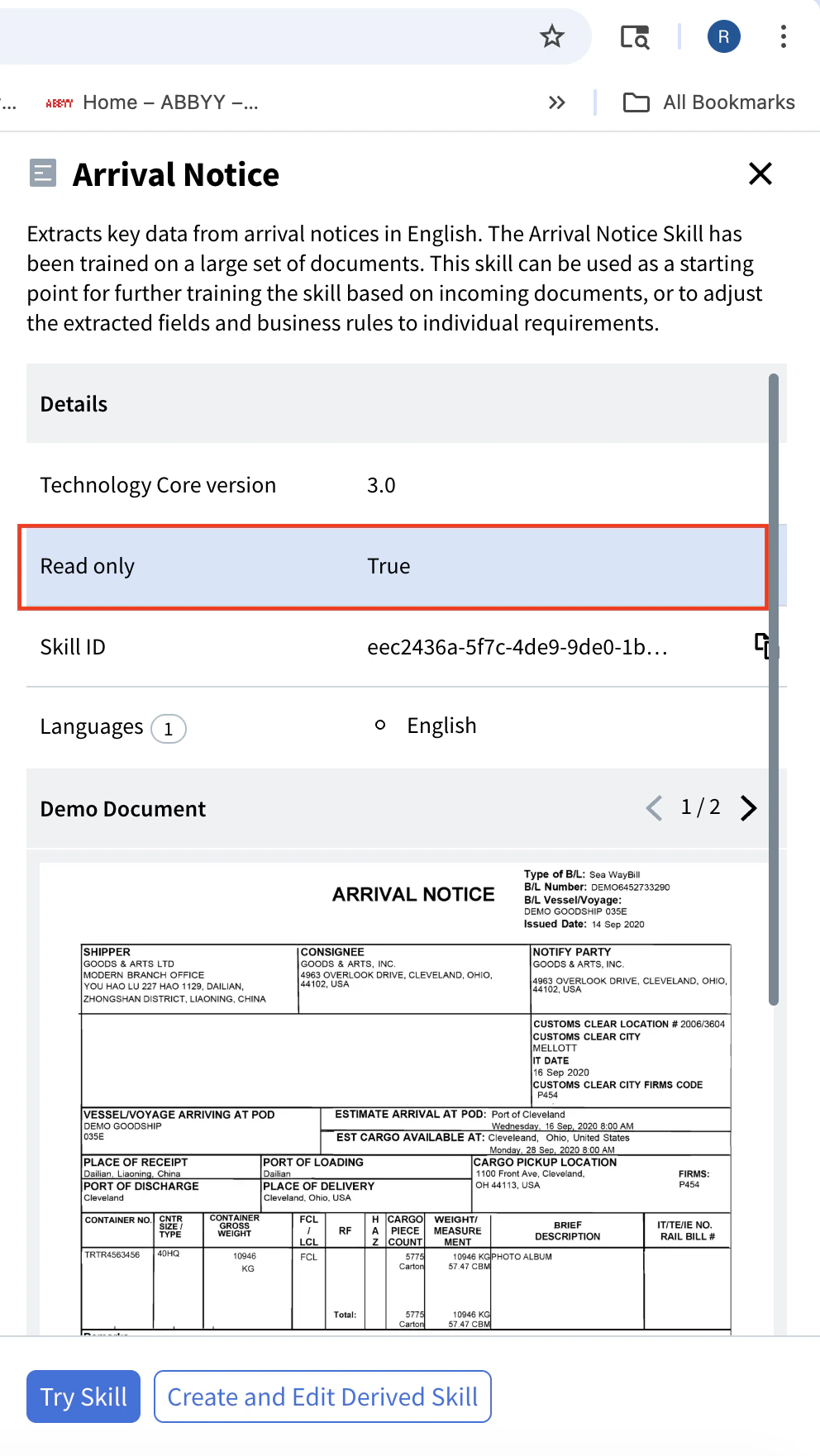 You can test multiple skills simultaneously — each **Try Skill** opens in a separate browser tab, making it easy to compare results.
## Next steps
Learn how to read extracted fields, confidence scores, and table data.
Browse all pre-trained skills and learn how to find the right one for your documents.
Build your own skill for document types not covered by pre-trained models.
Integrate Vantage into your applications with the REST API.
You can test multiple skills simultaneously — each **Try Skill** opens in a separate browser tab, making it easy to compare results.
## Next steps
Learn how to read extracted fields, confidence scores, and table data.
Browse all pre-trained skills and learn how to find the right one for your documents.
Build your own skill for document types not covered by pre-trained models.
Integrate Vantage into your applications with the REST API.