> ## Documentation Index
> Fetch the complete documentation index at: https://docs.abbyy.com/llms.txt
> Use this file to discover all available pages before exploring further.
# Process documents with SFTP
> Complete guide to setting up and using ABBYY Vantage for automated document processing via SFTP, from creating Process Skills to downloading extraction results.
## Overview
ABBYY Vantage enables automated document processing with intelligent extraction capabilities. This guide focuses on the SFTP-based workflow, which allows you to upload documents to a shared folder and automatically retrieve processed results.
**What you'll accomplish:**
* Create and configure a Process Skill
* Set up SFTP access for input and output
* Upload documents via command line
* Download extraction results
**Time to complete:** 15-20 minutes
***
## Step 1: Create a Process Skill
A Process Skill is the foundation of your document processing workflow in Vantage.
1. Navigate to the **Documents** section in ABBYY Vantage.
2. Click on **Skill Designer** in the left sidebar.
3. Select **Process Skill** from the skill types.
 4. In the **Create Process skill** dialog, enter:
* **Skill Name:** A descriptive name for your process (e.g., "Process Skill Test 1")
* **Description:** Optional description of what this skill does
* **Technology Core Version:** 3.0 (recommended)
4. In the **Create Process skill** dialog, enter:
* **Skill Name:** A descriptive name for your process (e.g., "Process Skill Test 1")
* **Description:** Optional description of what this skill does
* **Technology Core Version:** 3.0 (recommended)
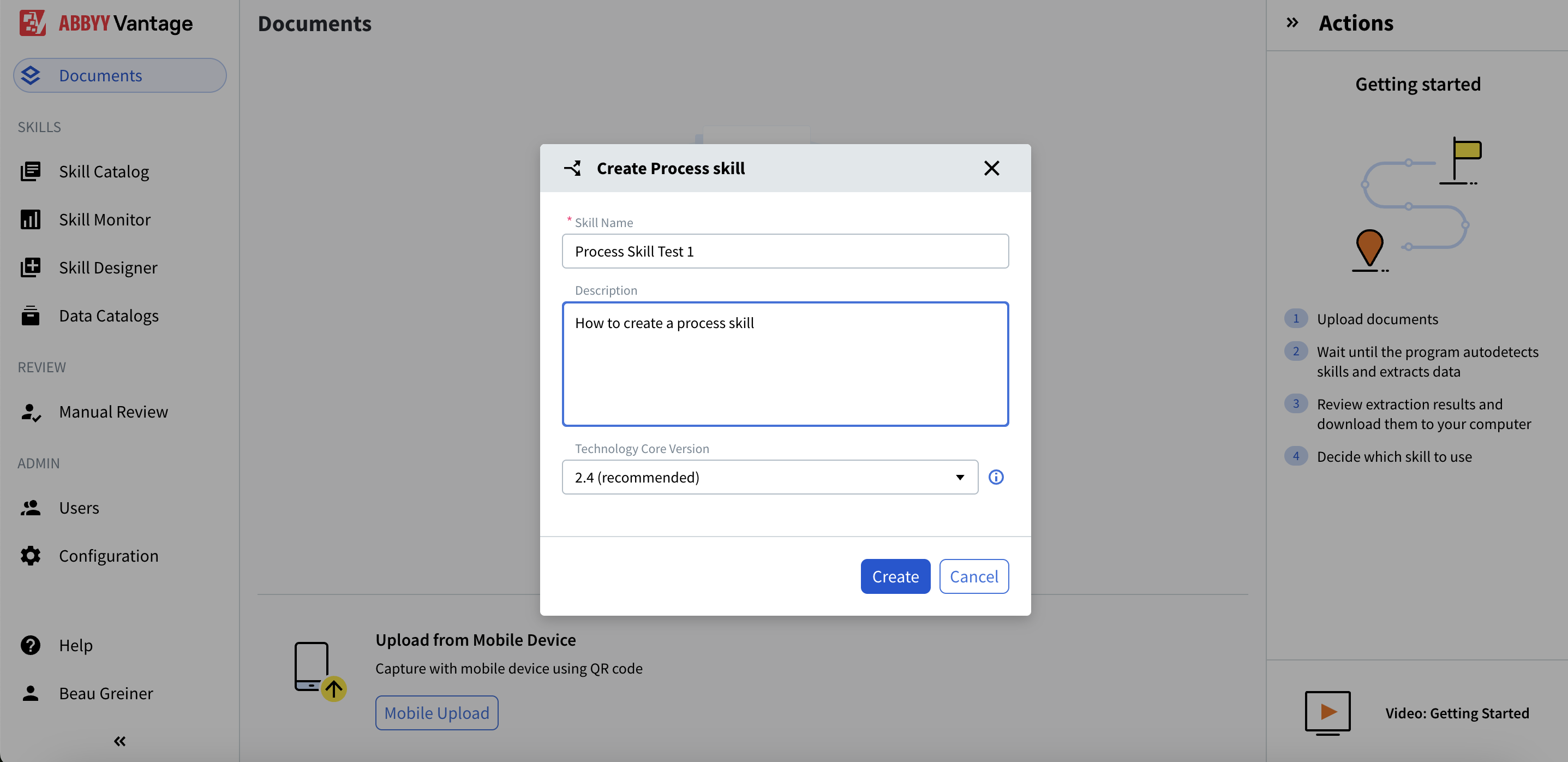 5. Click **Create**
***
## Step 2: Configure the Process Skill Workflow
After creating your skill, you'll set up the document processing flow.
1. In the Skill Designer, you'll see the **Select Process Skill** panel on the right
2. Choose **Simple Document skill workflow** for processing single document types
5. Click **Create**
***
## Step 2: Configure the Process Skill Workflow
After creating your skill, you'll set up the document processing flow.
1. In the Skill Designer, you'll see the **Select Process Skill** panel on the right
2. Choose **Simple Document skill workflow** for processing single document types
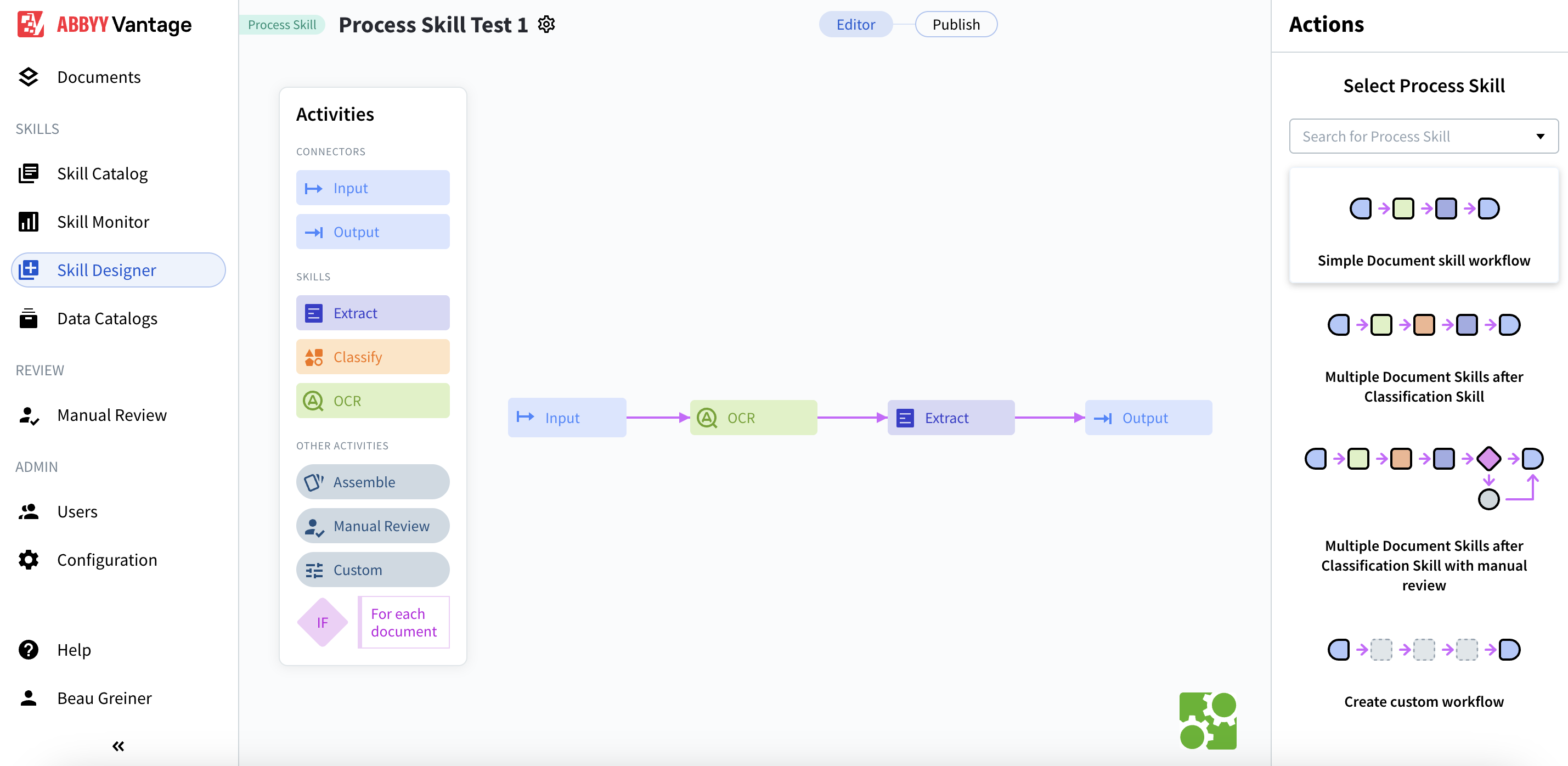 This creates a pre-configured workflow with:
* **Input** connector: Where documents enter the system
* **OCR** skill: Optical character recognition
* **Extract** skill: Data extraction
* **Output** connector: Where results are delivered
The workflow will appear in the center canvas showing: `Input → OCR → Extract → Output`
***
## Step 3: Set Up Input via SFTP
Configure the Input activity to accept documents via SFTP.
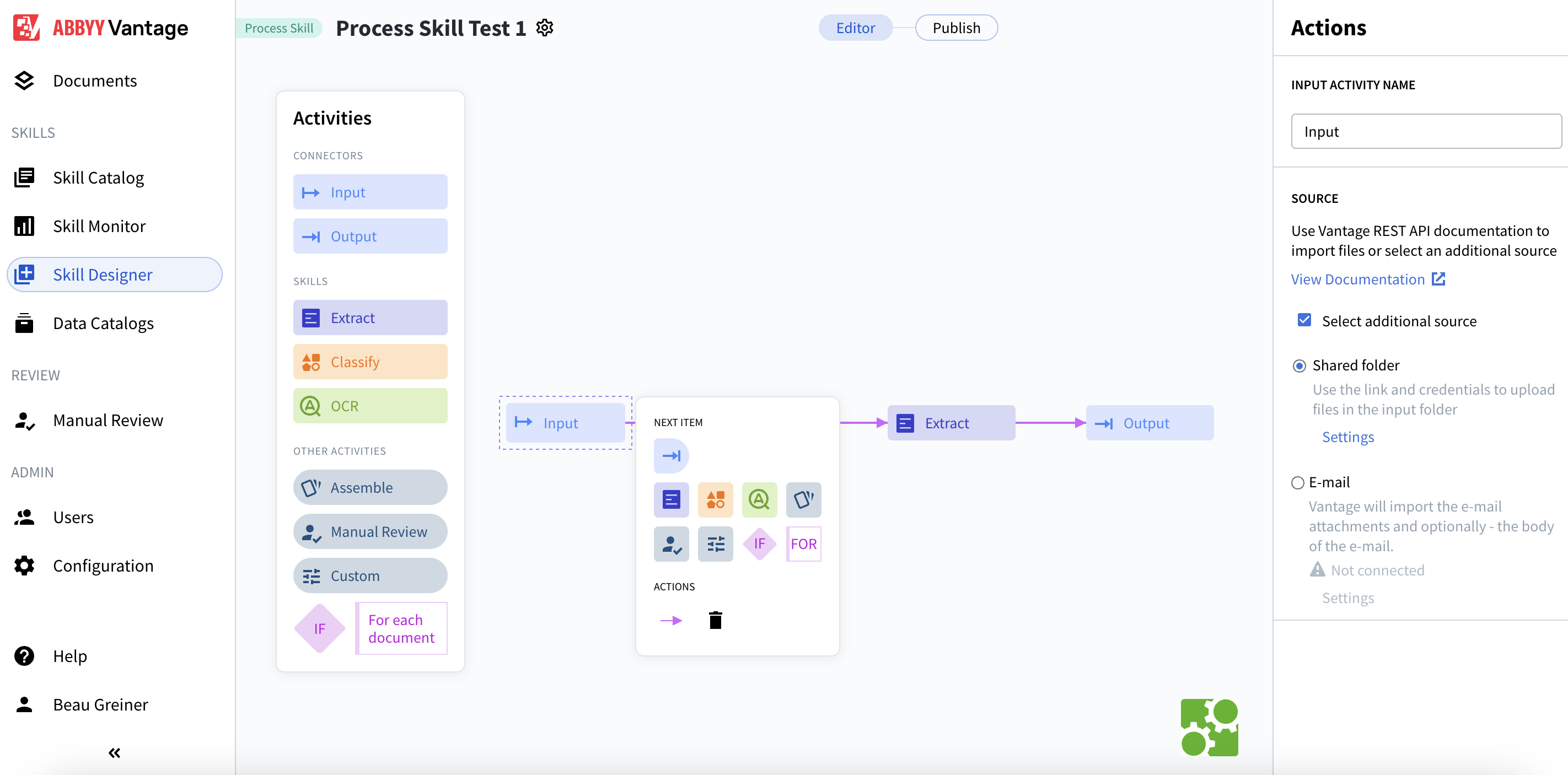
1. Click on the **Input** activity in the workflow.
2. In the **Actions** panel on the right, check **Select additional source.**
3. Select the **Shared folder** radio button.
4. Click **Settings** to configure.
This creates a pre-configured workflow with:
* **Input** connector: Where documents enter the system
* **OCR** skill: Optical character recognition
* **Extract** skill: Data extraction
* **Output** connector: Where results are delivered
The workflow will appear in the center canvas showing: `Input → OCR → Extract → Output`
***
## Step 3: Set Up Input via SFTP
Configure the Input activity to accept documents via SFTP.
1. Click on the **Input** activity in the workflow.
2. In the **Actions** panel on the right, check **Select additional source.**
3. Select the **Shared folder** radio button.
4. Click **Settings** to configure.
 ### Configure Input Settings
In the **Input Settings: Shared Folder** dialog:
### Configure Input Settings
In the **Input Settings: Shared Folder** dialog:
 **Folder settings:**
* **Folder name:** Input (default)
* **Import method:** Single file
**Credentials for import** (displayed for your use):
* **Folder link:** `.../Input`
* **Exceptions folder link:** `.../Input-exception`
* **Username:** A generated UUID (e.g., `685df03c-9e22-41cb-a96f-4c408ab52735`)
* **Password:** Displayed with show/hide option
Copy these credentials — you'll need them to connect via SFTP. Files that can't be imported will be moved to the exceptions folder. Vantage checks for files every 20 seconds after publishing the Skill.
5. Click **Save.**
***
## Step 4: Set Up Output via SFTP
Configure the Output activity to deliver results via SFTP.
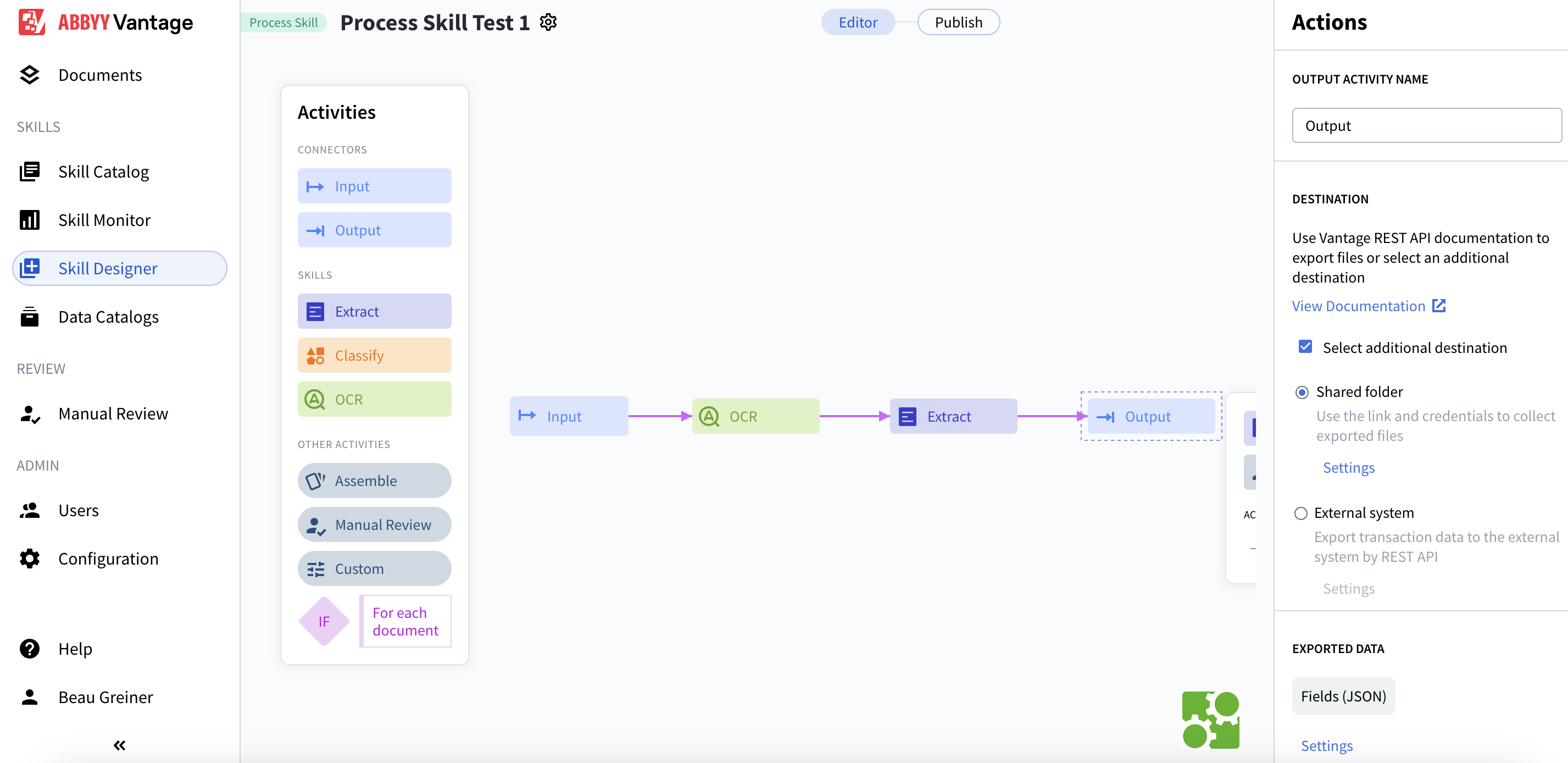
1. Click on the **Output** activity in the workflow.
2. In the **Actions** panel, check **Select additional destination.**
3. Select the **Shared folder** radio button.
4. Click **Settings** to configure.
**Folder settings:**
* **Folder name:** Input (default)
* **Import method:** Single file
**Credentials for import** (displayed for your use):
* **Folder link:** `.../Input`
* **Exceptions folder link:** `.../Input-exception`
* **Username:** A generated UUID (e.g., `685df03c-9e22-41cb-a96f-4c408ab52735`)
* **Password:** Displayed with show/hide option
Copy these credentials — you'll need them to connect via SFTP. Files that can't be imported will be moved to the exceptions folder. Vantage checks for files every 20 seconds after publishing the Skill.
5. Click **Save.**
***
## Step 4: Set Up Output via SFTP
Configure the Output activity to deliver results via SFTP.
1. Click on the **Output** activity in the workflow.
2. In the **Actions** panel, check **Select additional destination.**
3. Select the **Shared folder** radio button.
4. Click **Settings** to configure.
 ### Configure Output Settings
In the **Output Settings: Shared Folder** dialog:
### Configure Output Settings
In the **Output Settings: Shared Folder** dialog:
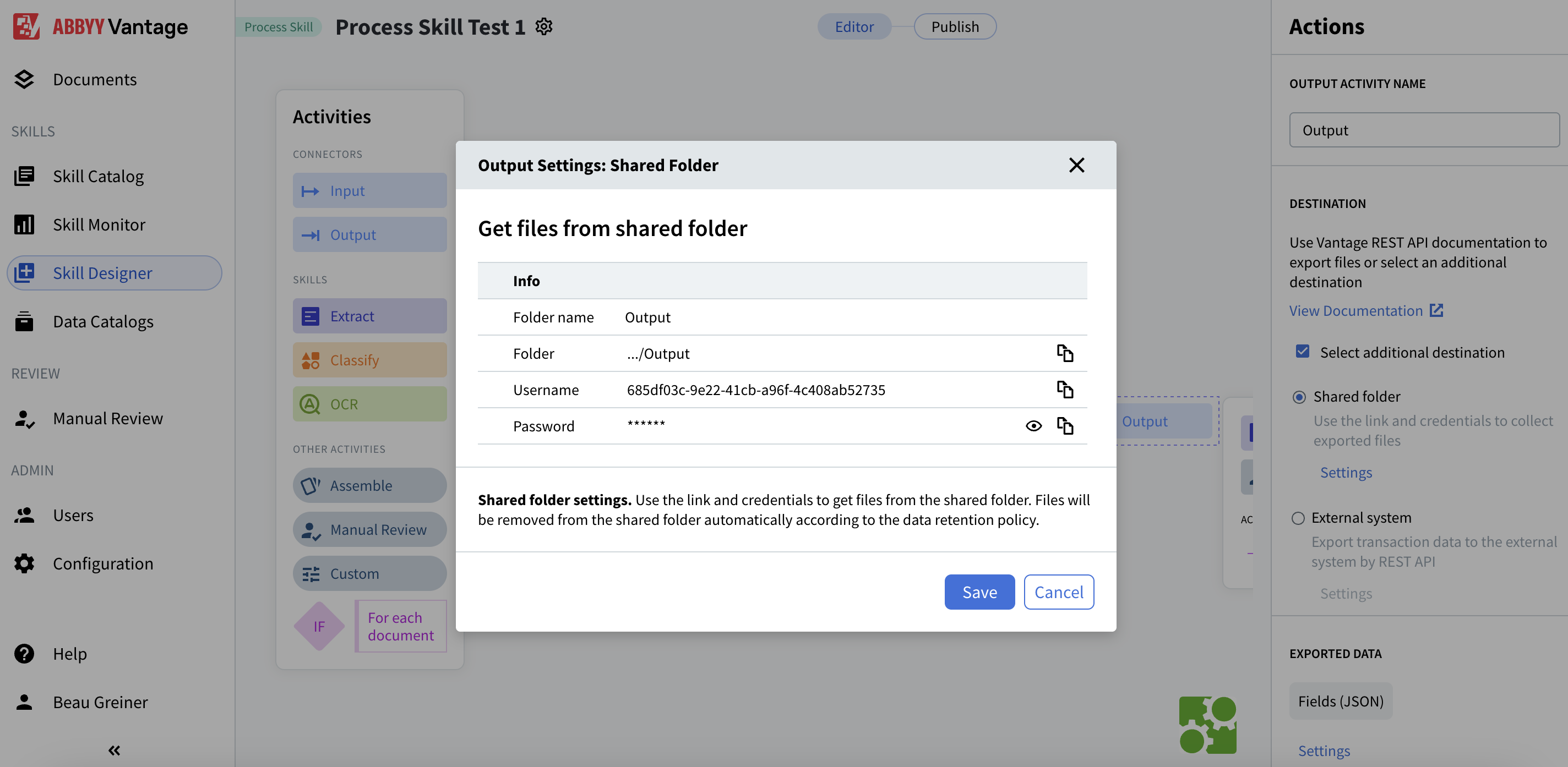 **Info:**
* **Folder name:** Output (default)
* **Folder:** `.../Output`
* **Username:** A generated UUID (e.g., `685df03c-9e22-41cb-a96f-4c408ab52735`)
* **Password:** Displayed with show/hide option
**Exported Data:**
* **Fields (JSON):** Default export format
Results are organized in subfolders named after the source file and transaction ID (e.g., `invoice_1.jpg-4ac2a31b-d1b6-4231-99b2-39f00bc5df82`). Files are automatically removed according to the data retention policy.
5. Click **Save.**
***
## Step 5: Configure Extraction Skills
Set up which document types the Extract activity should recognize and process.
1. Click on the **Extract** activity in the workflow.
2. In the **Actions** panel, you'll see **Document Skills.**
**Info:**
* **Folder name:** Output (default)
* **Folder:** `.../Output`
* **Username:** A generated UUID (e.g., `685df03c-9e22-41cb-a96f-4c408ab52735`)
* **Password:** Displayed with show/hide option
**Exported Data:**
* **Fields (JSON):** Default export format
Results are organized in subfolders named after the source file and transaction ID (e.g., `invoice_1.jpg-4ac2a31b-d1b6-4231-99b2-39f00bc5df82`). Files are automatically removed according to the data retention policy.
5. Click **Save.**
***
## Step 5: Configure Extraction Skills
Set up which document types the Extract activity should recognize and process.
1. Click on the **Extract** activity in the workflow.
2. In the **Actions** panel, you'll see **Document Skills.**
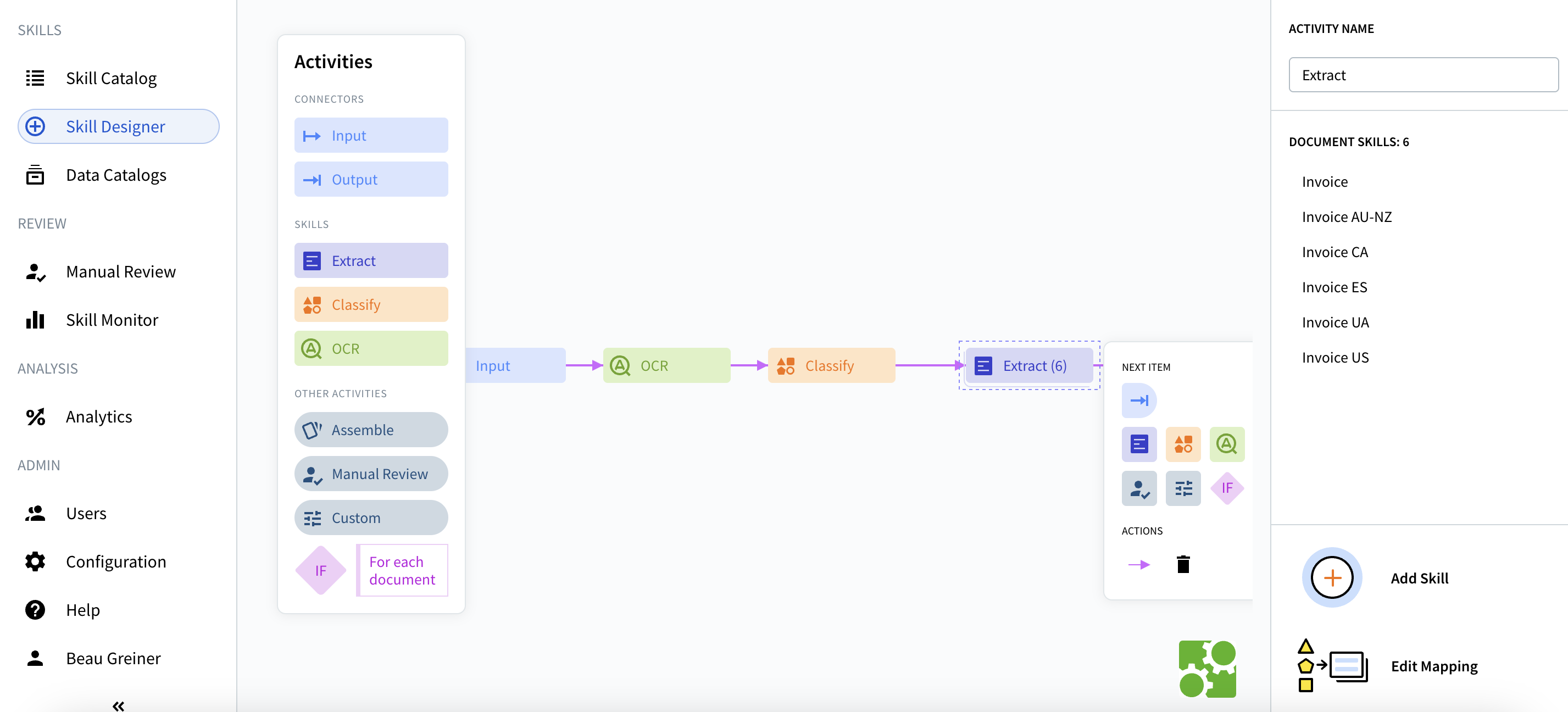 Available document skills include:
* Invoice
* Invoice AU-NZ
* Invoice CA
* Invoice ES
* Invoice UA
* Invoice US
3. Select the document types relevant to your use case.
4. Click **Add Skill** if you need additional document types.
5. Use **Edit Mapping** to customize field extraction if needed.
***
## Step 6: Publish and Get Your Skill ID
Before you can use SFTP, you need to publish the skill and locate its ID.
1. Click the **Publish** button in the top right of the Skill Designer.
2. Once published, note the **Skill ID** from the browser URL.
Available document skills include:
* Invoice
* Invoice AU-NZ
* Invoice CA
* Invoice ES
* Invoice UA
* Invoice US
3. Select the document types relevant to your use case.
4. Click **Add Skill** if you need additional document types.
5. Use **Edit Mapping** to customize field extraction if needed.
***
## Step 6: Publish and Get Your Skill ID
Before you can use SFTP, you need to publish the skill and locate its ID.
1. Click the **Publish** button in the top right of the Skill Designer.
2. Once published, note the **Skill ID** from the browser URL.
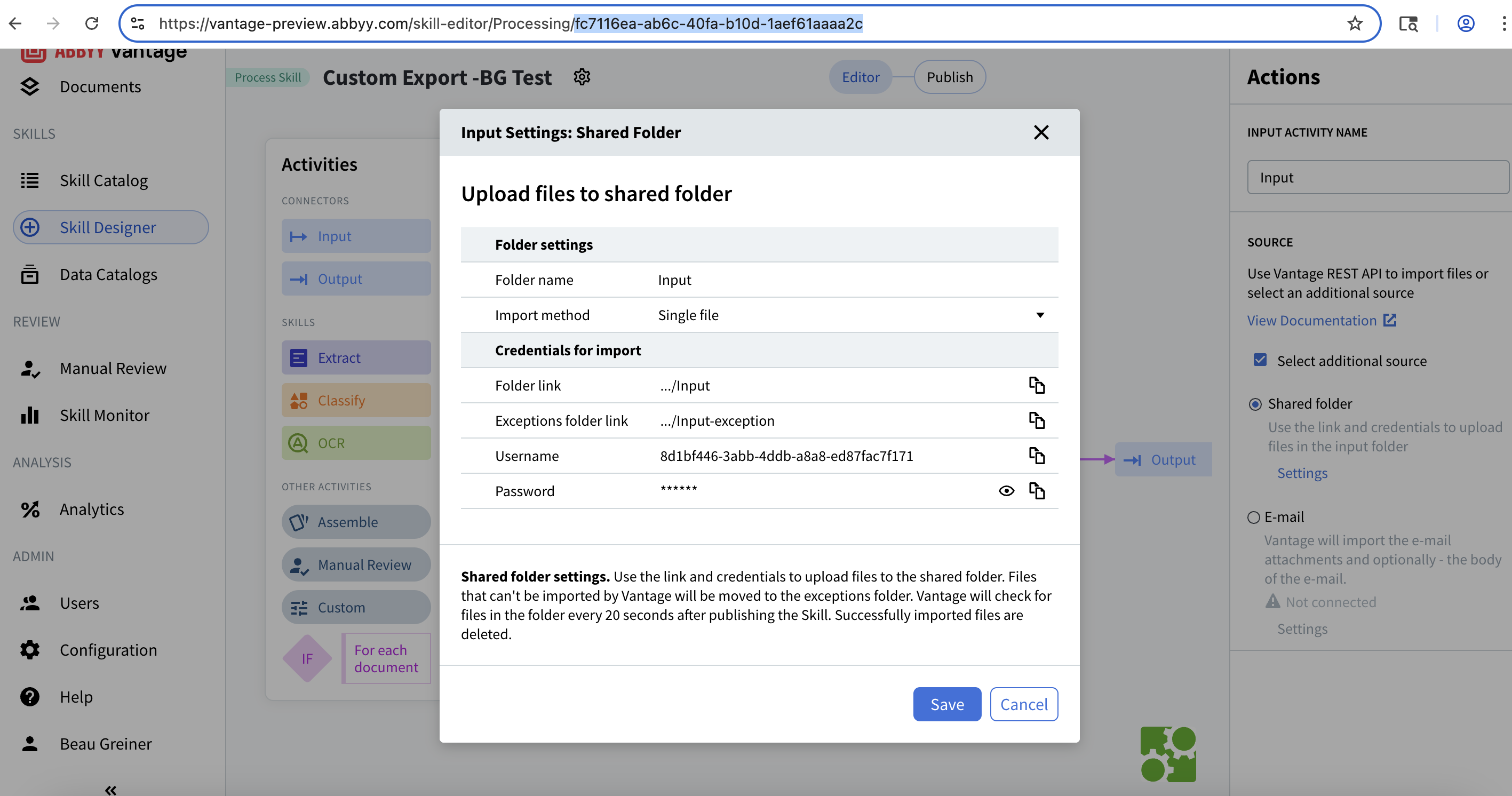 The URL format is:
```
https://vantage-preview.abbyy.com/skill-editor/Processing/{skill-id}
```
For example: `fc7116ea-ab6c-40fa-b10d-1aef61aaaa2c`
Keep your Skill ID handy — you'll need it to access the correct Input and Output folders in SFTP.
***
## Step 7: Connect to SFTP
Now you're ready to connect via SFTP using the credentials from your Input/Output settings.
### Connection Details
From your Input/Output settings, you have:
* **Server:** `172.172.228.138`
* **Port:** `2022`
* **Username:** Your generated UUID
* **Password:** Your generated password
* **Base Path:** `/{skill-id}/`
### Connect via Terminal
Open your terminal and connect using:
```bash theme={null}
sftp -P 2022 {username}@172.172.228.138
```
Example:
```bash theme={null}
sftp -P 2022 8d1bf446-3abb-4ddb-a8a8-ed87fac7f171@172.172.228.138
```
Use capital `-P` for the port number in SFTP (lowercase `-p` is used for a different purpose).
When prompted, enter your password.
***
## Step 8: Navigate the SFTP Folder Structure
Once connected, you'll see the SFTP prompt: `sftp>`
### View Available Skills
List all available Process Skills:
```bash theme={null}
sftp> ls
```
The URL format is:
```
https://vantage-preview.abbyy.com/skill-editor/Processing/{skill-id}
```
For example: `fc7116ea-ab6c-40fa-b10d-1aef61aaaa2c`
Keep your Skill ID handy — you'll need it to access the correct Input and Output folders in SFTP.
***
## Step 7: Connect to SFTP
Now you're ready to connect via SFTP using the credentials from your Input/Output settings.
### Connection Details
From your Input/Output settings, you have:
* **Server:** `172.172.228.138`
* **Port:** `2022`
* **Username:** Your generated UUID
* **Password:** Your generated password
* **Base Path:** `/{skill-id}/`
### Connect via Terminal
Open your terminal and connect using:
```bash theme={null}
sftp -P 2022 {username}@172.172.228.138
```
Example:
```bash theme={null}
sftp -P 2022 8d1bf446-3abb-4ddb-a8a8-ed87fac7f171@172.172.228.138
```
Use capital `-P` for the port number in SFTP (lowercase `-p` is used for a different purpose).
When prompted, enter your password.
***
## Step 8: Navigate the SFTP Folder Structure
Once connected, you'll see the SFTP prompt: `sftp>`
### View Available Skills
List all available Process Skills:
```bash theme={null}
sftp> ls
```
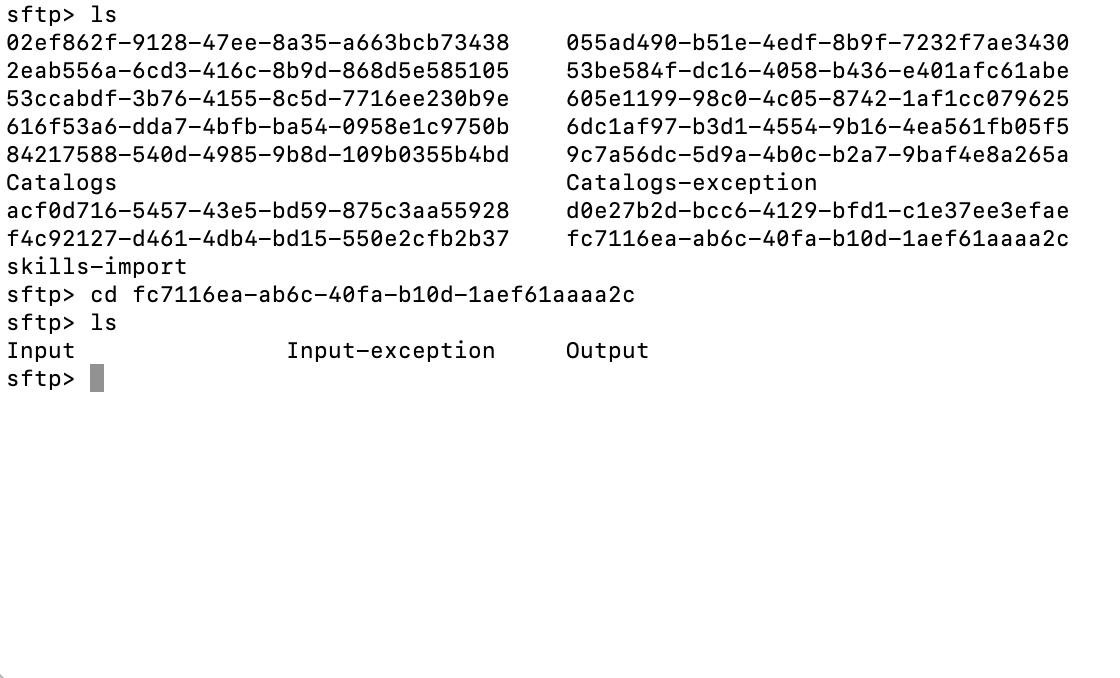 You'll see folders for each skill (identified by their skill IDs), plus:
* `Catalogs` - Document skill catalogs
* `Catalogs-exception` - Failed catalog imports
* `skills-import` - Skill import directory
### Navigate to Your Skill
Use the skill ID from Step 6:
```bash theme={null}
sftp> cd {your-skill-id}
sftp> ls
```
You should see three folders:
* **Input** - Where you upload documents for processing
* **Input-exception** - Failed imports are moved here
* **Output** - Where processed results appear
***
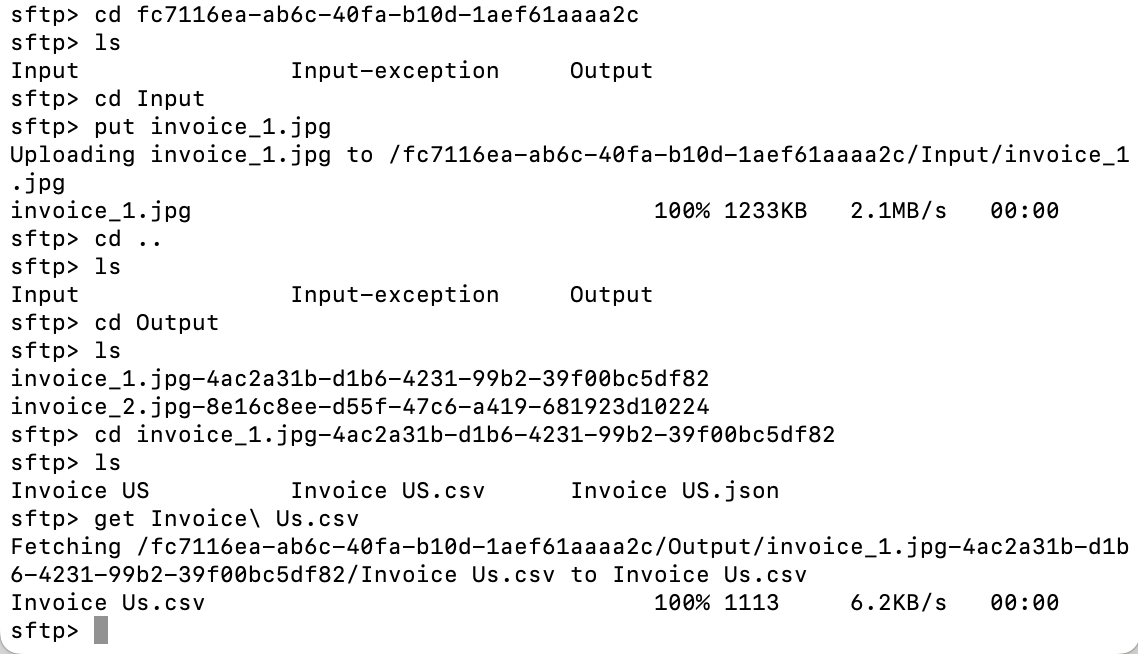
## Step 9: Upload Documents for Processing
Navigate to the Input folder and upload your documents.
### Navigate to Input Folder
```bash theme={null}
sftp> cd Input
sftp> pwd
Remote working directory: /{skill-id}/Input
```
### Upload a Single File
Upload a file with the full path:
```bash theme={null}
sftp> put ~/Documents/Sample\ Files/Demo\ Docs/invoice_1.jpg
```
Or change your local directory first:
```bash theme={null}
sftp> lcd ~/Documents/Sample\ Files/Demo\ Docs
sftp> lls
sftp> put invoice_1.jpg
```
You'll see folders for each skill (identified by their skill IDs), plus:
* `Catalogs` - Document skill catalogs
* `Catalogs-exception` - Failed catalog imports
* `skills-import` - Skill import directory
### Navigate to Your Skill
Use the skill ID from Step 6:
```bash theme={null}
sftp> cd {your-skill-id}
sftp> ls
```
You should see three folders:
* **Input** - Where you upload documents for processing
* **Input-exception** - Failed imports are moved here
* **Output** - Where processed results appear
***
## Step 9: Upload Documents for Processing
Navigate to the Input folder and upload your documents.
### Navigate to Input Folder
```bash theme={null}
sftp> cd Input
sftp> pwd
Remote working directory: /{skill-id}/Input
```
### Upload a Single File
Upload a file with the full path:
```bash theme={null}
sftp> put ~/Documents/Sample\ Files/Demo\ Docs/invoice_1.jpg
```
Or change your local directory first:
```bash theme={null}
sftp> lcd ~/Documents/Sample\ Files/Demo\ Docs
sftp> lls
sftp> put invoice_1.jpg
```
 ### Upload Multiple Files
```bash theme={null}
sftp> mput *.jpg
sftp> mput invoice_*.pdf
```
Files uploaded to Input are automatically deleted after successful processing (usually within 20 seconds). If you don't see your file after uploading, it means Vantage has already picked it up for processing.
### Verify Upload
Check if files are still in the Input folder:
```bash theme={null}
sftp> ls
```
If the folder is empty or your file is missing, processing has begun.
***
## Step 10: Check Processing Status
### Monitor Input-exception Folder
If a file fails to import, it will appear here:
```bash theme={null}
sftp> cd ..
sftp> cd Input-exception
sftp> ls
```
An empty folder means all files imported successfully.
### Wait for Processing
Processing time varies based on:
* Document complexity
* Extraction skills configured
* Current system load
Typically, simple invoices process within 30-60 seconds.
***
## Step 11: Download Processed Results
Once processing completes, results appear in the Output folder.
### Navigate to Output Folder
```bash theme={null}
sftp> cd ..
sftp> cd Output
sftp> ls
```
### Understanding Output Structure
Results are organized in subfolders with this naming pattern:
```
{original-filename}-{transaction-id}
```
Example:
```
invoice_1.jpg-4ac2a31b-d1b6-4231-99b2-39f00bc5df82
```
### View Contents of a Result Folder
```bash theme={null}
sftp> cd invoice_1.jpg-4ac2a31b-d1b6-4231-99b2-39f00bc5df82
sftp> ls
```
Typical contents:
* **Invoice\_US.json** - Extracted data in JSON format
* **Invoice\_US.csv** - Extracted data in CSV format (if configured)
* Additional files depending on your output settings
### Download Results
**Set your local download directory:**
```bash theme={null}
sftp> lcd ~/Downloads
sftp> lpwd
Local working directory: /Users/yourname/Downloads
```
**Download a single file:**
```bash theme={null}
sftp> get Invoice_US.json
```
**Download all files in the folder:**
```bash theme={null}
sftp> mget *
```
**Download the entire result folder recursively:**
```bash theme={null}
sftp> cd ..
sftp> get -r invoice_1.jpg-4ac2a31b-d1b6-4231-99b2-39f00bc5df82
```
***
## Understanding the JSON Output
The default output is a JSON file containing:
* **Document structure** - Layout and organization
* **Extracted field values** - Data pulled from the document
* **Confidence scores** - Reliability of each extraction
* **Rule errors** - Any validation issues
* **Field metadata** - Additional information about each field
Example structure:
```json theme={null}
{
"Document": {
"DocumentType": "Invoice US",
"Fields": [
{
"Name": "InvoiceNumber",
"Value": "INV-12345",
"Confidence": 0.98
},
{
"Name": "Total",
"Value": "1250.00",
"Confidence": 0.95
}
]
}
}
```
For detailed JSON schema documentation, refer to the ABBYY Vantage API documentation.
***
## Useful SFTP Commands
| Command | Description | Example |
| :-------------- | :-------------------------- | :---------------- |
| `ls` | List remote files | `ls` |
| `lls` | List local files | `lls` |
| `pwd` | Show remote directory | `pwd` |
| `lpwd` | Show local directory | `lpwd` |
| `cd folder` | Change remote directory | `cd Output` |
| `lcd folder` | Change local directory | `lcd ~/Downloads` |
| `put file` | Upload single file | `put invoice.pdf` |
| `mput files` | Upload multiple files | `mput *.jpg` |
| `get file` | Download single file | `get result.json` |
| `mget files` | Download multiple files | `mget *` |
| `get -r folder` | Download folder recursively | `get -r results/` |
| `exit` | Disconnect | `exit` |
***
## Troubleshooting
### Connection Issues
**Problem:** "Connection refused" or timeout errors
**Solutions:**
* Verify you're connected to the company VPN
* Check the port number (should be `2022` with capital `-P`)
* Confirm your username and password are correct
* Test basic network connectivity: `ping 172.172.228.138`
### Upload Issues
**Problem:** Files not being processed
**Solutions:**
* Check the `Input-exception` folder for failed imports
* Verify file format is supported (PDF, JPG, PNG, TIFF, etc.)
* Ensure the Process Skill is published
* Check file size limits (varies by configuration)
### No Output Files
**Problem:** Output folder is empty after uploading
**Solutions:**
* Wait longer - processing can take 30-60 seconds or more
* Verify Output is configured with "Shared folder" destination
* Check transaction logs in the Vantage web interface
* Confirm the Extract activity has appropriate document skills configured
### Permission Errors
**Problem:** "Permission denied" when uploading/downloading
**Solutions:**
* Verify you're using the correct credentials for Input vs Output
* Input credentials allow: upload, delete
* Output credentials allow: view, download, rename, delete
* Check that the skill is published and active
***
## Best Practices
### Security
* Never share SFTP credentials in plain text
* Use secure channels to transmit passwords
* Rotate credentials periodically
* Limit SFTP access to necessary personnel
### File Management
* Use descriptive filenames that include dates or IDs
* Process files in batches during off-peak hours if possible
* Download and archive results promptly
* Clean up old result folders regularly
### Monitoring
* Check Input-exception folder regularly for failed imports
* Monitor processing times to identify bottlenecks
* Review extraction confidence scores in results
* Set up alerts for critical failures (if available)
### Workflow Optimization
* Group similar document types together
* Configure appropriate document skills for your use case
* Test with sample documents before production use
* Document your SFTP workflow for team reference
***
## Next Steps
Now that you have a working SFTP-based document processing pipeline:
1. **Test with various documents** - Upload different file types and document variations
2. **Review extraction accuracy** - Check the JSON results and confidence scores
3. **Customize extraction** - Use Edit Mapping to fine-tune field extraction
4. **Automate uploads** - Create scripts to automate file uploads
5. **Integrate with systems** - Connect your applications via the Vantage REST API
6. **Scale your workflow** - Add more document skills or create additional Process Skills
For advanced configurations, API integration, or custom workflows, refer to the [ABBYY Vantage documentation](https://docs.abbyy.com).
***
## Additional Resources
* **REST API Documentation:** For programmatic file uploads and result retrieval
* **Skill Catalog:** Browse pre-built document skills
* **Support:** Contact ABBYY support for technical assistance
***
## Summary
You've successfully:
* ✅ Created a Process Skill in ABBYY Vantage
* ✅ Configured SFTP access for input and output
* ✅ Set up document extraction skills
* ✅ Connected via SFTP command line
* ✅ Uploaded documents for processing
* ✅ Downloaded extraction results
Your document processing pipeline is now operational and ready for production use!
### Upload Multiple Files
```bash theme={null}
sftp> mput *.jpg
sftp> mput invoice_*.pdf
```
Files uploaded to Input are automatically deleted after successful processing (usually within 20 seconds). If you don't see your file after uploading, it means Vantage has already picked it up for processing.
### Verify Upload
Check if files are still in the Input folder:
```bash theme={null}
sftp> ls
```
If the folder is empty or your file is missing, processing has begun.
***
## Step 10: Check Processing Status
### Monitor Input-exception Folder
If a file fails to import, it will appear here:
```bash theme={null}
sftp> cd ..
sftp> cd Input-exception
sftp> ls
```
An empty folder means all files imported successfully.
### Wait for Processing
Processing time varies based on:
* Document complexity
* Extraction skills configured
* Current system load
Typically, simple invoices process within 30-60 seconds.
***
## Step 11: Download Processed Results
Once processing completes, results appear in the Output folder.
### Navigate to Output Folder
```bash theme={null}
sftp> cd ..
sftp> cd Output
sftp> ls
```
### Understanding Output Structure
Results are organized in subfolders with this naming pattern:
```
{original-filename}-{transaction-id}
```
Example:
```
invoice_1.jpg-4ac2a31b-d1b6-4231-99b2-39f00bc5df82
```
### View Contents of a Result Folder
```bash theme={null}
sftp> cd invoice_1.jpg-4ac2a31b-d1b6-4231-99b2-39f00bc5df82
sftp> ls
```
Typical contents:
* **Invoice\_US.json** - Extracted data in JSON format
* **Invoice\_US.csv** - Extracted data in CSV format (if configured)
* Additional files depending on your output settings
### Download Results
**Set your local download directory:**
```bash theme={null}
sftp> lcd ~/Downloads
sftp> lpwd
Local working directory: /Users/yourname/Downloads
```
**Download a single file:**
```bash theme={null}
sftp> get Invoice_US.json
```
**Download all files in the folder:**
```bash theme={null}
sftp> mget *
```
**Download the entire result folder recursively:**
```bash theme={null}
sftp> cd ..
sftp> get -r invoice_1.jpg-4ac2a31b-d1b6-4231-99b2-39f00bc5df82
```
***
## Understanding the JSON Output
The default output is a JSON file containing:
* **Document structure** - Layout and organization
* **Extracted field values** - Data pulled from the document
* **Confidence scores** - Reliability of each extraction
* **Rule errors** - Any validation issues
* **Field metadata** - Additional information about each field
Example structure:
```json theme={null}
{
"Document": {
"DocumentType": "Invoice US",
"Fields": [
{
"Name": "InvoiceNumber",
"Value": "INV-12345",
"Confidence": 0.98
},
{
"Name": "Total",
"Value": "1250.00",
"Confidence": 0.95
}
]
}
}
```
For detailed JSON schema documentation, refer to the ABBYY Vantage API documentation.
***
## Useful SFTP Commands
| Command | Description | Example |
| :-------------- | :-------------------------- | :---------------- |
| `ls` | List remote files | `ls` |
| `lls` | List local files | `lls` |
| `pwd` | Show remote directory | `pwd` |
| `lpwd` | Show local directory | `lpwd` |
| `cd folder` | Change remote directory | `cd Output` |
| `lcd folder` | Change local directory | `lcd ~/Downloads` |
| `put file` | Upload single file | `put invoice.pdf` |
| `mput files` | Upload multiple files | `mput *.jpg` |
| `get file` | Download single file | `get result.json` |
| `mget files` | Download multiple files | `mget *` |
| `get -r folder` | Download folder recursively | `get -r results/` |
| `exit` | Disconnect | `exit` |
***
## Troubleshooting
### Connection Issues
**Problem:** "Connection refused" or timeout errors
**Solutions:**
* Verify you're connected to the company VPN
* Check the port number (should be `2022` with capital `-P`)
* Confirm your username and password are correct
* Test basic network connectivity: `ping 172.172.228.138`
### Upload Issues
**Problem:** Files not being processed
**Solutions:**
* Check the `Input-exception` folder for failed imports
* Verify file format is supported (PDF, JPG, PNG, TIFF, etc.)
* Ensure the Process Skill is published
* Check file size limits (varies by configuration)
### No Output Files
**Problem:** Output folder is empty after uploading
**Solutions:**
* Wait longer - processing can take 30-60 seconds or more
* Verify Output is configured with "Shared folder" destination
* Check transaction logs in the Vantage web interface
* Confirm the Extract activity has appropriate document skills configured
### Permission Errors
**Problem:** "Permission denied" when uploading/downloading
**Solutions:**
* Verify you're using the correct credentials for Input vs Output
* Input credentials allow: upload, delete
* Output credentials allow: view, download, rename, delete
* Check that the skill is published and active
***
## Best Practices
### Security
* Never share SFTP credentials in plain text
* Use secure channels to transmit passwords
* Rotate credentials periodically
* Limit SFTP access to necessary personnel
### File Management
* Use descriptive filenames that include dates or IDs
* Process files in batches during off-peak hours if possible
* Download and archive results promptly
* Clean up old result folders regularly
### Monitoring
* Check Input-exception folder regularly for failed imports
* Monitor processing times to identify bottlenecks
* Review extraction confidence scores in results
* Set up alerts for critical failures (if available)
### Workflow Optimization
* Group similar document types together
* Configure appropriate document skills for your use case
* Test with sample documents before production use
* Document your SFTP workflow for team reference
***
## Next Steps
Now that you have a working SFTP-based document processing pipeline:
1. **Test with various documents** - Upload different file types and document variations
2. **Review extraction accuracy** - Check the JSON results and confidence scores
3. **Customize extraction** - Use Edit Mapping to fine-tune field extraction
4. **Automate uploads** - Create scripts to automate file uploads
5. **Integrate with systems** - Connect your applications via the Vantage REST API
6. **Scale your workflow** - Add more document skills or create additional Process Skills
For advanced configurations, API integration, or custom workflows, refer to the [ABBYY Vantage documentation](https://docs.abbyy.com).
***
## Additional Resources
* **REST API Documentation:** For programmatic file uploads and result retrieval
* **Skill Catalog:** Browse pre-built document skills
* **Support:** Contact ABBYY support for technical assistance
***
## Summary
You've successfully:
* ✅ Created a Process Skill in ABBYY Vantage
* ✅ Configured SFTP access for input and output
* ✅ Set up document extraction skills
* ✅ Connected via SFTP command line
* ✅ Uploaded documents for processing
* ✅ Downloaded extraction results
Your document processing pipeline is now operational and ready for production use!