> ## Documentation Index
> Fetch the complete documentation index at: https://docs.abbyy.com/llms.txt
> Use this file to discover all available pages before exploring further.
# Subscriptions
> Manage ABBYY Vantage Private Cloud subscriptions: page counters, included skills, multi-tenant sharing, and ABBYY Subscription Service access.
For a tenant to work with ABBYY Vantage, it needs an active subscription. Subscriptions determine:
* The duration of access to skills
* The number of pages that can be processed
* The available skills
To count pages processed using various skills, counters are included in a subscription.
A subscription applies to all users in a tenant. If a subscription is tied to several tenants, they will share counters for each skill.
## Configuring ABBYY Subscription Service Access
In an isolated environment, configure access from Vantage to the ABBYY Subscription service to send subscription usage statistics. The frequency with which these requests are sent is determined by your subscription settings. By default, the statistics are sent daily.
Options:
1. **Direct access**. Allow HTTPS requests to `https://licensing-us.abbyy.com`
2. **Proxy access**. Redirect requests through a proxy.
### Using a Proxy
Before you start, make sure that the kubectl command-line tool is installed on your machine and a connection to the Kubernetes cluster has been established.
1. Access the Consul web interface:
```bash theme={null}
kubectl port-forward -n abbyy-infrastructure service/consul-ui 8500:80
```
Navigate to `http://localhost:8500/ui/dc1/kv/secret/`
2. Select the required Vantage environment.
3. Change the values of the following keys:
| Key | Description |
| --------------------------------------------------------- | ----------------------------------------------------------------------------------------------------------------------------------------------------------- |
| `secret/.../subscriptions/licensingHqClientProxyUse` | Set to `True` to enable proxy. |
| `secret/.../subscriptions/licensingHqClientProxyUri` | Proxy address with protocol and port (e.g., `http://:3128`) |
| `secret/.../subscriptions/licensingHqClientProxyDomain` | User domain. If your proxy uses domain account authentication, specify the domain name. The proxy login will consist of this domain name and the user name. |
| `secret/.../subscriptions/licensingHqClientProxyUserName` | Proxy login. |
| `secret/.../subscriptions/licensingHqClientProxyPassword` | Proxy password. |
4. Click **Save**.
5. Restart the `abbyy-vantage-subscriptions` deployment.
Now Vantage will access the ABBYY Subscription Service via the proxy you specified.
## Viewing Subscription Parameters
1. On the **Tenants** tab, click the tenant name.
2. Navigate to the **Subscription** tab.
Information displayed:
* Subscription type, serial number, and expiry date
* **Skill Counters**: Available pages per skill, next update date
* **Subscription Parameters**: Additional options (e.g., Advanced Designer availability)
## How Pages Are Counted
ABBYY Vantage keeps count of all document pages processed by users with license-specific counters. The counter type used to calculate the number of processed pages depends on the skill used and on whether the skill is licensed or not. Licensed skills are skills that have been created by ABBYY or its partners and that have undergone the licensing procedure at ABBYY.
Counter types:
| Counter Type | Description |
| ------------------------- | ------------------------------------------------------------------------------------------------------------------------------------------------------------------------------ |
| **Dedicated counters** | For licensed skills (e.g., ABBYY Invoice, ABBYY Bill Of Lading). Each licensed skill has its own dedicated counter. |
| **Core Cognitive Skills** | For all unlicensed ABBYY Vantage skills. |
| **OCR Skill** | For pages processed using OCR skills. |
| **Licensed Skills** | For trial versions of licensed skills only. This lets you process documents using licensed skills whose counters are either not part of your license or have run out of pages. |
### When Pages Are Counted
**Design time** (Document and Classification skills):
* Importing demo documents into a Document skill
* Importing files into a document set for training
**Runtime** (all skill types):
* Uploading pages to the Documents section
* Processing documents in transactions
* Using the Try Skill feature
Pages are counted even if the transaction fails after document import.
All subscription counters are updated once during a set period of time called the "renewal period". At the end of this period, all counter values are reset and the maximum number of pages becomes available to the user. The duration of the renewal period and its start date are the same for all counters in a subscription, regardless of when any of the skills were used for the first time.
A single image of a page of any format is counted as one page, even if the image contains several different documents.
If the number of pages available for processing by a specific skill has run out, or if the currently active subscription does not provide access to the required processing skill, users will not be able to create new transactions using such skills.
### Process Skill Page Counting
| Skill Configuration | Counter Behavior |
| ------------------------- | ------------------------------------------------------ |
| Only unlicensed skills | Core Cognitive Skills counter increments once per page |
| One licensed skill | Licensed skill counter increments once per page |
| Unlicensed + one licensed | Counter depends on which skill processes the document |
| Multiple licensed skills | Each licensed skill counter increments per page |
If for some skill(s) contained within a Process skill all related counters have reached their respective limits, no transaction will be launched.
## Managing Subscriptions
A System Administrator can manage tenant subscriptions. Specifically, a System Administrator can link, modify, and delete subscriptions.
### Linking a Subscription
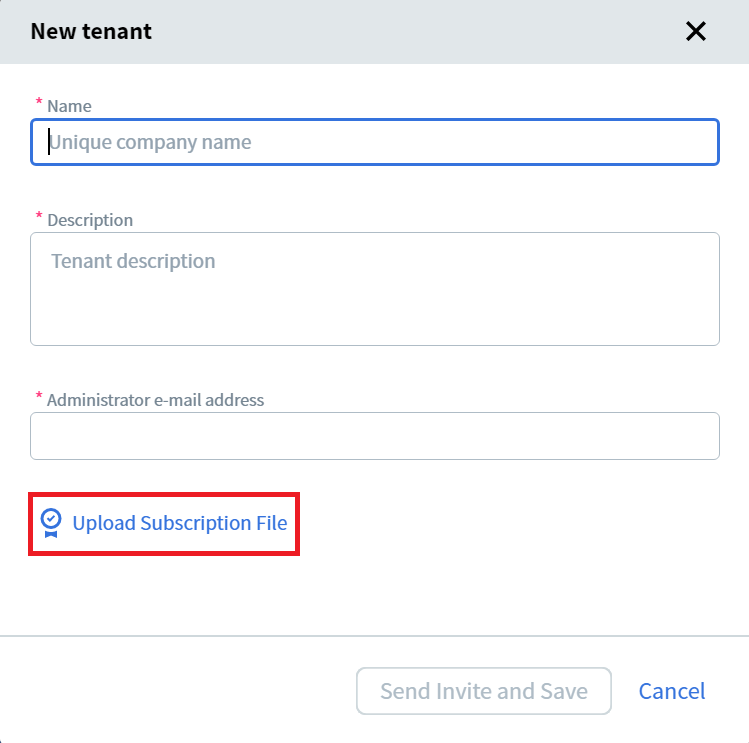
Upload the subscription file when creating a new tenant or add it to an existing tenant via the tenant settings.
 ### Modifying a Subscription
1. Open the **Tenants** tab and click the tenant name.
2. Navigate to the **Subscription** tab.
3. Click the menu icon next to the subscription type.
4. Select **Change Subscription File** and upload the new file.
### Deleting a Subscription
1. Open the **Tenants** tab and click the tenant name.
2. Navigate to the **Subscription** tab.
3. Click the menu icon and select **Delete Subscription**.
If a subscription is deleted, tenant users cannot create transactions using any skills.
## Licensed Skills Reference
| Skill Name | License Name |
| --------------------------------------------------------------------------------------------------------------------- | ------------------------------- |
| Invoice US, EU, CA, ES, UA, AU-NZ, CN, Invoice Classifier | ABBYY.Invoice |
| Purchase Order US, EU, Purchase Order Classifier | ABBYY.PurchaseOrder |
| Receipt, Receipt CJK, Hotel Invoice, Taxi Receipt, Expense Management Classifier | ABBYY.Receipt |
| Commercial Invoice | ABBYY.CommercialInvoice |
| Bill Of Lading | ABBYY.BillOfLading |
| Air Waybill | ABBYY.AirWaybill |
| Remittance Advice | ABBYY.RemittanceAdvice |
| Utility Bill | ABBYY.UtilityBills |
| Bank Statement | ABBYY.BankStatements |
| Personal Earning Statement | ABBYY.PersonalEarningStatements |
| Arrival Notice | ABBYY.ArrivalNotice |
| Form W-2, Wage and Tax Statement | ABBYY.IrsTaxFormW-2 |
| Form 1040, U.S. Individual Income Tax Return, Form 1040, U.S. Individual Income Tax Return 2022, Form 1040 Classifier | ABBYY.IrsTaxForm1040 |
| Certificate of Origin | ABBYY.CertificateOfOrigin |
| Form 990, Return of Organization Exempt From Income Tax | ABBYY.Form990 |
| Form 1098, Mortgage Interest Statement | ABBYY.TaxForm1098 |
| Identity Documents | ABBYY.IdReading |
### Modifying a Subscription
1. Open the **Tenants** tab and click the tenant name.
2. Navigate to the **Subscription** tab.
3. Click the menu icon next to the subscription type.
4. Select **Change Subscription File** and upload the new file.
### Deleting a Subscription
1. Open the **Tenants** tab and click the tenant name.
2. Navigate to the **Subscription** tab.
3. Click the menu icon and select **Delete Subscription**.
If a subscription is deleted, tenant users cannot create transactions using any skills.
## Licensed Skills Reference
| Skill Name | License Name |
| --------------------------------------------------------------------------------------------------------------------- | ------------------------------- |
| Invoice US, EU, CA, ES, UA, AU-NZ, CN, Invoice Classifier | ABBYY.Invoice |
| Purchase Order US, EU, Purchase Order Classifier | ABBYY.PurchaseOrder |
| Receipt, Receipt CJK, Hotel Invoice, Taxi Receipt, Expense Management Classifier | ABBYY.Receipt |
| Commercial Invoice | ABBYY.CommercialInvoice |
| Bill Of Lading | ABBYY.BillOfLading |
| Air Waybill | ABBYY.AirWaybill |
| Remittance Advice | ABBYY.RemittanceAdvice |
| Utility Bill | ABBYY.UtilityBills |
| Bank Statement | ABBYY.BankStatements |
| Personal Earning Statement | ABBYY.PersonalEarningStatements |
| Arrival Notice | ABBYY.ArrivalNotice |
| Form W-2, Wage and Tax Statement | ABBYY.IrsTaxFormW-2 |
| Form 1040, U.S. Individual Income Tax Return, Form 1040, U.S. Individual Income Tax Return 2022, Form 1040 Classifier | ABBYY.IrsTaxForm1040 |
| Certificate of Origin | ABBYY.CertificateOfOrigin |
| Form 990, Return of Organization Exempt From Income Tax | ABBYY.Form990 |
| Form 1098, Mortgage Interest Statement | ABBYY.TaxForm1098 |
| Identity Documents | ABBYY.IdReading |