
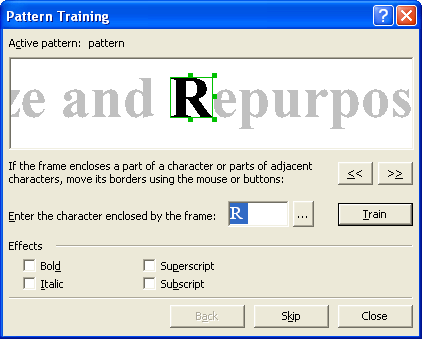
Option | Option description |
|---|---|
Active pattern | Displays the active user pattern file that should by specified in the IRecognizerParams::UserPatternsFile property. |
| Moves the enclosing frame left. Move the frame so as to enclose the entire character. |
| Moves the enclosing frame right. Move the frame so as to enclose the entire character. |
Enter character | Specify the name of the character enclosed by the frame in the top window. If you train ABBYY FineReader to recognize characters you cannot type, you may use two-character combinations as captions, or you may copy the necessary character from the character table. Click the |
| Opens the character table. You may choose the necessary character from the table and copy it to the Enter character field. |
Train (button) | Trains the character, i.e., adds the new pair “character image — character caption” to the active pattern. |
Effects group | |
Italic | Specifies that the current character is italic. |
Bold | Specifies that the current character is bold. |
Superscript | Specifies that the current character is superscript. |
Subscript | Specifies that the current character is subscript. |
Back (button) | If you have made a mistake during training, you may click the Back button: the frame will go back to the previous position, and the latest pair “image — character” will be removed from the pattern. This “undo” is limited: you may only “undo” training in the last word. |
Skip (button) | Skips the current character. Use this button if what the frame encloses is not a character or if you were unable to enclose a character or a group of characters fully. If you click the Skip button, you’ll see the ^ character, which is used to replace the unrecognized symbols, in the recognized text in the place of the character you skipped. |
 button
 button
 button to open the table.