
Business cards contain business information about a company or a person. Business cards can include a person’s name, company, telephone numbers, fax, e-mail, website addresses, and similar information. You may need to capture this information from paper business cards and save it in electronic format. It can be an electronic address book of a mobile phone, e-mail client, or any other data storage system. For example, business cards are often passed by e-mail or network in vCard format. The main steps which you need to perform in this scenario:
  1. Obtaining a digital copy of a business card
You either scan or take a photo of a business card. Photos made with digital cameras of mobile devices may have low resolution and quality. Thus additional preparation of the images may be required.
  1. Recognizing business cards
Scanned pages can contain several business cards per page. Recognition must have high quality; all information must be extracted accurately.
  1. Saving recognized data in a suitable format
You can save recognized data to different data storage systems, or export it to vCard format and pass by e-mail.

Scenario implementation

The code samples provided in this topic are Windows -specific.
Below follows a detailed description of the recommended method of using ABBYY FineReader Engine in this scenario.
To start your work with ABBYY FineReader Engine, you need to create the Engine object. The Engine object is the top object in the hierarchy of the ABBYY FineReader Engine objects and provides various global settings, some processing methods, and methods for creating the other objects.To create the Engine object, you can use the InitializeEngine function. See also other ways to load Engine object (Win).

C#

public class EngineLoader : IDisposable
{
    public EngineLoader()
    {
        // Initialize these variables with the full path to FREngine.dll, your Customer Project ID,
        // and, if applicable, the path to your Online License token file and the Online License password
        string enginePath = "";
        string customerProjectId = "";
        string licensePath = "";
        string licensePassword = "";
        // Load the FREngine.dll library
        dllHandle = LoadLibraryEx(enginePath, IntPtr.Zero, LOAD_WITH_ALTERED_SEARCH_PATH);
           
        try
        {
            if (dllHandle == IntPtr.Zero)
            {
                throw new Exception("Can't load " + enginePath);
            }
            IntPtr initializeEnginePtr = GetProcAddress(dllHandle, "InitializeEngine");
            if (initializeEnginePtr == IntPtr.Zero)
            {
                throw new Exception("Can't find InitializeEngine function");
            }
            IntPtr deinitializeEnginePtr = GetProcAddress(dllHandle, "DeinitializeEngine");
            if (deinitializeEnginePtr == IntPtr.Zero)
            {
                throw new Exception("Can't find DeinitializeEngine function");
            }
            IntPtr dllCanUnloadNowPtr = GetProcAddress(dllHandle, "DllCanUnloadNow");
            if (dllCanUnloadNowPtr == IntPtr.Zero)
            {
                throw new Exception("Can't find DllCanUnloadNow function");
            }
            // Convert pointers to delegates
            initializeEngine = (InitializeEngine)Marshal.GetDelegateForFunctionPointer(
                initializeEnginePtr, typeof(InitializeEngine));
            deinitializeEngine = (DeinitializeEngine)Marshal.GetDelegateForFunctionPointer(
                deinitializeEnginePtr, typeof(DeinitializeEngine));
            dllCanUnloadNow = (DllCanUnloadNow)Marshal.GetDelegateForFunctionPointer(
                dllCanUnloadNowPtr, typeof(DllCanUnloadNow));
            // Call the InitializeEngine function 
            // passing the path to the Online License file and the Online License password
            int hresult = initializeEngine(customerProjectId, licensePath, licensePassword, 
                "", "", false, ref engine);
            Marshal.ThrowExceptionForHR(hresult);
        }
        catch (Exception)
        {
            // Free the FREngine.dll library
            engine = null;
            // Deleting all objects before FreeLibrary call
            GC.Collect();
            GC.WaitForPendingFinalizers();
            GC.Collect();
            FreeLibrary(dllHandle);
            dllHandle = IntPtr.Zero;
            initializeEngine = null;
            deinitializeEngine = null;
            dllCanUnloadNow = null;
            throw;
        }
    }
    // Kernel32.dll functions
    [DllImport("kernel32.dll")]
    private static extern IntPtr LoadLibraryEx(string dllToLoad, IntPtr reserved, uint flags);
    private const uint LOAD_WITH_ALTERED_SEARCH_PATH = 0x00000008;
    [DllImport("kernel32.dll")]
    private static extern IntPtr GetProcAddress(IntPtr hModule, string procedureName);
    [DllImport("kernel32.dll")]
    private static extern bool FreeLibrary(IntPtr hModule);
    // FREngine.dll functions
    [UnmanagedFunctionPointer(CallingConvention.StdCall, CharSet = CharSet.Unicode)]
    private delegate int InitializeEngine(string customerProjectId, string licensePath, 
        string licensePassword, string tempFolder, string dataFolder, bool isSharedCPUCoresMode, 
        ref FREngine.IEngine engine);
    [UnmanagedFunctionPointer(CallingConvention.StdCall)]
    private delegate int DeinitializeEngine();
    [UnmanagedFunctionPointer(CallingConvention.StdCall)]
    private delegate int DllCanUnloadNow();
    // private variables
    private FREngine.IEngine engine = null;
    // Handle to FREngine.dll
    private IntPtr dllHandle = IntPtr.Zero;
    private InitializeEngine initializeEngine = null;
    private DeinitializeEngine deinitializeEngine = null;
    private DllCanUnloadNow dllCanUnloadNow = null;
}
You can load the processing settings suitable for this scenario using the LoadPredefinedProfile method of the Engine object. This method uses the name of a settings profile as an input parameter. Please see Working with Profiles for more information.The settings for this scenario are available in the BusinessCardsProcessing predefined profile:
  • Detects only business cards (sets the SynthesizeBusinessCards property of the SynthesisParamsForPage object to TRUE).
  • Enables detection of all text on an image, including small text areas of low quality (pictures and tables are not detected).
  • Resolution correction is performed.
  • Full synthesis of the logical structure of a document is not performed.

C#

// Load the predefined profile
engine.LoadPredefinedProfile("BusinessCardsProcessing");
If you wish to change processing settings, use appropriate parameter objects. Please see Additional optimization for specific tasks below for further information.
To load images to FineReader Engine, you can use the methods of these objects:
Linux and Windows users can learn about the advantages and disadvantages of each approach in Parallel Processing with ABBYY FineReader Engine. The current topic focuses on FRDocument .
To load images to the FRDocument object, do one of the following:All these methods use as a parameter PrepareImageMode object which allows you to specify different parameters of image preprocessing. Create this object by calling the IEngine::CreatePrepareImageMode function, then change its properties as necessary and then pass it to a function that requires it.

C#

FREngine.IEngine engine;
string imagePath;
FREngine.IPrepareImageMode pim = engine.CreatePrepareImageMode();
pim.DocumentType = FREngine.DocumentTypeEnum.DT_BusinessCard;
FREngine.IFRDocument frDoc = engine.CreateFRDocument();
frDoc.AddImageFile(imagePath, pim, null);
To recognize business cards:
  1. Specify the language of business cards using the SetPredefinedTextLanguage method of the RecognizerParams object. See the list of predefined languages available for business card recognition.
  2. Set other processing parameters, if necessary. See Tuning Parameters of Page Preprocessing, Analysis, Recognition, and Synthesis.
  3. Pass the parameters to any of the processing methods (e.g., the Process method of the FRDocument object). The method fills in the collections of business cards of the document and its pages (IFRDocument::BusinessCards, IFRPage::BusinessCards).
You can also synthesize a business card from the whole page or a region on each page using the SynthesizeBusinessCard or SynthesizeBusinessCardEx method of the FRPage object. The method returns a BusinessCard object. Note that in this case, a business card is not added to the collection of business cards of the page. This way is especially useful if you select the way of processing that uses Batch Processor.

C#

// Create parameters of document processing
FREngine.IDocumentProcessingParams dpp = engine.CreateDocumentProcessingParams();
// Perform recognition with the specified parameters
frDoc.Process( dpp );
// Access a business card
FREngine.IBusinessCard card = frDoc.BusinessCards[0];
A recognized business card (the BusinessCard object) can contain the following fields:
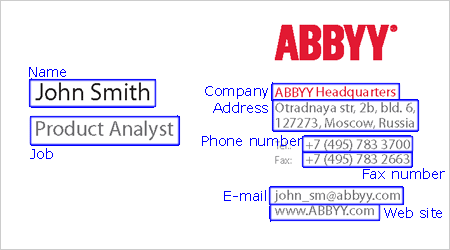
BusinessCard_pict

  • Personal name
  • Company name
  • Position in the company
  • Company address
  • Phone number
  • Fax
  • Mobile phone number
  • E-mail
  • Web site
You can access each field by its type (FieldByType property) or by its index in the collection of fields (Field property). Each field has the Value property, which provides access to the field value in the string format. For each character in the field, its recognition variants are available (GetCharParams method).Some fields can consist of several components, e.g., the address field can contain zip code, country, USA state, city, street address. To access a field component, you can use the Component property or the FindComponent method. The first one allows you to access the component by its index; the second one finds the component by its type. For each component, you can view its type and value and get parameters and recognition variants for each character (GetCharParams method).

C#

// Obtain the name field
FREngine.IBusinessCardField nameField = card.FieldByType( FREngine.BusinessCardFieldTypeEnum.BCFT_Name, 0 );
// Obtain the component which contains the first name
FREngine.IBusinessCardFieldComponent firstNameComponent =
  nameField.FindComponent( FREngine.BusinessCardFieldComponentTypeEnum.BCFCT_FirstName );
// The recognized first name
string firstName = firstNameComponent.Value;
The BusinessCard object provides the special ExportToVCard method for saving a business card in vCard format. The path to the file is passed as the parameter.You can save business card in any other available export format, for example, in XML.

C#

// Save recognized data in vCard format
card.ExportToVCard("D:\\sample.vcf");
// Save in XML
frDoc.Export("D:\\Demo.xml", FREngine.FileExportFormatEnum.FEF_XML, null);
After finishing your work with ABBYY FineReader Engine, you need to unload the Engine object. To do this, use the DeinitializeEngine exported function.

C#

public class EngineLoader : IDisposable
{
    // Unload FineReader Engine
    public void Dispose()
    {
        if (engine == null)
        {
            // Engine was not loaded
            return;
        }
        engine = null;
        // Deleting all objects before FreeLibrary call
        GC.Collect();
        GC.WaitForPendingFinalizers();
        GC.Collect();
        int hresult = deinitializeEngine();
 
        hresult = dllCanUnloadNow();
        if (hresult == 0)
        {
            FreeLibrary(dllHandle);
        }
        dllHandle = IntPtr.Zero;
        initializeEngine = null;
        deinitializeEngine = null;
        dllCanUnloadNow = null;
        // throwing exception after cleaning up
        Marshal.ThrowExceptionForHR(hresult);
    }
    // Kernel32.dll functions
    [DllImport("kernel32.dll")]
    private static extern IntPtr LoadLibraryEx(string dllToLoad, IntPtr reserved, uint flags);
    private const uint LOAD_WITH_ALTERED_SEARCH_PATH = 0x00000008;
    [DllImport("kernel32.dll")]
    private static extern IntPtr GetProcAddress(IntPtr hModule, string procedureName);
    [DllImport("kernel32.dll")]
    private static extern bool FreeLibrary(IntPtr hModule);
    // FREngine.dll functions
    [UnmanagedFunctionPointer(CallingConvention.StdCall, CharSet = CharSet.Unicode)]
    private delegate int InitializeEngine( string customerProjectId, string LicensePath, string LicensePassword, , , , ref FREngine.IEngine engine);
    [UnmanagedFunctionPointer(CallingConvention.StdCall)]
    private delegate int DeinitializeEngine();
    [UnmanagedFunctionPointer(CallingConvention.StdCall)]
    private delegate int DllCanUnloadNow();
    // private variables
    private FREngine.IEngine engine = null;
    // Handle to FREngine.dll
    private IntPtr dllHandle = IntPtr.Zero;
    private InitializeEngine initializeEngine = null;
    private DeinitializeEngine deinitializeEngine = null;
    private DllCanUnloadNow dllCanUnloadNow = null;
}

Required resources

You can use the FREngineDistribution.csv file to automatically create a list of files required for your application to function. For processing with this scenario, select in the column 5 (RequiredByModule) the following values: Core Core.Resources Opening Opening, Processing Processing Processing.BCR Processing.OCR Processing.OCR, Processing.ICR Processing.OCR.NaturalLanguages Processing.OCR.NaturalLanguages, Processing.ICR.NaturalLanguages Export Export, Processing If you modify the standard scenario, change the required modules accordingly. You also need to specify the interface languages, recognition languages and any additional features which your application uses (such as, e.g., Opening.PDF if you need to open PDF files, or Processing.OCR.CJK if you need to recognize texts in CJK languages). See Working with the FREngineDistribution.csv File for further details.

Additional optimization

These are the sections of the Help file where you can find additional information about setting up the parameters for the various processing stages:

See also

Basic Usage Scenarios Implementation