
The invoice capture process
FlexiCapture for Invoices processes invoices in four stages: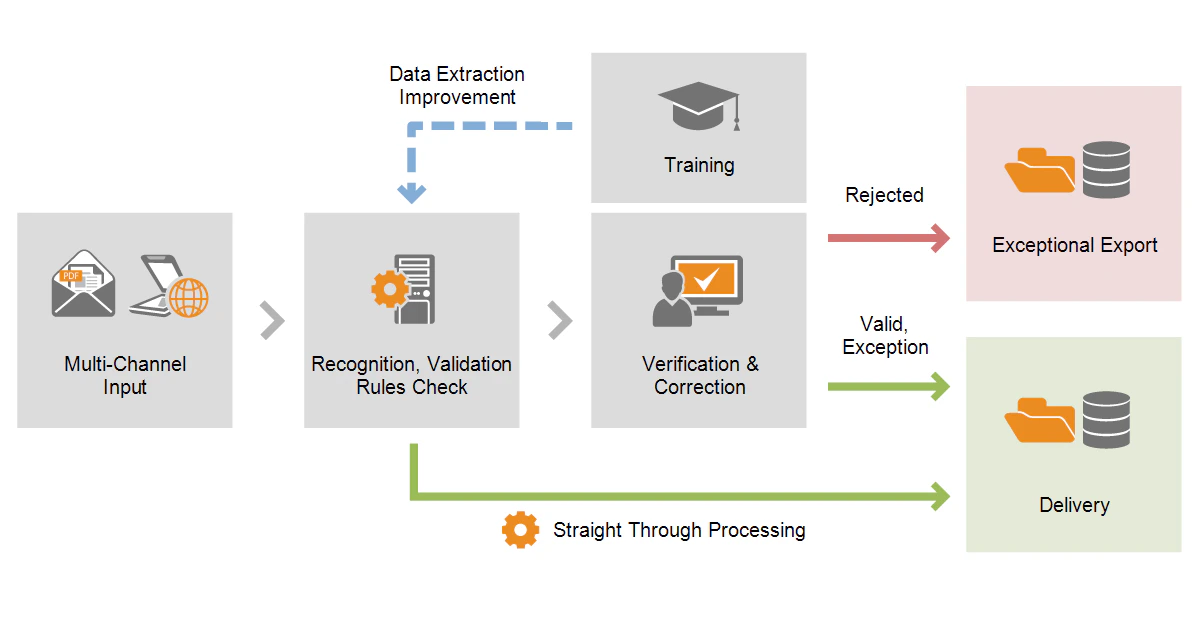
1
Acquire images
There are several ways to feed invoice images to the program:
- Scan hardcopy invoices.
- Download invoice images from an email inbox.
- Download invoice images from a folder on a computer or an FTP server.
2
Recognize and check rules
After input, the program automatically recognizes the invoices. It then checks the data against rules and assigns a status based on the results. Invoices that need no editing receive the Valid status and are ready for export.
3
Verify and correct errors
Invoices with a status other than Valid need review by an operator. Operators correct the errors and warnings raised by the checking rules; when all defects are corrected, the invoice receives the Valid status. Operators can also confirm automatically assigned statuses, or change a status manually by specifying the reason for the change.If the program systematically fails to locate fields on invoices, operators can train it during the capture process.
4
Export data
In the final stage, data is exported as specified in the program’s settings. Documents with different statuses can be exported in different ways. For example, documents with the Valid and Exception statuses can go to a different folder than documents with the Rejected status. You can set up several export destinations and export invoices to each of them.If a status was changed manually, the reason the operator provided is exported as well.The program supports export to data and image files, ODBC-compatible databases, and Microsoft SharePoint. Its easy-to-use API enables integration with any system.
FlexiCapture for Invoices setup
FlexiCapture for Invoices includes a preconfigured project that is ready for use. Before you can begin capturing invoices, provide data about vendors and business units to the program. The program uses this data to find and recognize the vendor and business unit fields on the invoice image. If you do not provide this data, an operator must specify the location of these fields manually; the recognized data is then saved and used when processing later invoices from that vendor or business unit. Although FlexiCapture for Invoices is preconfigured and ready for use, you can specify several additional settings:- Add more fields to extract from the invoice, including predefined fields that are disabled by default and any other fields.
- Adapt the set of rules to different organizations and legislations.
- Train FlexiCapture for Invoices to improve capture quality for vendors whose invoices have non-standard layouts.
- Match captured invoices with purchase orders.
To use FlexiCapture for Invoices, you need the appropriate FlexiCapture license. For more information, see License parameters.