
Overview
LLM Connections in ABBYY Vantage allow you to integrate powerful language models from providers like OpenAI and Microsoft Foundry directly into your document processing workflows. These connections enable your Document Skills to leverage cutting-edge AI for more accurate extraction, classification, and understanding of complex documents. What you’ll accomplish:- Access the Connections configuration
- Add a new LLM connection
- Configure connection credentials and settings
- Test your connection
- OpenAI ChatGPT
- Microsoft Foundry
Prerequisites
Before you begin, ensure you have:- Administrator access to ABBYY Vantage Configuration.
- API credentials from your chosen LLM provider:
- OpenAI: API key from your OpenAI account
- Microsoft Foundry: API key, complete endpoint URL (including
/chat/completionspath and API version), and model name from Microsoft Foundry in Azure.
- Active subscription with your LLM provider.
Step 1: Access Configuration Settings
Navigate to the Configuration area where you’ll manage LLM connections.- In the ABBYY Vantage interface, locate the ADMIN section in the left sidebar.
- Click on Configuration (gear icon).
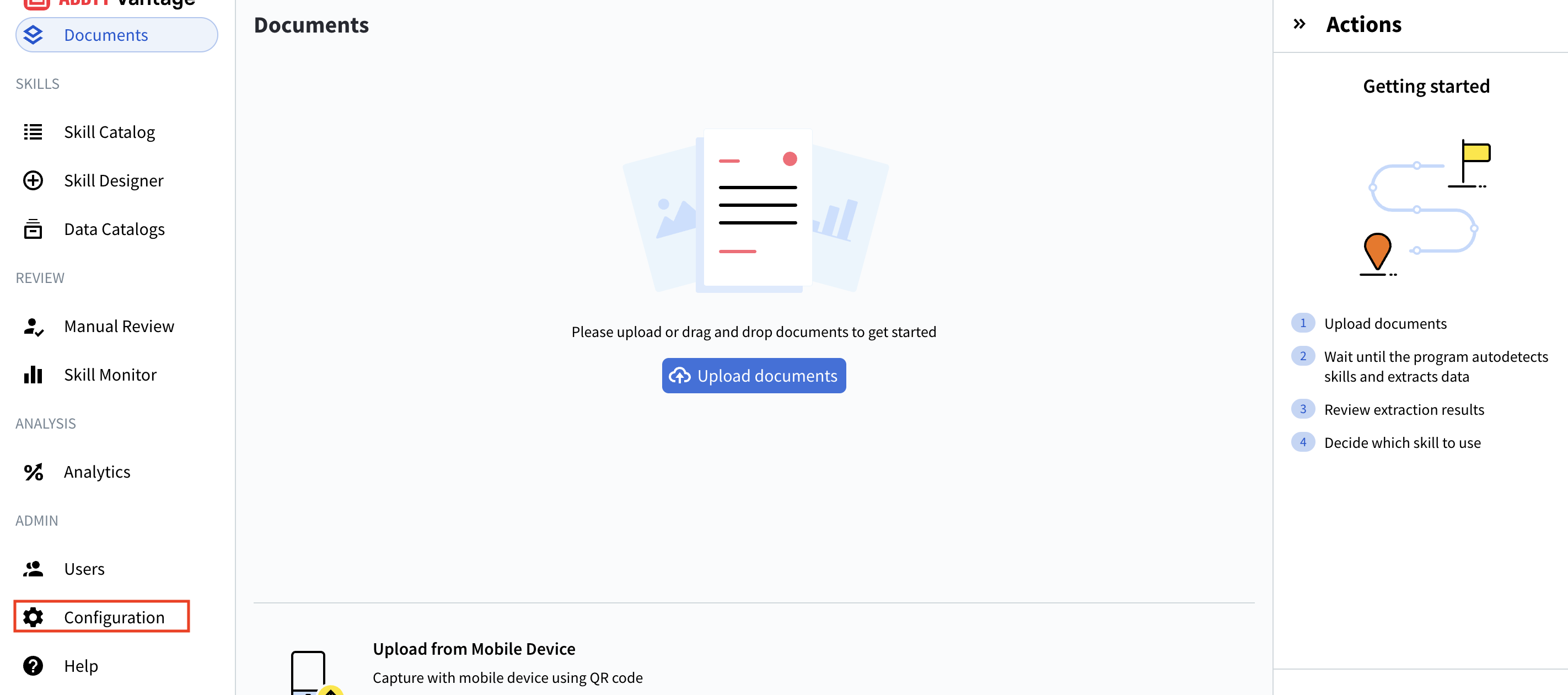
- General
- Connections (this is where we’ll work)
- Identity Provider
- Public API Client
- Security Log
- Environment Variables
- IP Restrictions
Step 2: Navigate to Connections
Access the Connections management interface.- In the Configuration left menu, clic Connections.
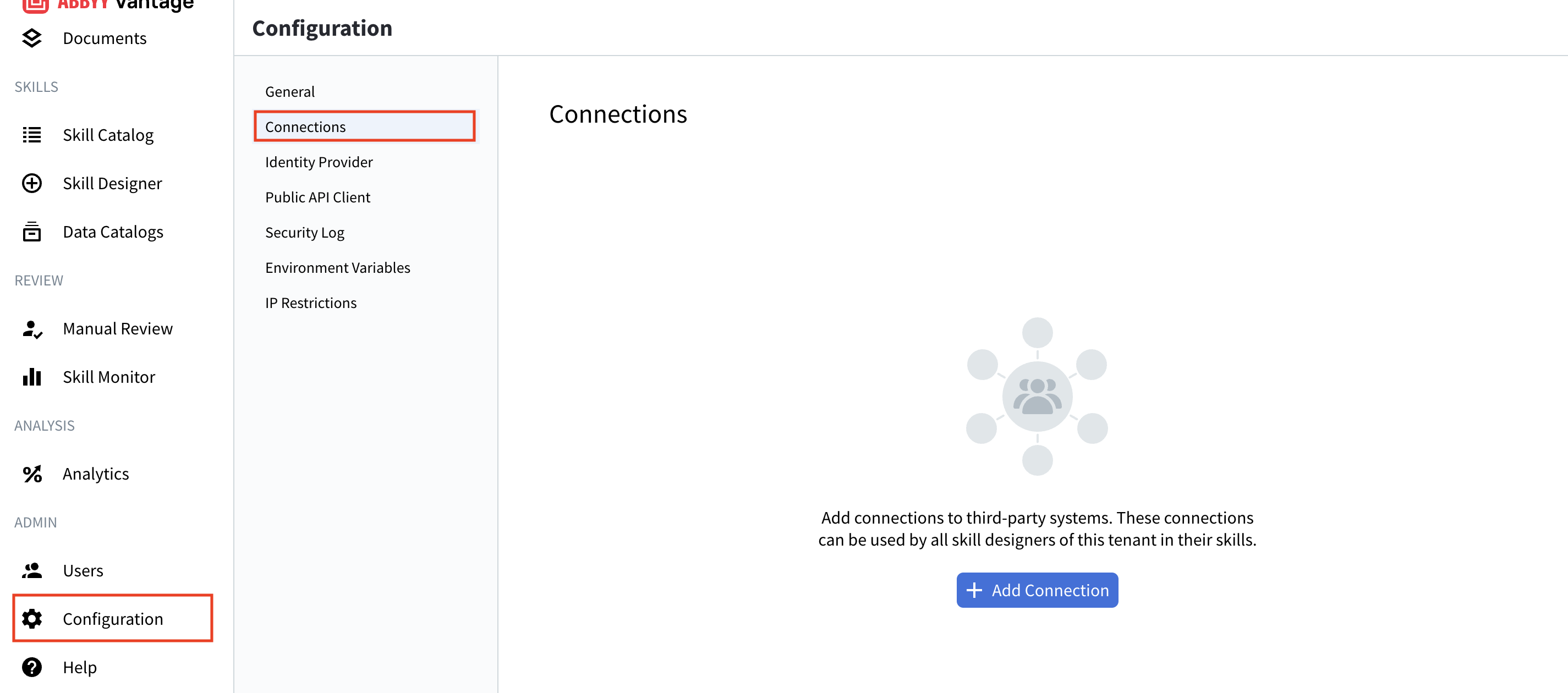
- List of existing connections (if any)
- Connection details: Name, Description, Used in Skills, Last Updated
- Management buttons: Add Connection, Test, Edit, Delete
- Search functionality to find specific connections
Step 3: Add a New LLM Connection
Begin the process of creating a new connection to your LLM provider.- Click the + Add Connection button at the top of the Connections page.
- The Add Connection dialog appears, showing available LLM providers:
- OpenAI ChatGPT - Direct connection to OpenAI’s API
- Microsoft Foundry - OpenAI and other AI models hosted on Microsoft’s Azure infrastructure
- Select your desired provider (for this example, we’ll use Microsoft Foundry).
- Click Next.
Step 4: Configure Connection Details
Fill in the required information for your LLM connection.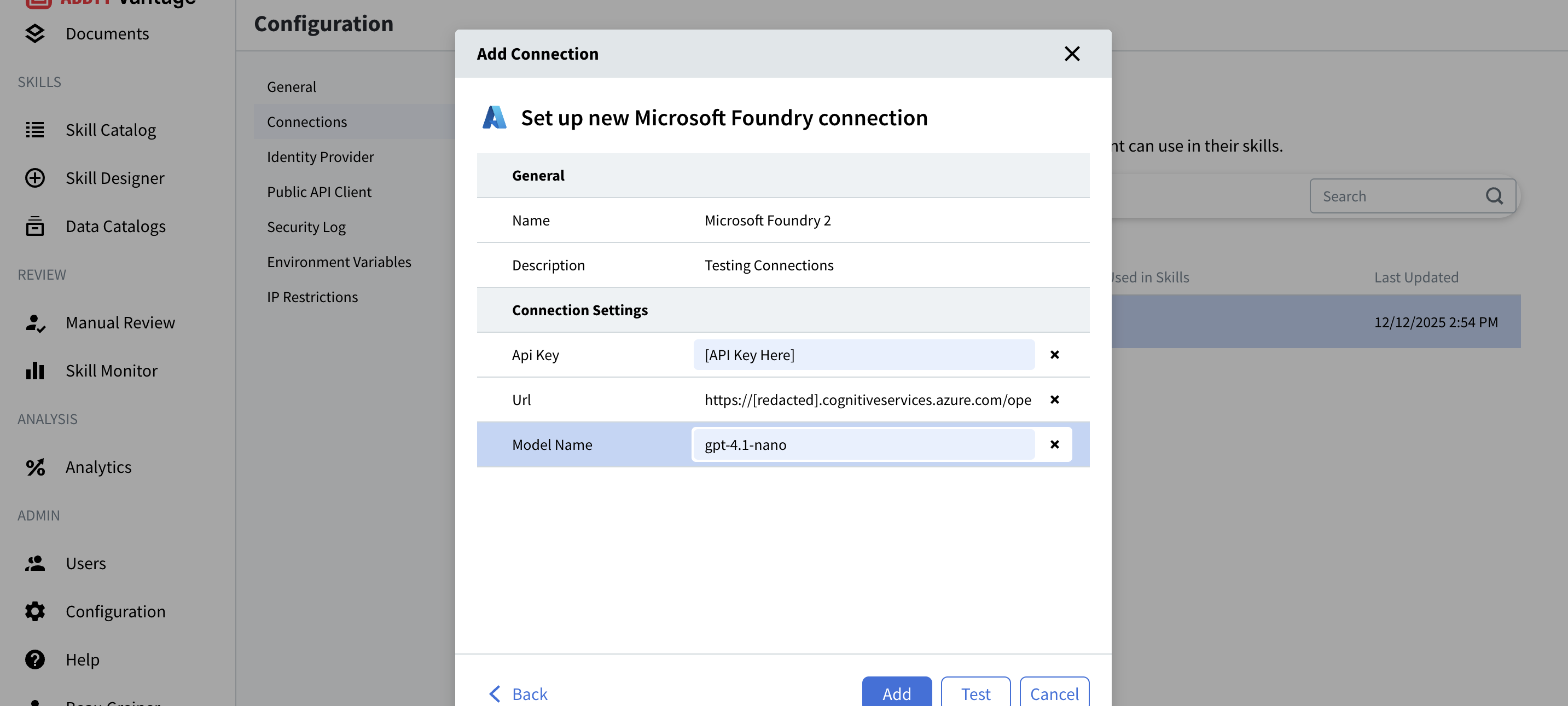
General Settings
Name- A unique identifier for this connection
- Example:
Microsoft FoundryorProduction GPT-4 - This name will appear when selecting connections in Document Skills.
- Optional but recommended.
- Provide useful context about the connection.
- Example: “Microsoft Foundry Connection 1” or “GPT-4 Production API”.
- Important: Don’t include sensitive credentials in the description.
Connection Settings
The required fields depend on your LLM provider:For Microsoft Foundry:
Api Key- Your Microsoft Foundry API key from the Azure portal.
- Find this in: Azure Portal → Your Microsoft Foundry Resource → Keys and Endpoint.
- Format: A long alphanumeric string.
- Example placeholder:
[API Key Here]
- Your Microsoft Foundry endpoint URL.
- Find this in: Azure Portal → Your Microsoft Foundry Resource → Keys and Endpoint.
- Format:
https://[resource].cognitiveservices.azure.com/openai/deployments/[model-name]/chat/completions?api-version=2025-01-01-preview - Example:
https://[redacted]resource.cognitiveservices.azure.com/openai/deployments/gpt-4.1-nano/chat/completions?api-version=2025-01-01-preview
- The name of your deployed model in Microsoft Foundry.
- Find this in: Azure Portal → Your Microsoft Foundry Resource → Deployments.
- Example:
gpt-4.1-nano,gpt-35-turbo,gpt-4 - This must match exactly with your deployment.
For OpenAI ChatGPT:
Api Key- Your OpenAI API key from platform.openai.com.
- Find this in: OpenAI Platform → API Keys.
- Format: Starts with
sk-
- The specific model to use (e.g.,
gpt-4,gpt-3.5-turbo)
Step 5: Test Your Connection
Verify that your connection is configured correctly before saving.- After entering all required information, click the Test button.
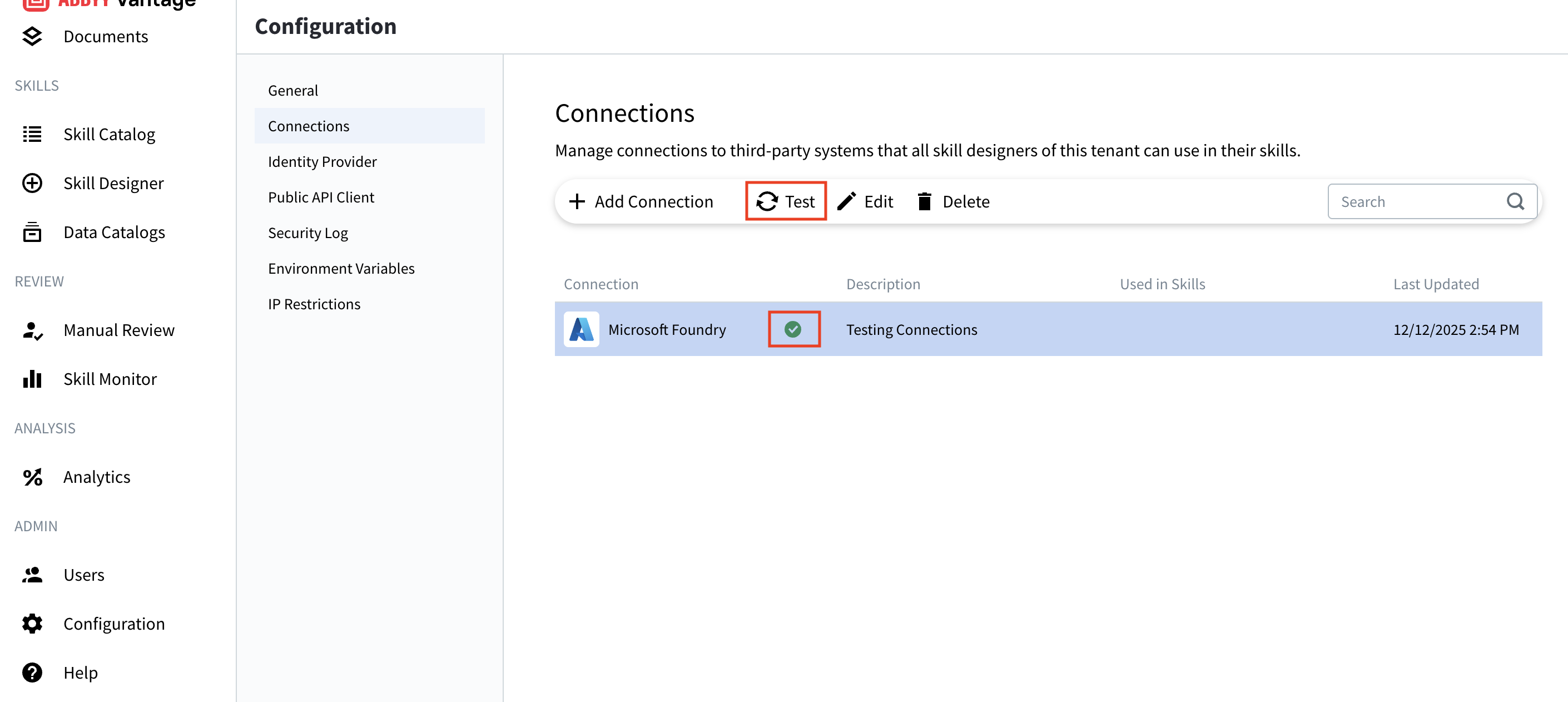
- Vantage will attempt to connect to your LLM provider using the credentials you provided.
- Watch for the test result:
- Success (green checkmark): Connection is working correctly.
- Failure (red X or error message): Check your credentials and try again.
Test Results
Successful Test:- A green checkmark appears next to your connection.
- You can now save the connection.
- The connection is ready to use in Document Skills.
- Review the error message for specific issues.
- Common problems:
- Incorrect API key
- Invalid endpoint URL
- Wrong model name
- Network connectivity issues
- Insufficient permissions or quota
Step 6: Save Your Connection
Finalize the connection setup.- Once the test succeeds, click the Add button.
- Your connection now appears in the Connections list.
- The connection is immediately available to all skill designers in your tenant.
- Connection name: As you specified
- Description: Your helpful description
- Used in Skills: Will show which skills are using this connection
- Last Updated: Current timestamp
Managing Existing Connections
You can manage your connections after they’re created.Edit a Connection
- Select the connection from the list.
- Click the Edit button (pencil icon).
- Update the necessary fields.
- Test the connection again.
- Click Save.
Test a Connection
- Select the connection from the list.
- Click the Test button (refresh icon).
- Verify the connection is still working.
- This is useful for troubleshooting or verifying credentials.
Delete a Connection
- Select the connection from the list.
- Click the Delete button (trash icon).
- Confirm the deletion.
Troubleshooting
Connection Test Fails
Problem: Connection test returns an error. Solutions:- Invalid API Key:
- Verify you copied the entire key correctly.
- Check for extra spaces or characters.
- Regenerate the key in your provider’s portal if needed.
- Invalid Endpoint URL:
- Ensure the URL is complete and properly formatted.
- Verify the URL matches your Azure resource.
- Check for typos in the deployment path.
- Wrong Model Name:
- Confirm the deployment exists in your Azure portal.
- Check spelling and capitalization (case-sensitive).
- Verify the deployment is active and available.
- Network Issues:
- Check your internet connectivity.
- Verify firewall settings allow outbound HTTPS connections.
- Confirm your Vantage instance can reach the LLM provider.
- Quota or Permissions:
- Verify your subscription is active.
- Check that you haven’t exceeded rate limits.
- Ensure your API key has necessary permissions.
Connection Works in Test but Fails in Skills
Problem: Test succeeds but skills can’t use the connection. Solutions:- Refresh the Skill Designer page.
- Re-select the connection in the skill configuration.
- Check the skill’s error logs for specific messages.
- Verify the skill is published and not in draft mode.
API Costs Higher Than Expected
Problem: Unexpected charges from your LLM provider. Solutions:- Review which skills are using the connection.
- Check processing volume and frequency.
- Consider implementing rate limiting.
- Monitor usage through your provider’s dashboard.
- Use more cost-effective models for testing.
Best Practices
Security
- Never share API keys in plain text emails or chat.
- Rotate credentials regularly (every 90 days recommended).
- Use separate connections for development and production.
- Monitor access logs in your LLM provider’s dashboard.
- Implement least-privilege access - only grant necessary permissions.
- Store backup credentials securely in case of emergency.
Connection Management
- Use descriptive names that indicate purpose or environment.
- Good: “Production GPT-4”, “Development Microsoft Foundry”
- Avoid: “Connection 1”, “Test”
- Document in descriptions what each connection is for
- Include: Environment, use case, owner contact
- Exclude: Credentials, sensitive information
- Test connections regularly to catch issues early
- Set up a monthly review schedule.
- Test after any credential changes.
- Track usage to understand which connections are active
- Review the “Used in Skills” column.
- Archive or delete unused connections.
Cost Management
- Choose appropriate models for each use case.
- Use smaller, faster models for simple tasks.
- Reserve advanced models for complex extraction.
- Implement rate limiting if your provider supports it.
- Prevents unexpected cost spikes.
- Protects against runaway processing.
- Monitor usage patterns
- Set up billing alerts in your provider’s dashboard.
- Review monthly costs and usage.
- Optimize prompts in your Document Skills.
- Efficient prompts reduce token usage.
- Test and refine for best results with lowest cost.
Workflow Optimization
- Group similar document types together
- Configure appropriate document skills for your use case
- Test with sample documents before production use
- Document your workflow for team reference
Understanding Connection Types
OpenAI ChatGPT
Best for:- Direct access to latest OpenAI models
- Simple setup with just an API key
- Organizations already using OpenAI platform
- Data is processed by OpenAI’s infrastructure
- Subject to OpenAI’s terms and data policies
- Requires OpenAI account and API access
Microsoft Foundry
Best for:- Enterprise deployments with Azure infrastructure
- Organizations requiring data residency controls
- Integration with other Azure services
- Enhanced security and compliance features
- Access to OpenAI and other AI models through Azure
- Organizations with existing Azure subscriptions
- Requires Azure subscription and Microsoft Foundry setup
- More configuration (endpoint URL with full path, model name, API version)
- Available models may differ from OpenAI direct
- URL must include the complete path:
/openai/deployments/[model-name]/chat/completions?api-version=... - May offer specialized capabilities and custom model hosting
Additional Resources
- OpenAI API Documentation: https://platform.openai.com/docs
- Microsoft Foundry: https://azure.microsoft.com/products/ai-foundry
- Azure AI Services Documentation: https://learn.microsoft.com/azure/ai-services/
- Support: Contact ABBYY support for technical assistance
Summary
You’ve successfully:- ✅ Accessed the Configuration settings
- ✅ Navigated to Connections management
- ✅ Added a new LLM connection
- ✅ Configured connection credentials and settings
- ✅ Tested your connection
- ✅ Learned how to manage connections