
Overview
Prompt-based extraction allows you to use natural language instructions to extract structured data from documents using LLMs. Instead of training traditional machine learning models, you describe what data you want to extract and how it should be formatted, and the LLM handles the extraction based on your instructions. What you’ll accomplish:- Create a prompt-based extraction activity
- Configure an LLM connection
- Write effective extraction prompts
- Define output format and structure
- Apply strictness and validation rules
- Test and refine your extraction
- Vendor information extraction from invoices
- Header-level document data capture
- Semi-structured document processing
- Documents with variable layouts
Prerequisites
Before you begin, ensure you have:- Access to ABBYY Vantage Advanced Designer
- An LLM connection configured (see How to Configure LLM Connections)
- A Document Skill with sample documents loaded
- Basic understanding of JSON structure
- Field definitions for the data you want to extract
Understanding Prompt-Based Extraction
What is Prompt-Based Extraction?
Prompt-based extraction uses LLMs to understand and extract data from documents based on natural language instructions. You define:- Role: What the LLM should act as (e.g., “data extraction model”)
- Instructions: How to extract and format data
- Output Structure: The exact JSON format for results
- Rules: Guidelines for handling ambiguous or missing data
Benefits
- No training data required: Works with just prompt engineering
- Flexible: Easy to add or modify fields
- Handles variations: LLMs can understand different document formats
- Quick setup: Faster than training traditional ML models
- Natural language: Write instructions in plain English
Limitations
- Cost: Each extraction uses LLM API calls
- Speed: Slower than traditional extraction for simple documents
- Consistency: Results may vary slightly between runs
- Context limits: Very long documents may need special handling
Step 1: Add a Prompt-Based Activity
Create a new prompt-based extraction activity in your Document Skill.- Open your Document Skill in ABBYY Vantage Advanced Designer
- In the left panel, locate EXTRACT FROM TEXT (NLP)
- Find and click on Prompt-based
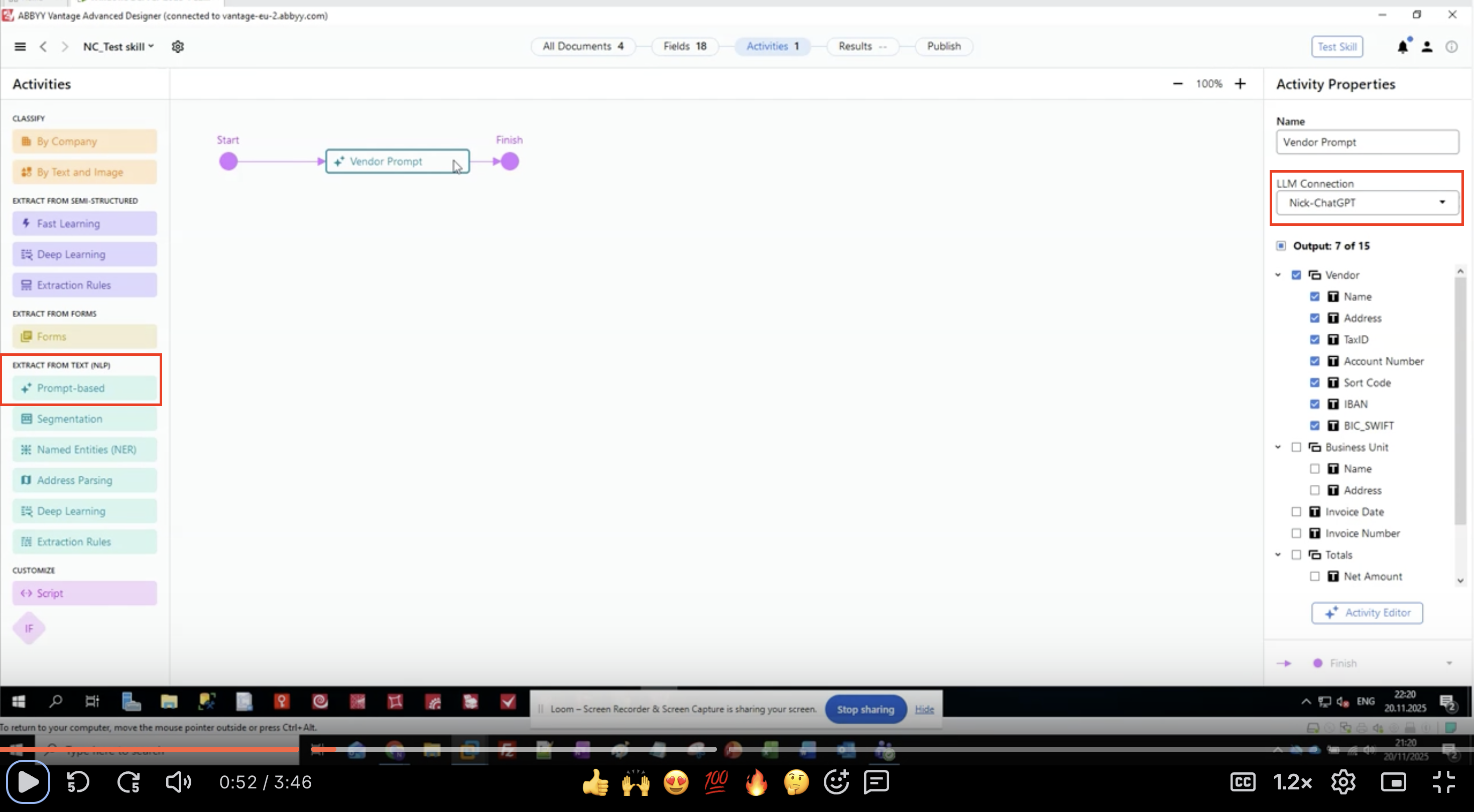
- The activity appears in your workflow canvas
- Connect it between your input and output activities
Step 2: Configure the LLM Connection
Select which LLM connection the activity should use.- Select the prompt-based activity in your workflow
- In the Activity Properties panel on the right, locate LLM Connection
- Click the dropdown menu
-
Select your configured LLM connection from the list
- Example:
Nick-ChatGPT,Microsoft Foundry,Production GPT-4
- Example:
- Verify the connection is selected
Step 3: Define Output Fields
Set up the fields you want to extract before writing your prompt.- In the Activity Properties panel, locate the Output section
- You’ll see a hierarchical list of field groups and fields
- For this example, we’re extracting vendor information:
- Vendor
- Name
- Address
- TaxID
- Account Number
- Sort Code
- IBAN
- BIC_SWIFT
- Business Unit
- Name
- Address
- Invoice Date
- Invoice Number
- Totals
- Net Amount
- Vendor
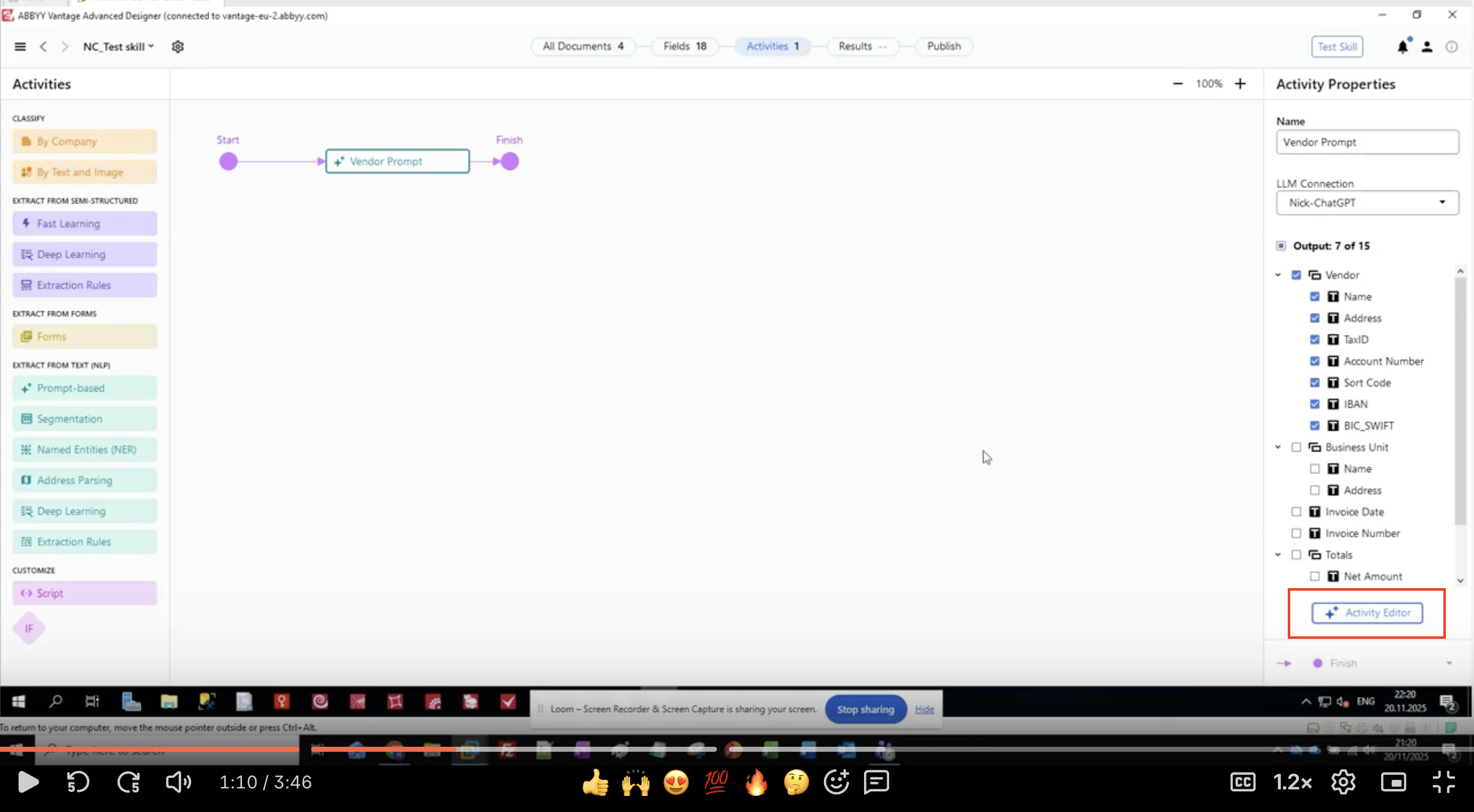
- Click Activity Editor button to begin configuring the prompt
Step 4: Write the Role Definition
Define what role the LLM should play when processing documents.- In the Activity Editor, you’ll see the Prompt Text interface
- Start with the ROLE section:
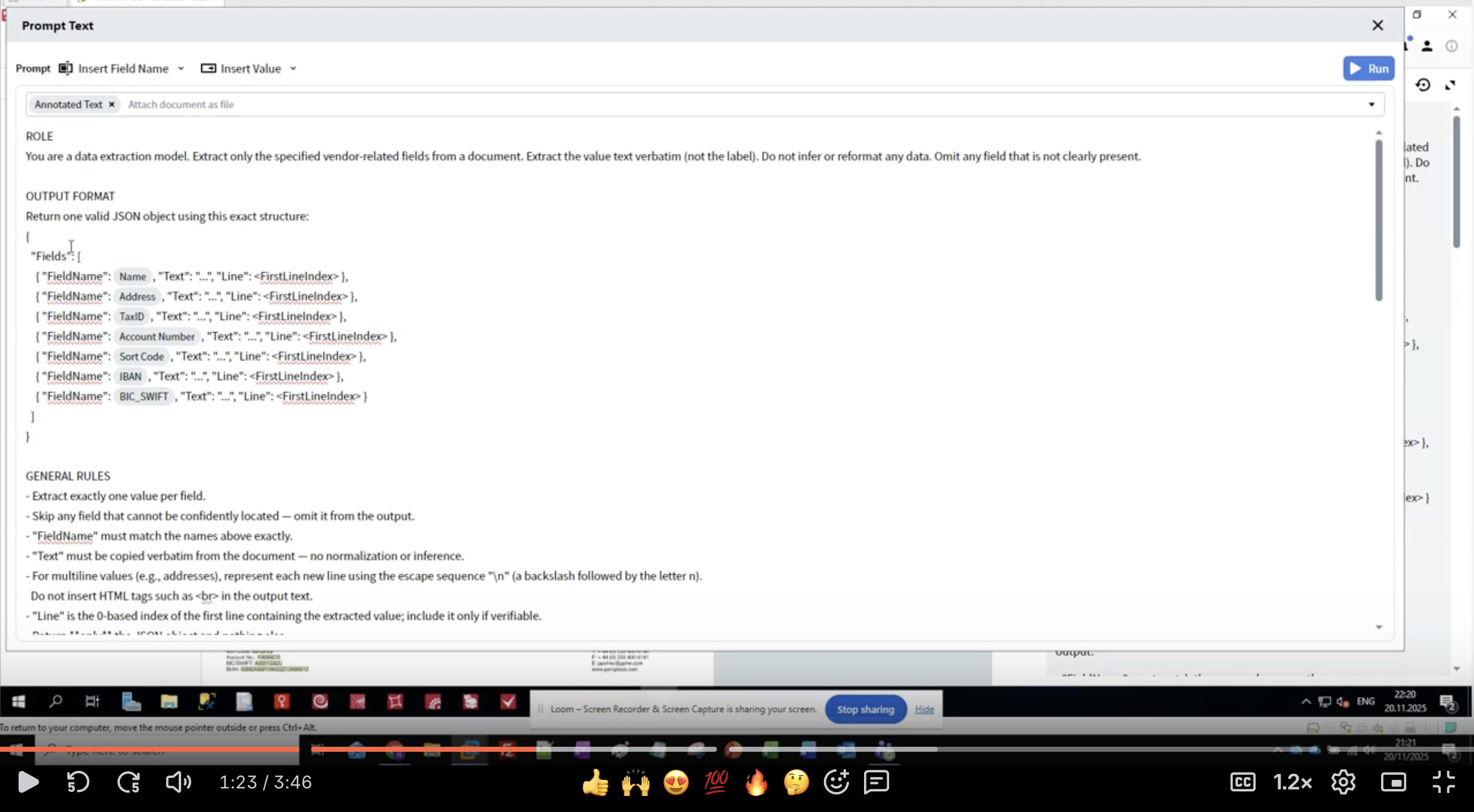
- Be specific: “data extraction model” tells the LLM its purpose
- Define scope: “vendor-related fields” limits what to extract
- Set expectations: “value text verbatim” prevents reformatting
- Handle missing data: “Omit any field that is not clearly present”
- Keep the role clear and concise
- Use imperative statements (“Extract”, “Do not infer”)
- Be explicit about what NOT to do
- Define how to handle edge cases
Step 5: Define the Output Format
Specify the exact JSON structure for extraction results.- Below the ROLE section, add the OUTPUT FORMAT heading
- Define the JSON structure:
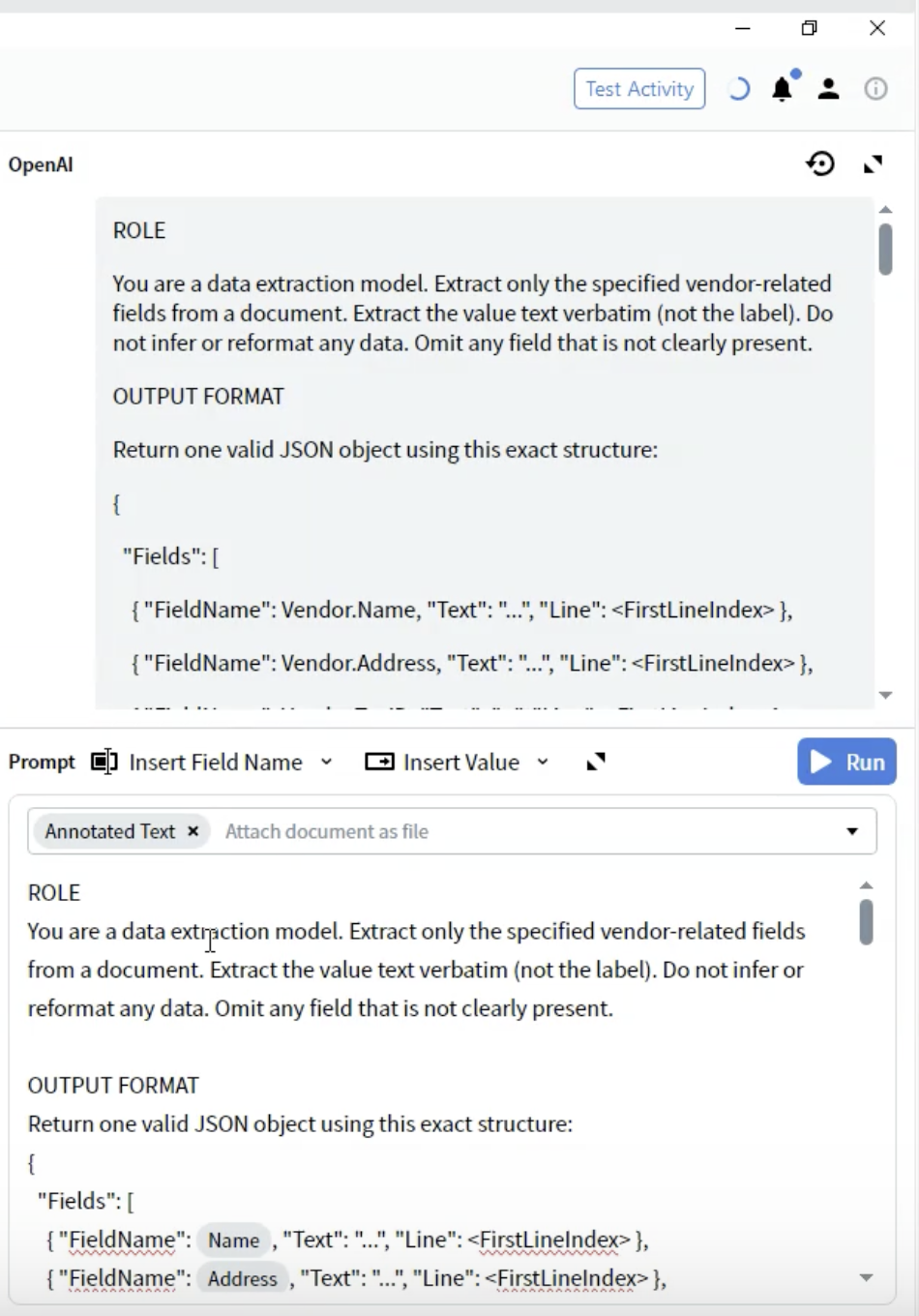
- FieldName: Must match your field definitions exactly (e.g.,
Vendor.Name) - Text: The extracted value as a string
- Line: 0-based line index where the value appears in the document
- Use exact field names from your Output configuration
- Include all fields even if some might be empty
- The structure must be valid JSON
- Line numbers help with verification and troubleshooting
Step 6: Add Field-Specific Extraction Rules
Provide detailed instructions for extracting each field. Below the OUTPUT FORMAT, add specific rules for each field type:- Recognition patterns: List alternative labels for each field
- Format specifications: Describe exact format to extract
- Location hints: Where to typically find the data
- Exclusions: What NOT to extract
- Number your rules for clarity
- Provide multiple label variations
- Specify data ownership (vendor-side vs. customer-side)
- Include format examples in parentheses
- Be explicit about related fields (e.g., “Ignore IBAN — it has its own field”)
Step 7: Apply Strictness Rules
Add validation rules to ensure data quality and consistency. At the end of your prompt, add a STRICTNESS section: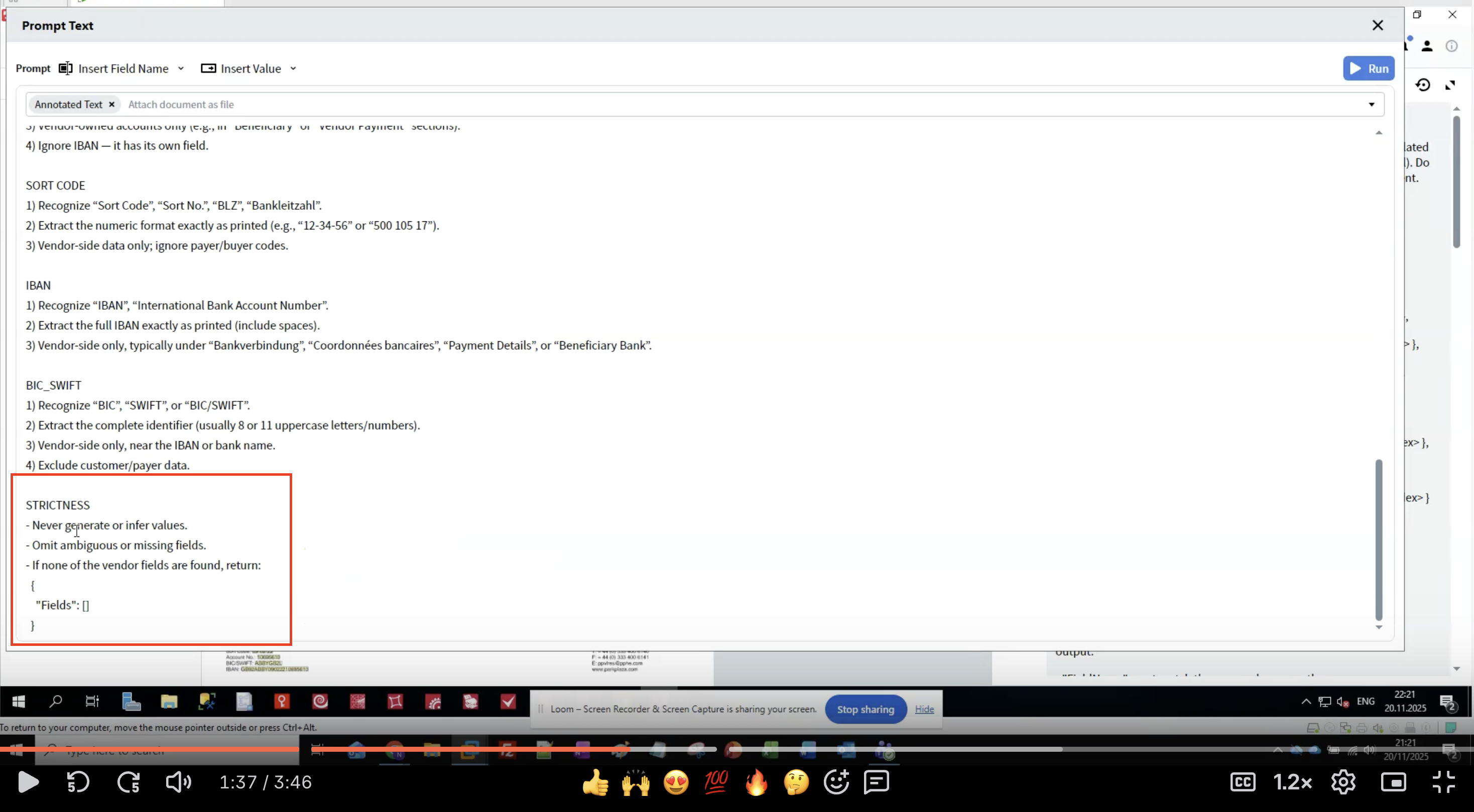
- Prevents hallucination: LLMs may generate plausible but incorrect data
- Ensures consistency: Clear rules reduce variation between runs
- Handles missing data: Defines what to do when fields aren’t found
- Maintains data integrity: Verbatim extraction preserves original formatting
- Never generate data that isn’t in the document
- Omit uncertain extractions rather than guessing
- Return empty structure if no fields are found
- Match field names exactly
- Preserve original text formatting
Step 8: Select Document Format
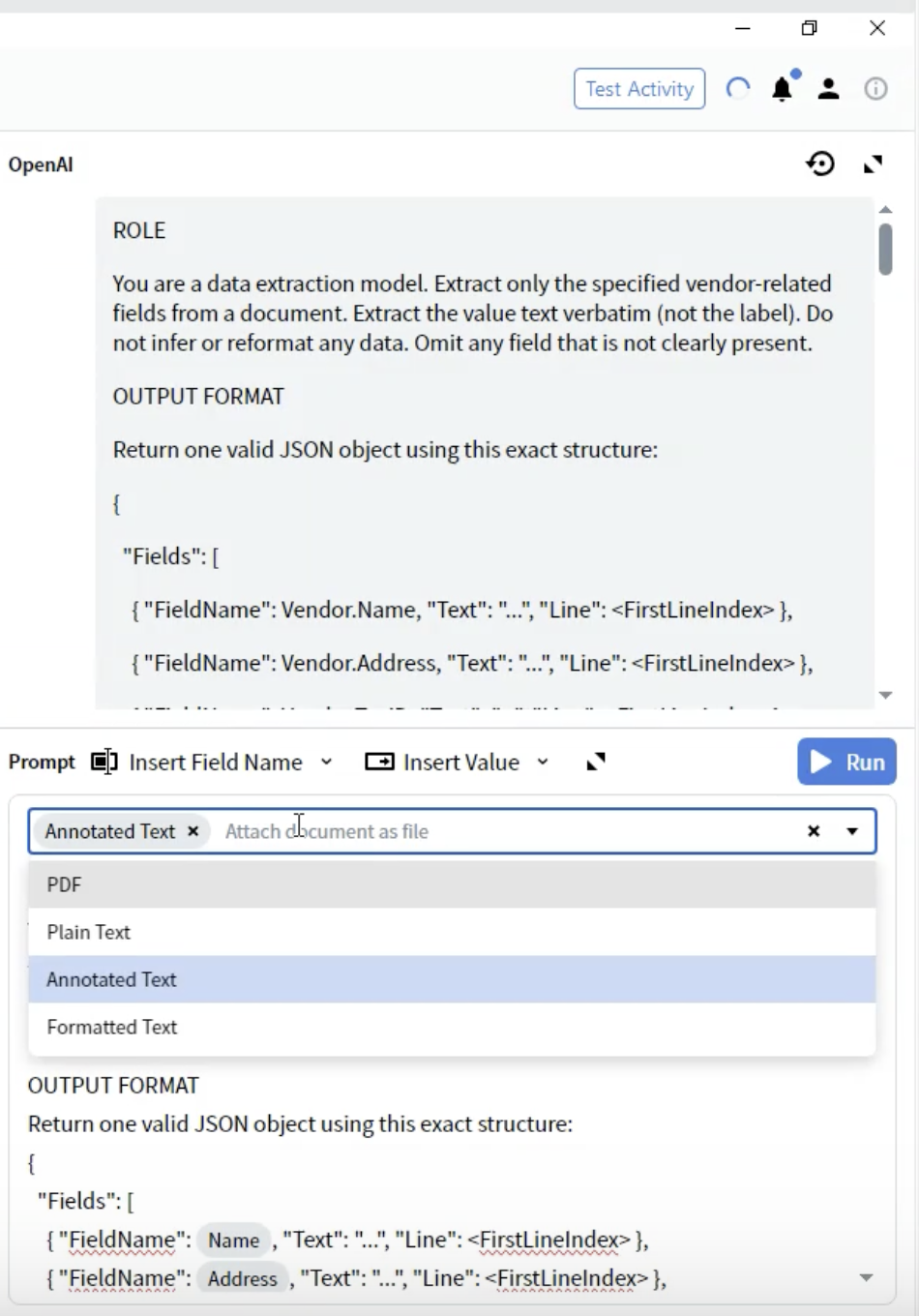
Choose which document representation to send to the LLM.- In the Activity Editor, locate the Prompt dropdown
- You’ll see options for how the document is provided to the LLM
-
PDF: Original PDF file
- Use for: Documents where layout is critical
- Considerations: Larger file size, some LLMs have limited PDF support
-
Plain Text: Unformatted text extraction
- Use for: Simple text-only documents
- Considerations: Loses all formatting and layout information
-
Annotated Text ⭐ (Recommended)
- Use for: Most document types
- Considerations: Preserves structure while being text-based
- Benefits: Best balance of structure and performance
-
Formatted Text: Text with basic formatting preserved
- Use for: Documents where some formatting matters
- Considerations: Middle ground between Plain and Annotated
- Select Annotated Text for best results
Step 9: Test Your Extraction
Run the activity on sample documents to verify results.Run the Activity
- Close the Activity Editor
- Navigate to All Documents tab
- Select a test document
- Click Test Activity or Run button
- Wait for the LLM to process the document
- Processing time: typically 5-30 seconds depending on document complexity
- You’ll see a loading indicator while waiting for the API response
Review Results
Once processing completes:- The interface switches to Predictive view
- Review the Output panel showing extracted fields
- Click on each field to see:
- Extracted value
- Confidence (if provided)
- Highlighted region on the document image
- ✅ All expected fields are populated
- ✅ Values match the document exactly
- ✅ No hallucinated or inferred data
- ✅ Proper handling of multiline fields
- ✅ Missing fields are omitted (not filled with incorrect data)
Common Result Patterns
Successful Extraction:Step 10: Refine Your Prompt
Iterate on your prompt based on test results.Common Issues and Solutions
Issue: LLM extracts wrong field- Solution: Add more specific location hints
- Example: “Vendor-side only; exclude customer/buyer addresses”
- Solution: Emphasize verbatim extraction
- Example: “Extract the numeric format exactly as printed (e.g., ‘12-34-56’)”
- Solution: Strengthen strictness rules
- Example: “Never generate or infer values. Omit if not present.”
- Solution: Specify escape sequences
- Example: “For multiline values, use
\nfor new lines”
- Solution: Verify field names match exactly
- Example: Use
Vendor.Account NumbernotAccountNumber
Iterative Improvement Process
- Test on multiple documents: Don’t optimize for a single example
- Document patterns: Note which rules work and which need refinement
- Add specific examples: Include format examples in parentheses
- Refine strictness: Adjust based on over/under-extraction patterns
- Test edge cases: Try documents with missing fields, unusual layouts
Example Refinements
Before:Understanding the Extraction Process
How Prompt-Based Extraction Works
- Document Conversion: Your document is converted to the selected format (Annotated Text recommended)
- Prompt Assembly: Your role, output format, field rules, and strictness rules are combined
- API Call: The prompt and document are sent to the LLM via your connection
- LLM Processing: The LLM reads the document and extracts data according to your instructions
- JSON Response: The LLM returns structured data in the specified JSON format
- Field Mapping: Vantage maps the JSON response to your defined output fields
- Verification: Line numbers and confidence scores (if provided) help verify accuracy
Token Usage and Costs
Factors Affecting Cost:- Document length: Longer documents use more tokens
- Prompt complexity: Detailed prompts increase token count
- Format choice: Annotated Text is typically more efficient than PDF
- Number of fields: More fields = longer prompts
- Use concise but clear language in prompts
- Don’t duplicate instructions
- Remove unnecessary examples
- Consider field grouping for related data
Best Practices
Prompt Writing
Do:- ✅ Use clear, imperative statements (“Extract”, “Recognize”, “Omit”)
- ✅ Provide multiple label variations for each field
- ✅ Include format examples in parentheses
- ✅ Specify what NOT to extract (exclusions)
- ✅ Number your rules for easy reference
- ✅ Use consistent terminology throughout
- ❌ Use vague instructions (“get the name”)
- ❌ Assume the LLM knows domain-specific conventions
- ❌ Write overly long, complex sentences
- ❌ Contradict yourself in different sections
- ❌ Skip strictness rules
Field Definitions
Effective Field Instructions:- Start with recognition patterns (alternative labels)
- Specify exact format to preserve
- Provide location hints (typical placement)
- Define data ownership (vendor vs. customer)
- Include handling for multiline values
- Reference related fields to avoid confusion
Testing Strategy
- Start with simple documents: Test basic extraction first
- Expand to variations: Try different layouts and formats
- Test edge cases: Missing fields, unusual positions, multiple matches
- Document failures: Keep examples of where extraction fails
- Iterate systematically: Change one thing at a time
Performance Optimization
For Speed:- Keep prompts concise
- Use Annotated Text format
- Minimize number of fields per activity
- Consider splitting complex documents
- Provide comprehensive field rules
- Include format examples
- Add strong strictness rules
- Test with diverse document samples
- Optimize prompt length
- Use efficient document formats
- Cache results when appropriate
- Monitor token usage via LLM provider dashboard
Troubleshooting
Extraction Issues
Problem: Fields are empty despite data being present Solutions:- Check field name spelling matches exactly
- Verify the data is in the selected document format
- Add more label variations to recognition patterns
- Reduce strictness temporarily to see if LLM finds it
- Check if document quality affects OCR/text extraction
- Strengthen vendor-side specifications
- Add explicit exclusions for customer/buyer data
- Provide location hints (e.g., “top of document”, “issuer section”)
- Include examples of correct vs. incorrect extraction
- Explicitly specify escape sequence format (
\n) - Provide examples of correct multiline output
- Verify document format preserves line breaks
- Add instruction: “Preserve original line breaks using
\n”
- Emphasize “verbatim” and “exactly as printed”
- Add strictness rule: “No normalization or inference”
- Provide specific examples showing preservation of formatting
- Include negative examples: “Not ‘12-34-56’, keep as ‘12 34 56‘“
Performance Issues
Problem: Extraction is too slow Solutions:- Switch to Annotated Text format if using PDF
- Simplify prompt without losing critical instructions
- Reduce document resolution if images are very large
- Check LLM provider status and rate limits
- Consider using a faster model for simple documents
- Strengthen strictness rules
- Make instructions more specific and unambiguous
- Add more format examples
- Reduce prompt complexity that might lead to interpretation
- Test with higher temperature settings (if available in connection)
- Optimize prompt length
- Use Annotated Text instead of PDF
- Process documents in batches during off-peak
- Consider using smaller/cheaper models for simple documents
- Monitor and set budget alerts in LLM provider dashboard
Advanced Techniques
Conditional Extraction
You can instruct the LLM to extract certain fields only if conditions are met:Multi-Language Support
Prompt-based extraction works well with multilingual documents:Validation Rules
Add validation logic to your prompts:Field Relationships
Specify how fields relate to each other:Limitations and Considerations
Current Capabilities
Supported:- ✅ Header-level field extraction
- ✅ Single and multiline values
- ✅ Multiple fields per document
- ✅ Conditional extraction logic
- ✅ Multi-language documents
- ✅ Variable document layouts
- ⚠️ Table extraction (varies by implementation)
- ⚠️ Nested complex structures
- ⚠️ Very large documents (token limits)
- ⚠️ Real-time processing (API latency)
- ⚠️ Guaranteed deterministic results
When to Use Prompt-Based Extraction
Best For:- Documents with variable layouts
- Semi-structured documents
- Quick prototyping and testing
- Small to medium document volumes
- When training data is unavailable
- Multi-language document processing
- High-volume production (traditional ML may be faster)
- Highly structured forms (template-based extraction)
- Cost-sensitive applications (traditional methods may be cheaper)
- Latency-critical applications (LLM APIs have network delay)
- Offline processing requirements (no internet needed for traditional methods)
Integration with Document Skills
Using Extracted Data
Once extraction is complete, the field data is available throughout your Document Skill:- Validation Activities: Apply business rules to extracted values
- Script Activities: Process or transform extracted data
- Export Activities: Send data to external systems
- Review Interface: Manual verification of extracted fields
Combining with Other Activities
Prompt-based extraction can work alongside other activities:Field Mapping
The extracted JSON fields automatically map to your defined output fields:"FieldName": "Vendor.Name"→ Maps to Output fieldVendor.Name- Field hierarchy is preserved in the output structure
- Line numbers help with verification and troubleshooting
Summary
You’ve successfully:- ✅ Created a prompt-based extraction activity
- ✅ Configured an LLM connection
- ✅ Written a comprehensive extraction prompt with role, format, and rules
- ✅ Selected the optimal document format (Annotated Text)
- ✅ Applied strictness rules for data quality
- ✅ Tested extraction and reviewed results
- ✅ Learned best practices for prompt engineering
- Prompt-based extraction uses natural language instructions
- Annotated Text format provides best results
- Clear, specific prompts yield consistent extraction
- Strictness rules prevent hallucination and maintain data quality
- Iterative testing and refinement improve accuracy
Next Steps
- Test with diverse documents: Validate across different layouts and variations
- Refine your prompts: Continuously improve based on results
- Monitor costs: Track token usage in your LLM provider dashboard
- Optimize performance: Fine-tune prompts for speed and accuracy
- Explore table extraction: Experiment with extracting line items (if supported)
- Integrate with workflows: Combine with other activities for complete processing
Additional Resources
- ABBYY Vantage Advanced Designer Documentation: https://docs.abbyy.com
- LLM Connection Setup Guide: How to Configure LLM Connections
- Prompt Engineering Best Practices: Consult your LLM provider’s documentation
- Support: Contact ABBYY support for technical assistance