
Overview
ABBYY Vantage enables automated document processing with intelligent extraction capabilities. This guide focuses on the SFTP-based workflow, which allows you to upload documents to a shared folder and automatically retrieve processed results. What you’ll accomplish:- Create and configure a Process Skill
- Set up SFTP access for input and output
- Upload documents via command line
- Download extraction results
Step 1: Create a Process Skill
A Process Skill is the foundation of your document processing workflow in Vantage.- Navigate to the Documents section in ABBYY Vantage.
- Click on Skill Designer in the left sidebar.
- Select Process Skill from the skill types.

- In the Create Process skill dialog, enter:
- Skill Name: A descriptive name for your process (e.g., “Process Skill Test 1”)
- Description: Optional description of what this skill does
- Technology Core Version: 3.0 (recommended)
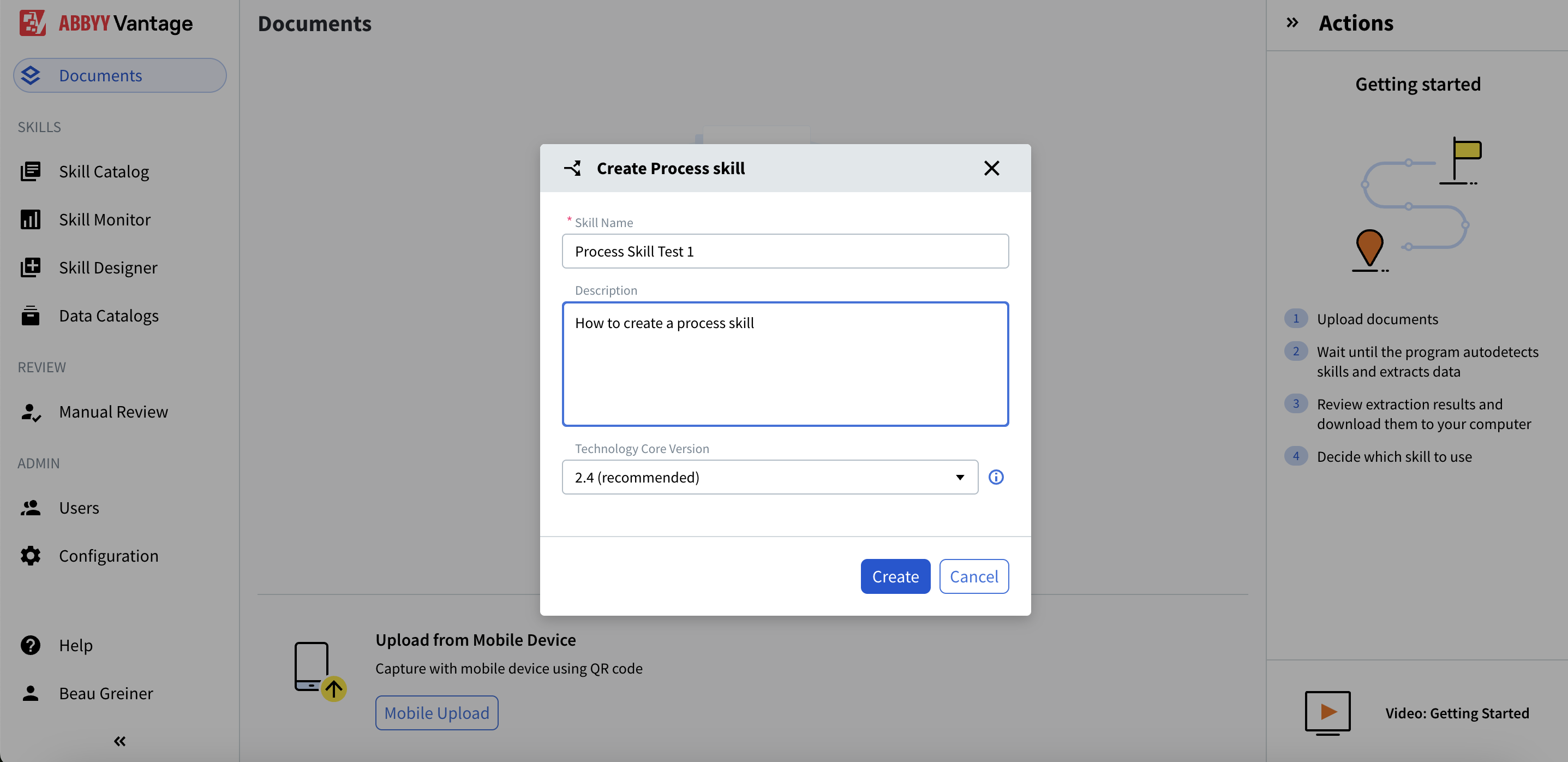
- Click Create
Step 2: Configure the Process Skill Workflow
After creating your skill, you’ll set up the document processing flow.- In the Skill Designer, you’ll see the Select Process Skill panel on the right
- Choose Simple Document skill workflow for processing single document types
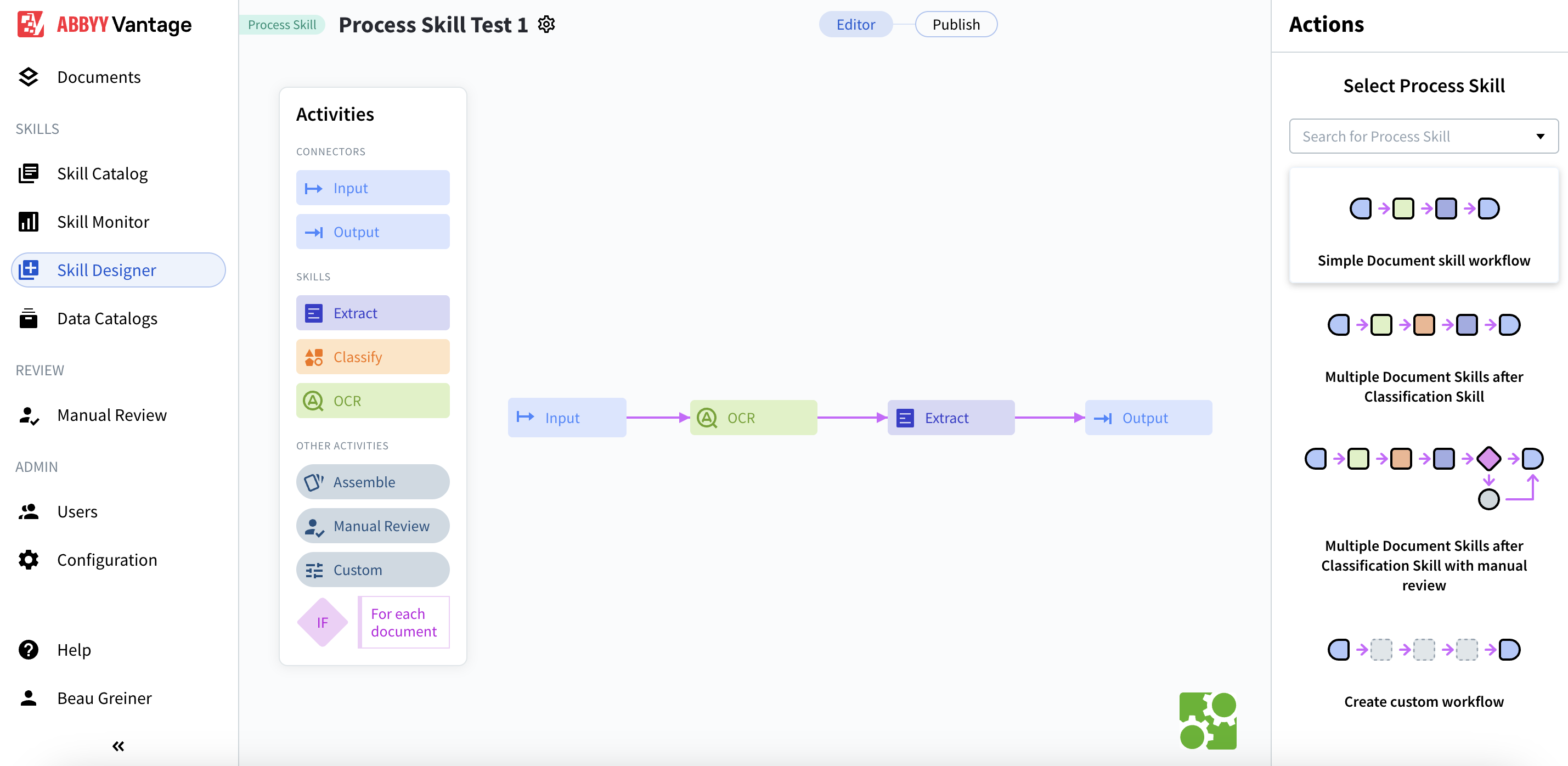
- Input connector: Where documents enter the system
- OCR skill: Optical character recognition
- Extract skill: Data extraction
- Output connector: Where results are delivered
Input → OCR → Extract → Output
Step 3: Set Up Input via SFTP
Configure the Input activity to accept documents via SFTP.- Click on the Input activity in the workflow.
- In the Actions panel on the right, check Select additional source.
- Select the Shared folder radio button.
- Click Settings to configure.
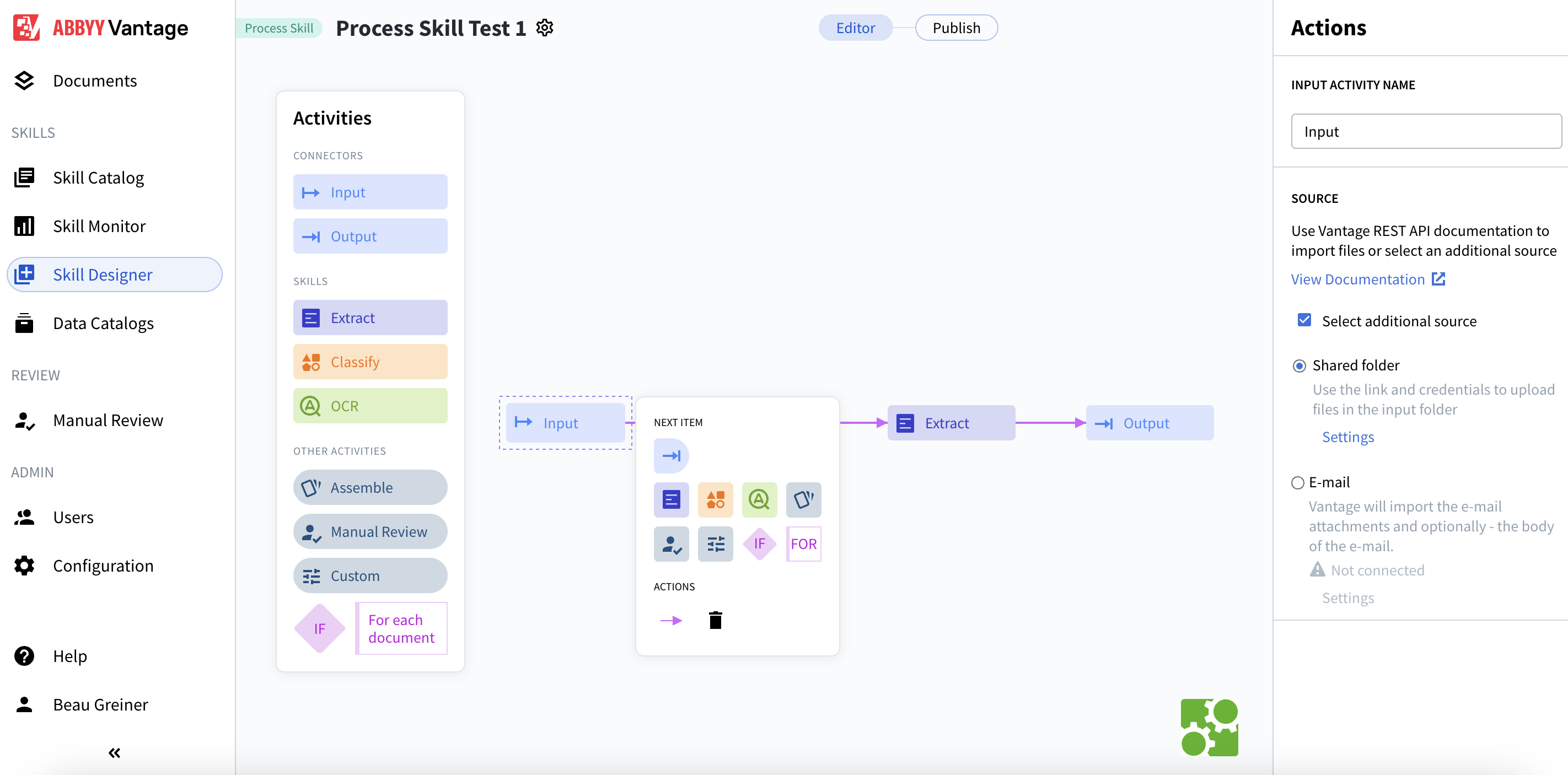
Configure Input Settings
In the Input Settings: Shared Folder dialog:
- Folder name: Input (default)
- Import method: Single file
- Folder link:
.../Input - Exceptions folder link:
.../Input-exception - Username: A generated UUID (e.g.,
685df03c-9e22-41cb-a96f-4c408ab52735) - Password: Displayed with show/hide option
- Click Save.
Step 4: Set Up Output via SFTP
Configure the Output activity to deliver results via SFTP.- Click on the Output activity in the workflow.
- In the Actions panel, check Select additional destination.
- Select the Shared folder radio button.
- Click Settings to configure.
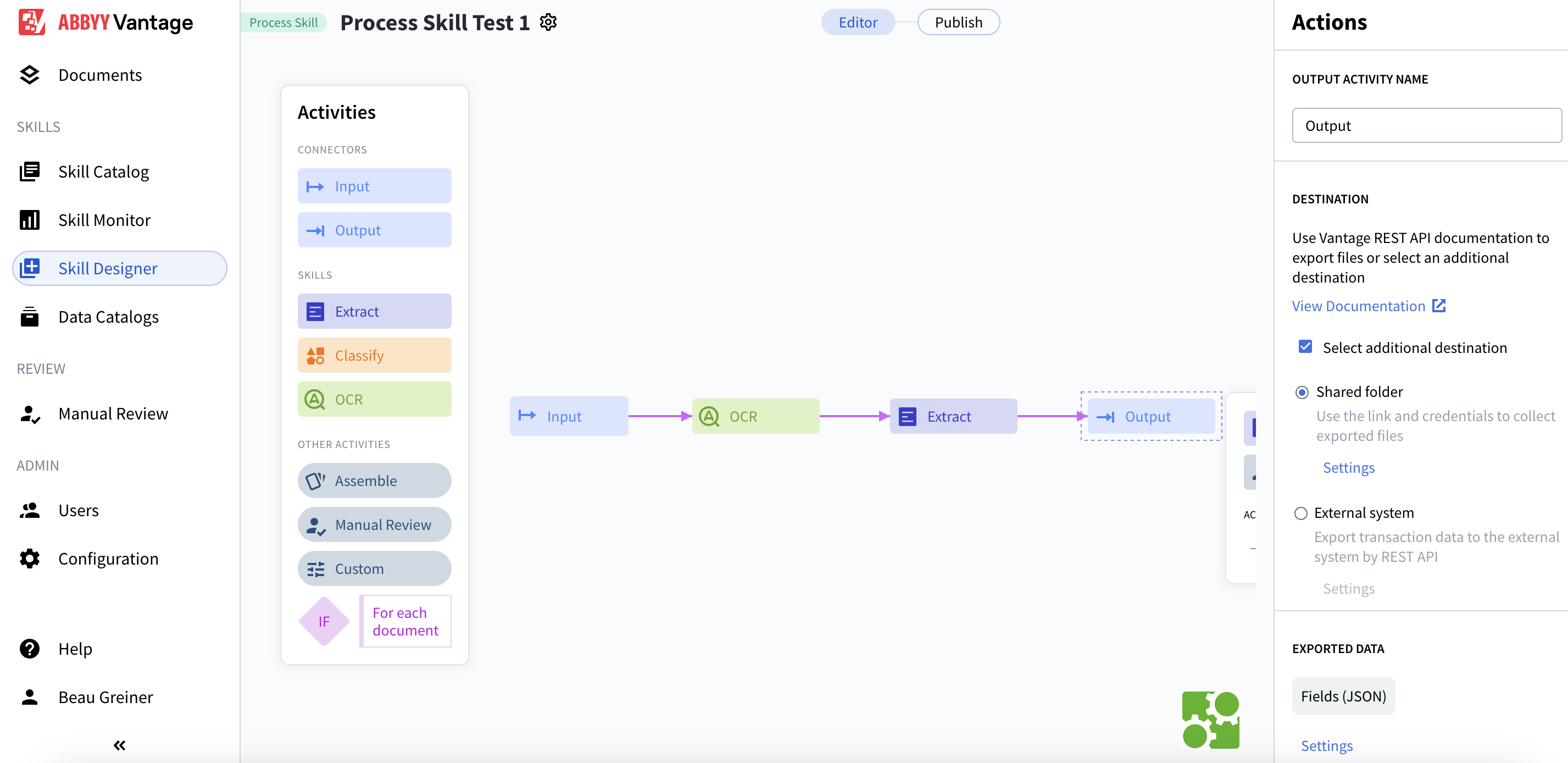
Configure Output Settings
In the Output Settings: Shared Folder dialog: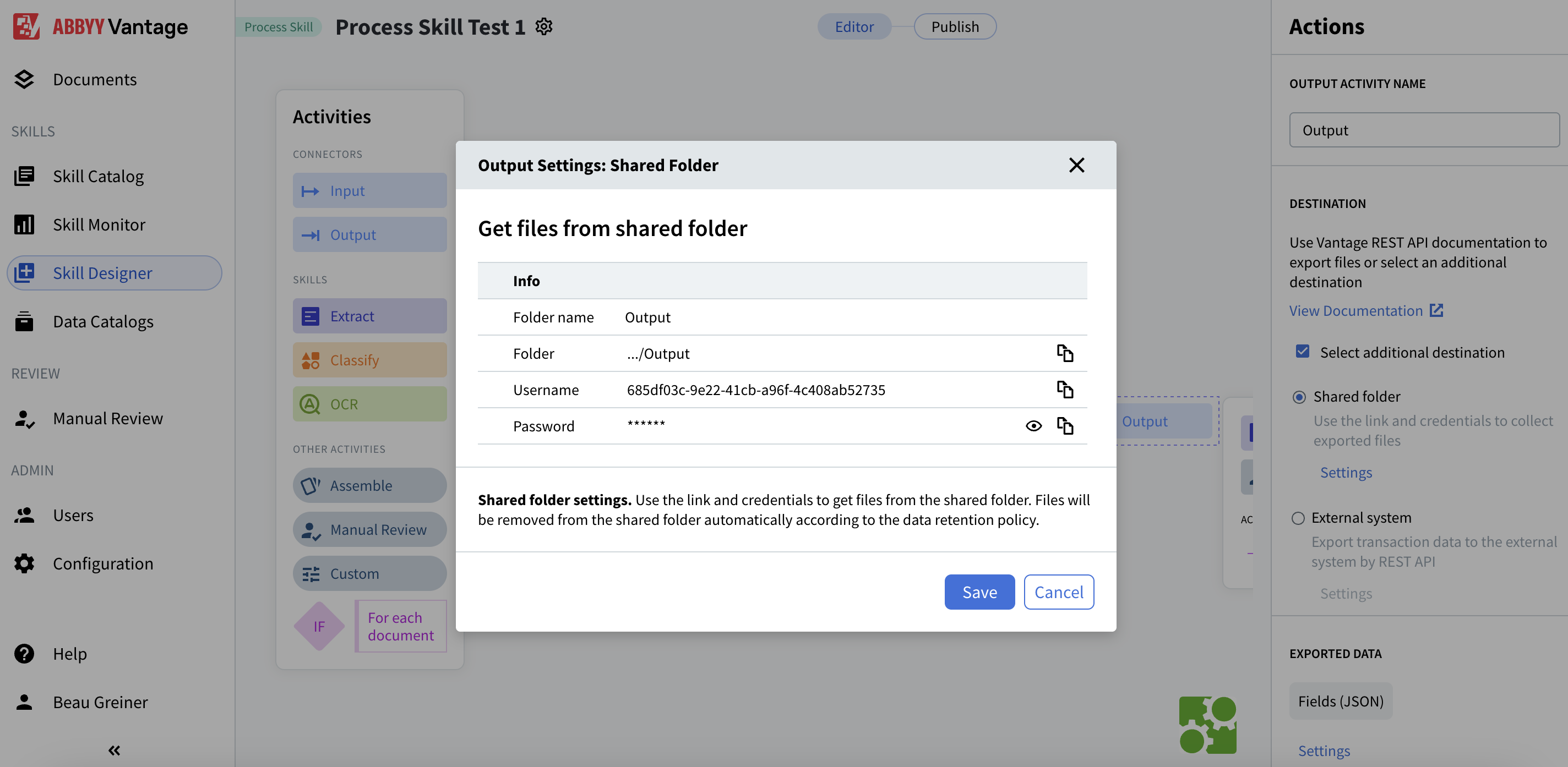
- Folder name: Output (default)
- Folder:
.../Output - Username: A generated UUID (e.g.,
685df03c-9e22-41cb-a96f-4c408ab52735) - Password: Displayed with show/hide option
- Fields (JSON): Default export format
invoice_1.jpg-4ac2a31b-d1b6-4231-99b2-39f00bc5df82). Files are automatically removed according to the data retention policy.
- Click Save.
Step 5: Configure Extraction Skills
Set up which document types the Extract activity should recognize and process.- Click on the Extract activity in the workflow.
- In the Actions panel, you’ll see Document Skills.
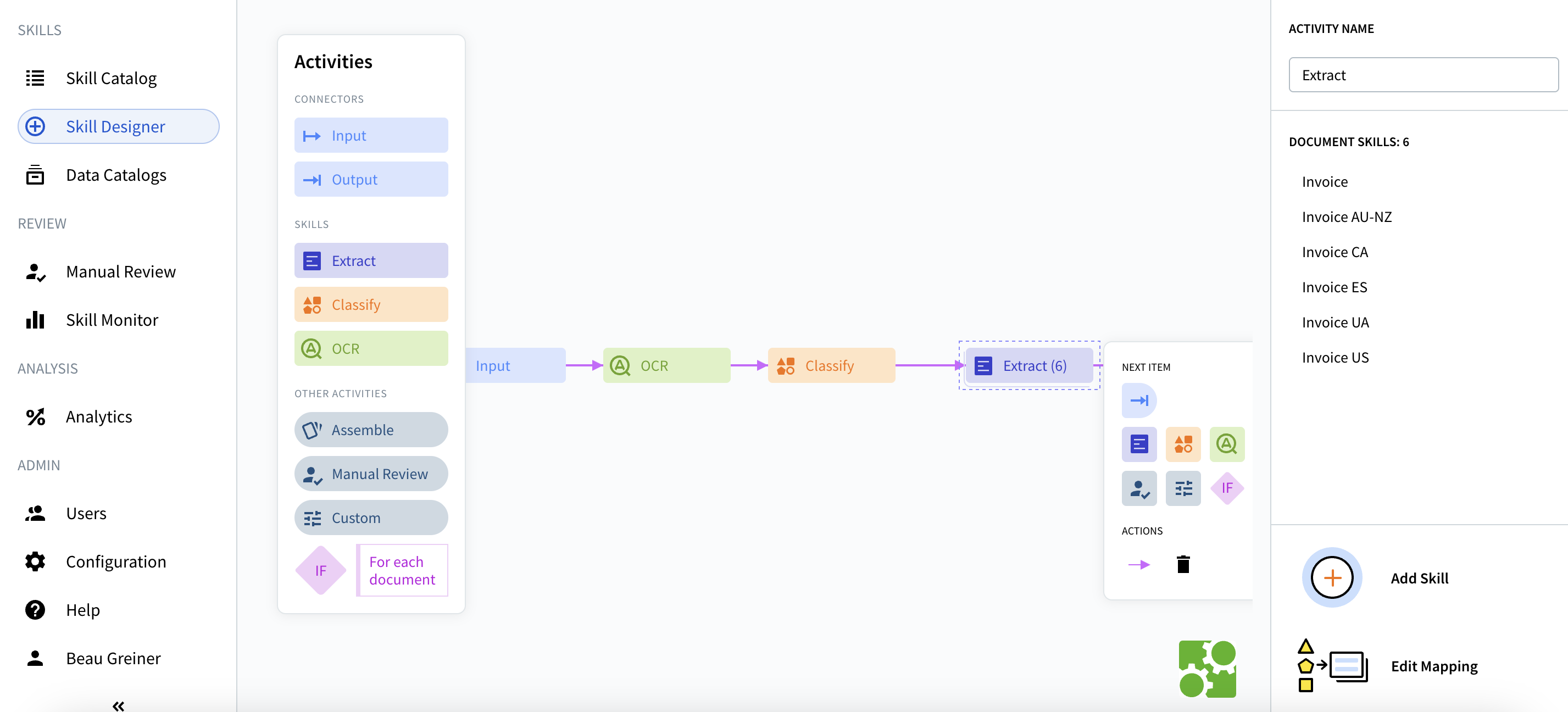
- Invoice
- Invoice AU-NZ
- Invoice CA
- Invoice ES
- Invoice UA
- Invoice US
- Select the document types relevant to your use case.
- Click Add Skill if you need additional document types.
- Use Edit Mapping to customize field extraction if needed.
Step 6: Publish and Get Your Skill ID
Before you can use SFTP, you need to publish the skill and locate its ID.- Click the Publish button in the top right of the Skill Designer.
- Once published, note the Skill ID from the browser URL.
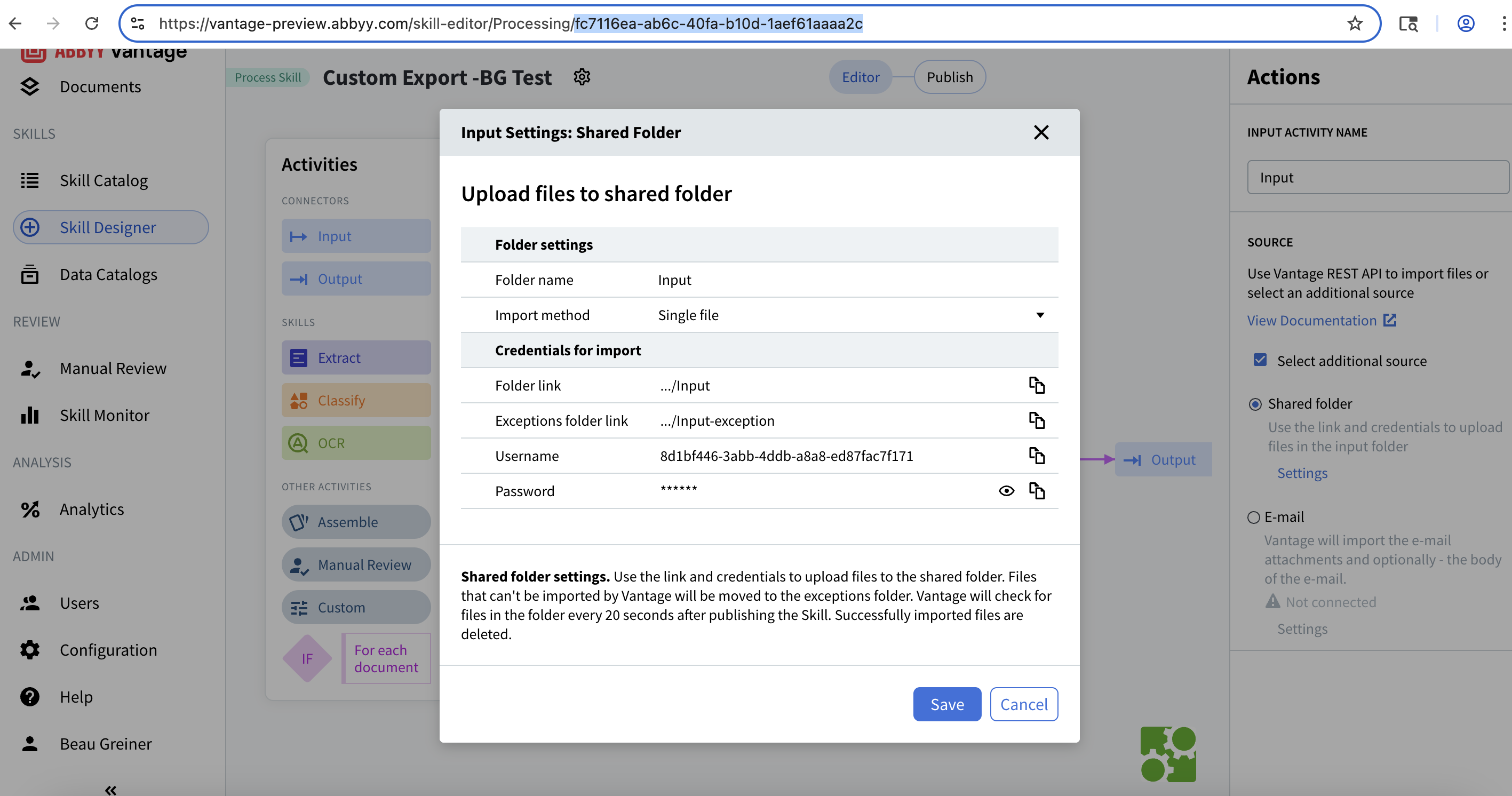
fc7116ea-ab6c-40fa-b10d-1aef61aaaa2c
Warning: Keep your Skill ID handy - you’ll need it to access the correct Input and Output folders in SFTP.
Step 7: Connect to SFTP
Now you’re ready to connect via SFTP using the credentials from your Input/Output settings.Connection Details
From your Input/Output settings, you have:- Server:
172.172.228.138 - Port:
2022 - Username: Your generated UUID
- Password: Your generated password
- Base Path:
/{skill-id}/
Connect via Terminal
Open your terminal and connect using:-P for the port number in SFTP (lowercase -p is used for a different purpose).
When prompted, enter your password.
Step 8: Navigate the SFTP Folder Structure
Once connected, you’ll see the SFTP prompt:sftp>
View Available Skills
List all available Process Skills: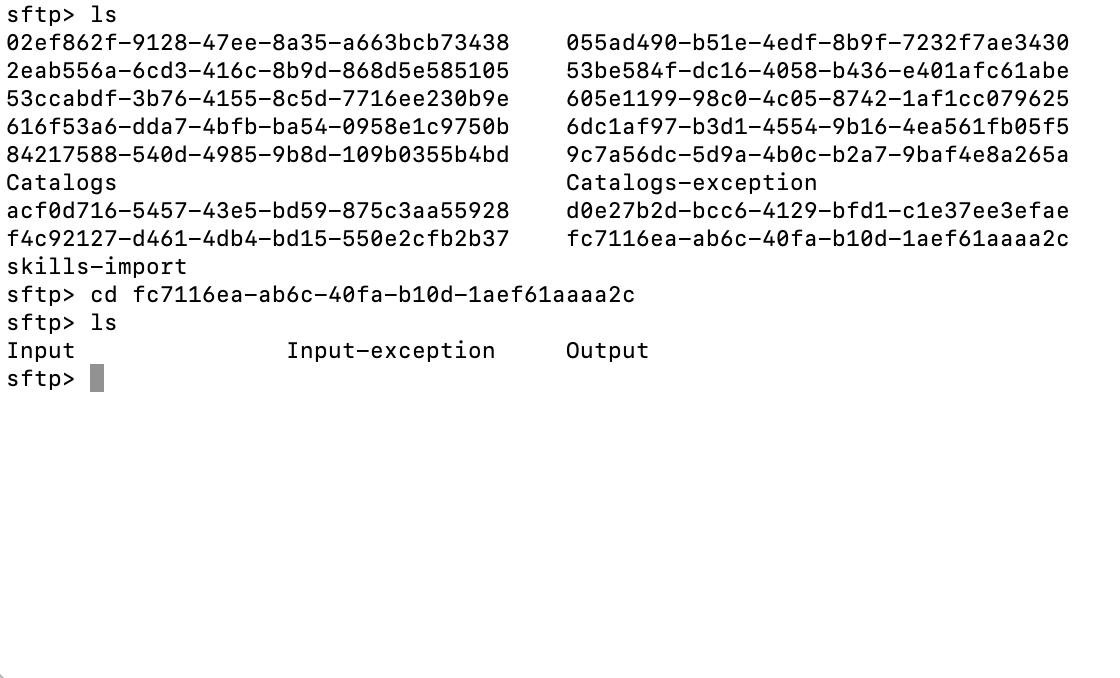
Catalogs- Document skill catalogsCatalogs-exception- Failed catalog importsskills-import- Skill import directory
Navigate to Your Skill
Use the skill ID from Step 6:- Input - Where you upload documents for processing
- Input-exception - Failed imports are moved here
- Output - Where processed results appear
Step 9: Upload Documents for Processing
Navigate to the Input folder and upload your documents.Navigate to Input Folder
Upload a Single File
Upload a file with the full path: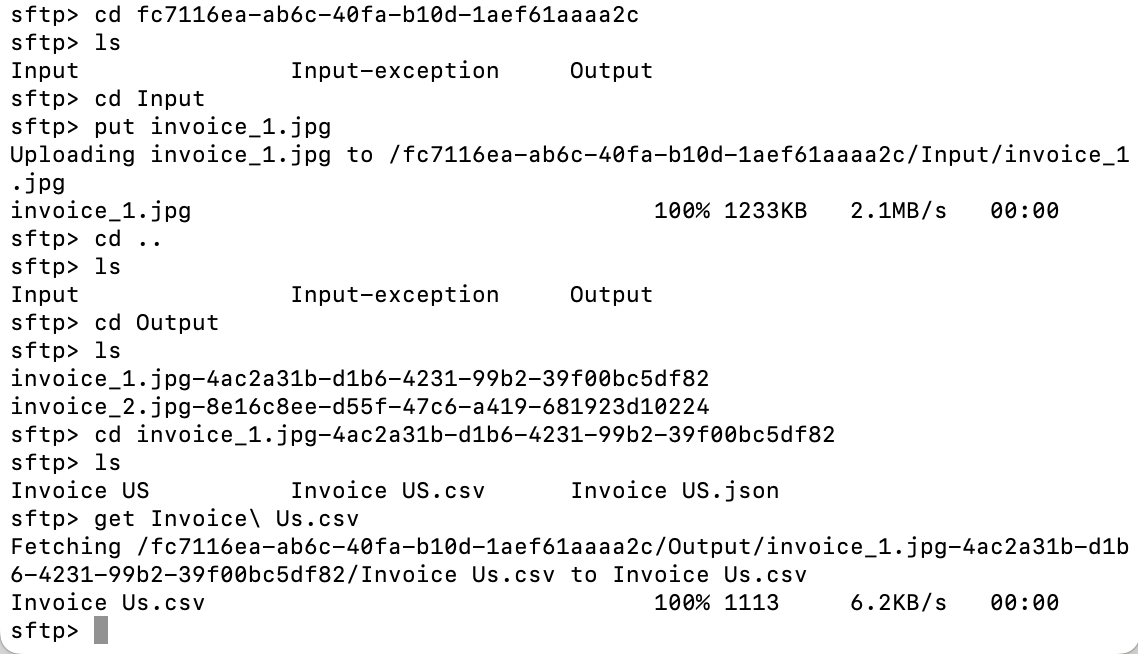
Upload Multiple Files
Verify Upload
Check if files are still in the Input folder:Step 10: Check Processing Status
Monitor Input-exception Folder
If a file fails to import, it will appear here:Wait for Processing
Processing time varies based on:- Document complexity
- Extraction skills configured
- Current system load
Step 11: Download Processed Results
Once processing completes, results appear in the Output folder.Navigate to Output Folder
Understanding Output Structure
Results are organized in subfolders with this naming pattern:View Contents of a Result Folder
- Invoice_US.json - Extracted data in JSON format
- Invoice_US.csv - Extracted data in CSV format (if configured)
- Additional files depending on your output settings
Download Results
Set your local download directory:Understanding the JSON Output
The default output is a JSON file containing:- Document structure - Layout and organization
- Extracted field values - Data pulled from the document
- Confidence scores - Reliability of each extraction
- Rule errors - Any validation issues
- Field metadata - Additional information about each field
Useful SFTP Commands
| Command | Description | Example |
|---|---|---|
ls | List remote files | ls |
lls | List local files | lls |
pwd | Show remote directory | pwd |
lpwd | Show local directory | lpwd |
cd folder | Change remote directory | cd Output |
lcd folder | Change local directory | lcd ~/Downloads |
put file | Upload single file | put invoice.pdf |
mput files | Upload multiple files | mput *.jpg |
get file | Download single file | get result.json |
mget files | Download multiple files | mget * |
get -r folder | Download folder recursively | get -r results/ |
exit | Disconnect | exit |
Troubleshooting
Connection Issues
Problem: “Connection refused” or timeout errors Solutions:- Verify you’re connected to the company VPN
- Check the port number (should be
2022with capital-P) - Confirm your username and password are correct
- Test basic network connectivity:
ping 172.172.228.138
Upload Issues
Problem: Files not being processed Solutions:- Check the
Input-exceptionfolder for failed imports - Verify file format is supported (PDF, JPG, PNG, TIFF, etc.)
- Ensure the Process Skill is published
- Check file size limits (varies by configuration)
No Output Files
Problem: Output folder is empty after uploading Solutions:- Wait longer - processing can take 30-60 seconds or more
- Verify Output is configured with “Shared folder” destination
- Check transaction logs in the Vantage web interface
- Confirm the Extract activity has appropriate document skills configured
Permission Errors
Problem: “Permission denied” when uploading/downloading Solutions:- Verify you’re using the correct credentials for Input vs Output
- Input credentials allow: upload, delete
- Output credentials allow: view, download, rename, delete
- Check that the skill is published and active
Best Practices
Security
- Never share SFTP credentials in plain text
- Use secure channels to transmit passwords
- Rotate credentials periodically
- Limit SFTP access to necessary personnel
File Management
- Use descriptive filenames that include dates or IDs
- Process files in batches during off-peak hours if possible
- Download and archive results promptly
- Clean up old result folders regularly
Monitoring
- Check Input-exception folder regularly for failed imports
- Monitor processing times to identify bottlenecks
- Review extraction confidence scores in results
- Set up alerts for critical failures (if available)
Workflow Optimization
- Group similar document types together
- Configure appropriate document skills for your use case
- Test with sample documents before production use
- Document your SFTP workflow for team reference
Next Steps
Now that you have a working SFTP-based document processing pipeline:- Test with various documents - Upload different file types and document variations
- Review extraction accuracy - Check the JSON results and confidence scores
- Customize extraction - Use Edit Mapping to fine-tune field extraction
- Automate uploads - Create scripts to automate file uploads
- Integrate with systems - Connect your applications via the Vantage REST API
- Scale your workflow - Add more document skills or create additional Process Skills
Additional Resources
- REST API Documentation: For programmatic file uploads and result retrieval
- Skill Catalog: Browse pre-built document skills
- Support: Contact ABBYY support for technical assistance
Summary
You’ve successfully:- ✅ Created a Process Skill in ABBYY Vantage
- ✅ Configured SFTP access for input and output
- ✅ Set up document extraction skills
- ✅ Connected via SFTP command line
- ✅ Uploaded documents for processing
- ✅ Downloaded extraction results