
License Management for Linux
License Management for Linux
Column | Description |
|---|---|
Serial number | The ABBYY FineReader Engine 12 serial number. |
Functionality subset | The functionality subset of the license (Developer or Runtime, and any license limitations, e.g., Trial). |
Protection type | The protection type:
|
Installation type | The installation type:
|
Expiration date | The expiration date. |
Activating, updating, or deactivating the license
To activate a new license, select Activate license on the first screen and follow the instructions.To update or deactivate one of the available licenses, select it in the list of all licenses, then select Update license or Deactivate license. License update may be performed by e-mail or via the Internet connection. Deactivation is possible only via the Internet.Runtime license emulation
You can use your Developer’s license in the Runtime emulated mode. This allows you to test your application which uses the ABBYY FineReader Engine 12 library.To try emulation, select the Developer License in the list and choose License emulation method: Developer; it will change to License emulation method: Emulate runtime. You may now select License parameters emulation settings, go through the list of available modules, and disable those modules which will not be available in your Runtime License. Note that you can still select only those modules which are supported by your Developer License.License Manager for macOS
License Manager for macOS
Activating, updating, or deactivating the license
To activate a new license, select Activate license on the first screen and follow the instructions.To update or deactivate one of the available licenses, select it in the list of all licenses, then select Update license or Deactivate license. License update may be performed by e-mail or via the Internet connection. Deactivation is possible only via the Internet.Runtime license emulation
You can use your Developer’s license in the Runtime emulated mode. This allows you to test your application which uses the ABBYY FineReader Engine 12 library.To try emulation, select the Developer License in the list and choose License emulation method: Developer; it will change to License emulation method: Emulate runtime. You may now select License parameters emulation settings, go through the list of available modules, and disable those modules which will not be available in your Runtime License. Note that you can still select only those modules which are supported by your Developer License.License Manager for Windows
License Manager for Windows
ABBYY SDK 12 License Manager dialog box
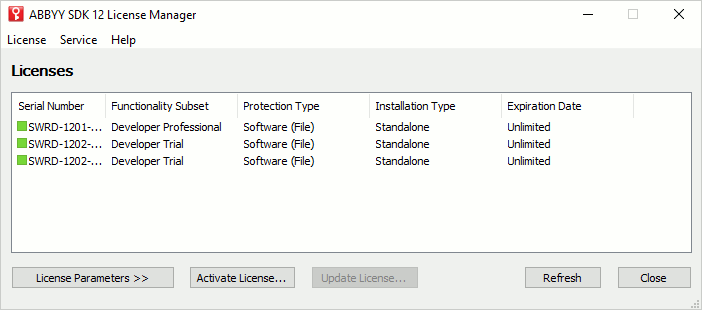
Column | Description | ||||||
|---|---|---|---|---|---|---|---|
Serial number | The ABBYY FineReader Engine 12 serial number. The icon in front of the serial number shows whether the license is currently in use:
You can view detailed license usage statistics in the Service > License Use Statistic menu. | ||||||
Functionality subset | The functionality subset of the license (Developer or Runtime, and any license limitations, e.g., Trial). | ||||||
Protection type | The protection type:
| ||||||
Installation type | The installation type:
| ||||||
Expiration date | The expiration date. |


Activating, updating, or deactivating the license
To activate, update, or deactivate the license, press the corresponding button, or select the corresponding item in the menu, and follow the instructions in the dialog box that opens. See details about license activation, deactivation and update in the Activation section.Buttons
- License Parameters/Hide License Parameters
Shows or hides license parameters. - Activate license…
Starts the License Activation Wizard. - Update license…
Starts the License Update Wizard for the selected license. - Refresh
Updates the license list. - Close
Closes the License Manager.
Menu items
Item | Description | |
|---|---|---|
License | Activate… | Starts the License Activation Wizard. |
Update… | Starts the License Update Wizard for the selected license. | |
Deactivate… | Starts the License Deactivation Wizard for the selected license. | |
Copy Serial Number | Copies the selected license. | |
Close | Closes the License Manager. | |
Service | License Use Statistic… | Shows the statistics of license usage on the workstations. Available only for the Network licenses with the CPU cores limitation. |
Refresh | Updates the license list. | |
Release Online Licenses… | Disables and removes the Online Licenses along with the associated information. | |
Help | Help | Opens this help file. |