
How clustering works
When documents from one company have widely varying layouts, use the clustering feature. With clustering turned on, FlexiCapture for Invoices analyzes documents and groups them into clusters based on shared features, and then trains a separate FlexiLayout for each cluster. Clustering is turned on by default and runs fully automatically: the clusters themselves remain invisible to you. Documents are clustered inside the training batch used for their company, and training begins as soon as a cluster contains at least one document. The resulting FlexiLayouts depend on whether clustering is on or off:
If you have no databases but still want to use field training, accumulate company information by adding records to your data sets as you capture documents. For more information, see Looking up vendors and business units in the database.
When you update a project created in an earlier version of ABBYY FlexiCapture, you can use your existing FlexiLayouts without any modifications. However, if you choose to use the clustering feature, the clustering algorithm redistributes your documents among the training batches and trains a new FlexiLayout for each cluster.
Disable clustering
Clustering is turned on by default. To turn it off:1
Open Document Definition properties
In the Document Definition editor, click Document Definition → Document Definition Properties.
2
Open the Document Definition Settings tab
In the dialog box that opens, click the Document Definition Settings tab.
3
Edit additional fields and features
Click Edit to the right of Additional Fields and Features.
4
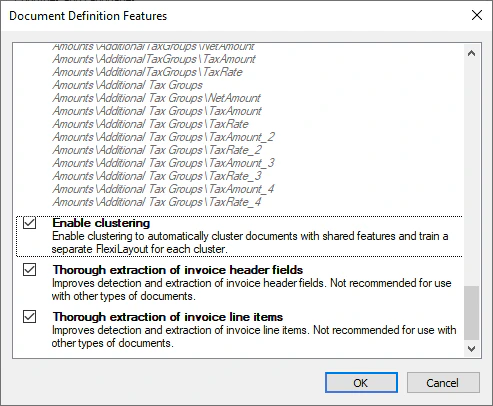
Clear the clustering option
In the Document Definition Features dialog box, clear Enable clustering.
Export a trained FlexiLayout
In the training batch view, two columns help you judge how well a company’s documents are recognized:
If documents from a specific company are recognized with too many errors, create a custom FlexiLayout, or export the trained FlexiLayout and edit it in ABBYY FlexiLayout Studio. When you finish, import the custom or edited FlexiLayout back into the training batch.
To export a trained FlexiLayout from ABBYY FlexiCapture:
1
Open the training batches
On the Project Setup Station, switch to the training batch view by clicking Field Training → Open Field Extraction Training Batches (or press
Ctrl+Alt+B).2
Export the FlexiLayout
Right-click the batch and click Export Trained FlexiLayout on the shortcut menu.
3
Save the project file
In the dialog box that opens, select where to save the
*.fsp project file that contains your FlexiLayout. You can then open this file in ABBYY FlexiLayout Studio and modify the FlexiLayout.Import a FlexiLayout
You can import a modified or completely new FlexiLayout into a training batch to be used for one specific company. For more information, see Training done by project administrators. To import a FlexiLayout into a training batch:1
Open the training batches
On the Project Setup Station, switch to the Field Extraction Training Batches view by clicking Field Training → Open Field Extraction Training Batches (or press
Ctrl+Alt+B).2
Import the FlexiLayout
Right-click the batch and click Import FlexiLayout on the shortcut menu.
3
Select the FlexiLayout file
In the dialog box that opens, select the
*.afl file that contains your FlexiLayout.Clustering limitations
When you use clustering, the following limitations apply:- If you create a new FlexiLayout manually, make sure it covers all possible document variants from the company. You cannot manually create a FlexiLayout for a single cluster.
- Only the FlexiLayout for the main document fields is exported. Line item fields use a separate machine learning algorithm whose results cannot be exported or modified, so no FlexiLayout can be generated or exported for them. You can still create a FlexiLayout for line item fields manually.
- Only the FlexiLayout trained for the first cluster is exported.
- After you import a new or modified FlexiLayout into a training batch:
- Documents are no longer trained during processing.
- Clustering is disabled for that batch.
- The imported FlexiLayout is used to process all documents from the company, regardless of cluster.