
Create a training batch
1
Create the batch
Click File → New Batch. Select the Document Definition you created and the section you configured fields for, and click OK.
2
Choose the training variant
In the Look up Variant for Training Batch window, select the variant to use for training.
3
Mark it as an NLP batch
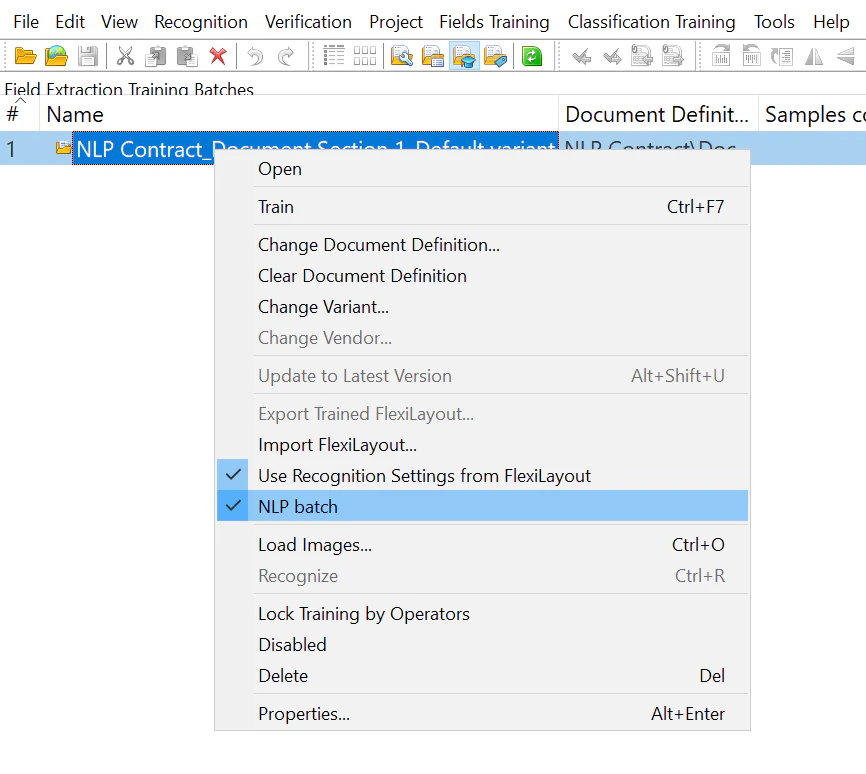
Select the new batch and select NLP batch, or click Field extraction training → NLP batch.
Load the training documents
1
Open the batch
Double-click the batch you created.
2
Load images
Click File → Load Images. Click Image Processing Settings, select One document per file, and click OK, and then choose the documents to train on.
3
Match the Document Definition
Select the loaded documents and click Recognition → Match Document Definition (or right-click the selection and click Match Document Definition), and then choose the Document Definition.
- Mark up every field described by the Document Definition in the training documents.
- Include 100 to 500 documents in each training batch. This range lets FlexiCapture choose the best parameters without slowing training.
Mark up the documents
Mark up the fields on each document so the model knows where to look for entities.1
Open a document
Double-click a document to open it.
2
Mark up each field
Select a field to extract, and then either choose its value on the document or draw a rectangle around it. Repeat for each field.
3
Move to the next document
Click the Next document button, and repeat for the remaining documents.
4
Save
Save the changes.