
.bprelease file.
Install the connector on every machine that runs a Blue Prism process that uses it. Use the installation wizard for a single machine, or silent mode to automate installation across many machines.
Install via the installation wizard
1
Upload the setup file
Upload the
ABBYYVantageConnectorForBluePrism<version>.exe setup file to the machine where Blue Prism is installed.2
Run the installer
Run
ABBYYVantageConnectorForBluePrism<version>.exe and follow the instructions of the Installation Wizard.3
Import the release into Blue Prism
In Blue Prism, open the Studio tab and click File > Import > Release / Skill. Select the
ABBYY Vantage Skills <version>.bprelease file in the folder where the connector was installed, and then follow the setup instructions.The default location is C:\Program Files (x86)\ABBYY Vantage Connector for Blue Prism on 64-bit systems, or C:\Program Files\ABBYY Vantage Connector for Blue Prism on 32-bit systems.If you install the connector on many machines, you only need to import the release once, on any machine where the Blue Prism client is installed.4
Confirm the import
After the import completes, an ABBYY Vantage Processes section (containing the sample process) appears in the list of processes, and an ABBYY Vantage section (containing the ABBYY Vantage Skills VBO) appears in the list of objects.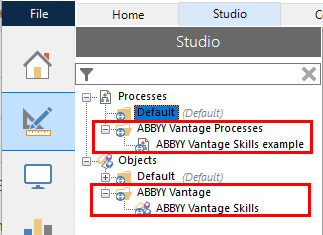
Install in silent mode
Use silent mode to install the connector automatically on many machines.1
Open a command line as administrator
On the machine where Blue Prism is installed, run the command line as an administrator.
2
Go to the setup file location
Navigate to the directory where the connector setup file is located.
3
Run the install command
Run the following command:This command unpacks the distribution files to the default folder (
C:\Program Files (x86)\ABBYY Vantage Connector for Blue Prism on 64-bit systems, or C:\Program Files\ABBYY Vantage Connector for Blue Prism on 32-bit systems) and copies the Abbyy.Rpa.Vantage.BluePrism.dll library into the Blue Prism installation folder. This library is required for the ABBYY Vantage Skills VBO.Update the connector
If you have an older version of the connector, update it to the latest version.1
Run the update
Depending on how the connector was installed, do one of the following:
- If the connector was installed with the installation wizard, run
ABBYYVantageConnectorForBluePrism<version>.exeof the latest version, and then click Update. - If the connector was installed in silent mode, run
ABBYYVantageConnectorForBluePrism.<version>.exe -install /q.
2
Import the latest release and resolve conflicts
In Blue Prism, open the Studio tab and click File > Import > Release / Skill. Select the
ABBYY Vantage Skills <version>.bprelease file where the latest version is stored, and then follow the setup instructions.During setup, in the Resolve Import Conflicts section, select these resolutions:- For the ABBYY Vantage Skills example component, select Overwrite the existing process with the incoming process.
- For the ABBYY Vantage Skills component, select Overwrite the existing business object with the incoming business object.
Replace the GetTransactionResult action with SaveTransactionResult
If you use Blue Prism version 7.2, update the connector to the latest version. Then, in each Blue Prism process that contains the GetTransactionResult action, replace it with the SaveTransactionResult action.1
Open the process
Open a process in Blue Prism Process Studio.
2
Switch the action to SaveTransactionResult
Double-click the GetTransactionResult action to open its properties. In the Action Properties window: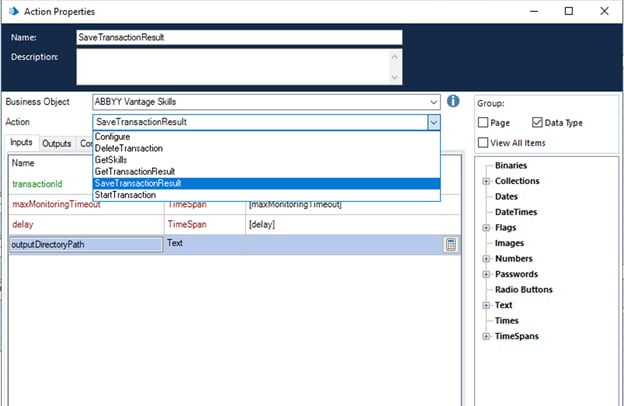
- In the Action field, select the SaveTransactionResult action.
- On the Inputs tab, for the outputDirectoryPath parameter, specify the path to the folder that holds the transaction results.
3
Rebuild the results collection
Change the structure of the file processing results: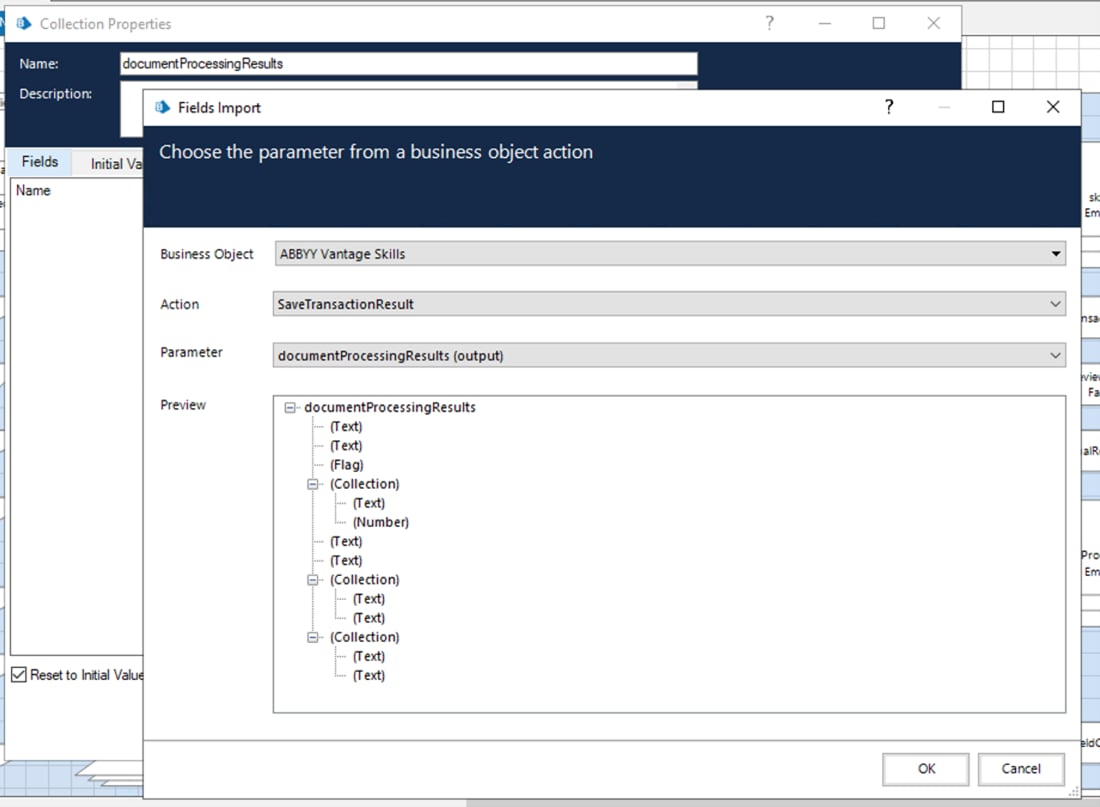
- In the Output Data Items area, open the collection of documents obtained from the transaction.
- Open Collection Properties, and then click Clear to reset the parameters.
- Import the collection fields for the documentProcessingResults parameter of the SaveTransactionResult action: click Import, select Business Object: ABBYY Vantage Skills, select Action: SaveTransactionResult, and select Parameter: documentProcessingResults (output).
4
Remove the file-saving actions
Open the process and remove the actions that saved files from the workflow.