
Install the connector
1
Run the installer
Run
ABBYYVantageConnectorForUiPath.<version>.exe and follow the instructions of the Installation Wizard. During the installation, specify the connector installation folder. By default, it is set to C:\Program Files\ABBYY Vantage Connector for UiPath.2
Open a UiPath Studio project
In UiPath Studio, open an existing project or create a new one.
3
Open Manage Packages
On the ribbon, click Manage Packages on the Design tab.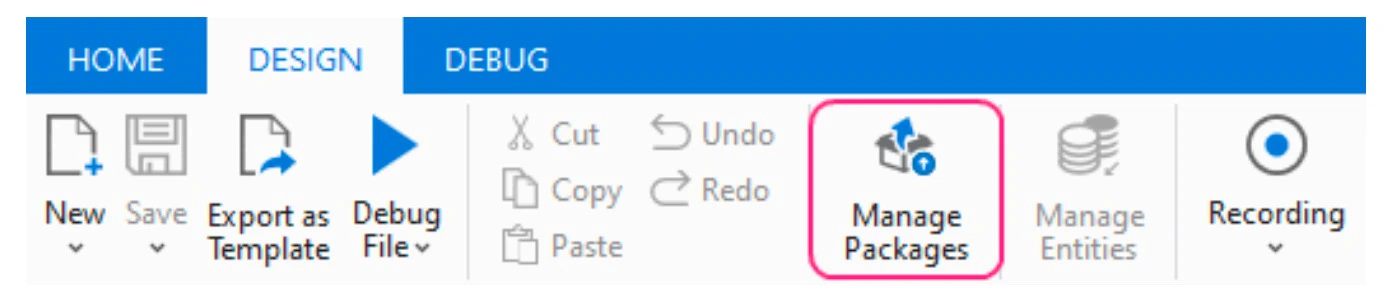
4
Enable the nuget.org package source
Make sure the nuget.org package source is enabled. This package source is required in order to install some dependencies for the connector package.
5
Create a new package source
Go to the Settings tab of the Manage Packages window and create a new package source: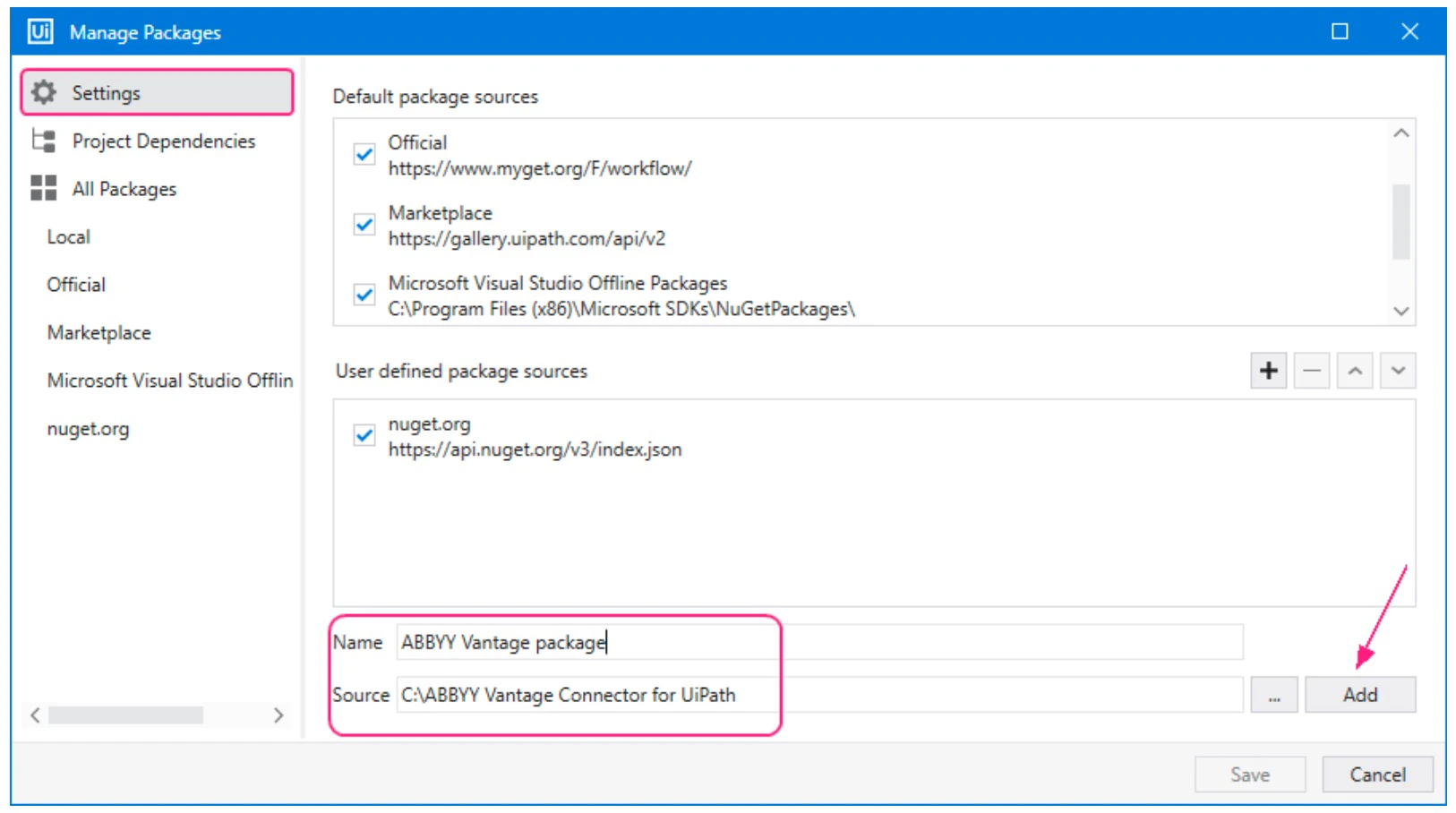
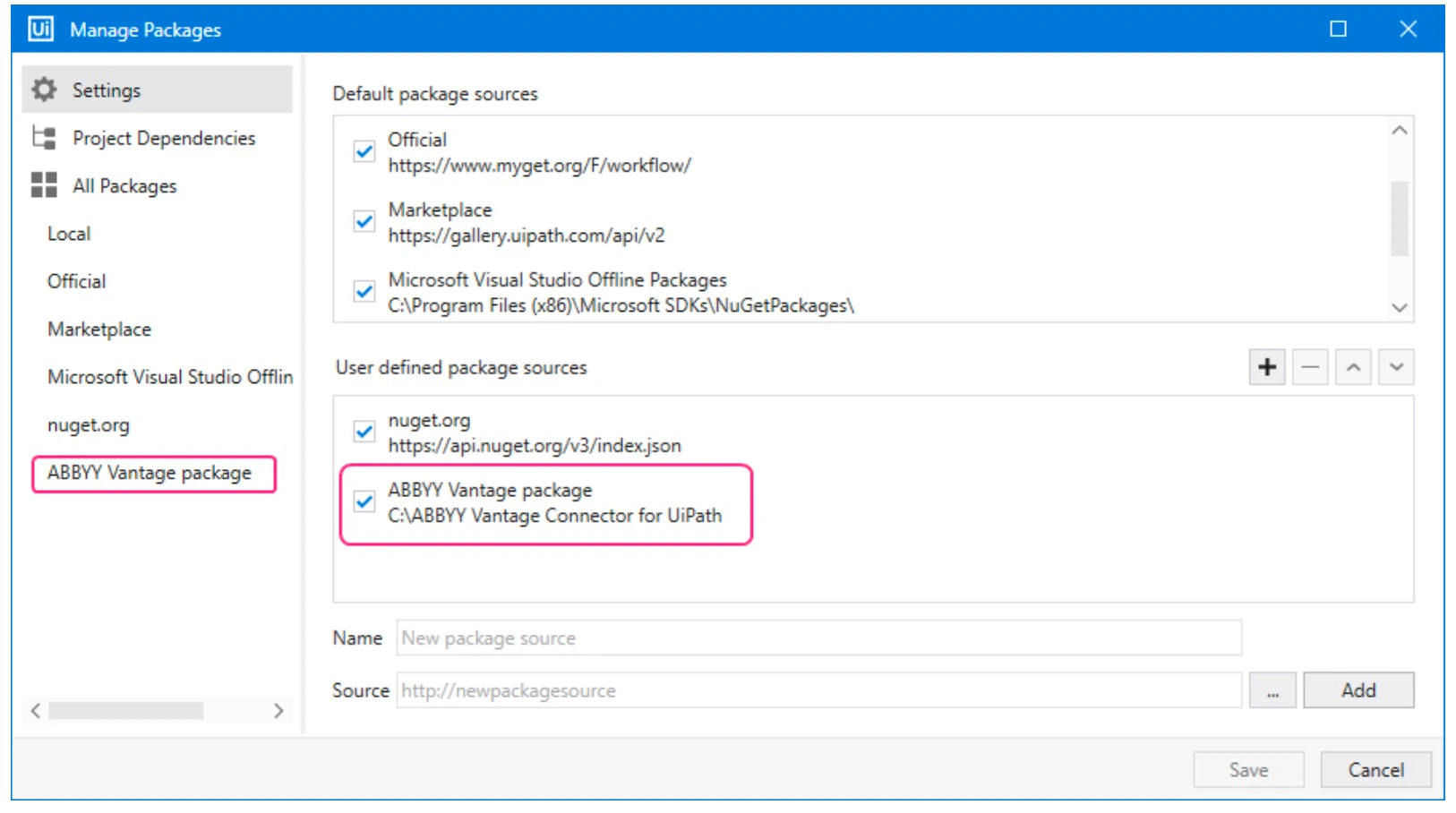
- Enter a name for the new package source.
- Specify the path to the folder where you intend to place the connector NuGet packages.
- Click Add to confirm the settings.
6
Copy the ABBYY Vantage NuGet packages
Copy all the NuGet packages of the ABBYY Vantage Connector for UiPath from the installation folder to your package source folder. The packages are in the UiPath Activities subfolder of the installation folder from the installer step. The default location is
C:\Program Files\ABBYY Vantage Connector for UiPath\UiPath Activities.Once the NuGet connector packages are in the available package source, you can install the connector package to the project dependencies.7
Install Abbyy.UiPath.Vantage.Activities
In the Manage Packages window, navigate to the All Packages section and do the following: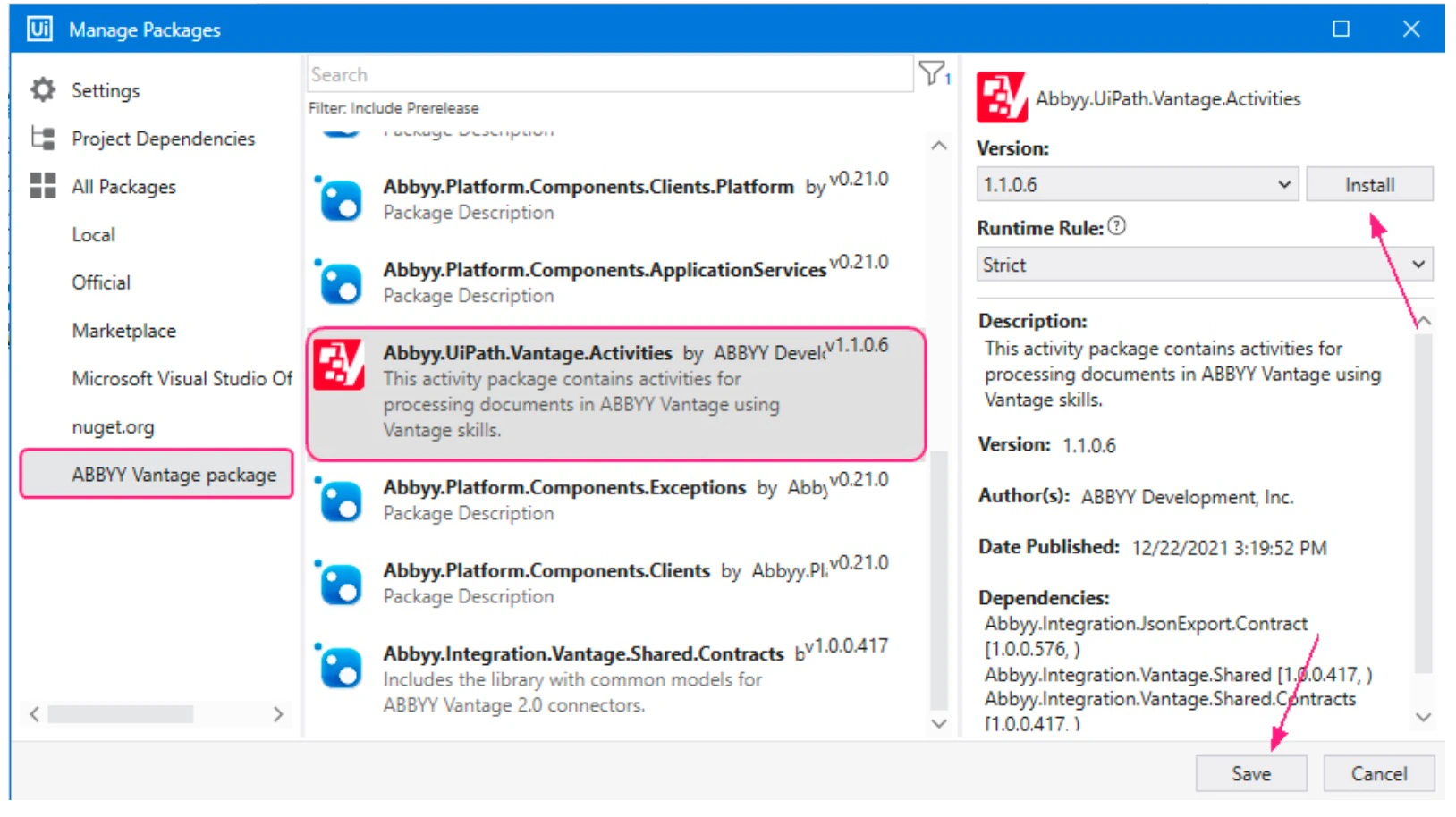
- Click the newly created package source category.
- Select
Abbyy.UiPath.Vantage.Activitiesfrom the list of available packages and click Install. The License Acceptance window will display licensing terms for each third-party package you install. - Click View License to read the license terms.
- Click I Accept to agree with the license terms and install the packages, and then click Save.
8
Verify the Vantage activities are available
Once installed, the Vantage activities appear in the ABBYY Vantage section of the list of activities available for your project.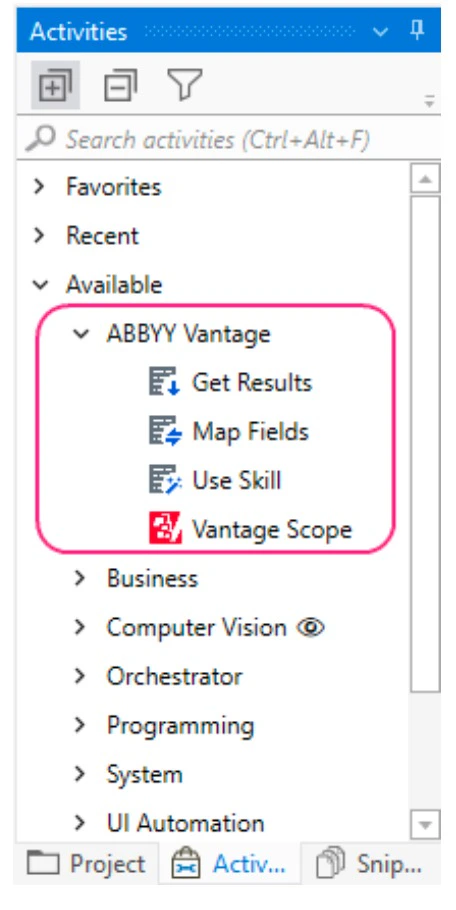
Convert legacy projects
Convert your Windows-legacy projects to Windows compatibility, because legacy compatibility is no longer supported.To convert a project to Windows compatibility, you need to upgrade the version of the ABBYY Vantage Connector for UiPath. To do this, repeat all the install steps except the Create a new package source step.
1
Open the Windows-legacy project
In UiPath Studio, open the Windows-legacy project.
2
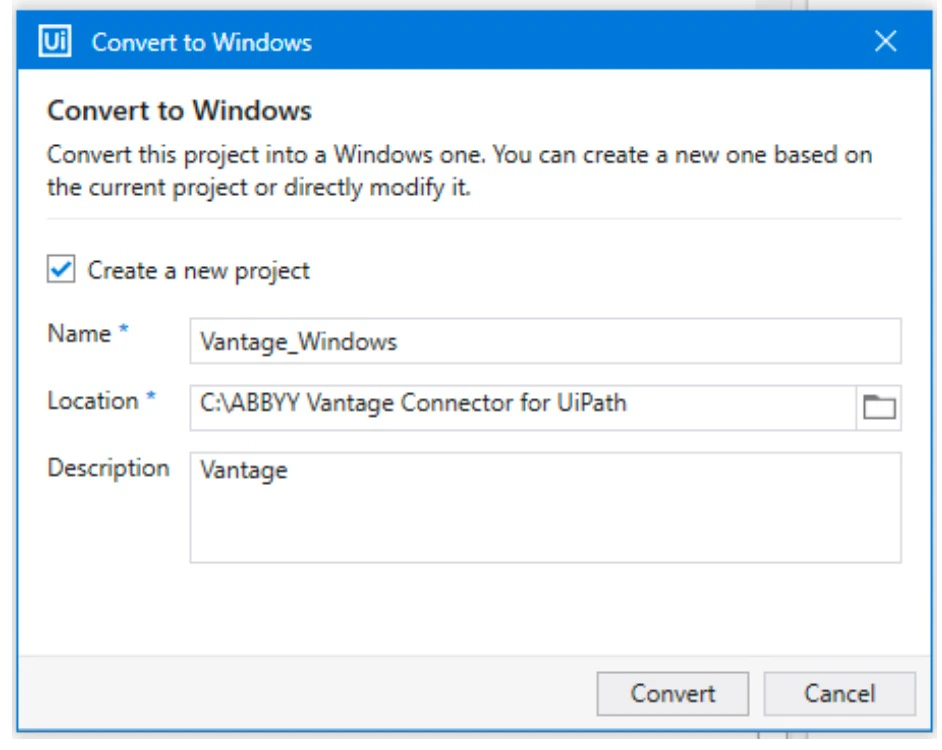
Click Convert to Windows
Click the Convert to Windows link in the message that appears under the ribbon.
3
Choose the conversion mode
Specify how the Windows-legacy project will be converted to Windows:
- To create a copy of the current project using Windows compatibility and keep the original Windows-legacy project, select Create a new project. Enter the name of the project, its location, and optionally a description for the new project.
- To update the existing project and convert it to Windows compatibility, deselect the Create a new project option. If you deselect this option, the changes made to the project cannot be undone.
4
Click Convert
Click Convert. For more information about converting Windows-legacy projects to Windows compatibility, see the UiPath Studio Guide.