
Prerequisites
- A Vantage account with access to the web interface
- A sample document to process (invoice, receipt, purchase order, or any supported type)
Don’t have access yet? Contact ABBYY to request a tenant, or ask your admin to create a user account.
Step 1: Open the Documents page
Sign in to Vantage and navigate to the Documents page. This is your main workspace for uploading and processing documents.Step 2: Upload a document
Upload your document using either method:- Click Upload documents and select a file
- Drag and drop a file onto the browser window
Each file should contain only one document. If you have a multi-page document, combine all pages into a single file (e.g., a multi-page PDF). Password-protected PDFs and Microsoft Office files are not supported.
Step 3: Automatic skill detection
Once uploaded, Vantage automatically:- Detects the document type (invoice, receipt, purchase order, etc.)
- Selects the most suitable skill from the Skill Catalog
- Applies the skill and begins extraction
Select a different skill
If Vantage doesn’t recognize your document type or selects the wrong skill, choose one yourself.1
Open the skill list
Click the button to the right of the document, and then select Select Skill.
2
Apply a different skill
Browse the skill list, select the skill that matches your document, and then click Select.
Step 4: Review extracted data
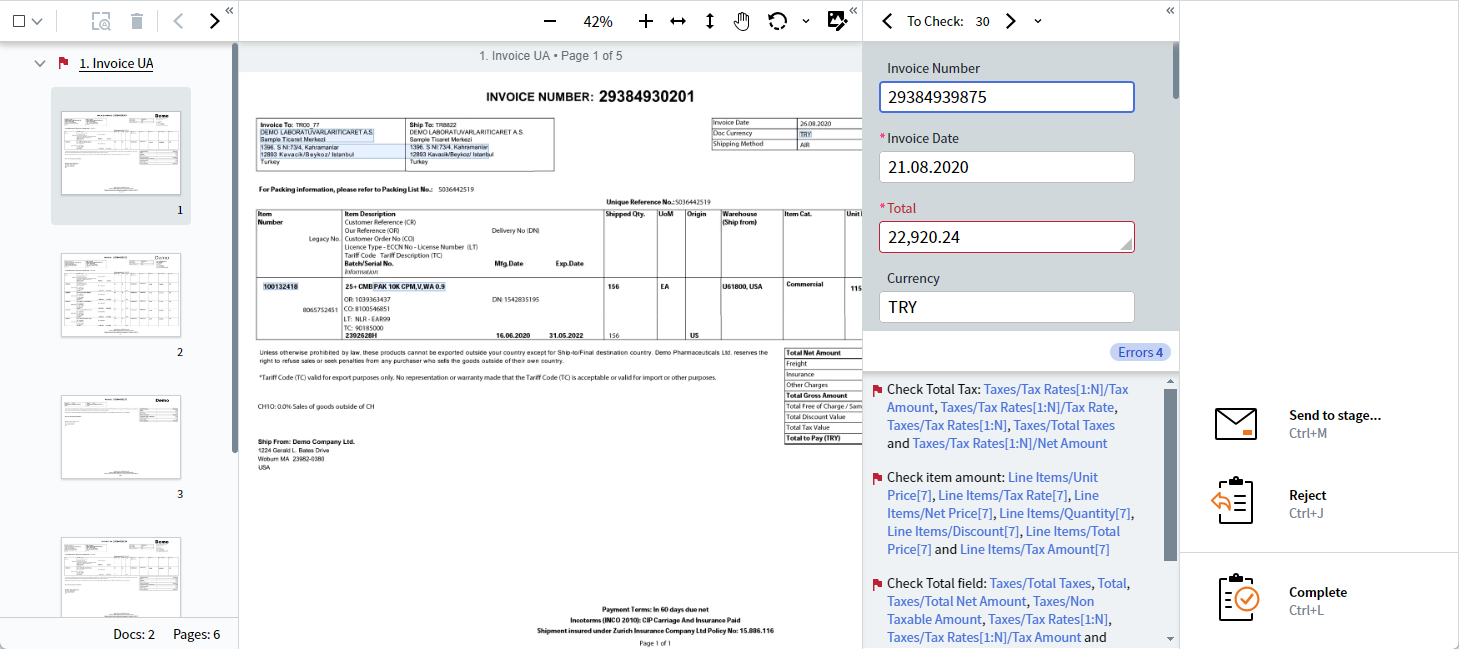
Once processing is complete, open the results:- Click the link next to your document to open the Manual Review window
- Review the extracted fields, which show the values Vantage found in the document
- Verify the data and correct any fields if needed
Step 5: Export results
After reviewing, your extracted data is ready for export. Depending on your workflow configuration, results can be:- Downloaded as JSON or XML
- Sent to a connected system via a process skill
- Accessed via the API for integration with your applications
Value, a Confidence score, and verification flags. See Understanding your results for a full walkthrough of what each property means.
Explore the Skill Catalog
Before processing documents at scale, browse the Skill Catalog to see all available pre-trained skills:- Navigate to Skill Catalog in the sidebar
- Use the search bar to find skills by name
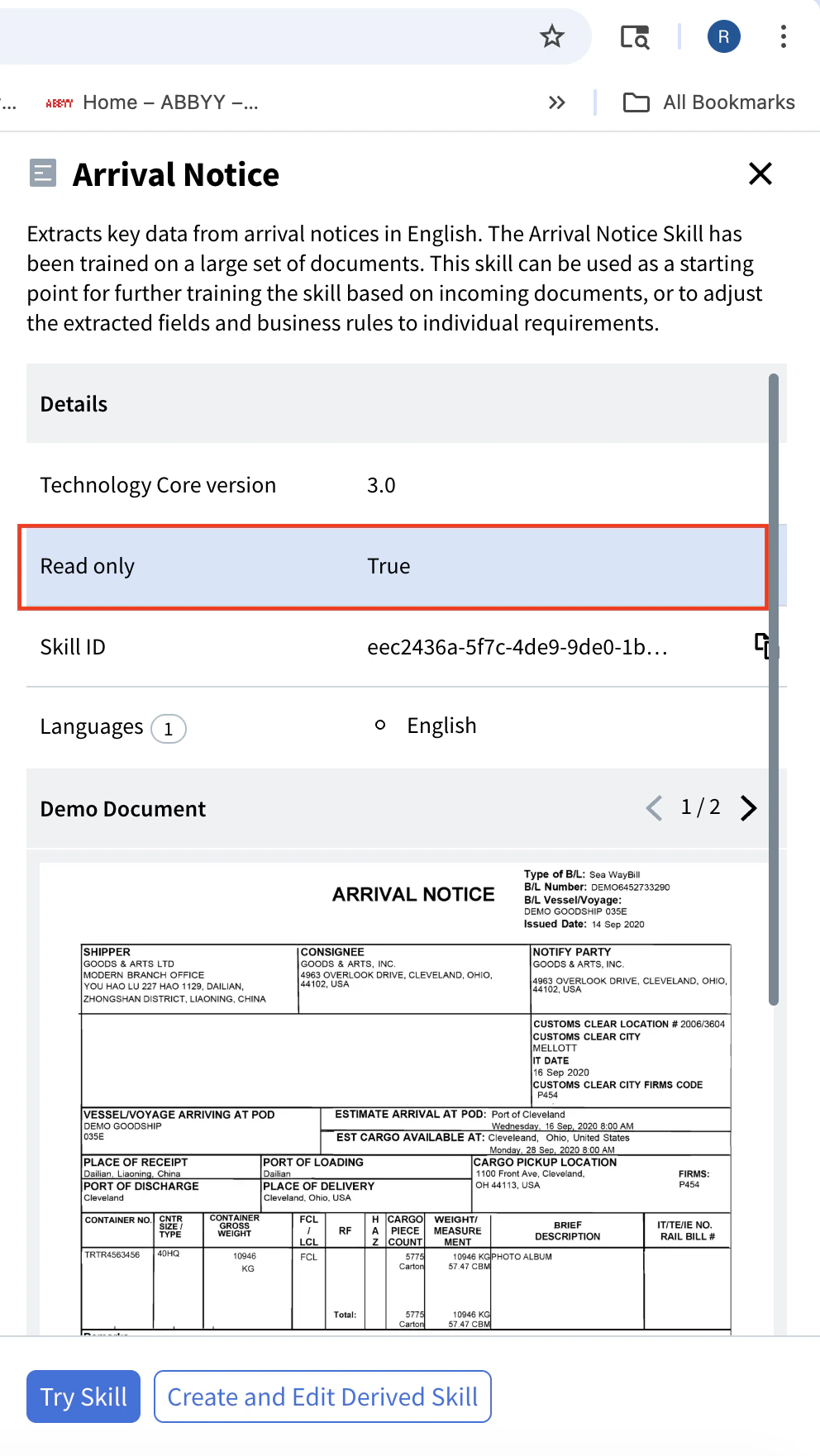
- Click the preview icon next to a skill to see its description and sample documents
- Click Try Skill to test a skill with your own documents in a new tab
Next steps
Understanding your results
Learn how to read extracted fields, confidence scores, and table data.
Skill Catalog
Browse all pre-trained skills and learn how to find the right one for your documents.
Create a custom skill
Build your own skill for document types not covered by pre-trained models.
Process via API
Integrate Vantage into your applications with the REST API.