The Processing Server must be running.
Specify the SMTP connection parameters
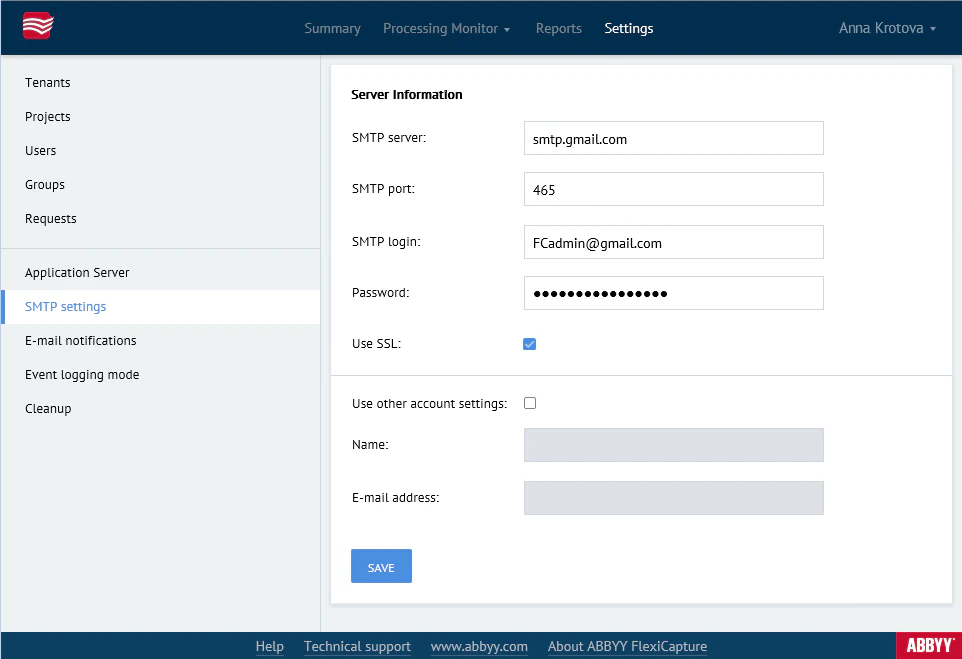
Set the following four parameters.
To use SSL encryption, select the Use SSL option.
Send from a different account
If the value in the SMTP login field is not in email address format, change the account used to send notifications. Select Use other account settings and fill in two fields:- Name – The user name that appears in email notifications.
- Email address – The address the notifications are sent from.
Test the connection
To check the validity of the SMTP server settings, click Test connection. After the check completes, one of the following messages appears:Test connection complete– The SMTP settings are valid.Test connection failed– The system could not determine why the test failed.SMTP server connection failed. Check server url or port– No server was found at the specified address or port.SMTP login failed. Check server login or password– The login or password is incorrect.
A successful test does not guarantee that the mailing list works, because of technical constraints in email servers. On some ports an SMTP server disregards the login and password, so the check passes even with invalid credentials.
Example of a notification setup that uses Gmail
The following screenshot shows a notification setup that uses Gmail as the email server.