
Hardware requirements
Cluster nodes
- All cluster nodes must have identical or essentially similar hardware configuration.
- All cluster nodes must be running the same version of Windows Server.
- All cluster nodes must be joined to the same Active Directory domain. Otherwise, configure Basic authentication for the Processing Server. For more information, see Description of Processing Server commands.
Shared storage
Shared storage holds a folder with the files the cluster requires. The disk must meet the following requirements:- The disk must be connected using Serial Attached SCSI (SAS), iSCSI, or Fibre Channel.
- The disk must be accessible to all cluster nodes.
- The disk must not be used as a boot or system volume.
- The disk must not be used for swap, dump, or hibernation files.
- Ready-made storage systems based on DAS, SAN, NAS, JBOD, or other technologies.
- A separate server machine with the iSCSI Target Server role set up.
Create a failover cluster
This example clusters two machines. Work through the four stages in order.- Check that you have all the necessary components and that they meet the hardware requirements.
- Install the Failover Clustering feature.
- Validate the configuration to confirm that it suits failover clustering.
- Create the failover cluster.
Basic configuration of the failover cluster
This example uses a previously created FOC cluster (FOC.cluster2016.ru). It sits in the 192.168.0.0/23 designated network in the cluster2016.ru domain, and it consists of two nodes, Node1 and Node2.Addressing in the cluster
Node1 and Node2 each have two network interfaces. One belongs to the 192.168.0.0/23 network, and the other may belong to a local area network, for example 10.0.2.0/24. The data storage interfaces only with the 192.168.0.0/23 network, so only the cluster nodes can reach it. Both networks are available to the cluster FOC.cluster2016.ru. For security and workload balancing, allow cluster traffic only in the designated 192.168.0.0/23 network. External users reach the data storage through requests to Node1 and Node2. To allow cluster traffic in the 192.168.0.0/23 network, open Failover Cluster Manager. Select Cluster Network in the Networks group, and then choose Cluster and Client in the Cluster Use column.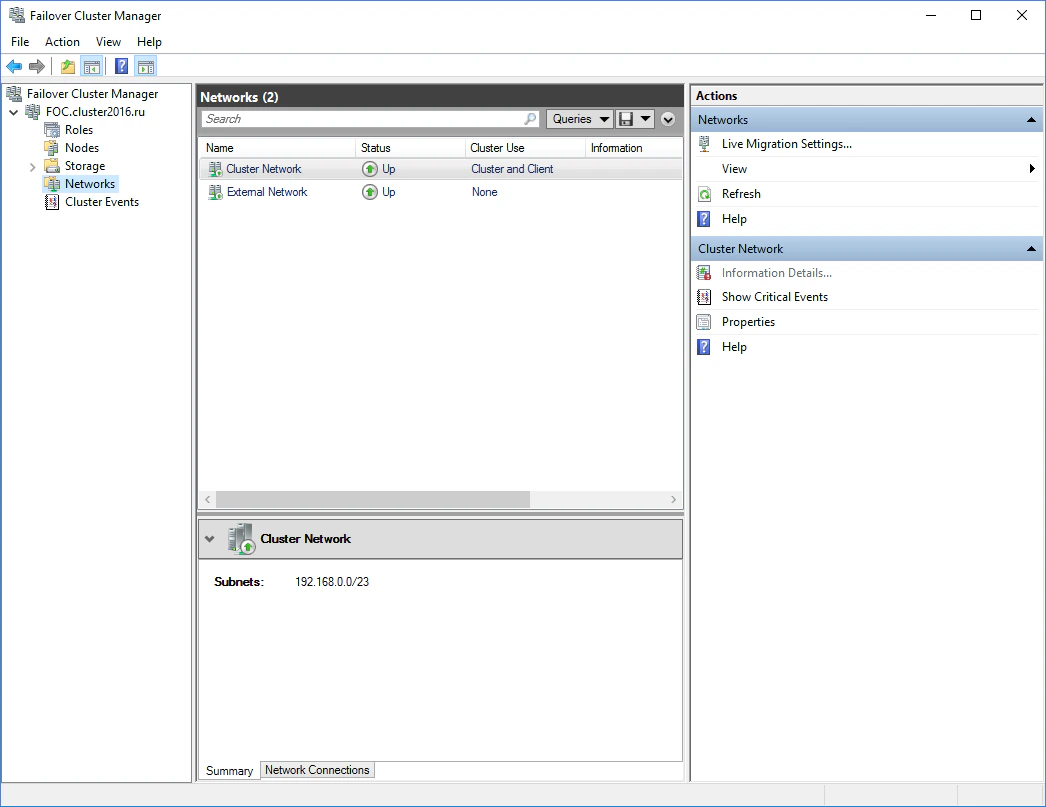
Set up domain user accounts
Create two domain users
Give each user administrator rights on its own node
Add the ABBYY FlexiCapture Processing Server service
Install ABBYY FlexiCapture Processing Server on Node1 and Node2. Then create a shared folder for the Processing Server service.Configure the role
Select Generic Service
Choose the Processing Server service
Name the service
FC12ProcServer in this example. The IP address is generated automatically. Click Next.Choose the storage volume
Specify the registry key
HKEY_LOCAL_MACHINE\SOFTWARE\Wow6432Node\ABBYY\FlexiCapture\12.0.Confirm and finish
Create a shared folder for the Processing Server service
Create a shared folder for the new service, to hold the temporary files for Node1 and Node2. To keep the cluster running, make the file storage fail-safe. For more information, see Set up a distributed file system.Start the Add File Share wizard
FC12ProcServer in this example.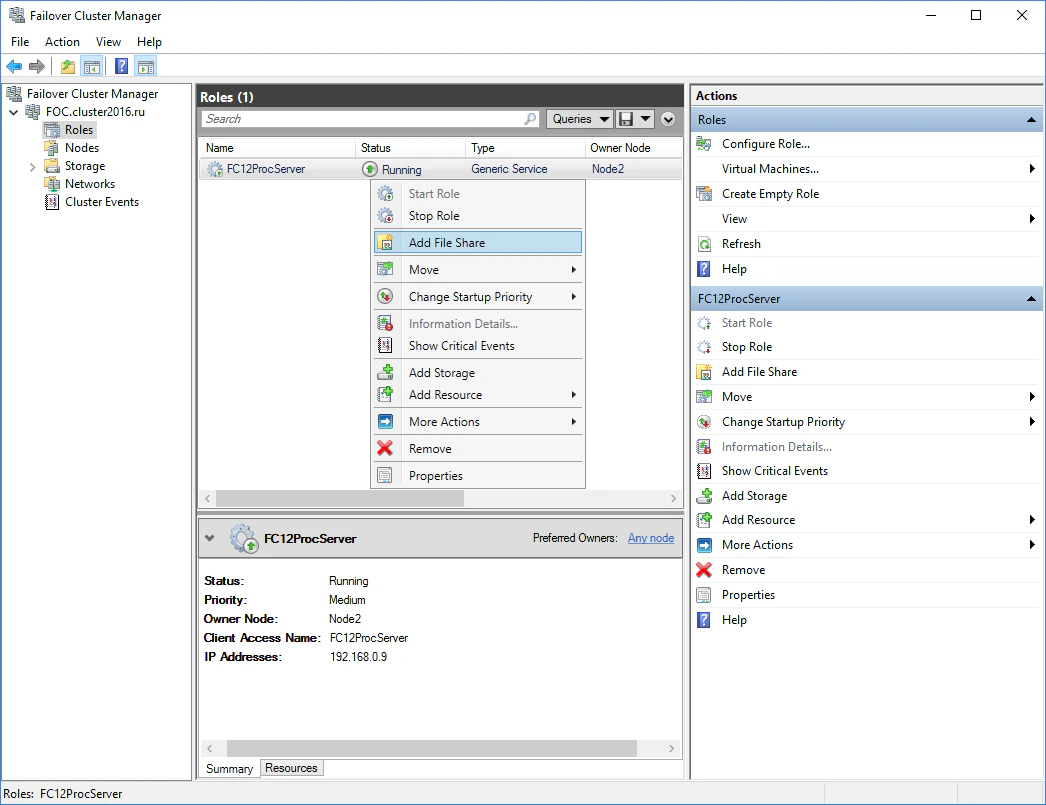
Select the SMB Share profile
Specify the folder location
Name the shared folder
Keep the default settings
Open the permissions editor
Grant full control to each user
- Click Add, and then click Select a principal.
- Select a user and click OK.
- Under Basic permissions, select Full control and click OK.
- Repeat these steps for the node2admin user, and then click OK.
Create the share
Configure the cluster nodes
Set up the Node1 and Node2 cluster nodes. These instructions are for Node1. Node2 is set up the same way.Set up the ABBYY FlexiCapture Processing Server service
Configure the service from the command line
cmd.exe):ABBYY.ProcServer.FlexiCapture.12.0 process, which launches from %systemdrive%\Program Files\ABBYY FlexiCapture 12 Servers\FlexiBRSvc.exe. It also sets the path to the Processing Server settings file to \\FC12procserver\ClusterTemp\ServerSettings.xml.The ServerSettings.xml file then lives in the shared folder, where every node in the cluster can reach it.ServerSettings.xml is missing when the Processing Server starts, the server starts with the default settings and creates a new ServerSettings.xml.Open the service properties
Verify the path to the executable
Set the Log On account
Change the %appdata% variable
TheABBYY.ProcServer.FlexiCapture.12.0 service creates and stores session data in the location that %appdata% points to. For the service to switch between cluster nodes, node1admin and node2admin must have the same folder specified for %appdata%.
Change the %appdata% variable for the cluster2016\node1admin user on Node1, and for the cluster2016\node2admin user on Node2.
You can change %appdata% from the command line or directly in the Windows registry.
Change %appdata% from the command line
Run the REG ADD command
cmd.exe):\\FC12ProcServer\ClusterTemp with the path to your own folder.Confirm the change
AppData folder if it already exists.Repeat for Node2
Change %appdata% in the Windows registry
Find the User Shell Folders key
HKEY_CURRENT_USER\Software\Microsoft\Windows\CurrentVersion\Explorer\User Shell Folders.Set the AppData value
REG_EXPAND_SZ variable named AppData in it and set its value to \\FC12ProcServer\ClusterTemp.Repeat for Node2
Connect the Processing Server Monitor
Select a node for the service
FC12ProcServer service.Add the clustered Processing Server