
Set up the NLB cluster
1
Install the Application Server on each cluster node
Put the database, file storage folder, Processing Server, Licensing Server, and Application Server clients on a different computer. Every node in the cluster must be able to reach it.
2
Add the Network Load Balancing feature
In Windows Features, add Network Load Balancing to each node in the cluster.Click the Add Features link in the main window of the Server Manager (Start → Administrative Tools → Server Manager).
3
Assign a virtual IP address to the cluster
Assign the cluster a virtual IP address, so it can reach the nodes as a unit.Open the Network Load Balancing Manager on any node, from Server Manager → Tools → Network Load Balancing Manager. Right-click the cluster and select Cluster Properties.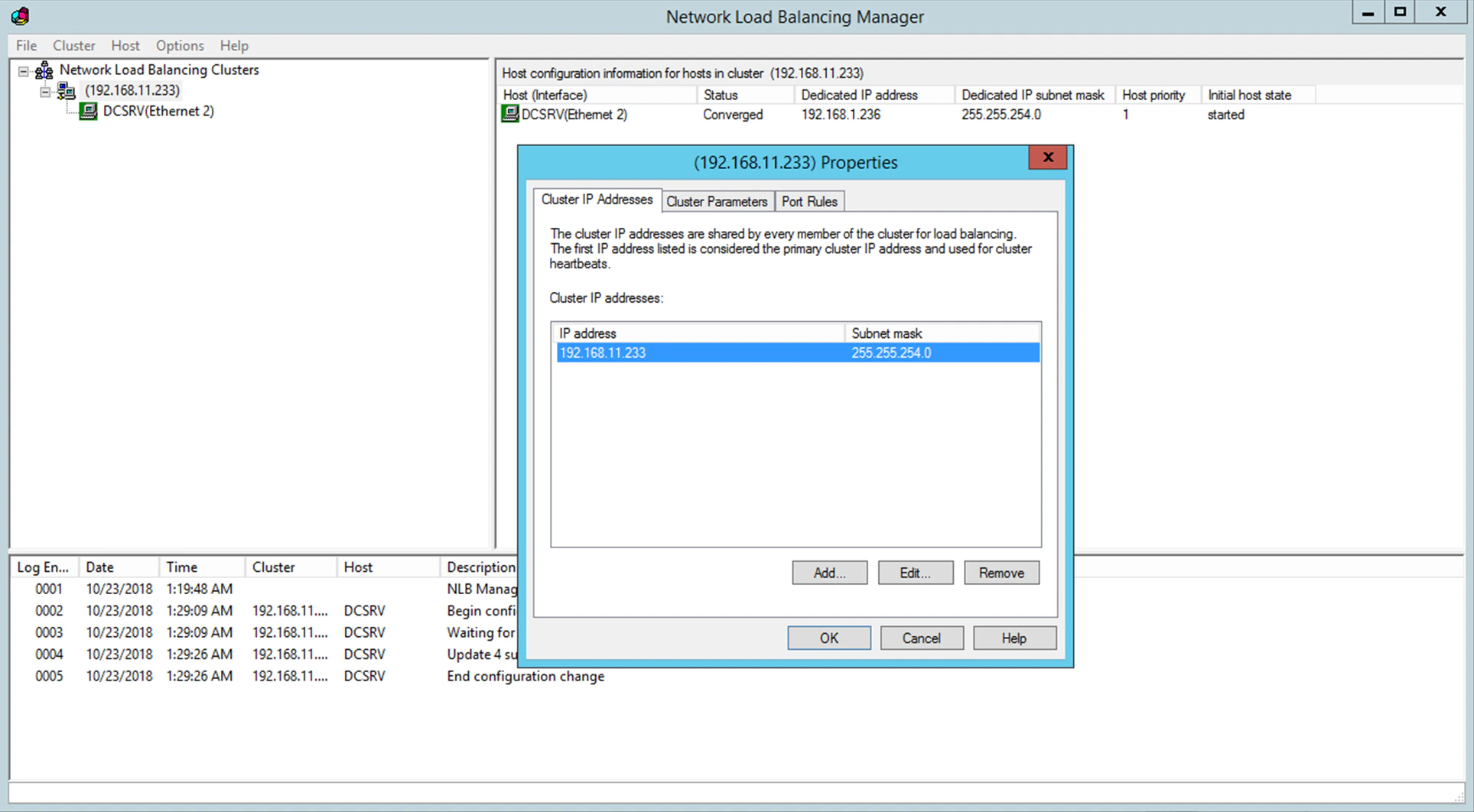
How traffic reaches the cluster nodes
Multicast mode usually puts client, cluster, and other network traffic on a single network interface. In that case, each host in the cluster needs a dedicated IP address alongside the virtual address shared by all nodes. A host uses its dedicated IP address, not the virtual cluster address, in two situations. One is incoming connections over Telnet, SSH, and other protocols; the other is outbound connections from the cluster nodes. All cluster nodes must receive all incoming cluster traffic. The balancing algorithm determines which node responds to a given query.Choose the cluster operating mode
The choice between the Unicast and Multicast methods depends on your network configuration. For a detailed description of both methods, see Network Load Balancing parameters in the Microsoft documentation.NLB port filtering and affinity settings
You can set up cluster traffic to be balanced and filtered by port. ABBYY FlexiCapture requires the TCP protocol for its operation.Port filtering modes
Affinity settings
Traffic from a predefined range of ports is balanced among the nodes. You can also set the Affinity parameter to one of the following values.Configure the Application Server
1
Create a shared folder
Create a shared folder that can be accessed by all of the nodes in the cluster.
2
Install the database server
Install Microsoft SQL Server, an Azure server, an Oracle server, or a PostgreSQL server. The server must be available to all cluster nodes.
3
Install the Application Server on all cluster nodes
Run the Application Server installer on every node that belongs to the cluster.
4
Create a database on the first node
On the first cluster node, run the Administration and Monitoring Console, create a database, and specify a shared folder for file storage.
5
Connect the remaining nodes to the database
On each of the remaining cluster nodes, run the Administration and Monitoring Console and connect to the database you created.
This operation requires SQL authentication.
6
Grant database permissions
On the SQL Server, Azure, Oracle, or PostgreSQL server, give full database access to every user whose account runs IIS on a cluster node.The World Wide Web Publishing Service must be running in the service list. Permissions for the first node are given automatically when the database is created. Other permissions must be given manually.By default, IIS runs under the user Network Service. In this case, assuming IIS is running on a computer named NodeN, you must give full access permissions to the user
DomainName\NodeN$ on the server.Verify that IIS is available in the cluster
If PING requests reach the cluster but the Application Server does not respond, check whether IIS is available. Place a static*.html file in %systemdrive%\inetpub\wwwroot, which usually already holds an iisstart.htm file. Then open \\ClusterAddress\iisstart.htm in a browser, checking your browser proxy settings as you do.
Run Application Server clients under domain accounts
Place all cluster nodes in one domain and run the Application Server clients under domain user accounts. Avoid local user accounts.Why local user accounts fail in a cluster
In a non-clustered configuration you can authenticate through a local user. You create a local user with its own name and password on the computer running the Application Server. Any client then connects under that account. In a clustered configuration, the Application Server handling a client request may sit on a different computer, so the actual user name changes with it. It isnode1\User on the node1 computer and node2\User on the node2 computer. That difference can disrupt the system.
Running Application Server clients under domain users avoids the problem.
Connect clients outside the domain
To connect clients on remote computers outside the domain, use basic authentication with an account in the cluster’s own domain. Suppose the clustered Application Server is in the cluster domain and the computer of the verification operator is not in this domain. Create an account for the usercluster\VerificationOperator in the cluster domain and communicate the account name and password to the verification operator. The verification operator can then connect to the Application Server using this account and basic authentication on the Verification Station.
Basic authentication for clients requires basic authentication to be enabled for the folder
FlexiCapture12\Server in IIS. Otherwise, users get an HTTP 401 error when they try to connect.Monitor node activity in IIS
1
Open the Performance Monitor for IIS
The Performance Monitor is reachable from the toolbar of the Microsoft Management Console.
2
Add a counter for each node
In the Web Service object, add the ISAPI Extension Requests/sec counter for Default Web Site for each node. Default Web Site is where the Application Server sits in IIS.