Hypothesis regions and boundaries
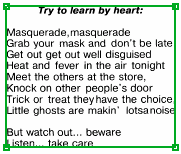
A found hypothesis for a simple element is always a continuous region. Hypotheses for White Gap, Separator, and Barcode elements are always single rectangles. If a hypothesis is formulated on the basis of a set of detected image objects, for example, a hypothesis for a Paragraph element, the region of the hypothesis is built on the basis of the array of rectangles of the detected objects. The region created in this way can be obtained by theRegion method of the hypothesis.
When displaying the region of the hypothesis on the image, or when creating a block on the basis of the hypothesis, the boundaries of the region do not exactly follow the boundaries of each rectangle. Instead, the boundaries of the search area are smoothed out for better visualization. A region created in this way can be obtained using the SimplifiedRegion method of the hypothesis.
The Region and SimplifiedRegion methods can be used either in the Advanced pre-search relations field on the Advanced tab (when describing the search area of the element), or in the Region expression field when describing the properties of the block and using the already found elements.
If a hypothesis is not found, it coincides with the fuzzy rectangle of its search area. When displaying a non-found hypothesis on the image, FlexiLayout Studio draws the external rectangle of the fuzzy rectangle.
The Left, top, Right, and Bottom boundaries of any hypothesis are ranges. For each found hypothesis, the range degenerates to a point, that is, Left.Start = Left.End, top.Start = top.End, and so on. For a non-found hypothesis, the ranges of the boundaries coincide with the ranges of its search area.
Hypothesis access in FlexiLayout code
Accessing generated hypotheses and their properties in the code of the corresponding dialog boxes of blocks and elements provides additional tools for setting up the FlexiLayout. Element hypotheses can be accessed by the names of the elements. To access a hypothesis for the current element in the Advanced post-search relations field, you can use only the name of the property. Hypotheses and their properties are accessed in read-only mode. Hypotheses for elements can be accessed in the Advanced pre-search relations and Advanced post-search relations fields on the Advanced tab of the element’s Properties dialog box as well as in the Region expression field in the block’s Properties dialog box. In Advanced pre-search relations, you can access the generated hypotheses (and their properties) for all the elements located above the current element in the FlexiLayout tree. In Advanced post-search relations, you can access the generated hypotheses for the elements located above the current element in the FlexiLayout tree and the hypothesis for the current element itself. In Region expression, you can access the hypotheses (and their properties) for all the elements.Properties of hypotheses for all element types
The following table lists the properties of hypotheses for all types of element.Example: check for a null hypothesis before accessing properties
Before you access the properties of a hypothesis for a simple or Group element, make sure that the hypothesis to be accessed is not a null hypothesis (call itsIsNull property). Accessing a property of a null hypothesis (which corresponds to a non-detected element) causes an error.
Consider an example that uses the project from Sample 1 that can be found on the program CD-ROM.
Suppose there is an identifier on your document in the form of a barcode and you want your FlexiLayout to match only those documents on which the value of the barcode is 1556897142240.
In the Advanced post-search relations section of the element that describes the properties and search constraints of the barcode (element IdentityNumber in Sample 1), write the following code:
Error in element “MainGroup.IdentityNumber”, Advanced relations section: Attempt to access undefined hypothesis MainGroup.IdentityNumber.
The cause of the error is as follows. FlexiLayout Studio finds a hypothesis for the barcode element. Then it compares the value of the barcode with the value specified in the code. If the values are different, the Quality: 0; code resets the value of the hypothesis to 0.
Then a null hypothesis is generated for this element, for which FlexiLayout Studio also checks the condition value != "1556897142240". Since accessing the value of a null hypothesis is not allowed (it does not have this property), FlexiLayout Studio issues an error message “…undefined hypothesis…”.
Therefore, adjust the code as follows:
if not IsNull condition is not executed.
Therefore, the quality of the final (null) hypothesis remains the same as was specified in the properties of the element (0.97 if the default value was kept) and FlexiLayout Studio continues matching the FlexiLayout, even without the given element.
If you add else {Quality: 0;} to the code, the statement is executed for all hypotheses (including the null hypothesis) and the matching of the FlexiLayout stops, because the complete chain of hypotheses is also reset to 0 at this element.
Region() and SimplifiedRegion() methods compared
The methodsRegion Region() and Region SimplifiedRegion() both return the region of an element, but the method Region Region() returns the exact region:
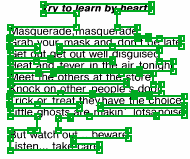
Region SimplifiedRegion() returns the rectangle created based on the boundary coordinates: