
Prerequisites for element training
- For the element to be trained, a correct Reference layout or Matched layout on several pages is required.
- All pages to be included in the training set must be marked as Use for Training on the Batch tab.
You can either create a new element and draw its region on the image using the Create New (Ctrl+Space)  tool or draw a location for an existing element of the tree using the Draw Location
  tool.
tool.
tool or draw a location for an existing element of the tree using the Draw Location tool.Train an element
1
Open the Choose Trained Element Parameters dialog box
On the element’s shortcut menu, select Train Element → Train Element Parameters. The Choose Trained Element Parameters dialog box opens, showing the parameters of the trained element and their values. Names of dependent parameters are indented.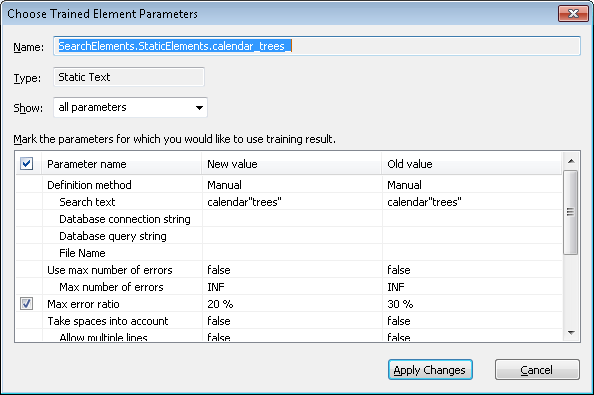
2
Select which parameters to view
From the Show drop-down list, select modified parameters only to see only those parameters which were modified during training, or select all parameters to see all parameters of the element.
3
Select the parameters to apply
Select the checkbox to the left of the parameter name to use the training result for this parameter. You can select the checkbox next to the Parameter name caption to select all modified parameters.
4
Click Apply Changes
The new values of the selected parameters are saved.