
Create document fields
For every entity you want to extract, create a corresponding field in the Document Definition.1
Add a field
In the Document Definition Editor, right-click the document section name and select Create Field.
2
Make it a Text field
Create a Text field.
3
Enable a region
On the General tab, select Can have region.
4
Name the field
In the Name field, enter a name (for example,
PreambleSegment). Field names must not contain spaces or non-English characters, and must not start with a number.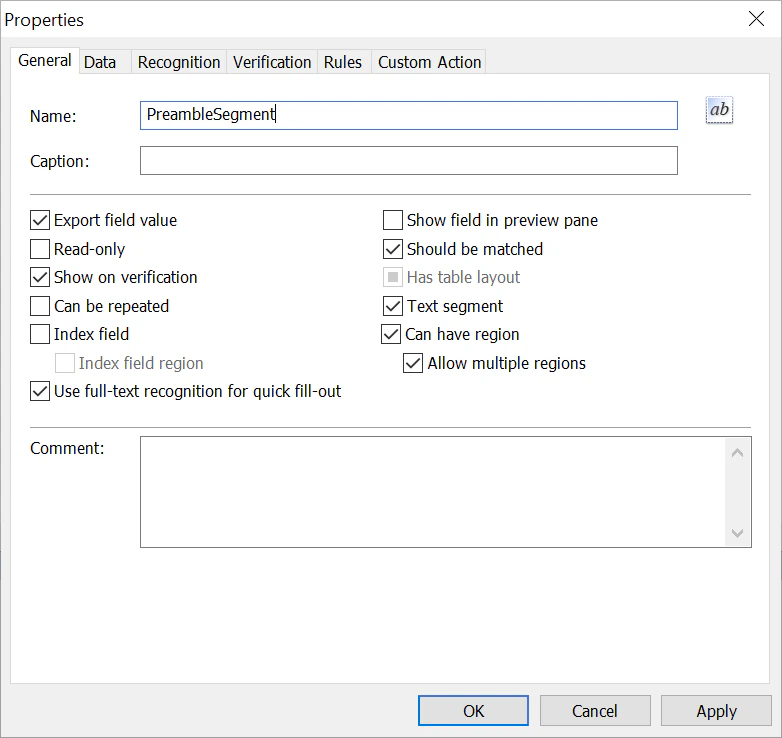
Create a segmentation model
Segmentation improves the accuracy and speed of entity extraction and is optional. It requires a dedicated NLP model, and you can have only one segmentation model per document section.1
Open the section properties
In the Document Definition Editor, right-click the document section name and select Properties. On the NLP tab, click Create.
2
Name the model and set its type
In the Name field, enter a name (for example, 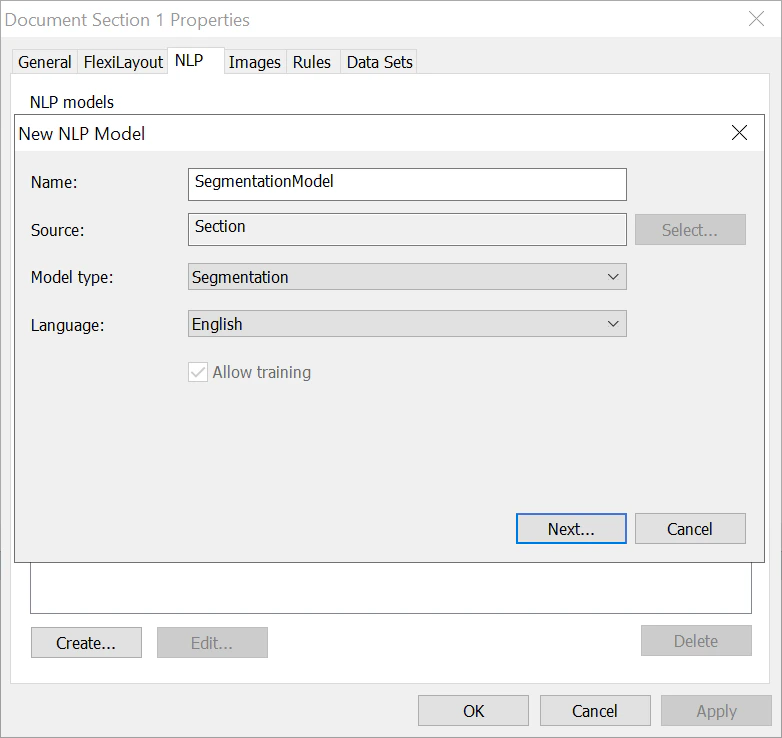
SegmentationModel). Set Model type to Segmentation, and select the required Language.3
Choose the segment fields
Click Next, specify the fields the segments will be extracted into, and click OK.
Create an entity extraction model
To extract entities, you need an entity extraction NLP model trained on manually marked-up documents.1
Open the section properties
In the Document Definition Editor, open the document section properties, click the NLP tab, and click Create.
2
Name the model and set its type
Enter a Name (for example,
EntitiesExtraction). For the data source, select a section (if you do not use segmentation) or a segment (if you do). Set Model type to Extraction, and select the required Language.3
Choose the result fields
Click Next and choose the result fields to extract from the selected section or segment.
The Allow training option lets you train an NLP model during document processing: the model is trained when you train field extraction using a field extraction training batch. To disable or delete training results, right-click the training batch and select Disabled or Delete on the shortcut menu.