Add a page
When you add a page to a Document Definition, its image appears in the image pane of the Document Definition editor, and any fields you create on the page are listed in the common fields list. In this case, the document has one section, even though it may contain several pages. Add pages to a single section if your document has blocks that continue or recur across several pages, or tables that extend to the next page. The same method loads a multipage FlexiLayout (see Create a Document Definition based on a flexible description). All fields in a FlexiLayout must belong to one section.1
Start adding a page
In the Document Definition editor, select Document Definition → Add Pages, or select Add Pages on the shortcut menu of the image.
2
Load and mark up the page
Load the image of a new uncompleted page, and select the object types to be marked up automatically.
Delete a page
To delete a page, right-click it and click Delete Page on the shortcut menu.The Delete Page command deletes the page and its fields from the document structure. The Delete Image command deletes only the page image and retains the fields in the document structure (although the regions of the fields are deleted).
Add a section
In the simplest scenario, one section contains one page, and the sets of fields on different pages are independent. Adding sections gives a clearer picture of the document structure. You can see which field belongs to which section and configure assembly as needed. For example, if a document has three page types where types 1 and 3 occur once and type 2 occurs two to five times, create three sections (one per page type) and specify their order and number of occurrences. In a more complex scenario, a section can contain more than one page. For example, a Document Definition may combine fixed sections with a flexible multipage section, or define documents with a recurring two-sided sheet. For a document with a title page (page A) followed by two-sided sheets (sequence BCBC…), create section A (page A, occurs once) and section BC (pages B and C, occurs three to seven times).1
Start the section creation wizard
In the Document Definition editor, select Document Definition → Add Document Section.
2
Complete the wizard
Follow the wizard to:
- Specify a name for the section.
- Load the image of an uncompleted page (scan one or load a page from a file), or load a FlexiLayout file.
- Select the object types to be marked up automatically.
Verify key fields across sections
For a Document Definition that has several sections, you can verify key fields and specify the order and number of recurring sections. To enable key field verification, first identify the key fields in each section. Their values must be identical across sections. To add a key field to multiple pages in the same section, create a multiple key field and position its instances on different pages. An example of a key field is the name of the person who completed the document, which must appear on each page, or an identification number. When processing a batch, ABBYY FlexiCapture assembles the pages into documents and checks the assembly rules. If key field checking is enabled and the key fields do not match on the pages of the same document, an error message is displayed. This can happen if pages are misplaced during scanning. Reordering the pages usually ensures correct assembly. For more information, see Assemble documents.Import a section from another Document Definition
To import a section, click Document Definition → Import Document Section on the main menu, and then select the section in the Select Section Definition to Import dialog box.Shared scripting modules are not imported when you import sections. As a result, script rules written in a new section may work incorrectly or may not work at all.
View the document structure
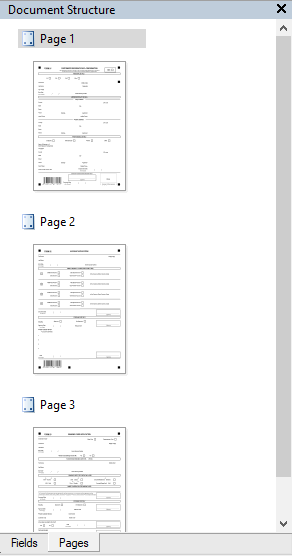
To view the resulting document structure, click the Pages tab in the Document Structure pane on the right of the Document Definition editor. The structure is shown as page thumbnails. On the Pages tab, you can:- Change how many times a section may occur in the document (enter a number or range in the box to the right of the section name).
- Attach annex pages.
- Change the order of pages in a section.
- Move pages from one section to another by dragging.
Configure document assembly
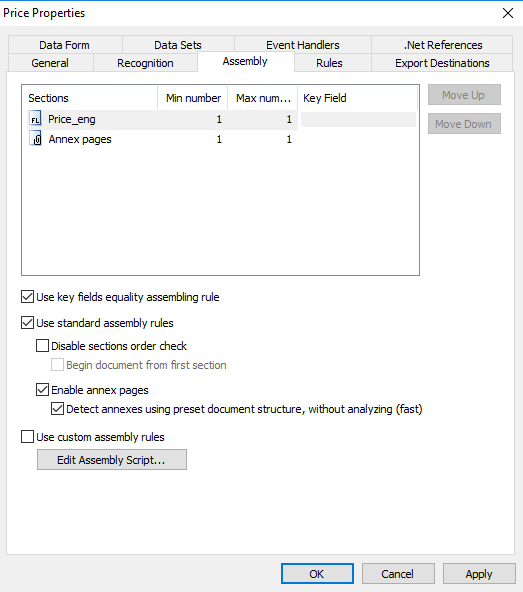
To configure how pages are assembled into documents, select Document Definition → Document Definition Properties in the Document Definition editor, and then open the Assembly tab. On the Assembly tab, specify the minimum and maximum number of times each section may occur in the document (the default is 1) in the Min number and Max number columns. To check key field values during assembly, select the Use key fields equality assembling rule option, and then select a key field in each section. Both standard and custom assembly rules are available:- Standard rules – Select Disable sections order check to ignore the order of sections (FlexiCapture still confirms that all sections are present). Select Enable annex pages to assemble documents with annex pages. To detect annex pages from the document structure, select the corresponding option.
- Custom rules – Run a document assembly script, on its own or together with the standard rules.