
System requirements
You will need an account with ABBYY Vantage both to configure and to run your process. ABBYY Vantage Connector for UiPath can run on the following operating systems:- Windows 10
- Windows Server 2016
- Windows Server 2019
The connector can’t run on computers with Windows Server 2012 R2, Windows 8.1, and older operating systems.
- ABBYY Vantage 2.3.2 or later
- UiPath Enterprise Edition 2023.8.0
- Community Edition 2023.4.4 or later
- Microsoft .NET Framework 4.8.1
- Microsoft .NET 8
We recommend that you convert Windows-legacy projects to Windows compatibility, because legacy compatibility is no longer supported. For information on how to convert Windows-legacy projects to Windows, see Converting Windows-legacy projects to Windows.
Installing the Connector
ABBYY Vantage Connector for UiPath is a set of activities running on the UiPath side within the user-defined workflow. The activities are delivered as a NuGet package. To install the package:-
Run
ABBYYVantageConnectorForUiPath.<version>.exeand follow the instructions of the Installation Wizard. During the installation, specify the connector installation folder. By default, it is set toC:\Program Files\ABBYY Vantage Connector for UiPath. - In UiPath Studio, open an existing project or create a new one.
-
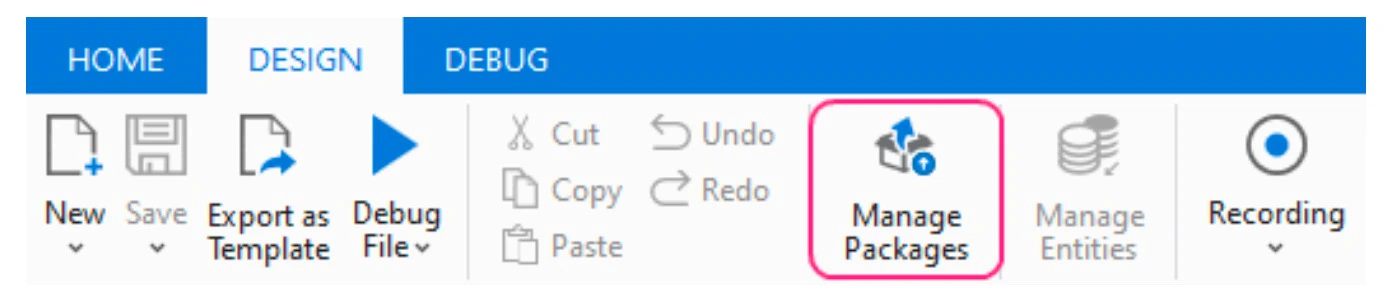
On the ribbon, click Manage Packages on the Design tab:
-
Make sure the nuget.org package source is enabled. This package source is required in order to install some dependencies for the connector package.
If you already have a configured package source and want to use it, skip step 5.
-
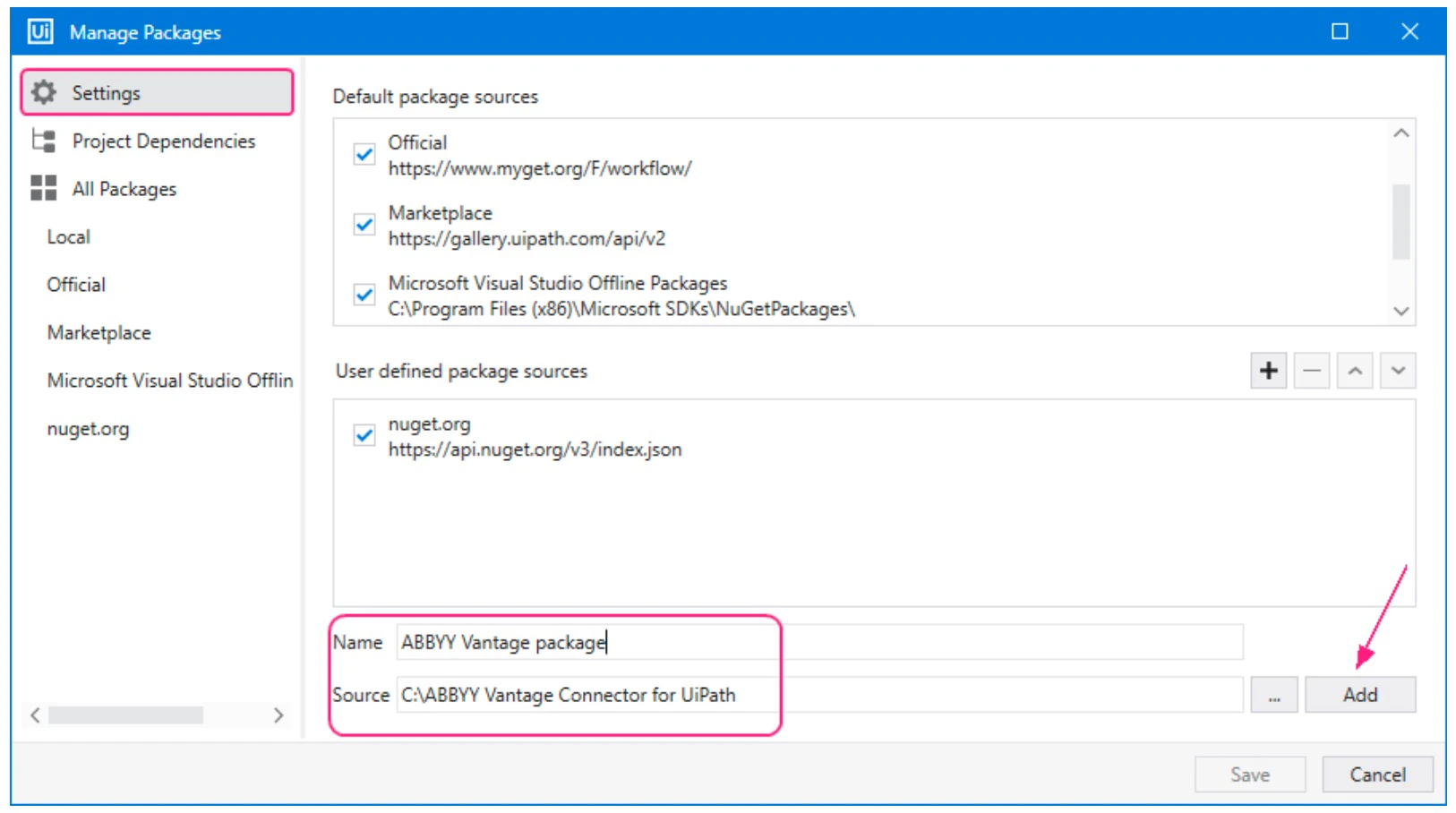
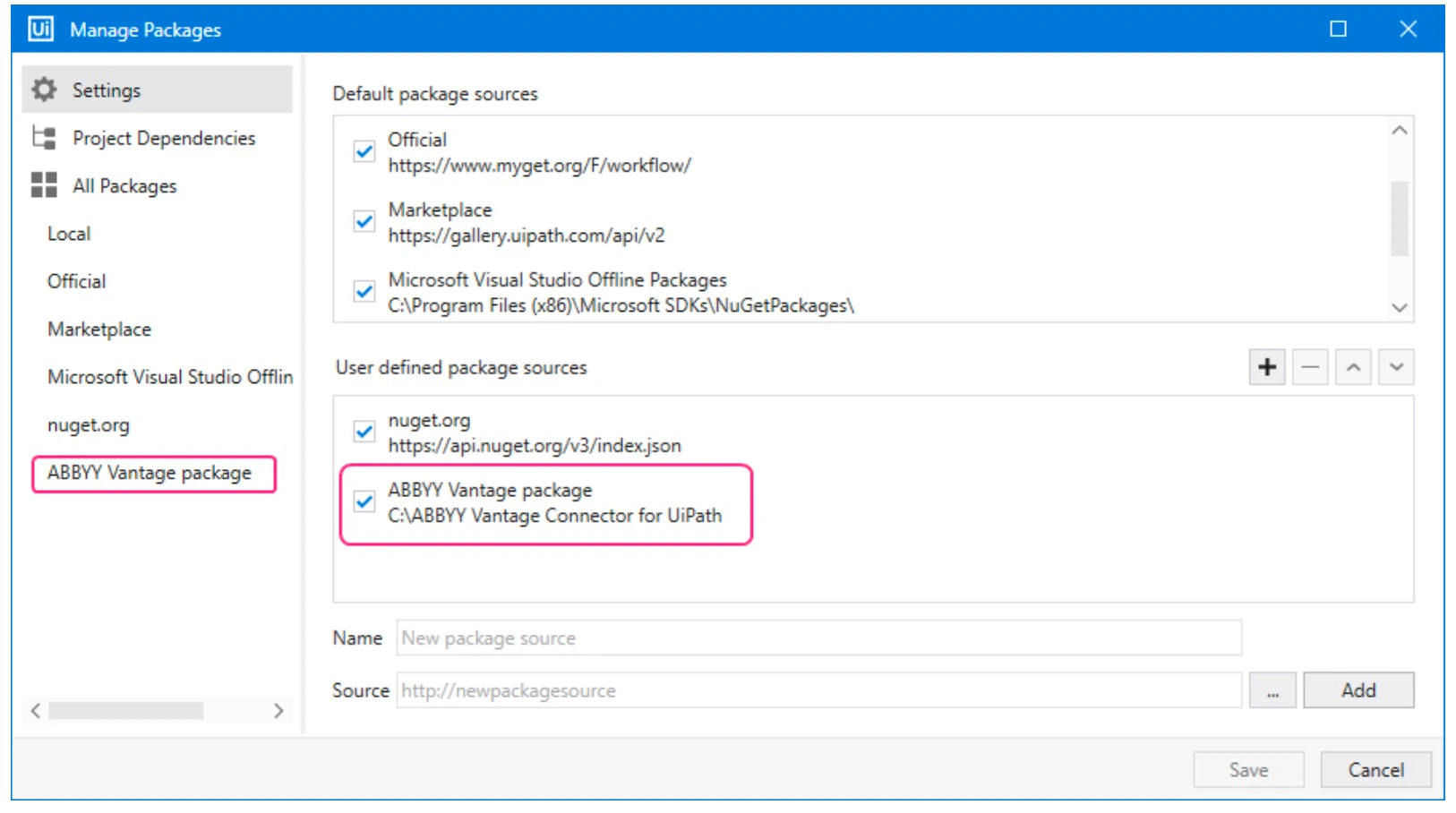
Go to the Settings tab of the Manage Packages window and create a new package source:
a. Enter a name for the new package source.
b. Specify the path to the folder where you intend to place the connector NuGet packages.
c. Click Add to confirm the settings.
-
Copy all the NuGet packages of the ABBYY Vantage Connector for UiPath from the installation folder to your package source folder. The NuGet packages are located in the UiPath Activities subfolder of the installation folder that was created in step 1 (the default location is
C:\Program Files\ABBYY Vantage Connector for UiPath\UiPath Activities). After the NuGet connector packages are added to the available package source, you can install the connector package to the project dependencies. -
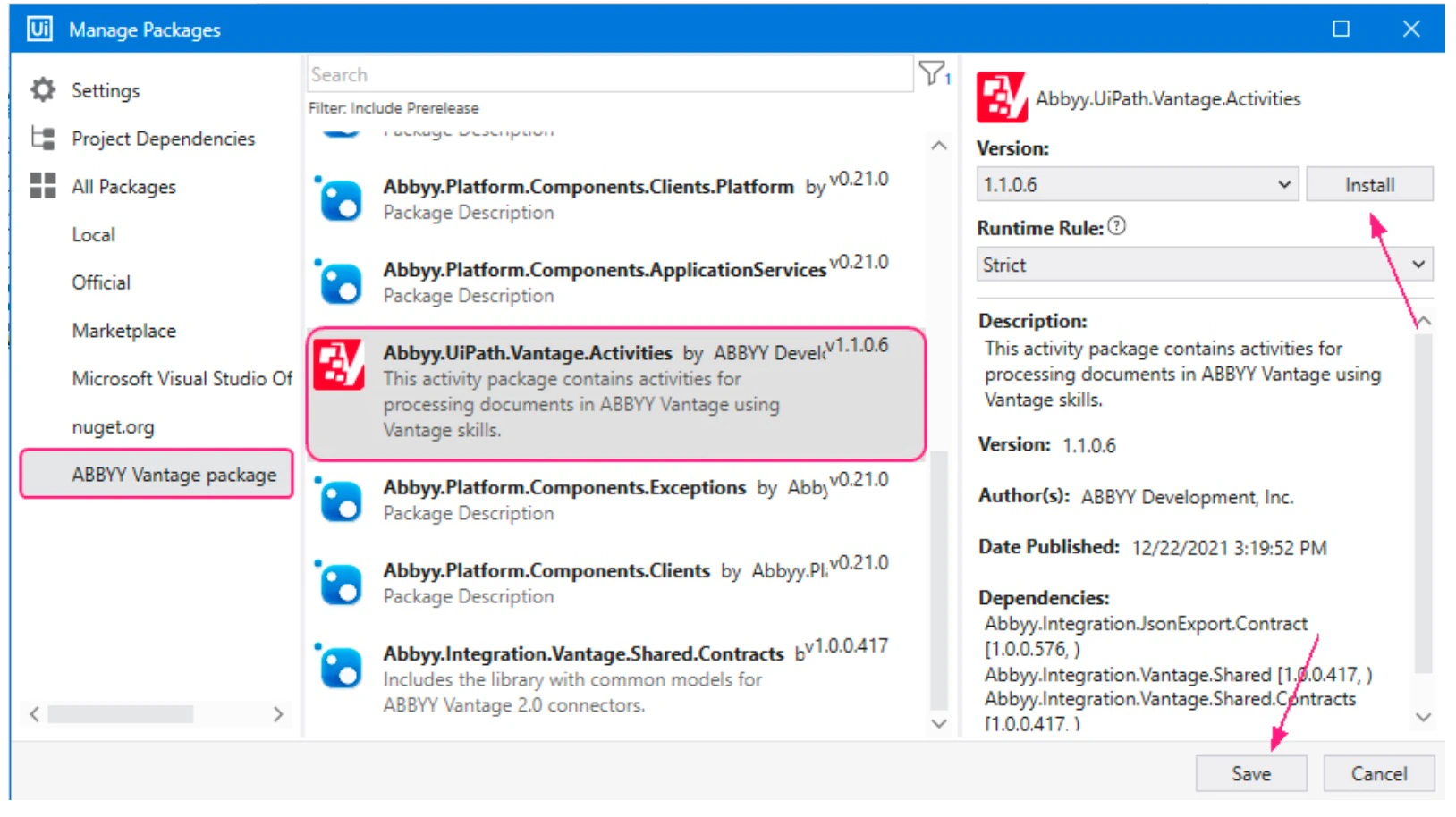
In the Manage Packages window, navigate to the All Packages section and do the following:
a. Click the newly created package source category.
b. Select Abbyy.UiPath.Vantage.Activities from the list of available packages and click Install. The License Acceptance window will display licensing terms for each third-party package you install.
c. Click on View License to read the license terms.
d. Click I Accept to agree with the license terms and install the packages. Finally, click Save.
-
Once installed, the Vantage activities will appear in the ABBYY Vantage section of the list of activities available for your project:
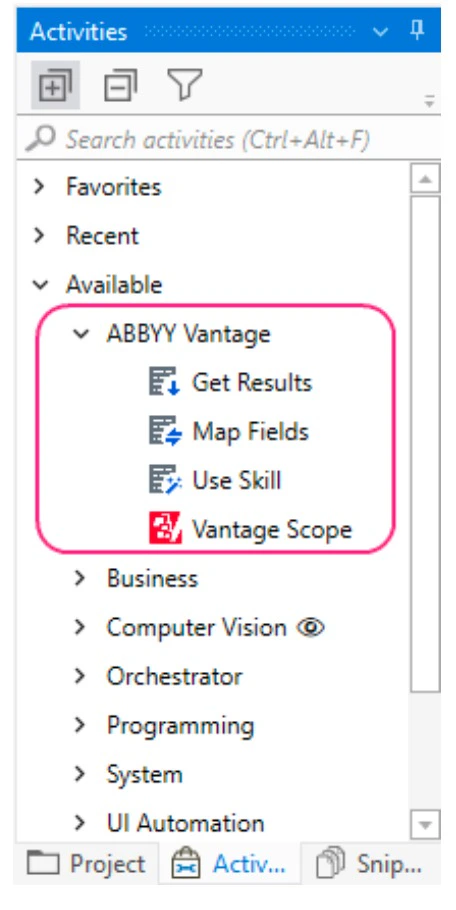
Converting Windows-legacy projects to Windows
We recommend that you convert Windows-legacy projects to Windows. The default compatibility for new projects is now Windows compatibility. To convert Windows-legacy projects to Windows compatibility, you should perform the following procedure for each Windows-legacy compatibility project:- In UiPath Studio, open the Windows-legacy project.
- Click the Convert to Windows link in the message that appears under the ribbon.

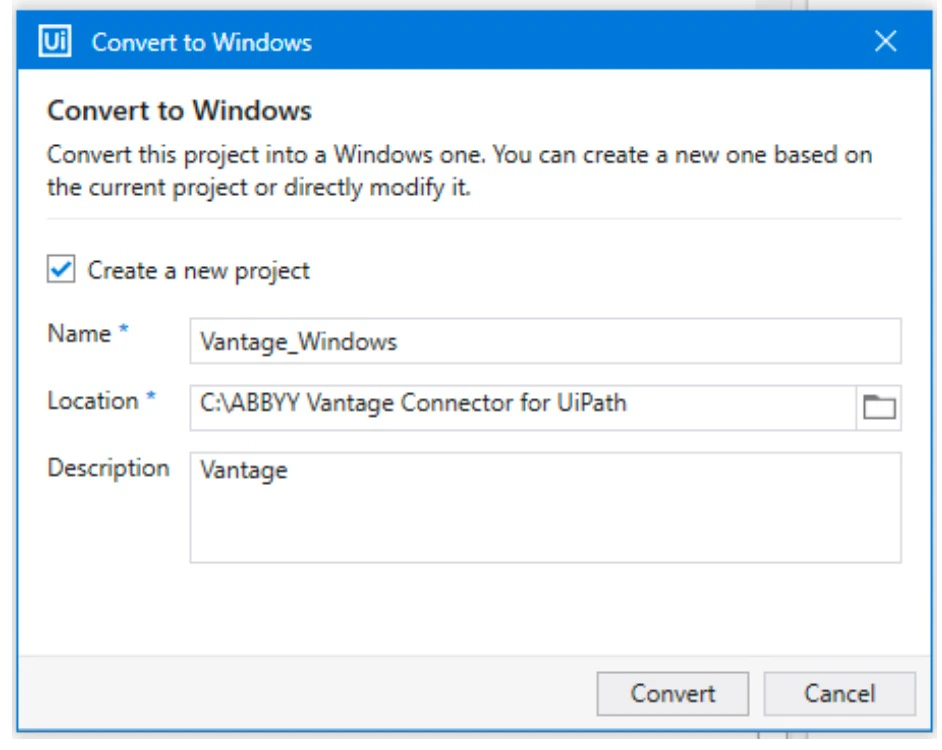
-
Specify how the Windows-legacy project will be converted to Windows:
- To create a copy of the current project using Windows compatibility and keep the original Windows-legacy project, select Create a new project. Enter the name of the project, its desired location, and optionally a description for the new project.
- To update the existing project and convert it to Windows compatibility, deselect the Create a new project option. If you deselect this option, it will not be possible to undo the changes that will be made to the project.
- Click Convert. For more information about converting Windows-legacy projects to Windows compatibility, refer to UiPath Studio Guide.
Using ABBYY Vantage activities in UiPath workflow
The ABBYY Vantage Connector for UiPath lets your workflow send document images to ABBYY Vantage and process it using an available skill. To view the available skills, create your own skills, or modify existing skills, use the ABBYY Vantage Skill Catalog or ABBYY Vantage Skill Designer. Refer to ABBYY Vantage Skill Designer Guide for more information on setting up skills. The ABBYY Vantage Connector for UiPath delivers the following activities for working with ABBYY Vantage: To add an activity to the UiPath process, drag the activity from the UiPath Studio Activities panel to the Designer panel. After the activity has been added to the process, you will need to fill in the fields in the Properties panel. You can fill in some of the properties in the Designer panel as well. For more details about the properties of the activities, see the sections below. The ABBYY Vantage Connector for UiPath is shipped with a sample process that demonstrates how you can use ABBYY Vantage activities in your workflow. For more information, see the Sample process for ABBYY Vantage activities.Vantage Scope Activity
The Vantage Scope activity passes ABBYY Vantage connection settings to other Vantage activities. It is also a container for other Vantage activities. All other ABBYY Vantage activities must be placed inside the Vantage Scope activity.The Vantage Scope activity allows to configure authentication using Resource Owner Password Credentials Flow and Client Credentials Flow. If you set up an External Identity Provider in Vantage, the only authentication flow that will work is the Client Credentials Flow.
Activity properties
| Group | Property | Type | Description |
|---|---|---|---|
| Connection Settings | Authorization grant type | IEnumerable<AuthorizationGrantType> | The grant type that is used for authorization: ResourceOwnerPassword or ClientCredentials |
| Connection Settings | Password | String | The password used to connect to ABBYY Vantage. |
| Connection Settings | Secure Password | SecureString | The secure password used to connect to ABBYY Vantage. |
| Connection Settings | Server URL | String | The ABBYY Vantage server address. |
| Connection Settings | Tenant | String | The ABBYY Vantage tenant name or tenant identifier. Important! This property is only required if the user whose credentials are used to connect to the ABBYY Vantage server is registered in several (more than one) tenants on the server. The tenant name can be found on the Vantage sign-in page in your browser when entering the password. |
| Connection Settings | Username | String | The user e-mail address used to connect to ABBYY Vantage. |
| Proxy Settings (optional) | Enable Proxy | Boolean | Allows you to use a proxy server to route HTTP requests. |
| Proxy Settings (optional) | Server URL | String | The proxy server address (e.g. http://127.0.0.1:8080). |
| Proxy Settings (optional) | Username | String | The username used to connect to the proxy server. |
| Proxy Settings (optional) | Password | String | The password used to connect to the proxy server. |
| Proxy Settings (optional) | Secure Password | SecureString | The secure password used to connect to the proxy server. |
| Vantage Public API Client settings (optional) | Client Id | String | Vantage application identifier. |
| Vantage Public API Client settings (optional) | Client Secret | String | Secure Vantage application key. |
| Vantage Public API Client settings (optional) | Secure Client Secret | SecureString | Secure Vantage application key as a secured string. |
SecureString type.
A password of type String is stored as plain text in the XAML project file and it is not safe. A String password is recommended for use only when configuring the Use Skill and Map Fields activities for obtaining a list of skills, or for debugging your UiPath process. Once the process is fully configured:
- If you use Resource Owner Password Credentials Flow, remove the Password property from the Vantage Scope activity and set up the Secure Password property.
- If you use Client Credentials Flow, remove the Client Secret property from the Vantage Scope activity and set up the Secure Client Secret property.
The same type of password must be used for Connection Settings, Proxy Settings and for Client Settings.
-
Resource Owner Password Credentials Flow:
- Enable the Allow Resource Owner Password Credentials Flow option.
-
Client Credentials Flow:
- Enable the Allow issuing refresh tokens to refresh access tokens option.
- Enable the Allow client credentials flow option.
- Select the required roles with which the application will log in to Vantage by clicking the Manage Roles setting.
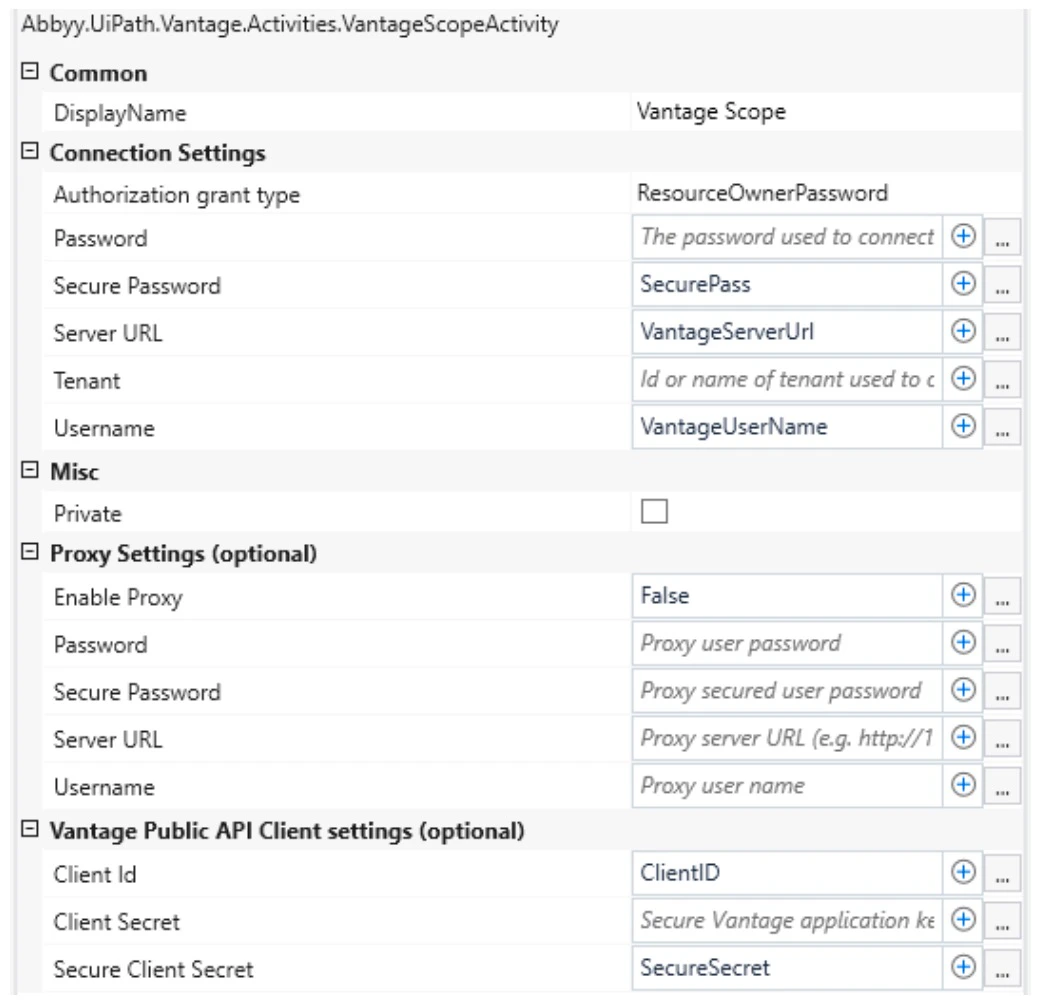
If all the properties in the Vantage Public API Client settings are empty, then the default ABBYY Vantage client is used.
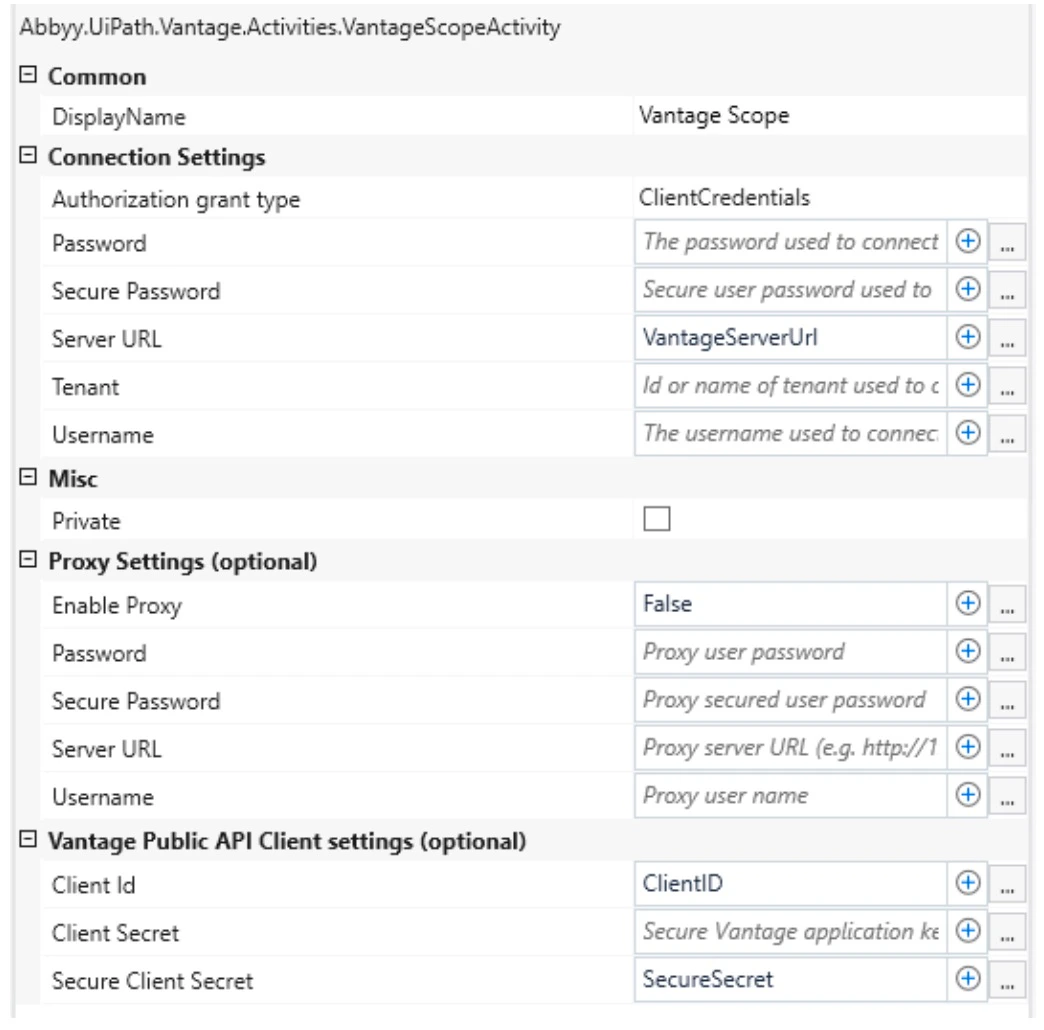
Proxy Settings
You can configure connector requests at runtime to go through a proxy server. The following proxy authentication types are supported: Basic, NTLM, IP authentication, and transparent proxy. To use a proxy, select the Vantage Scope activity. In the Proxy Settings (optional) properties group, set the value of the Enable Proxy property to"true" and then specify the address of your proxy server in the Server URL property.
If you are using Basic authentication, in the Username and Password / Secure Password properties, specify the proxy connection credentials.
If you are using NTLM authentication, the Username and Password fields are optional. If the Username and Password fields are empty, the credentials of the user under which the UiPath process is running will be used.
Use Skill Activity
The Use Skill activity creates a transaction for processing a document by means of an ABBYY Vantage skill. A unique identifier of the transaction is then returned as the Transaction Id output property.Activity properties
| Group | Property | Type | Description |
|---|---|---|---|
| Connection Settings | Skill Name | String | The name of the Vantage skill. |
| Input | Input Files | IReadOnlyDictionary<String,InputFile> | A Dictionary collection, where String is the name of the file and InputFile is the class describing the input file. Note: Before adding files to the dictionary, it is necessary to ensure that non-repeating values are passed to the String parameter. You cannot add more than one file to the Input Files dictionary for which the same name will be passed in the String parameter. |
| Input | Transaction Registration Parameters | IReadOnlyDictionary<String,String> | A Dictionary collection of transaction registration parameters to pass the key and value of each parameter. |
| Output | Transaction Id | Guid | The identifier of the created transaction. This ID is then used as the Transaction Id input property of the Get Results activity to get the status of the transaction and the processing results. |
| Name | Type | Description |
|---|---|---|
| fileStream | Stream | The contents of the file that will be passed to ABBYY Vantage. It is possible to pass the stream of the file on a local disk as a value of this property (e.g. System.IO.File.OpenRead("D:\images\Invoice1.pdf")). |
| index (optional) | Integer | The index number of the file in the transaction. |
| fileRegistrationParameters (optional) | IReadOnlyDictionary<String,String> | A Dictionary collection of file registration parameters to pass the key and value of each parameter. |
- Resource Owner Password Credentials Flow — Specify the Password property of the Vantage Scope activity to obtain a list of available skills. Once you have configured your UiPath workflow, consider changing the Password property to Secure Password.
- Client Credentials Flow — Specify the Client Secret property of the Vantage Scope activity to obtain a list of available skills. Once you have configured your UiPath workflow, consider changing the Client Secret property to Secure Client Secret.
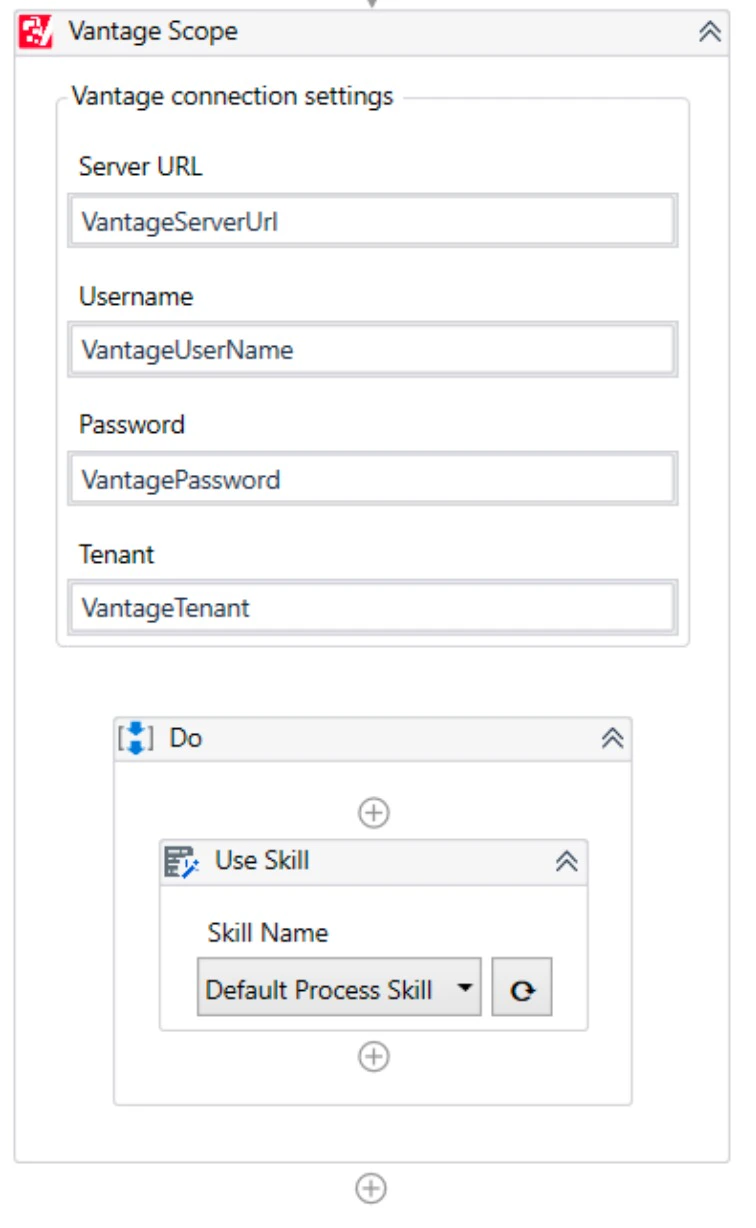
We recommend reducing the file size of big files to 30 MB or less to speed up document processing.
In the Skill Name parameter of the Use Skill activity, you can use a UiPath variable with
String type to store the name of the skill. When selecting a skill via the drop-down list of the activity on the design panel, the newly selected skill will be written to the specified variable. You can store the name of the skill directly in the variable. Expressions or references to other variables in the value of the variable are currently not supported.Get Results Activity
The Get Results activity is used to retrieve the processing results from ABBYY Vantage.Activity properties
| Group | Property | Type | Description |
|---|---|---|---|
| Input | Transaction Id | Guid | The identifier of the transaction. Pass to this property the value obtained as the output Transaction Id property of the Use Skill activity. |
| Input | Delete Transaction | Boolean | Specifies whether the completed transaction should be deleted, whether successful or not. The default value is FALSE, which means that the transaction is not deleted. |
| Output | Document Results | IEnumerable<DocumentResult> | A collection of result documents after processing. |
| Output | Review Link | String | A link to the ABBYY Vantage Manual Review Client, where the transaction results can be reviewed (this link can be obtained only if the Process skill used contains a Review activity). |
| Output | Transaction Status | TransactionStatus | The status of the transaction. The following statuses are possible: "New", "Processing", "Review", "Processed". Based on the status received, you can configure your UiPath process to run a different logic. For example, if the transaction has the "Processing" status, wait a few seconds and call the activity again. |
DocumentResult class.
DocumentResult class properties:
| Name | Type | Description |
|---|---|---|
| DocumentId | String | The identifier of the document. |
| ClassificationConfidences | IEnumerable<ClassificationConfidence> | A collection of classification confidence values. A list of all the classes available in the Classification skill applied to the document, together with their classification confidence values. |
| ClassName | String | The document class based on the classification results. |
| ExtractedData | String | A JSON string containing the extracted data. Note: For a Process skill, the property can be obtained if the Values, metadata, and field structure for each document option is enabled in the Output Activity. |
| IsClassificationConfident | Boolean | The resulting class is deemed to have been determined with confidence if this value is TRUE. |
| ResultFiles | IReadOnlyDictionary<String,Stream> | A collection of result files after processing. |
| DocumentFullText | String | The full-text layer of a document that has been captured by ABBYY Vantage. Note: If the skill configuration does not contain a full text export setting, this property will contain the following default value: TXT export was not configured in the ABBYY Vantage skill settings. Please enable TXT export in the skill that you have selected. TXT export is only available for OCR or Processing skills. |
All listed parameters are collected in a separate
DocumentResult in the Document Results collection. Even if there is only one output document, its output parameters will be available from the first DocumentResult in Document Results collection.| Name | Type | Description |
|---|---|---|
| ClassName | String | Vantage document class. |
| Confidence | Int | The degree of confidence that the document belongs to this class. Possible values range from 0 to 100. |
"Processed"), the results will be saved in the output properties.
If the transaction is still being processed (i.e. Transaction Status = "New" / "Processing"), wait a few seconds and call the Get Results activity again.
A special case, where Transaction Status = "Review", is described below.
The results that the Get Results activity may obtain will vary depending on the skill applied to the document:
-
Classification skill (e.g. Vantage Classifier):
- Transaction Status
- Document Results (for each
DocumentResult):DocumentId,ClassificationConfidences,ClassName,IsClassificationConfident,ResultFiles(JSON file containing classification results data)
-
Document skill (e.g. Invoice US):
- Transaction Status
- Document Results (for each
DocumentResult):DocumentId,ExtractedData,ResultFiles(the results will be contained in two JSON files — the first contains all document data, the second contains the values of the extracted fields and rule errors, ending with_fields.json)
-
OCR skill:
- Transaction Status
- Document Results (for each
DocumentResult):DocumentId,ResultFiles(those files will be received the export to which is configured in the OCR skill),DocumentFullText(if export to TXT is enabled in the skill)
-
Process skill:
If a Process skill comprises a Classify activity and an Extract activity, the above results will be obtained for both a Classification skill and a Document skill.
If a Process skill comprises multiple Classify or Extract activities, the results will be obtained for the last activities of a particular type.

DocumentFullTextparameter will be received if export to TXT is enabled in the skill. A Process skill can also contain a Review activity. When using such a skill for document processing, processing can be suspended if the document requires manual review. In this case, the Get Results activity will obtain the following results:- Transaction Status =
"Review" - Review Link
- Transaction Status =
Map Fields Activity
The Map Fields activity is used to save extracted field values to UiPath variables. You can map ABBYY Vantage fields to UiPath variables in the Designer panel.Activity properties
| Group | Property | Type | Description |
|---|---|---|---|
| Connection Settings | Skill Name | String | The name of the Vantage Document skill. |
| Input | Extracted Data | String | Accepts a JSON string containing the extracted data. Pass to this property the value of the ExtractedData property of the particular DocumentResult received in the Get Results activity. To pass values between the properties, use UiPath variables. |
- Resource Owner Password Credentials Flow — Specify the Password property of the Vantage Scope activity to obtain a list of available skills. Once you have configured your UiPath workflow, consider changing the Password property to Secure Password.
- Client Credentials Flow — Specify the Client Secret property of the Vantage Scope activity to obtain a list of available skills. Once you have configured your UiPath workflow, consider changing the Client Secret property to Secure Client Secret.
At runtime, the Extracted Data property of the Map Fields activity must receive the value of the
ExtractedData property of the particular DocumentResult received in the Get Results activity containing the data extracted by the Document skill for which the Map Fields activity has been configured. After receiving the extracted data, check if the name of the Document skill applied to the document is the same as the name of the Document skill for which the Map Fields activity has been configured, and if yes, pass the extracted data to Map Fields. To obtain the document type, you may use the output ClassName property of the particular DocumentResult received in the Get Results activity. To get the document type to this parameter, in the Extract activity of the Process skill, configure the mapping of the class with the Document skill that has to be used for document processing. When mapping, it is necessary to adhere to the condition that the class name is equal to the name of the selected Document skill.- Open the Map Fields activity in the Designer panel and click the button to the right of drop-down list under Skill Name to get a list of available skills.
-
Expand the Skill Name drop-down list and select the Document skill whose extracted field values must be saved to UiPath variables.
You can only choose a Document skill.
- Click the Refresh button. A field tree will be displayed in the Vantage Extracted Field column.
-
Expand the tree and click the Plus button next to a field that you want to map. In the UiPath Variable column, a UiPath variable name and type will appear. By default, the name of the variable will be the same as the name of the Vantage field, but you can change this name if required.
Ensure that the UiPath variable names specified in the Map Fields activity match the Variables Naming Convention configured in your UiPath process. If variable names do not follow the naming rules, they will be displayed with a warning symbol in the UiPath variable list. For more about Variables Naming Convention, see the UiPath documentation.
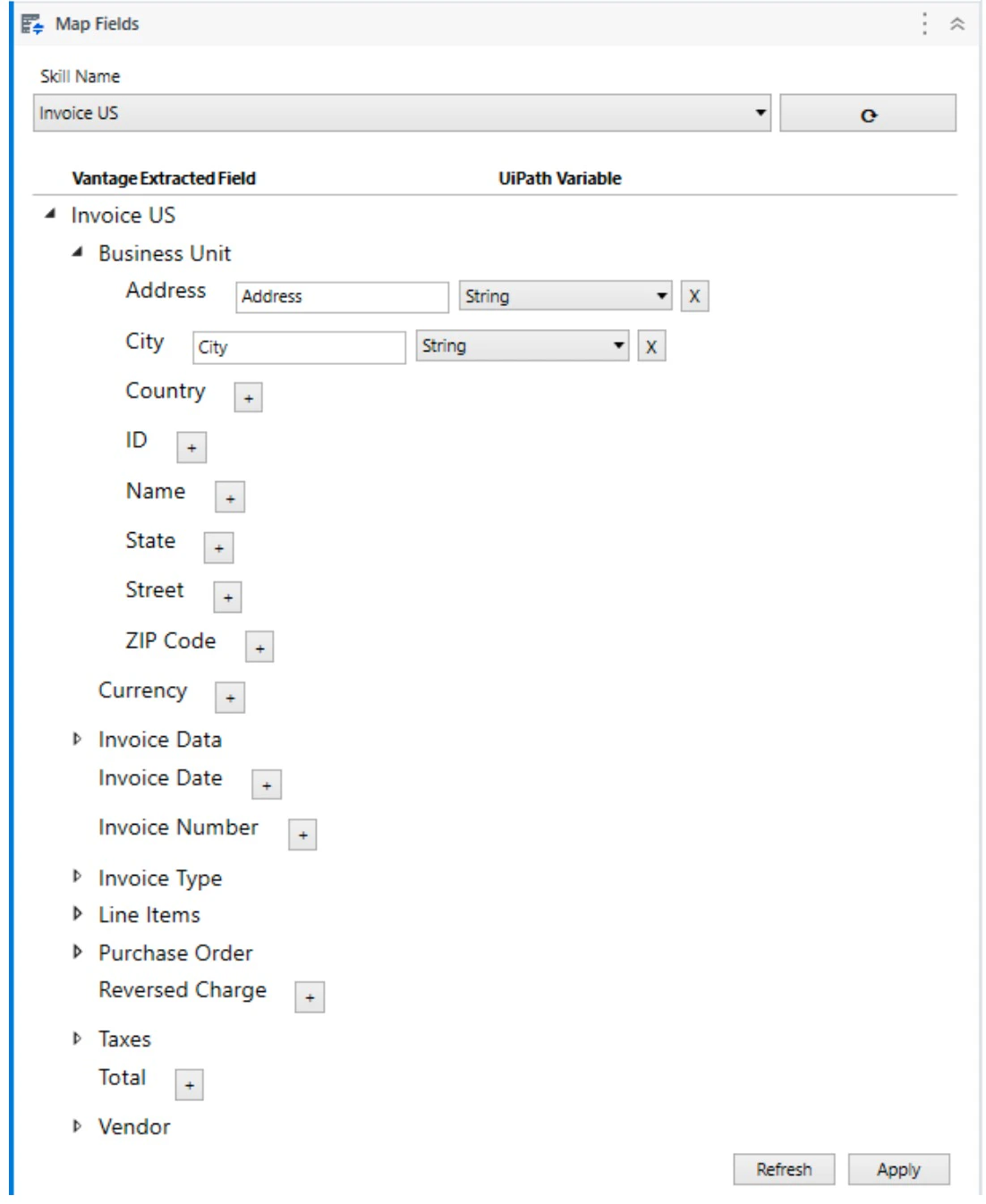
- Repeat the previous step for all other fields that you need to map. When setting up mapping, you can specify already existing UiPath variables. In this case, make sure that the type of your variables matches the one recommended in the table below.
- After you have mapped your document fields to UiPath variables, click Apply to save the changes. Now when the Map Fields activity is called at runtime, variable values will be filled in with extracted data.
The specified UiPath variables will be created in the closest to the Map Fields activity Sequence (for example, in Flowchart).
String type to store the name of the skill. When selecting a skill via the drop-down list of the activity on the design panel, the newly selected skill will be written to the specified variable. You can store the name of the skill directly in the variable. Expressions or references to other variables in the value of the variable are currently not supported.
The table below shows what type of UiPath variable corresponds to each ABBYY Vantage field type:
| ABBYY Vantage Field Type | UiPath Variable Type |
|---|---|
| Text | String |
| Date | String |
| Number | String |
| Money | String |
| Barcode | String |
| Checkmark | Boolean |
| Checkmark group (can be obtained as separated checkmarks) | FieldList |
| Group | FieldList |
| Group (for repeatable groups) | FieldList[] |
| Table | FieldList[] |
Table columns as well as repeating fields will be mapped to UiPath variables of type
String[]. All repeating fields and fields that are part of a repeatable group (or any other repeating fields and repeatable groups within repeatable groups) will be mapped to UiPath variables of type FieldList[]. It is also possible to map child objects of this group into variables of other simple types.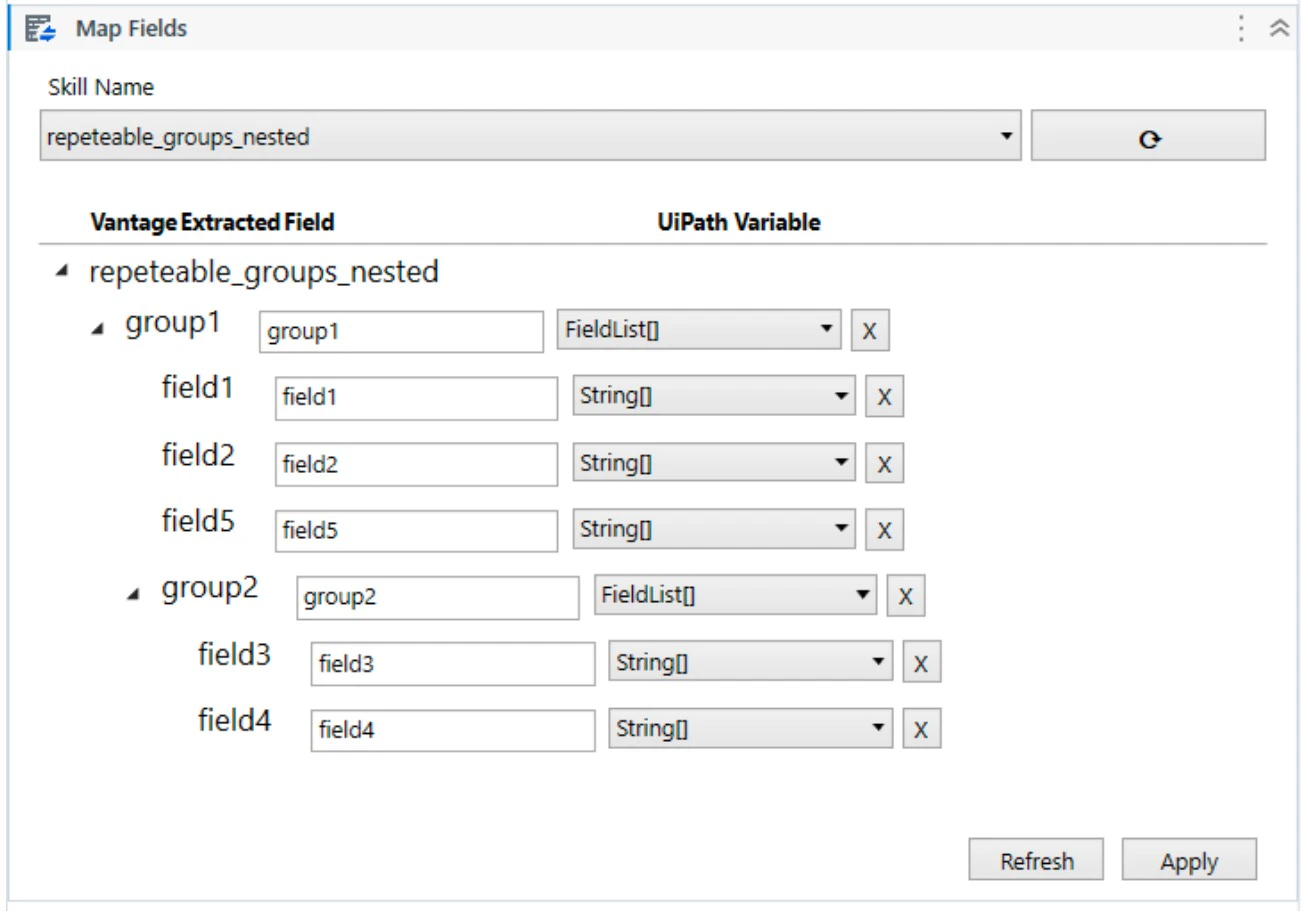
GroupItem is a structure containing one instance of some repeating object (field or group of fields).
| Method/Property | Parameter | Type | Description |
|---|---|---|---|
| Keys | IEnumerable<string> | Key values. Each value is the name of a specific nesting level. | |
| Values | IEnumerable<IReadOnlyList<FieldList>> | Set of field values of nesting levels. | |
| Count | Integer | Number of nested fields. | |
| ContainsKey | Key: String | Boolean | Specifies if a nested field exists. |
| TryGetValue | Key: String, Value: IReadOnlyList<FieldList> | Boolean | Specifies if a value exists. If there is a value, returns True and the value, otherwise returns False. |
| this[] | Name: String | IReadOnlyList<FieldList> | Returns the value of the specified nested field. |
| Find | Name: String | IEnumerable<FieldList> | Finds all nested fields of any nesting level with the specified name. |
| Filter | Predicate: (Name: String, Node: FieldList) => Boolean | IEnumerable<FieldList> | Finds all nested fields of any nesting level that satisfy the predicate. |
| Descendents | NameItems: Params String[] | IEnumerable<FieldList> | Finds all nested fields of any nesting level whose name matches the nameItems parameter. |
FieldList is a structure that corresponds to a field or group of fields (repeating fields or repeating groups with the same name) and contains the values (multiple instances possible) of the fields or groups.
| Method/Property | Parameter | Type | Description |
|---|---|---|---|
| Values | IEnumerable<Object> | Set of scalar field values. | |
| Count | Integer | Number of nested GroupItems. | |
| Find | Name: String | IEnumerable<FieldList> | Finds all nested fields of any nesting level with the specified name. |
| Filter | Predicate: (Name: String, Node: FieldList) => Boolean | IEnumerable<FieldList> | Finds all nested fields of any nesting level that satisfy the predicate. |
| this[] | Num: Integer | GroupItem | Returns the GroupItem with nested fields (if any) at the number of the num parameter. |
The Sample Process provides an example of using a variable with the
FieldList[] type (the Description column of the LineItems table is displayed in the log messages).