Overview
Before building any document processing workflow in ABBYY Vantage, you need to decide what kind of skill to use. Making the right choice upfront saves significant time and avoids rework.
What you’ll learn:
- What Base Skills, Derived Skills, and New Skills are
- The key differences between each approach
- How to create a Derived Skill from a Base Skill
- How to create a New Skill from scratch
- Which approach to choose for your situation
Time to read: ~5 minutes
Understanding the Three Skill Types
| Base Skill | Derived Skill | New Skill |
|---|
| Source | Provided by ABBYY | Copied from a Base Skill | Built from scratch |
| Editable | No | Yes | Yes |
| Pre-trained | Yes | Yes (inherited) | No — you train it |
| Updates with ABBYY releases | Yes (automatically) | Optional (manual sync) | No |
| Best for | Using as-is or as a starting point | Customizing an existing skill | Fully custom document types |
Base Skills
What They Are
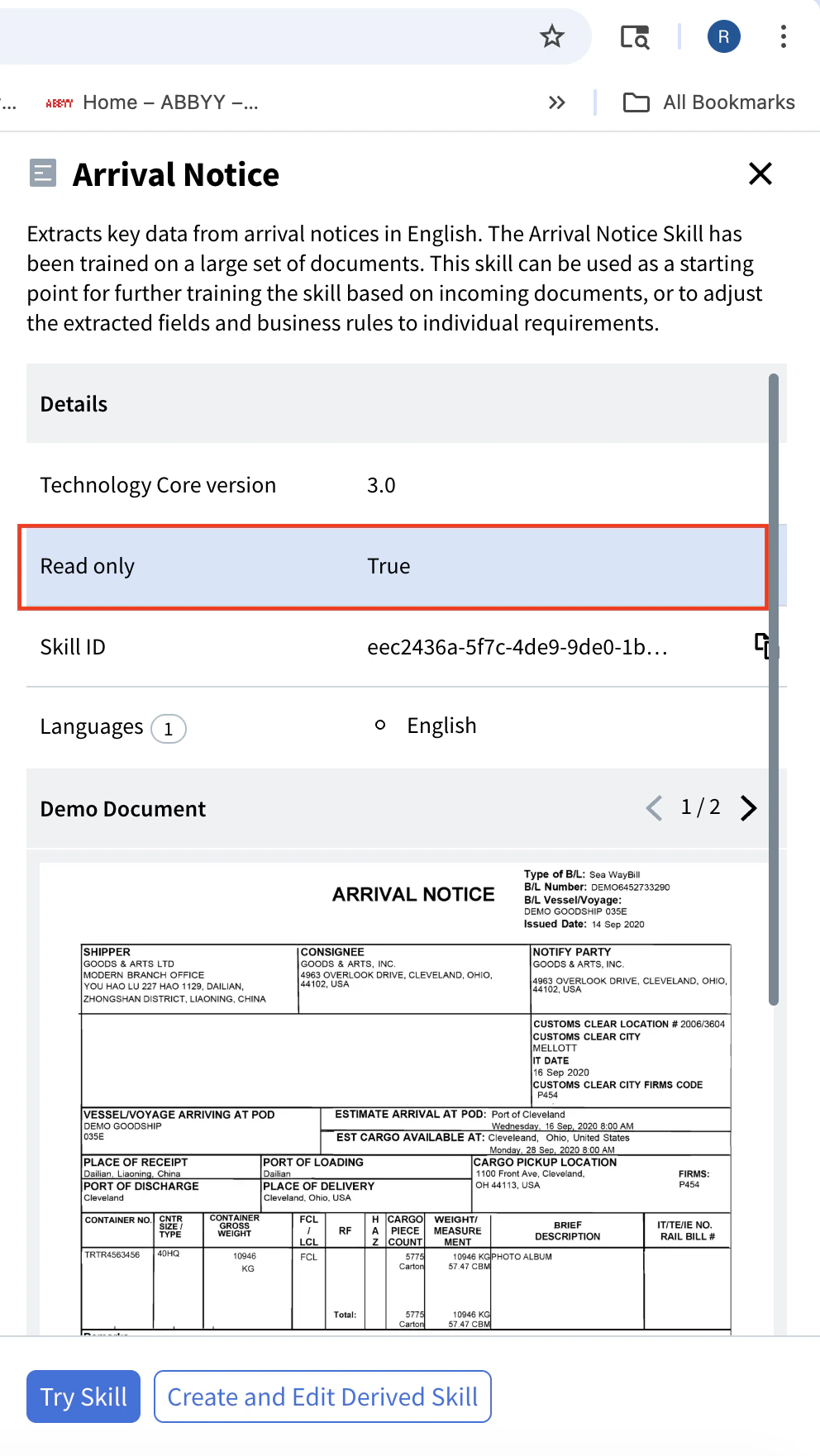
Base Skills are pre-trained, read-only skills provided by ABBYY. They are designed to handle common document types — invoices, purchase orders, identity documents, and more — out of the box. You cannot edit a Base Skill directly, but you can use it as-is or use it as the starting point for a Derived Skill.
Where to Find Them
Base Skills are listed in the Skill Catalog. To open it:
- Sign in to your ABBYY Vantage tenant.
- In the left sidebar, click Skill Catalog.
- Browse or search for skills by document type.
Skills with a lock icon or a “Read-only” label are Base Skills.
What You Can Do with a Base Skill
- Use it directly in a Process Skill workflow — no configuration needed.
- Create a Derived Skill from it if you need to customize fields, validation, or recognition settings.
You cannot rename, retrain, or modify the internal configuration of a Base Skill.
Derived Skills
What They Are
A Derived Skill is a full, editable copy of a Base Skill. When you derive a skill, you inherit all of its pre-trained extraction logic, field definitions, and recognition settings — and then you can customize any of them.
When to Use a Derived Skill
Use a Derived Skill when:
- A Base Skill exists for your document type, but it doesn’t quite match your needs.
- You need to add, remove, or rename fields.
- You want to adjust validation rules or confidence thresholds.
- You want the benefit of ABBYY’s pre-training but with your own configuration on top.
How to Create a Derived Skill
-
In the left sidebar, click Skill Catalog.
-
Find the Base Skill you want to derive from.
-
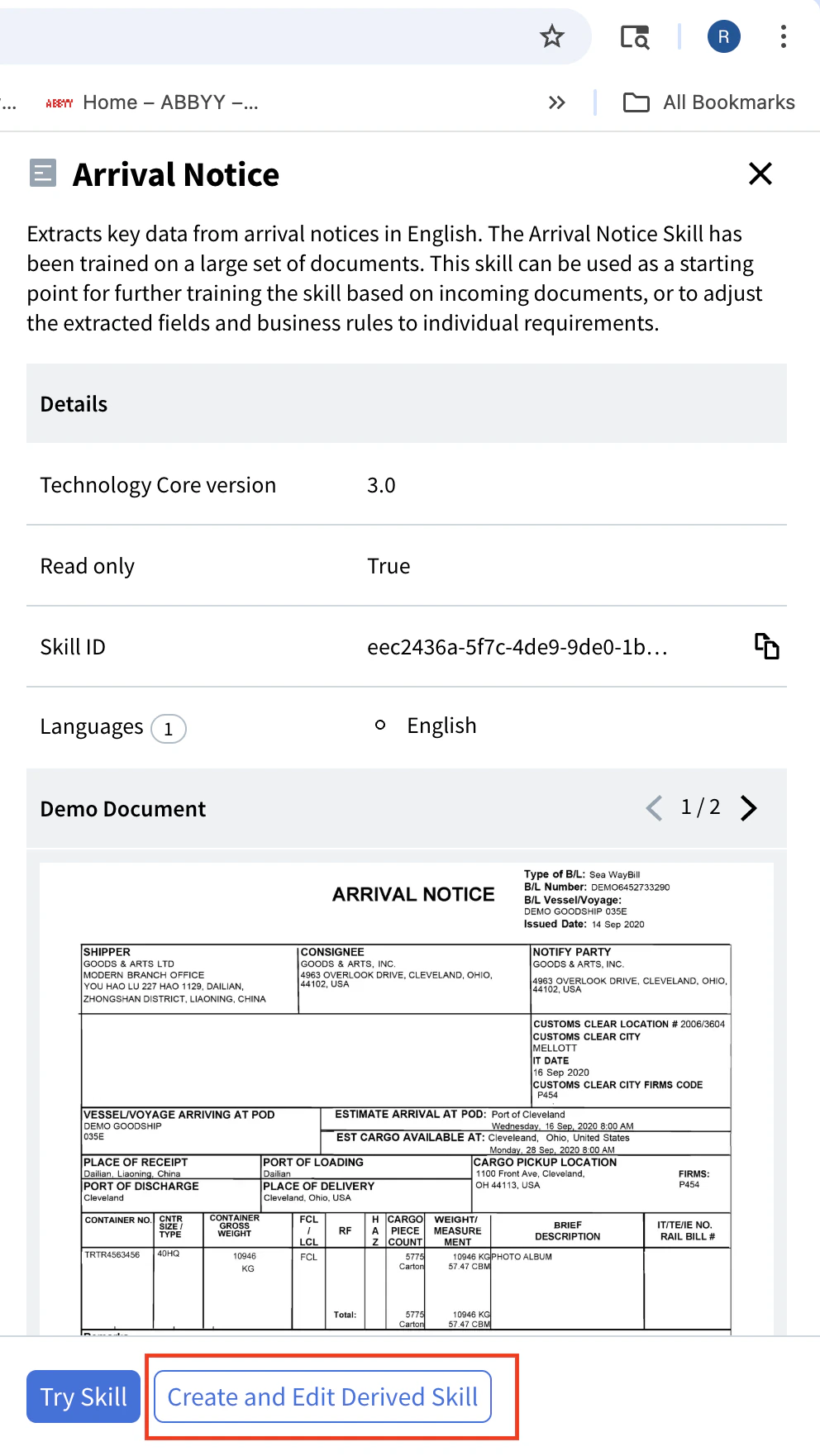
Click the skill to open its detail page.
-
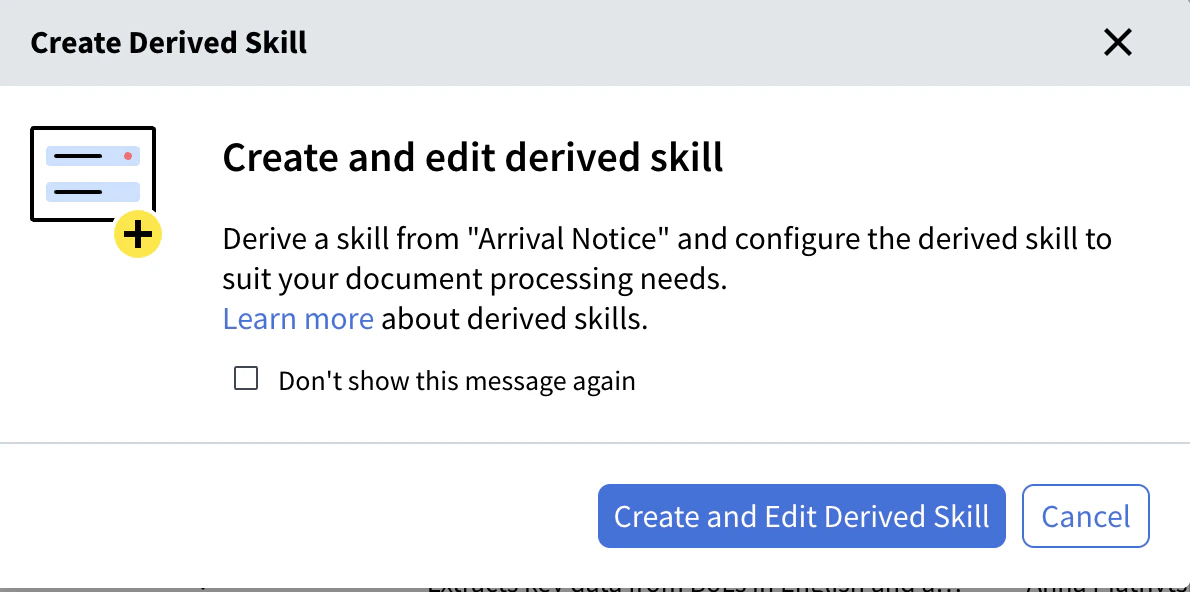
Click Create and Edit Derived Skill.
-
Click Create and Edit Derived Skill.
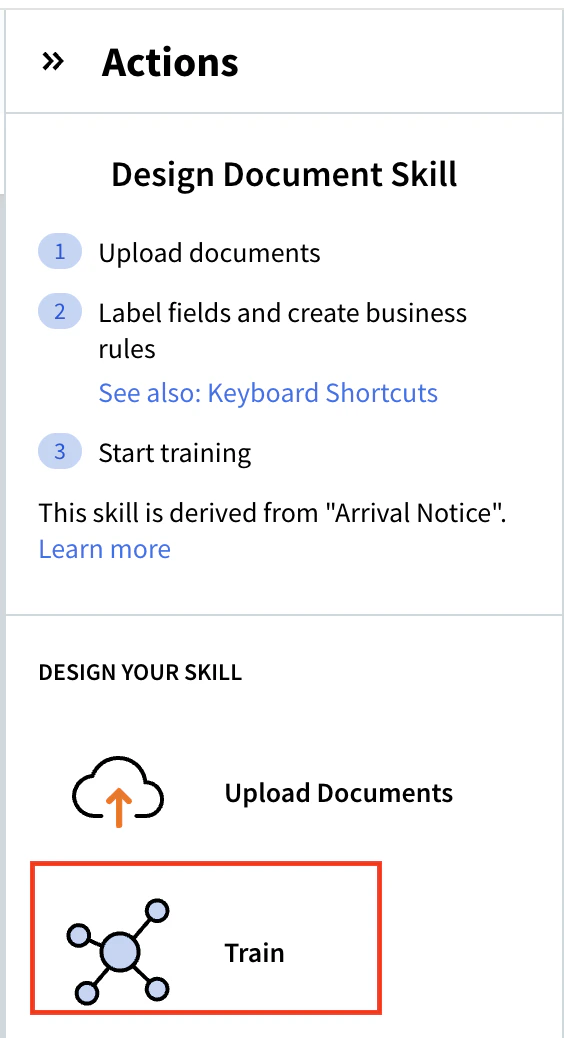
The skill opens in the editor.
- Upload or drag and drop documents to get started.
- Now you can:
- Add or remove extraction fields
- Modify field labels and validation rules
- Adjust recognition settings
- Upload additional training documents if needed
- When finished editing the skill, click Train.
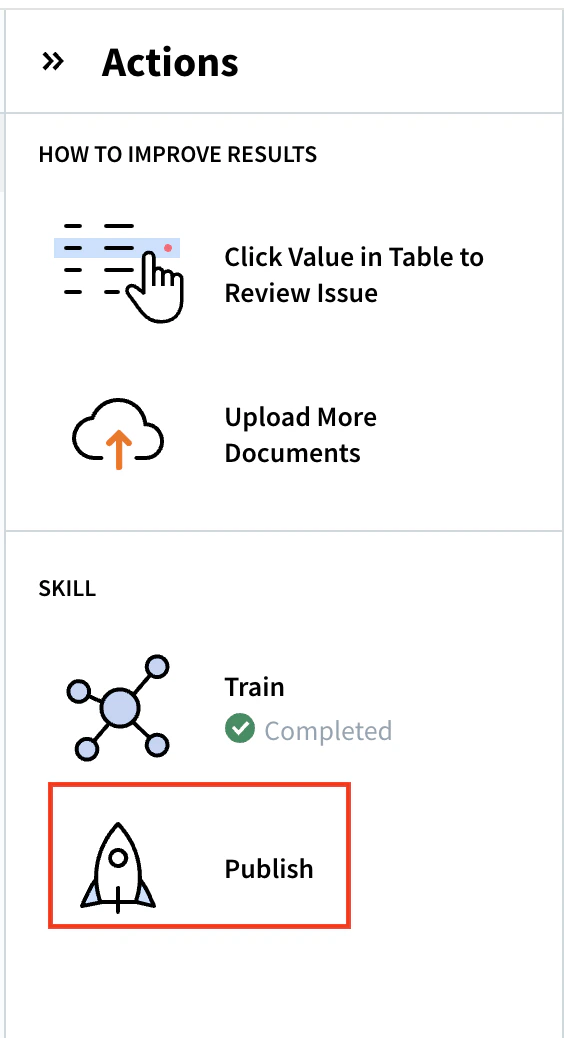
- When Training is finished, click Publish to make the skill available for use in Process Skills.
Updating a Derived Skill When the Base Skill Updates
When ABBYY releases an update to a Base Skill, your Derived Skill does not automatically inherit the changes.
- In the Skill Catalog, look for an update icon next to the version number of the Derived Skill.
- Click the update icon and select Update, or open the Derived Skill, click the settings icon, select the latest version of the base skill, and click Save.
- The Derived Skill is automatically retrained. Test the skill and make any needed adjustments.
- Click Publish to make the updated version available.
If you are not satisfied with the extraction results after updating, do not publish the skill. Use the previous version instead by selecting the skill in the Skill Catalog and clicking Discard changes.
New Skills
What They Are
A New Skill is built entirely from scratch using the Skill Designer. There is no pre-trained base — you define the fields, upload training documents, label your data, and train the model yourself.
When to Use a New Skill
Use a New Skill when:
- No Base Skill exists for your document type.
- Your document has a highly custom or proprietary layout.
- You need complete control over the extraction model.
Types of New Skills
| Skill Type | Use For |
|---|
| Document Skill | Extracting structured data fields from documents |
| Classification Skill | Categorizing documents by type |
| OCR Skill | Extracting text from document images and exporting results to formats like PDF, DOCX, and others — with options for recognition languages, handwriting, image preprocessing, and barcode detection |
| Splitter Skill | Splitting a flow of pages from multi-document files into separate documents for further processing |
| Process Skill | Orchestrating end-to-end document workflows that combine classification, extraction, review, and export activities |
How to Create a New Document Skill
-
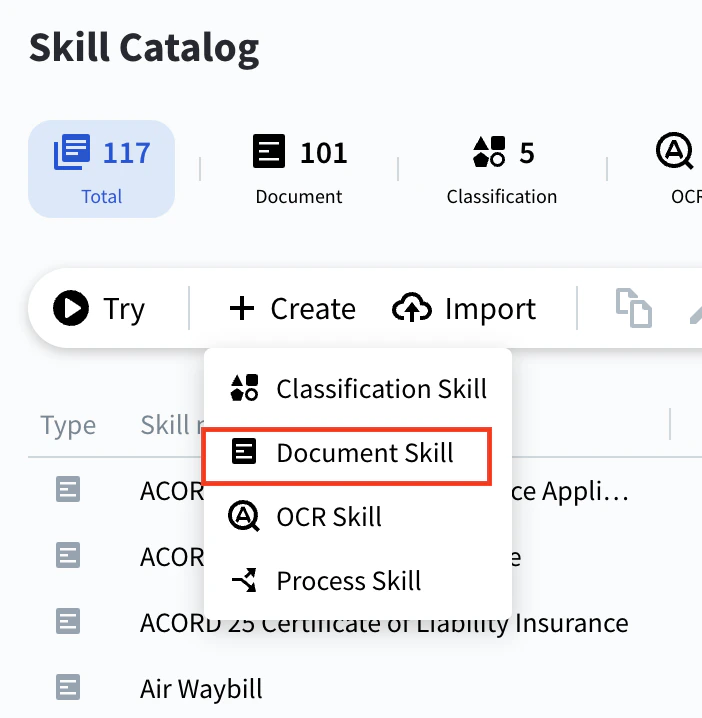
In the Skill Catalog, click the Create button on the toolbar.
-
Select Document Skill from the menu that appears.
-
Enter a name and optional description for the skill.
-
Click Create to open the Skill Designer editor.
-
In the Documents tab, upload sample documents for training. Start by labeling fields on one document — accuracy improves as you add more varied examples.
-
In the Editor tab, use the labeling tool to mark and tag the fields you want to extract from each document.
-
Click Train in the Actions pane to build the extraction model from your labeled data.
-
Review extraction accuracy, correct errors, and repeat steps 5–7 until results are satisfactory.
-
Click Publish when results meet your requirements.
The more training documents you provide — and the more varied they are — the more accurate your extraction model will be.
Decision Guide
Use this guide to choose the right approach:
- Does ABBYY have a pre-built skill for your document type?
- Check the Skill Catalog.
- If yes → start with a Base Skill. Use it directly in a Process Skill.
- Does the Base Skill work well enough as-is?
- If yes → use the Base Skill directly. No customization needed.
- If no (fields are missing, validation is wrong, layout doesn’t match) → create a Derived Skill.
- Is there no Base Skill for your document type?
- If correct → create a New Skill in the Skill Designer.
In short:
| Situation | Recommended Approach |
|---|
| ABBYY has a skill and it works | Base Skill |
| ABBYY has a skill, but it needs tweaks | Derived Skill |
| No suitable Base Skill exists | New Skill |
Summary
- Base Skills are pre-trained, ready to use, and cannot be edited.
- Derived Skills are editable copies of Base Skills that inherit pre-trained logic.
- New Skills are built from scratch and require your own training data.
- Start with a Base Skill whenever possible — derive or build new only when you need to.
Next steps