Configure the Options dialog in ABBYY FlexiCapture: task progress logging, interface colors, startup dialogs, document processing, and keyboard shortcuts.
You can set up document processing and the program interface to suit your needs. In the main window, select Tools → Options….Which tabs the dialog box contains depends on your role. The Colors, Dialogs, and Keyboard Shortcuts tabs are available to all Operators. The Task Progress and Document Processing tabs are available to the Administrator.
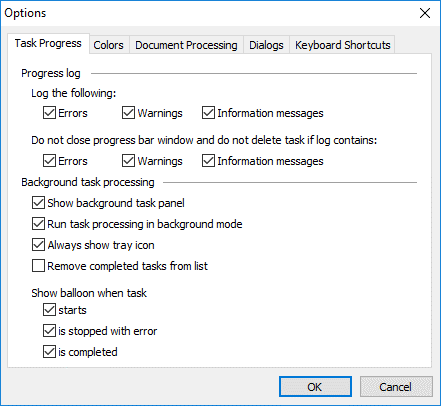
When tasks run in background mode, you can monitor progress in the task progress window, in the log file, and in the pop-up tips.On the Task Progress tab, select which information is written to the log file and when balloon messages appear.
Available to the Administrator and to Verification Operators.On the Colors tab, change the color of interface elements. Examples include the frames that enclose selected fields in the Document Definition editor, and the frames and fill-in color of fields with errors and warnings.Select the element, and then click the Color button.
Available to the Administrator. The Document Processing tab controls how FlexiCapture recognizes added images, exports documents that contain errors, handles script errors, and updates data sets.
Option
Description
Recognize added images automatically
Recognizes images as soon as they are added to the batch.
Run recognition process in background mode
Runs the recognition process in the background.
Skip documents with errors during manual export
Exports both successfully processed documents and documents that contain errors.
Disable external script debugging
Keeps the Visual Studio debugger from launching for Active Scripting script errors. By default the debugger launches when a script error is detected. With this option selected, FlexiCapture displays an error message instead.
Update data sets when batch is opened
Updates data sets on stations each time a batch is opened. Clear this option when stations have no access to the external database.
The Dialogs tab controls which dialog boxes and warnings FlexiCapture displays.
Option
Available to
Description
Show ‘Open Project…’ dialog on startup
All Operators
Displays the Open Project dialog box when you launch the program, where you can select an existing project. Selected by default. You can also clear this option in the dialog box itself.
Show warning if unpublished Document Definition exists
Administrator
Warns you of any unpublished Document Definitions when you close a list of Document Definitions. You can also clear this option in the dialog box itself.
Warn if document is exported with errors
Administrator
Displays a notification when a document is exported with errors.
Prompt save changes when switching between documents
Administrator
Displays a confirmation dialog box before saving changes when you switch documents. When this option is cleared, changes are saved automatically.