
When no operator control is required, documents can be imported, recognized, and exported in background mode. In a distributed installation, the Processing Server performs stages that need no operator involvement automatically. You can also perform them manually on the Verification Station or the Project Setup Station, and in that case they can run in background mode.

Enable background mode for a task

Click Background Mode in the Adding images…, Recognizing…, or Exporting… dialog box.

Tasks that can run in the background

  • Loading images with the corresponding import profiles
  • Document recognition, when the Recognize added images automatically option is selected in Tools → Options… → Document Processing
  • Export of documents, in a standalone installation only

Track tasks in the Background Tasks dialog box

While tasks run in background mode, the Background tasks icon icon appears on the task bar. Click this icon to open the Background Tasks dialog box, which lists the tasks. Tasks are executed on a first-come, first-served basis, or according to user-defined priorities.
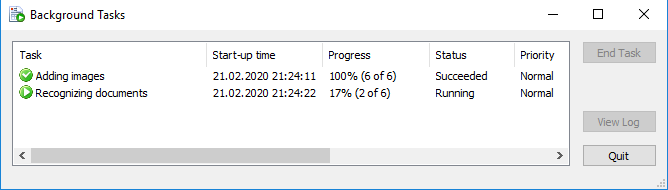
Screenshot of the ABBYY FlexiCapture Background Tasks dialog box, listing the queued background tasks with their progress and the End Task and View Log buttons.
To stop a task, click End Task. Task execution is written to a log file that you can customize in Tools → Options… → Task Progress. To view the log, click View Log.

Background task panel

The lower section of the background task panel lists the tasks you started, each with its current execution status.

Screenshot of the ABBYY FlexiCapture background task panel listing analyzing, recognizing, and exporting tasks with their execution status, including Succeeded, Failed, and Running states.
Double-click a task to open its log file. To show or hide the panel, use the Show background task panel option in Tools → Options… → Task Progress. To keep a task on the panel when its log contains particular messages, select Errors, Warnings, or Information under Do not close progress bar window and do not delete task if log contains. The panel lists only the tasks a user starts manually. When the Recognize added images automatically option is selected, for example, adding images puts only the Adding images task on the panel, and no subsequent recognition task appears.

Progress messages

The program also reports the progress of background tasks in balloon pop-up messages in the bottom right corner of the screen. Messages appear when tasks start, when errors occur, and when tasks finish. For more information, see Additional options.