
An identifier element or set of elements can be described in a predefined Header element (not used in this sample).
1
Open the FlexiLayout tab
Click the FlexiLayout tab in the FlexiLayout Studio main window.
2
Select the SearchElements node
Select SearchElements in the FlexiLayout tree.
3
Add a Static Text element
Select the Static Text command in FlexiLayout → Add Elements → Static Text or in the shortcut menu of the element.
4
Name the element
In the Name field, type a name for the element, for example, FormHeader.
5
Mark the element as required
Select Required element on the General tab, because the document heading is a required element.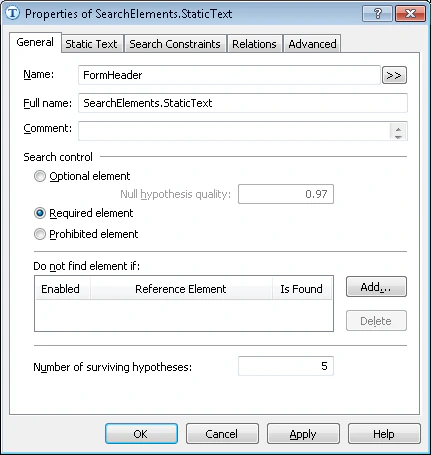
6
Open the Static Text tab
Click the Static Text tab.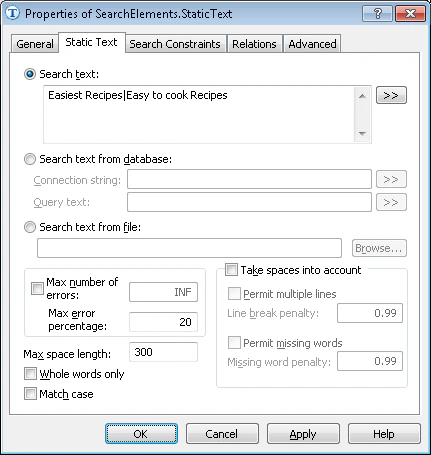
7
Enter the search text
In the Search text field, type the text to find.The batch contains test documents with different headings: Easiest Recipes or Easy to Cook Recipes. Enter both headings.The headings appear on one line on all the test images. Type them without spaces to speed up the search for single-line static text, and separate the two alternative headings with
|.8
Set the maximum error percentage
Set the maximum number of errors that the detected text may contain, in percentage points or as a number. In this case, set the Max error percentage to 20, which allows 5 errors among the 25 characters of the document heading.Set this maximum by trial and error.