
1
Create the RecipeContents Group element
Create a Group element and name it RecipeContents.
2
Add the IngredientsHeader element
Within the RecipeContents element, create a Static Text element and name it IngredientsHeader. It corresponds to the name Ingredients. Specify the element’s properties as in Step 10 for the Recipe element.
3
Add the Separator element
Within the RecipeContents element, create a Separator element for the separator above the name Cooking.
- On the Separator tab, set the separator orientation to Horizontal.
- In the element’s Properties dialog box, click the Relations tab and set the search constraint below the name Ingredients: (that is, Below the IngredientsHeader element).
4
Match the adjusted FlexiLayout
Match the adjusted FlexiLayout again.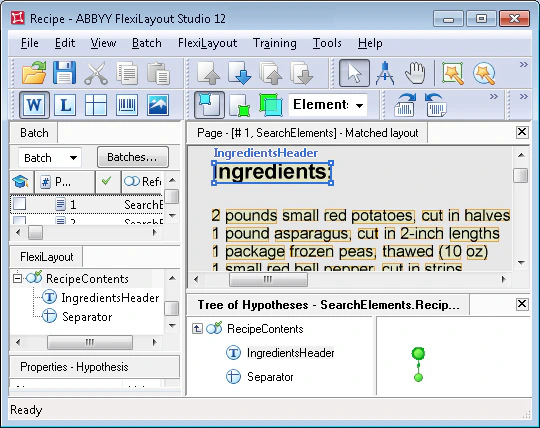
5
Constrain IngredientsHeader to the upper part of the page
Add another search constraint for the IngredientsHeader element. In the Advanced pre-search relations field (Properties dialog box, Advanced tab), add this constraint: look for the field name in the upper part of the image. In the FlexiLayout language, write it as follows:
6
Add the Ingredients Paragraph element
Within the RecipeContents element, create a Paragraph element and name it Ingredients. It corresponds to the Ingredients field.On the Relations tab of the element’s Properties dialog box, set the search constraints: below the Ingredients: heading (Below the IngredientsHeader) but above the separator (Above the Separator element).Match the FlexiLayout against the test images and confirm that FlexiLayout Studio finds the Ingredients field on every image.