
The top part of the window contains the menu bar and the toolbar. The bottom part contains the status bar, which displays messages about the program’s status and the operations it is performing, and brief descriptions of selected menu items and buttons. The rest of the main window is taken up by a pane that contains either a list of queues or a list of documents. There are two view modes: the queue mode and the batch mode. The contents of the main window will change depending on which mode is selected.

Queues

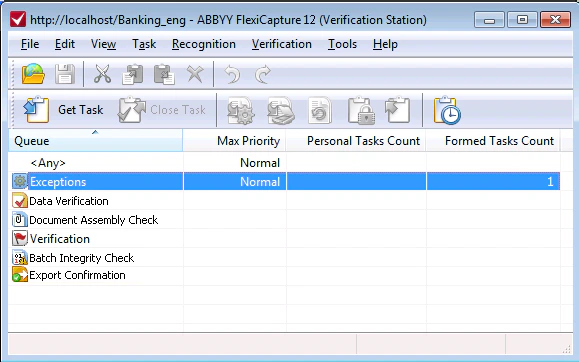
The main window contains a list of queues from which you can select a tasks to process. The Verification Operator and the Senior Verification Operator have access to several task queues. The task pane contains the following information:
  • All Tasks Count
    The number of available tasks in the queue. Includes automated tasks and tasks created by Operators.
  • Max Priority
    The highest priority of all tasks in the queue.
  • Personal Tasks Count
    The number of tasks assigned to the current user.
  • Formed Tasks Count
    The total number of documents in all tasks that were generated automatically.
  • Formed Tasks Count
    The number of tasks that were created manually by Operators, for example when documents were added to the queue while the Create task option was enabled.
  • Out-of-Processing Batches Count
    The number of batches that were added to the queue by an Operator without creating a separate task.
  • Processing Warning Task Count
    The number of tasks containing documents from batches that are approaching their deadline.
  • Overdue Task Count
    The number of tasks containing documents from overdue batches.
You can use the Explore Queue command on the shortcut menu of a queue to open the view.
A list of documents in a task is displayed when a task is received.

Batches

This view is available for the Senior Verification Operator only.
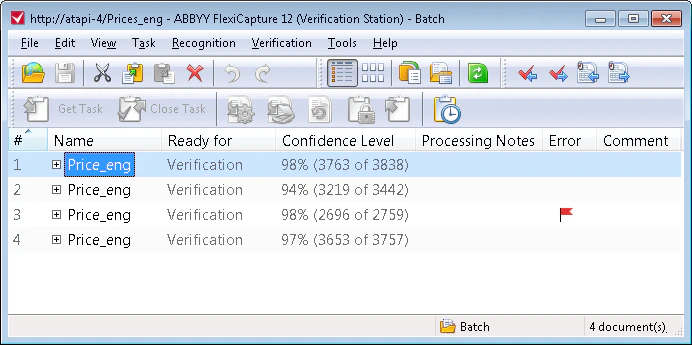
In this mode the main window contains batch-related information, including the number of documents and pages in batches, the priority of batches and the amount of recognized, verified and exported symbols in batches and deadlines. By default, all batches available to the Operator except for those that have already been processed are displayed. One page can contain up to 500 batches. Use the arrow buttons in on the right to switch between pages.

Filtering batches

You can filter batches from projects that are stored on the processing server. To do this, select a filter from the Show drop-down list and specify filter settings.
  • All batches except processed;
  • Batches on stages… filters batches by processing stages.
  • Only enabled stages hides stages that are not used for processing any of the batch types in the current project.
    • Show out-of-processing batches shows batches that were not processed. If this option is enabled, you will not be able to filter by selected batch types.
  • Batch with name prefix…
    Filters batches by the prefixes of their names.
  • Batch with ID…
    Filters batches by their IDs.
  • Batch containing document with ID…
    Filters batches by IDs of documents they contain.
  • Batches created in period…
    Filters batches by their creation time. Dates earlier than 02/01/1753 and later than 12/31/2100 are not permitted.
  • Batches with batch type…
    Filters batches by their type.
  • Batches with specific registration parameter…
    Filters batches by registration parameter names and values. The filter can include up to three parameters.
You can specify the name and value of a registration parameter manually or select them from the Parameter drop-down list. This list contains registration parameters from all batch types and the last ten parameter names that you typed. The Value drop-down list contains ten registration parameters that were specified by a user.
  • Batches filtered with…
    Advanced search that uses batch name prefixes, batch types, creation dates, registration parameters and stages.
  • Batches overdue within time period…
    Filters batches by deadline dates.
  • Batches with expiration status…
    Filters batches by their deadline status.
When a filter is in use, a brief summary of its settings is displayed to the right of the Show drop-down list. To change the settings of the filter that is currently in use, click the button. Verification Station Menu Verification Station Toolbars