
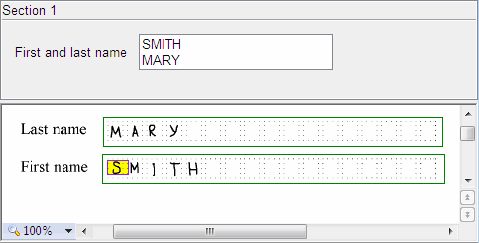
A field can comprise several regions on the image. These regions can be located far apart or even on different pages. Values from all regions of the same field are combined and exported together as one field. Creating several regions is convenient for fields that span several pages, such as large tables.
Example of a field that continues across several regions
In a field with several regions, values are sorted vertically. The value of the region with the uppermost boundary comes first.

Create a field with several regions

1

Create a field

Create the field.
2

Continue the region

Select the field, right-click in its region, and select Continue Region from the shortcut menu.
3

Position the region

Move the region image to the required location on the page.