
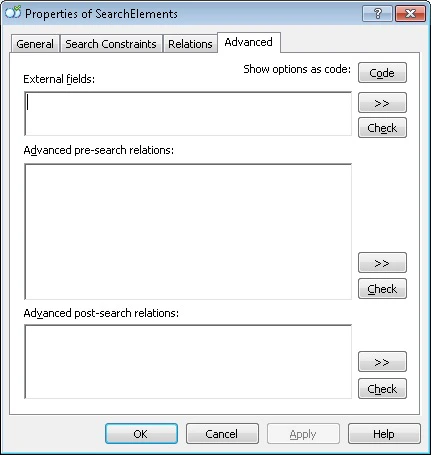
You can specify additional search constraints in the FlexiLayout language on the Advanced tab of the element’s Properties dialog box. To open the Properties dialog box, in the FlexiLayout window, right-click the element and select Properties… on the shortcut menu.
Screenshot of the Advanced tab of the element's Properties dialog box in ABBYY FlexiLayout Studio.
For a Repeating Group element, an Advanced for All Instances tab is also available. For more information, see Additional search constraints for a Repeating Group element.
ABBYY FlexiLayout Studio provides a code editor for entering additional search constraints. The code editor can highlight different types of tokens, suggest available methods and properties (full stop suggestions), and find and replace any strings.

Full stop suggestions

ABBYY FlexiLayout Studio offers full stop suggestions as you write code in the FlexiLayout object-oriented language. The suggestions make it easier to enter the names of methods and fields for the various object types available in the language. When the expression you type is the name of an object, entering a full stop (”.”) after the name opens a drop-down list of the methods and fields available for that object. When you start typing, the selection automatically moves to the first name that starts with the characters you type after the full stop. A separator character is any character that cannot be used in the names of methods or fields (~!#%^&*()-=+|/?><{}[];:.,’”). The following keys and actions control the suggestion list:

Types of additional search constraints

Additional search constraints can be of two types:

Element fields

An element field is a typed variable that belongs to an element. Element fields are defined in the External fields section on the Advanced tab and are used in additional search constraints. The value of a field can be changed only in the element to which it belongs, but it can be used in the additional search constraints of that element and of the elements beneath it in the tree. For more information, see User-defined properties.