
Create the CompanyGroup group element
Create a Group element, name it CompanyGroup, and keep the default settings.Create the Company element
1
Create the Static Text element
In the CompanyGroup element, create a Static Text element and name it Company.
2
Read the search text from a file
Click the Static Text tab, select Search text from file, and specify the path to the 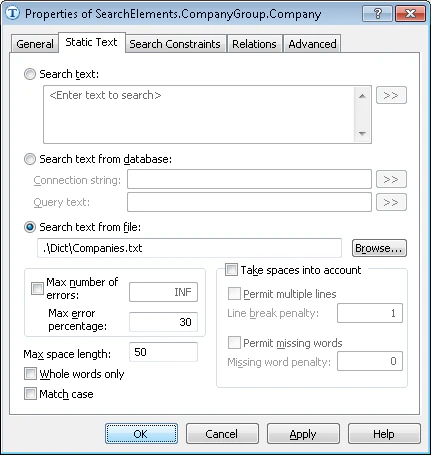
Companies.txt file (folder %public%\ABBYY\FlexiCapture\12.0\Samples\FLS\English\Invoice\Dict).3
Restrict the search area
Click the Advanced tab. In Advanced pre-search relations, specify an additional search constraint: search for the image object in the first third of the first page of the document. In the FlexiLayout language:
4
Match the FlexiLayout
Match the FlexiLayout to confirm that it reliably detects the element on all the images where it occurs.
5
Handle multi-line company names
When you review the matching results, you will notice that FlexiLayout Studio failed to find the company name on some documents. This is because on some documents the text spans two lines, whereas the element properties specify one-line text. To correct this:
- Open the
Companies.txtfile and specify the company name asYOUR SERVICEwith spaces, so FlexiLayout Studio looks for a phrase that may span more than one line. - Open the Properties dialog box of the Company element and click the Static Text tab.
- Select Permit multiple lines, so the phrase can be written on more than one line.
- Set Line break penalty to 1, to retain the quality of the generated hypothesis even when the text spans more than one line. A smaller value would penalize the hypothesis.
6
Verify the match
Match the FlexiLayout to confirm that FlexiLayout Studio reliably detects the element on the test images.
7
Set the block region
Specify the location of the Company block as the rectangular region of the Company element expanded by 5 dots vertically and horizontally. Select Expression and specify this expression: