
1
Create the project
Run ABBYY FlexiLayout Studio and create a new project (File → New Project). Name the project Invoices and select the ABBYY FlexiLayout Project Files (*.fsp) project type.
2
Add the images to the batch
Add the test images to the batch. For more information, see Sample 1, Step 2.
The test images for Sample 4 are located in
%public%\ABBYY\FlexiCapture\12.0\Samples\FLS\English\Invoice\InvoicesBatch\<page number>\Images\bwPage.frdat.3
Assemble the pages into reference documents
First, analyze the pages to see which pages go into which document and in what order. In the Batch window, the pages that belong to the same document must strictly follow one another (page 1, page 2, page 3, and so on).Then assemble each document:
If the pages were added to a batch in a random order and cannot be assembled into documents, renumber them. To renumber the pages, drag and drop each page into the location you want in the Batch window. FlexiLayout Studio automatically renumbers the rearranged pages.
- In the Batch window, select the pages that belong to the same document.
- Right-click the selection and select Assemble to Reference Documents….
- In the Assemble to Reference Documents dialog box, select One document. FlexiLayout Studio groups all the selected pages into one document.
- Select First page of document matches Header. This option means that the Header element must be matched with the first page of the document.
- Select Last page of document matches Footer. This option means that the Footer element must be matched with the last page of the document.
- Click OK. The reference layout appears in Reference layout mode: the beginning and end of the document are marked with green markers.
If the pages were assembled into a document incorrectly, you can cancel the operation by selecting Disassemble Reference Documents.
4
Specify the FlexiLayout properties
Specify the following properties for your FlexiLayout: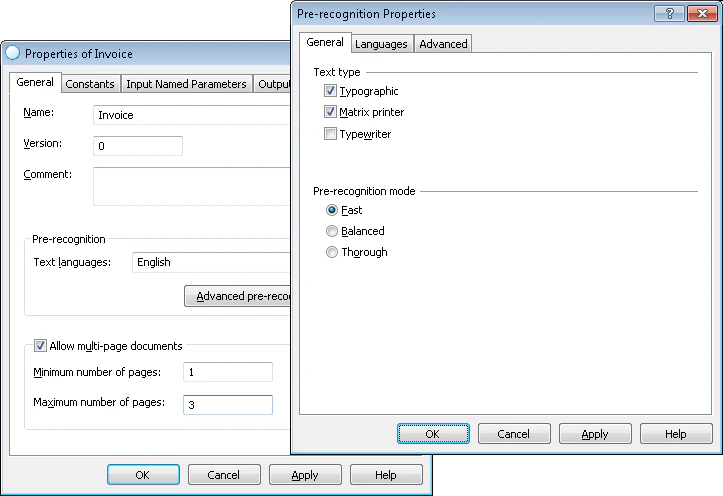
- Name: Invoice.
- Text type: Select the Typographic and Matrix printer text types.
- Text languages: Select English, because the sample documents are in English.
- Mode: Select Fast recognition mode.
- Minimum number of pages: 1, because the sample documents can include a minimum of one page.
- Maximum number of pages: 3, because the sample documents can include a maximum of three pages.