1
Open the FlexiLayout properties
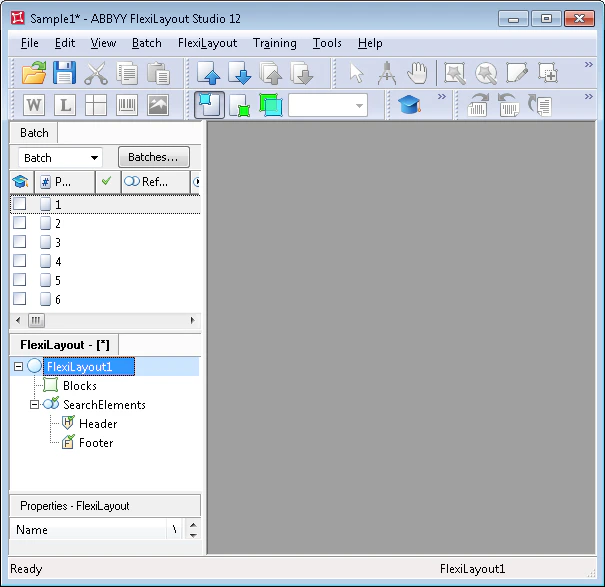
Double-click the FlexiLayout name (FlexiLayout1), or right-click the FlexiLayout and select Properties… on the shortcut menu.
2
Rename the FlexiLayout
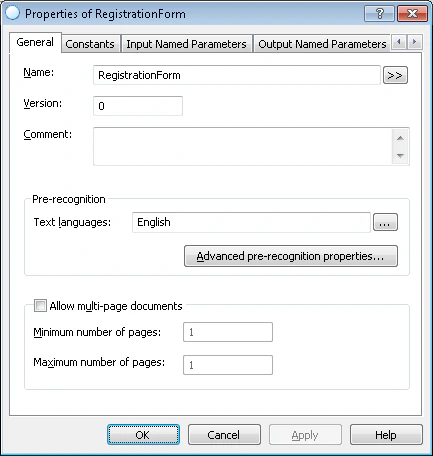
In the Name field, type a new name, such as RegistrationForm.
3
Specify the pre-recognition parameters
- From the Text languages list, select English (the documents are in English).
- Select Typographic in the Text type group (the default). The form was not produced on a dot-matrix printer or typewriter.
- In the Mode group, select Fast or Normal pre-recognition mode, depending on image quality. The sample images are good quality, with no noise and almost no small print, so select Fast mode. Fast mode speeds up pre-recognition in both FlexiLayout Studio and FlexiCapture.
4
Set the multi-page parameters
The document has one page, so specify 1 for both Minimum number of pages and Maximum number of pages.